How to view your Cases on Laymans as a Legal Professional
Go to www.laymans.app
1. Introduction
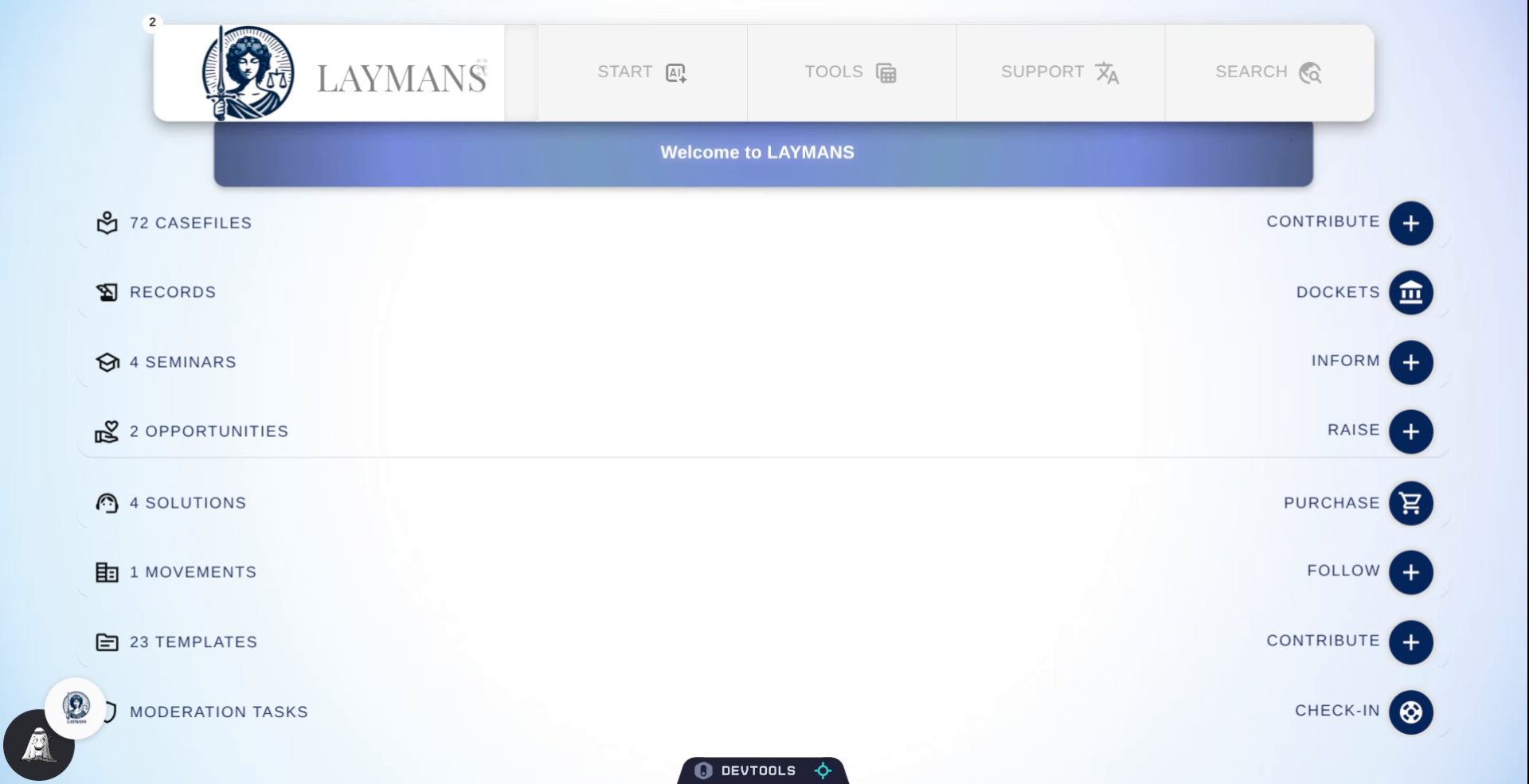
Hi, welcome to Laymans. If you're here I'm assuming you're a legal professional and want to learn how Laymans can reduce clerical work at your office. Today we'll talk about Part I of managing your organization. That is, your company's feed. This guide assumes you have an account, logged in, and are verified -- if you don't know how to do that you can view those guides respectively. Let's get started.
2. Open Main Menu
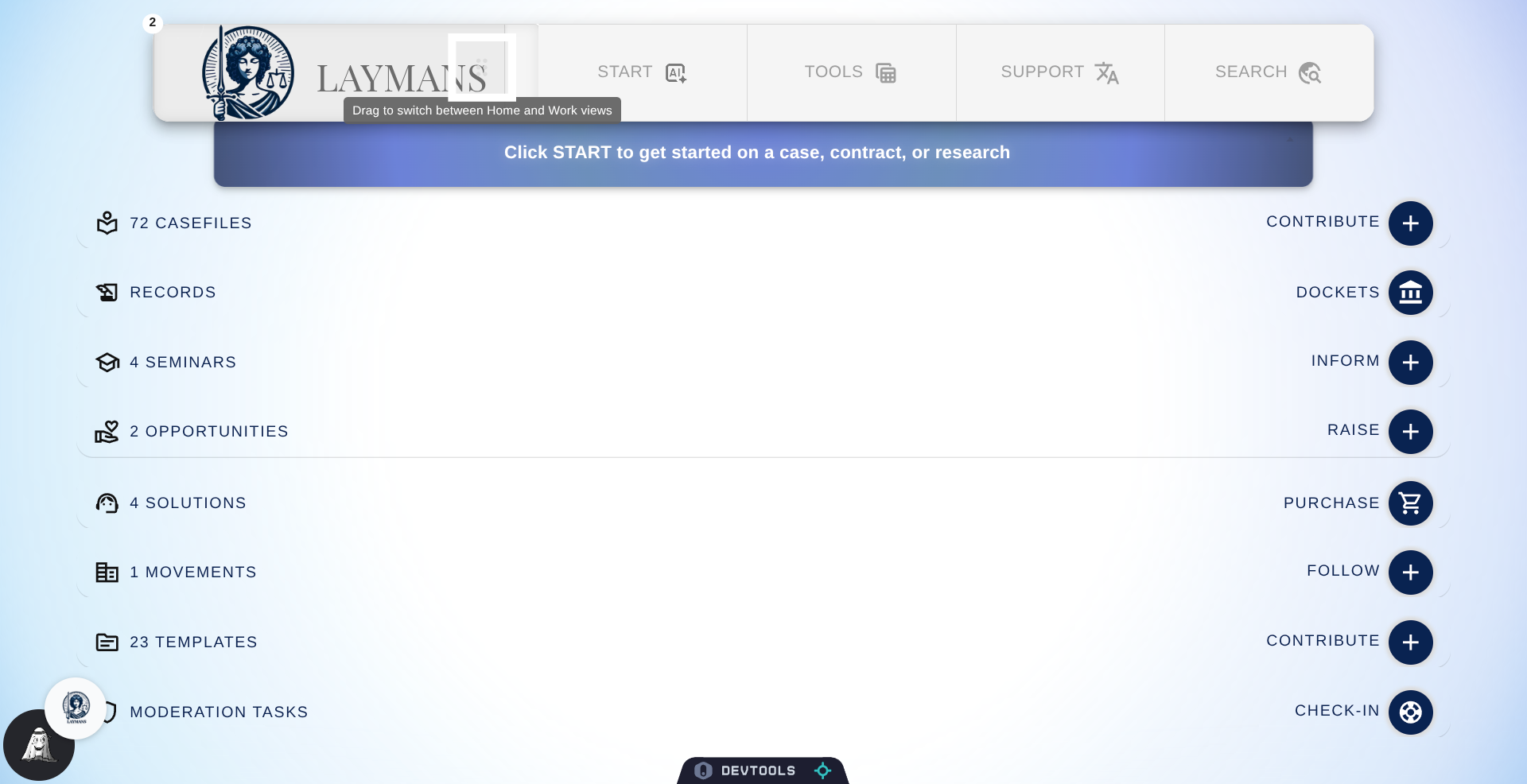
If you're logged in and registered as a Laymans professional you can navigate to "Laymans for Work" by simply swiping the Laymans logo up here.
3. Access Organization Section
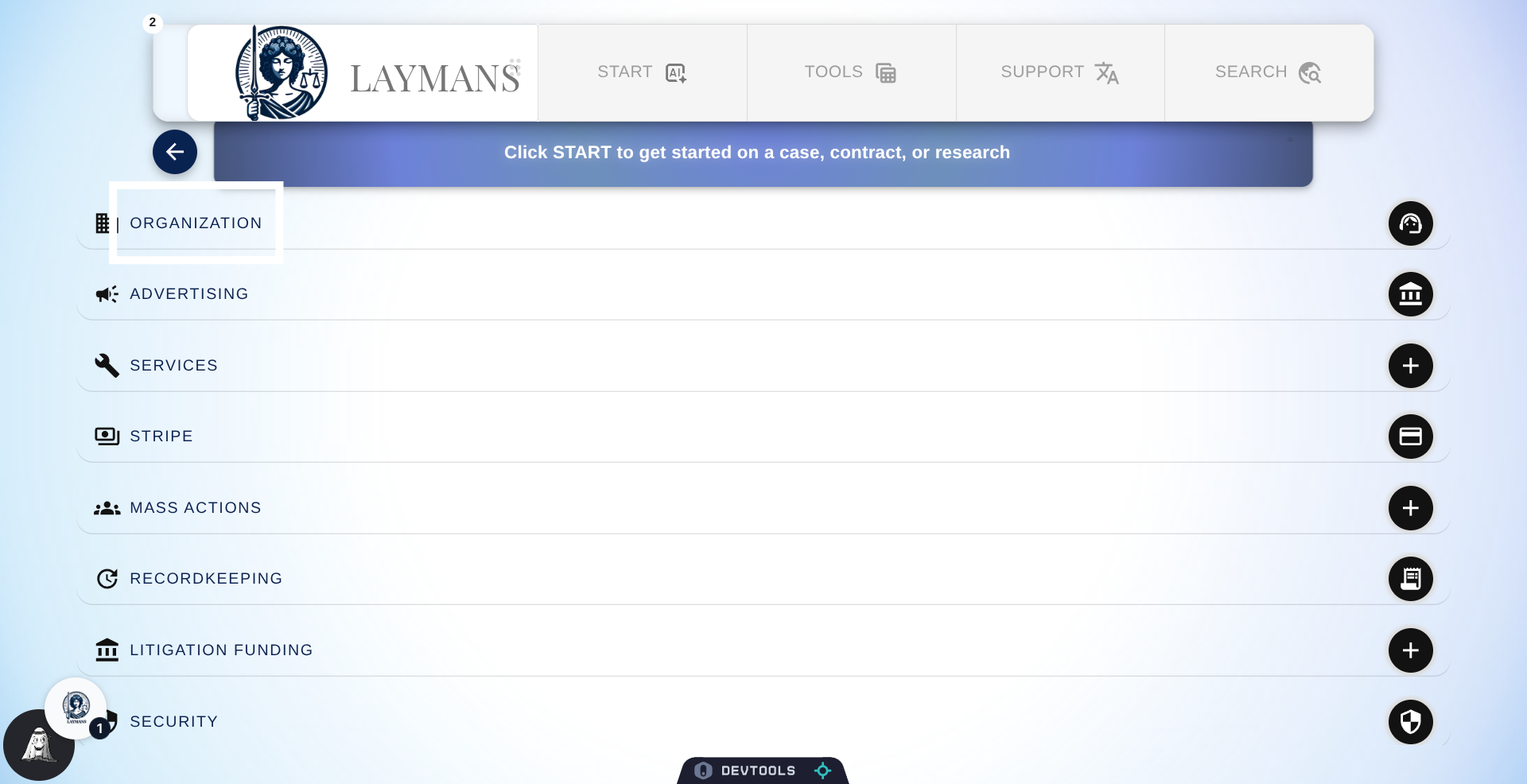
For this set of tutorials we'll be working from the Organization Dashboard -- accessed here.
4. Welcome to your Feed
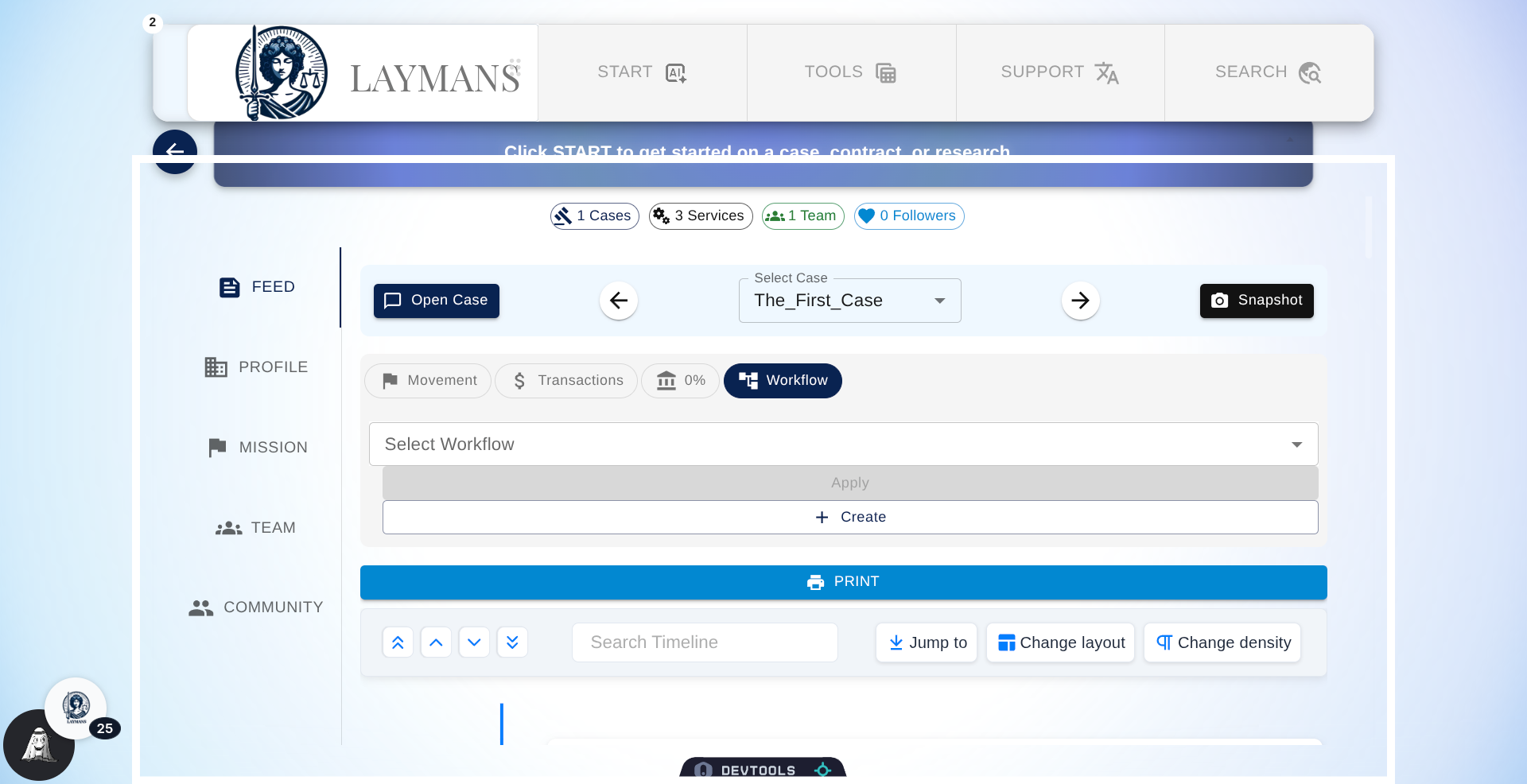
One of the first interfaces Laymans offers to legal organizations to modernize their workflows is the Feed. The feed allows you to view all your cases at a glance, their payment status, any automations you've placed, and most recent changes.
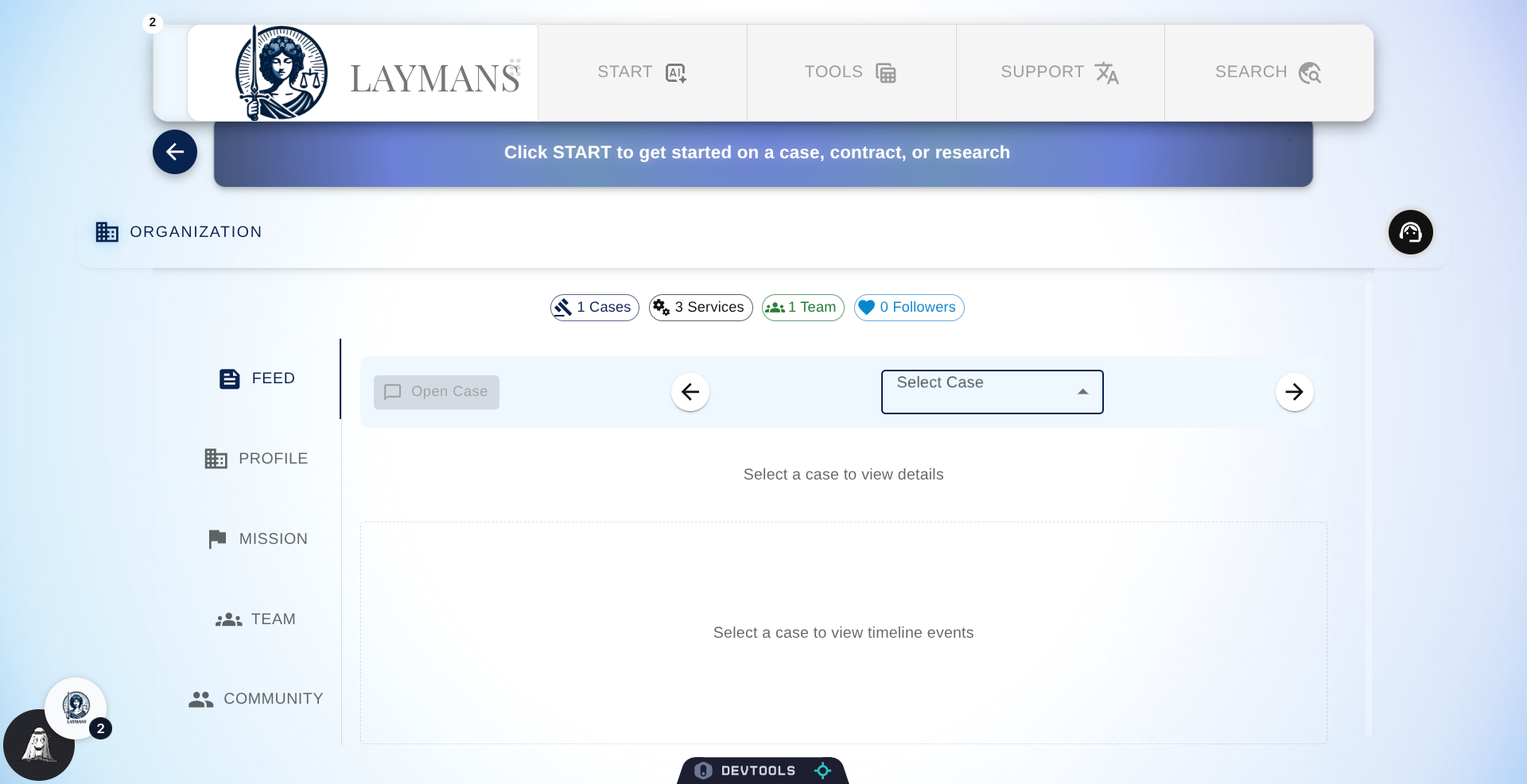
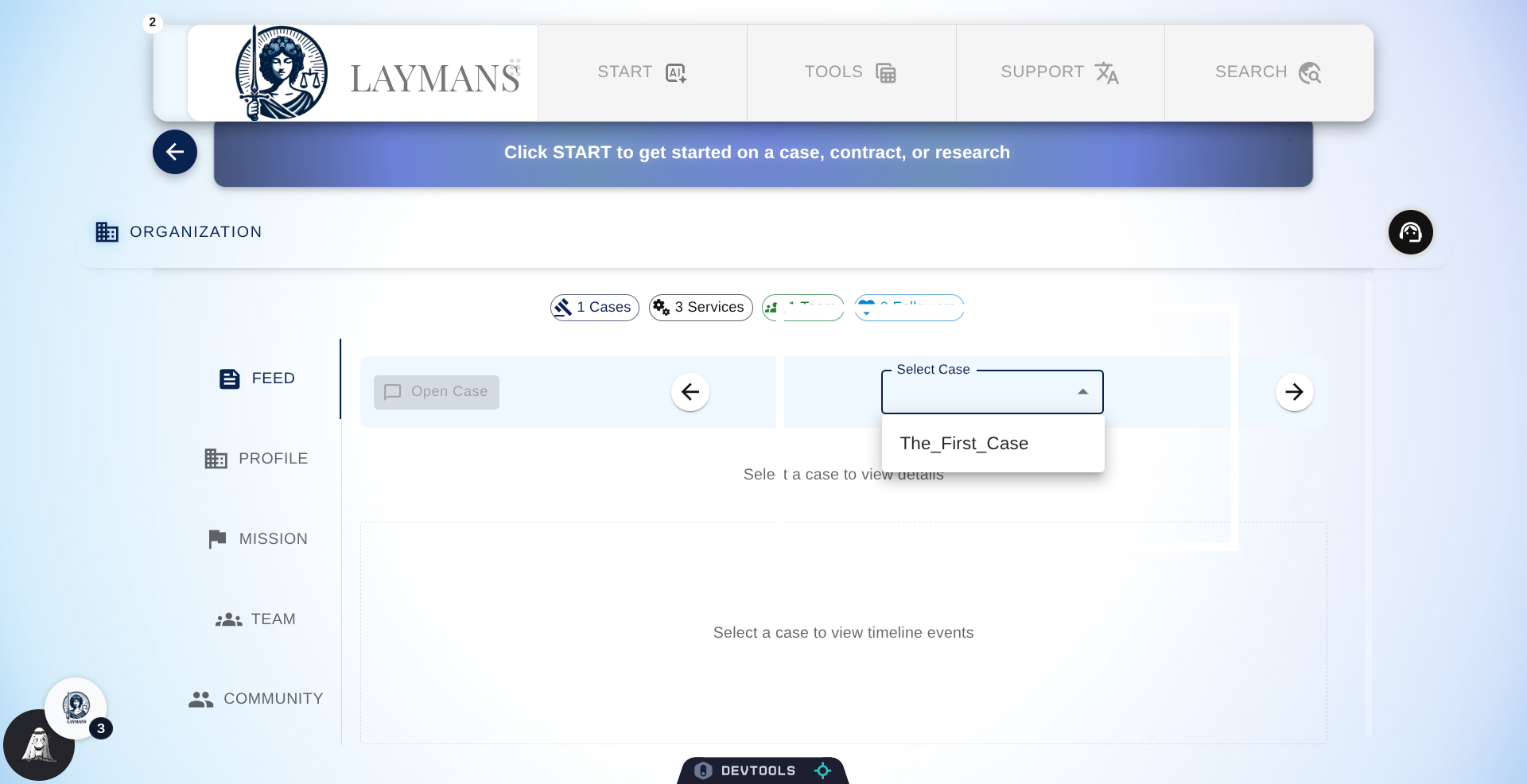
5. Select a Case from Single Select
Let's select a case to dive in, you can quickly navigate through cases with the arrow buttons or typing the title in...
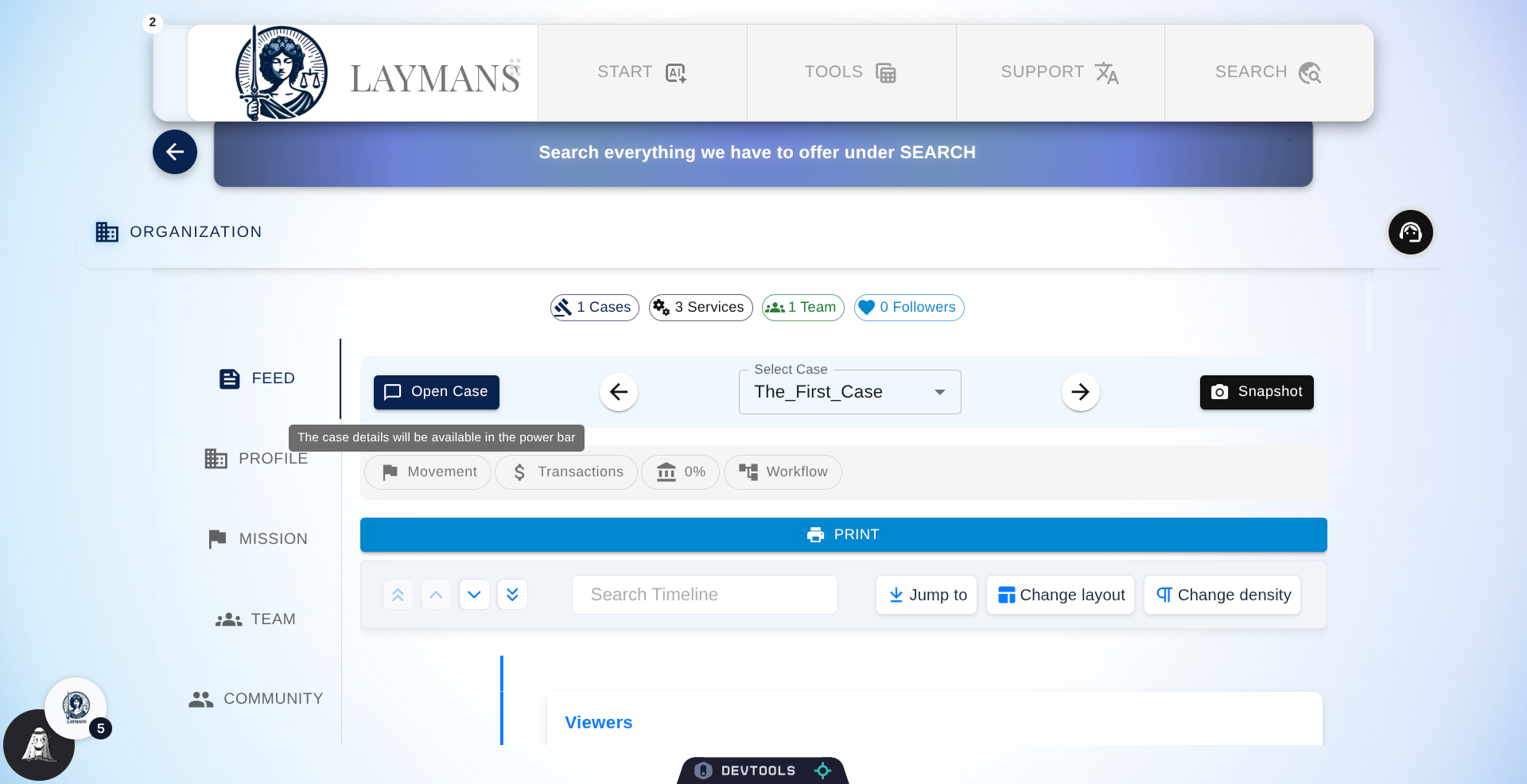
6. View Case Details
Now that a case is selecrted we can do a number of things: We can set our working context to that case and begin editing materials in the PowerBar.
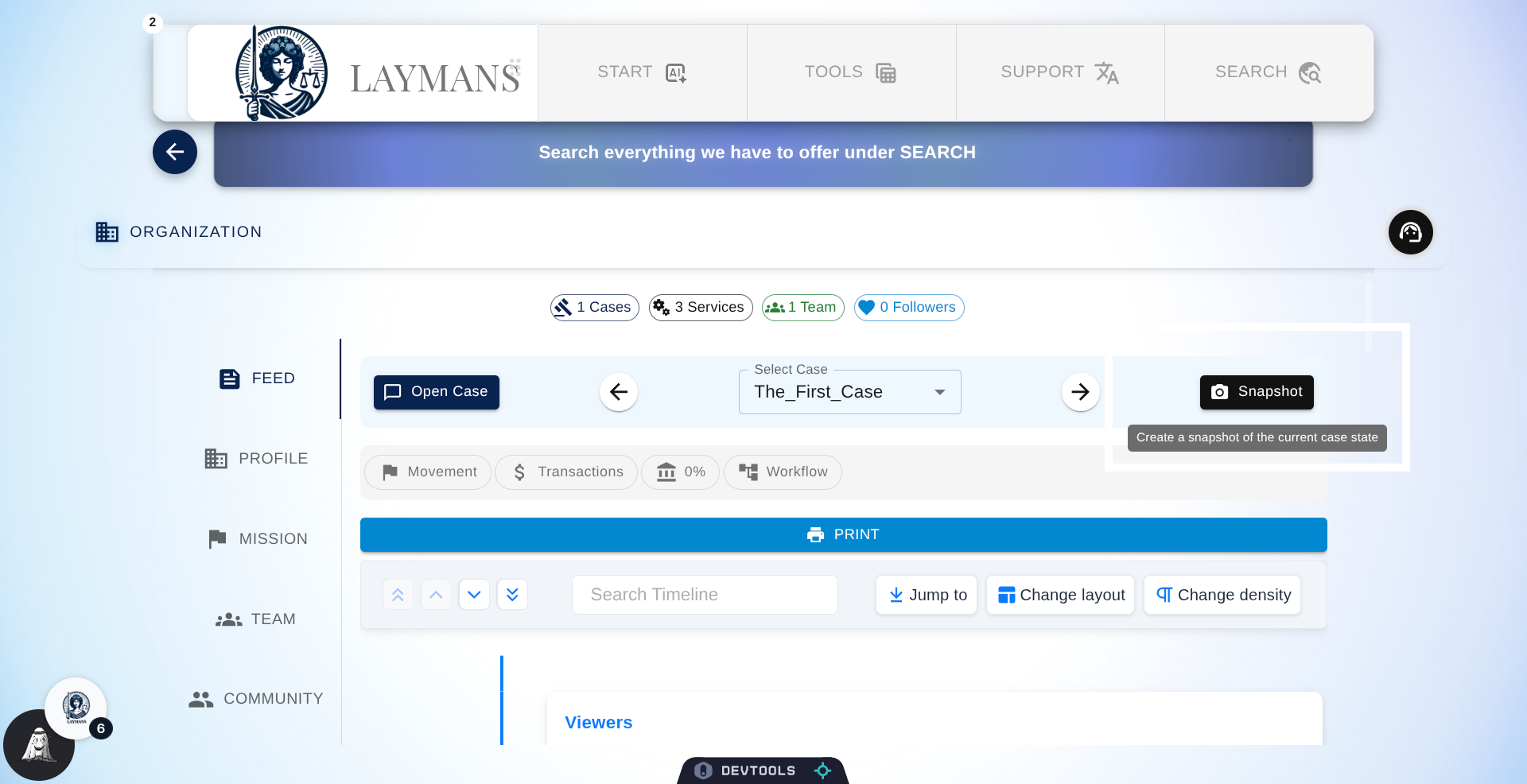
7. Create Case Snapshot
Or we can create a snapshot; a snapshot will show up on the Timeline below as a moment from which we can restore the case, undoing changes until that point.
8. The Feed Status Toolbar
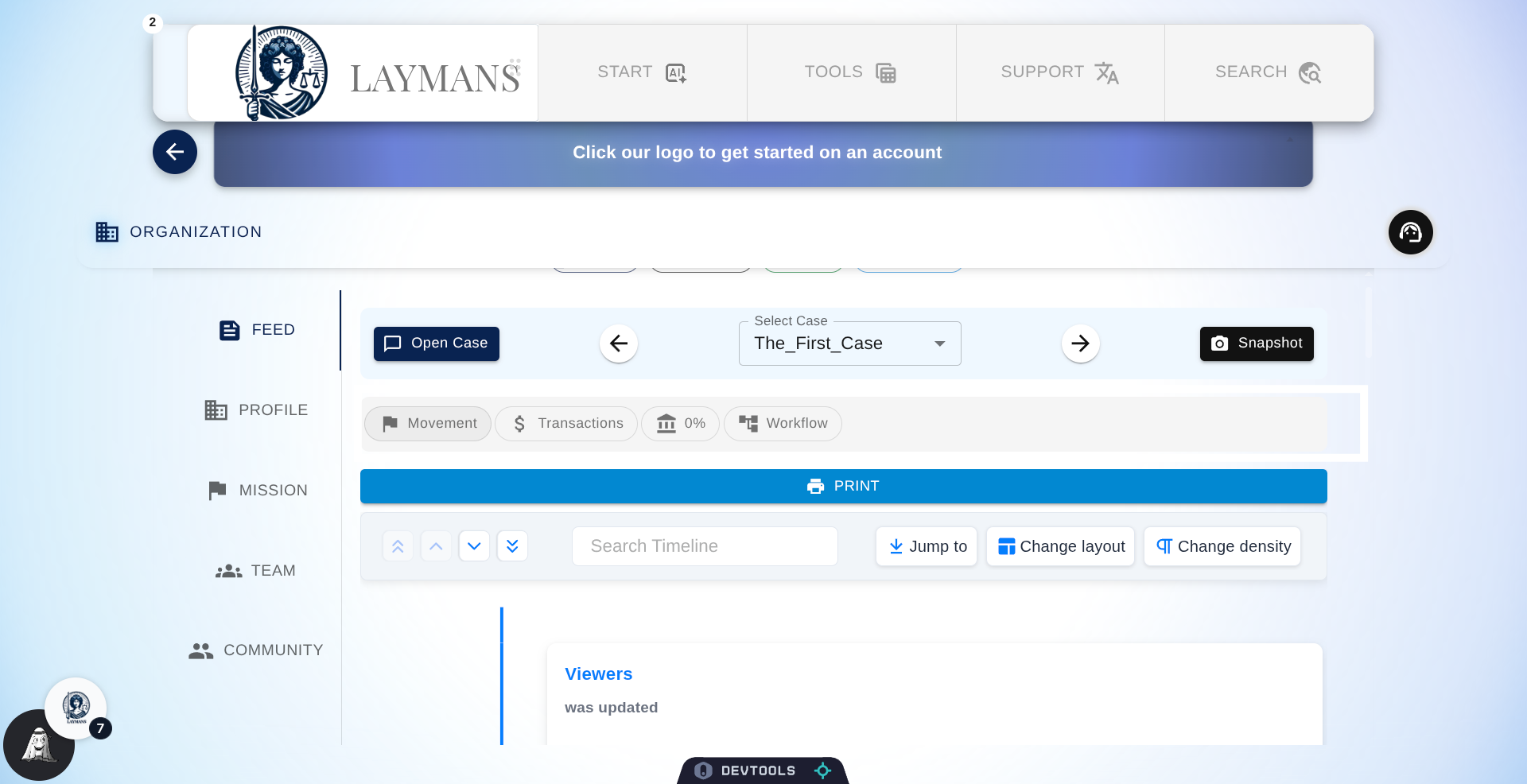
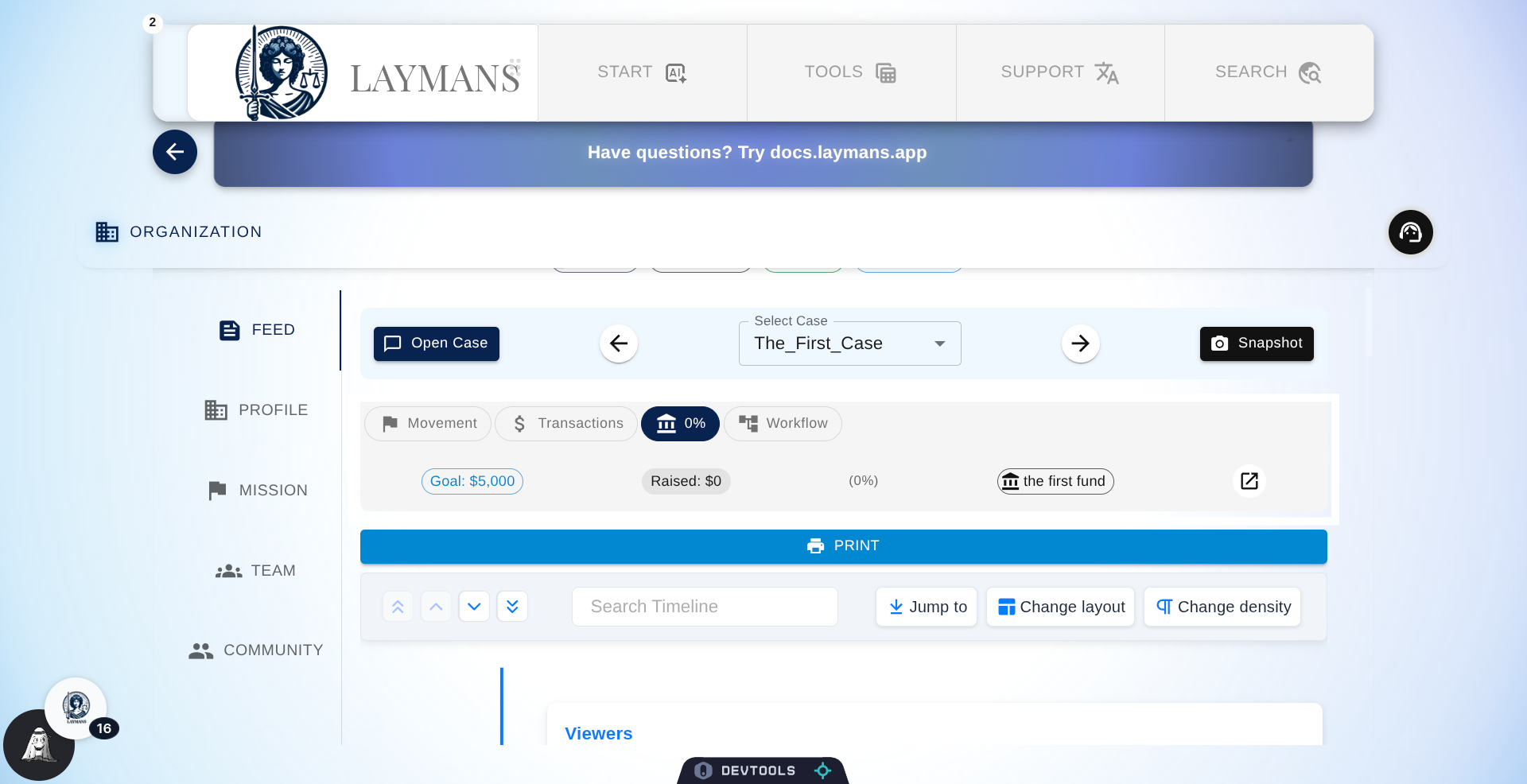
The next toolbar is the status toolbar for a case. Here we can see what movements are attached to the case, any litigation financing on the case, the last payment, and apply automations—known as workflows—to the case.
9. Browsing and Attaching Movements
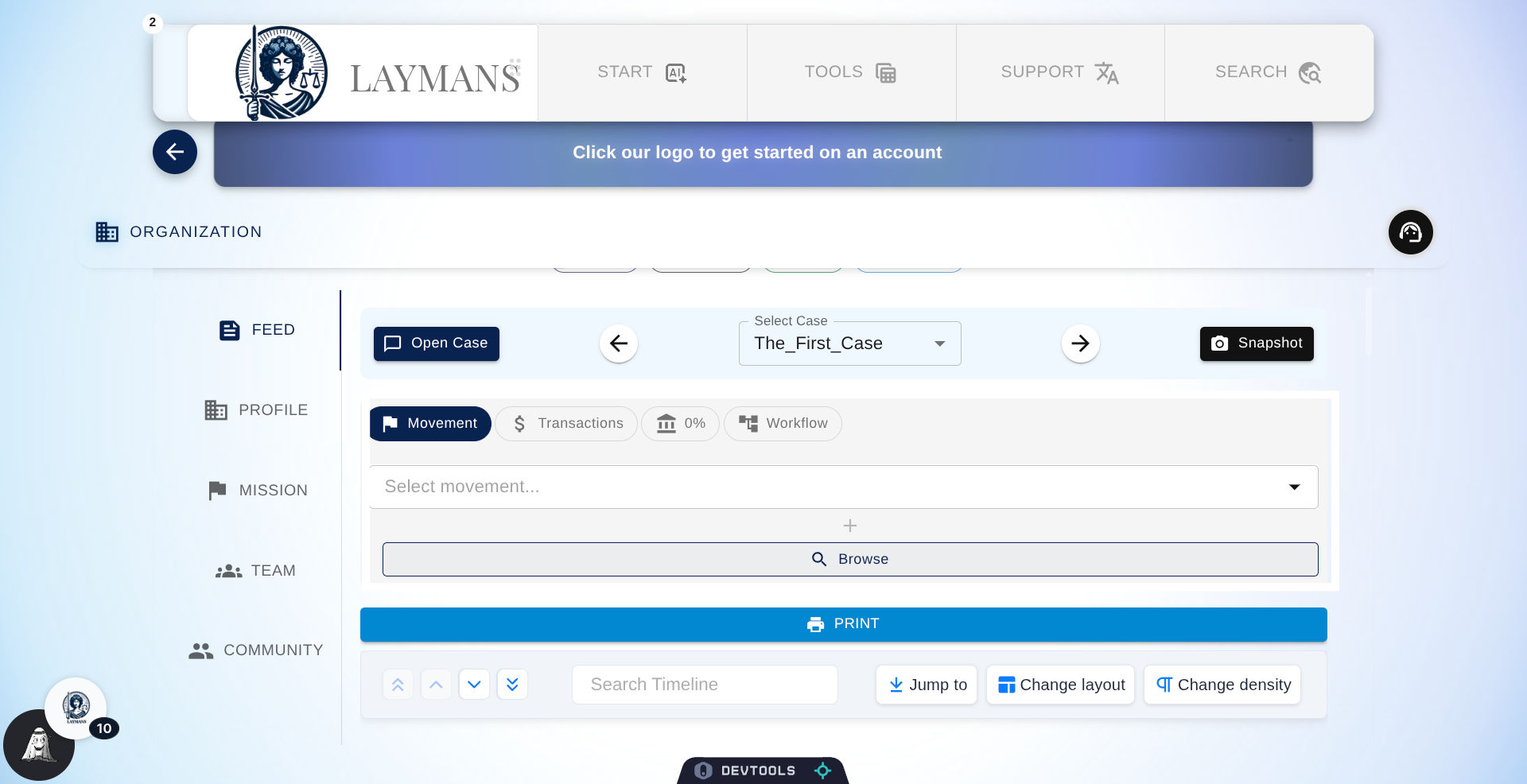
Here you can quickly apply any Movements you own or Browse for Movements that are relevant. I'm going to Browse...
10. Search Movements
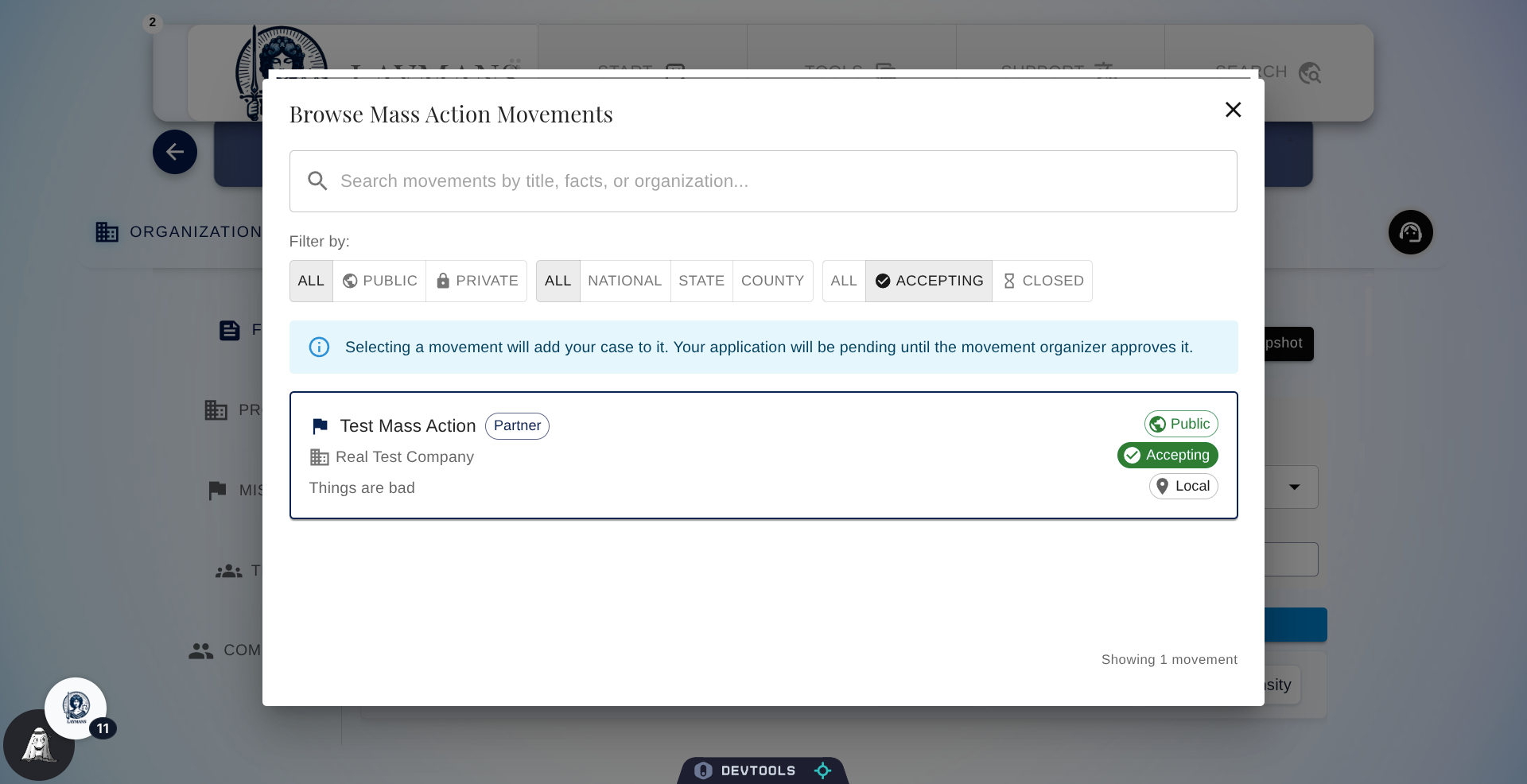
If you recall Movements are the precursors to class actions that can disburse additional resources and financing for your client. Feel free to review the Movement tutorials for reference. No movements for this client so let's move on.
11. View Service Transactions
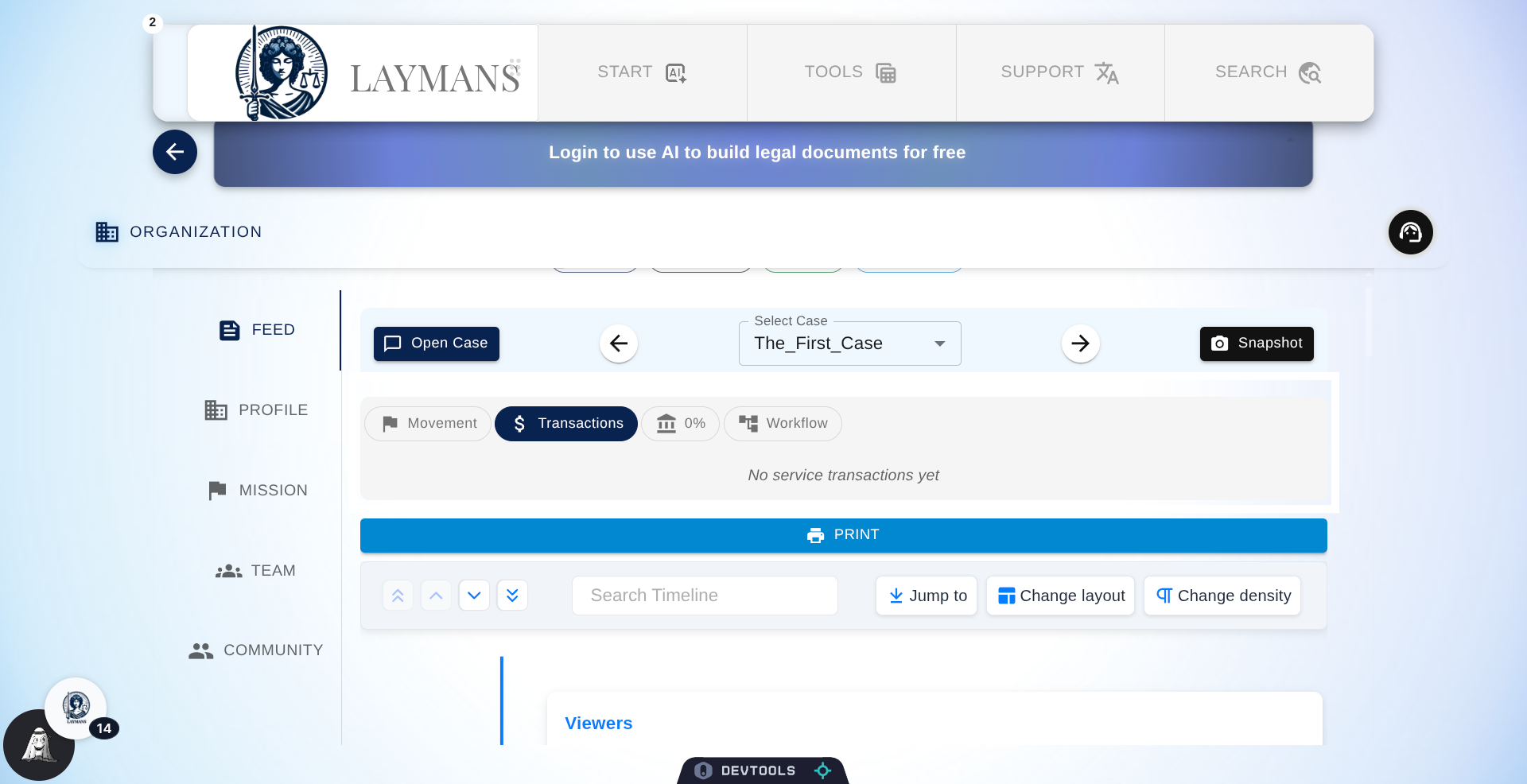
You can also see the most recent transaction. However to dive more deeply on Transactions you have to either open the case and view the Transaction Viewfinder OR go to your Services Dashboard under /Work.
12. Review Fundraising Goal
You can also review any litigation financing attached to the case. This client is currently being considered for litigation financing but they haven't raised yet. The click-out button would navigate to the Fund so I can provide case updates and view terms.
13. Apply a Workflow
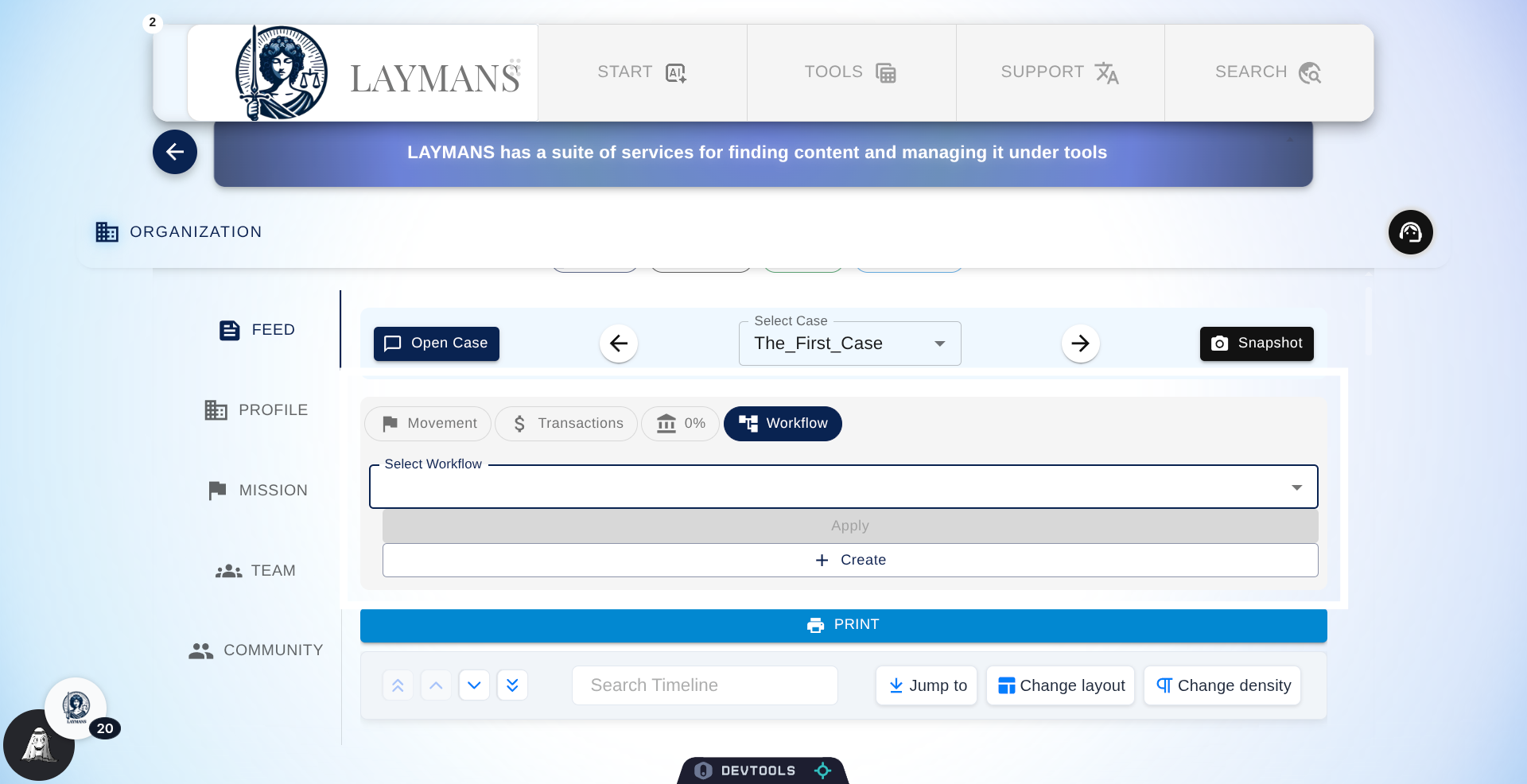
You can also quickly apply and change workflows on a case. Workflows are automations in Laymans that automatically share materials, forms, and requests with clients as their case meets certain thresholds. It's a bit dense so we'll dive deeper on Workflows in the next tutorial.
14. The Case Timeline
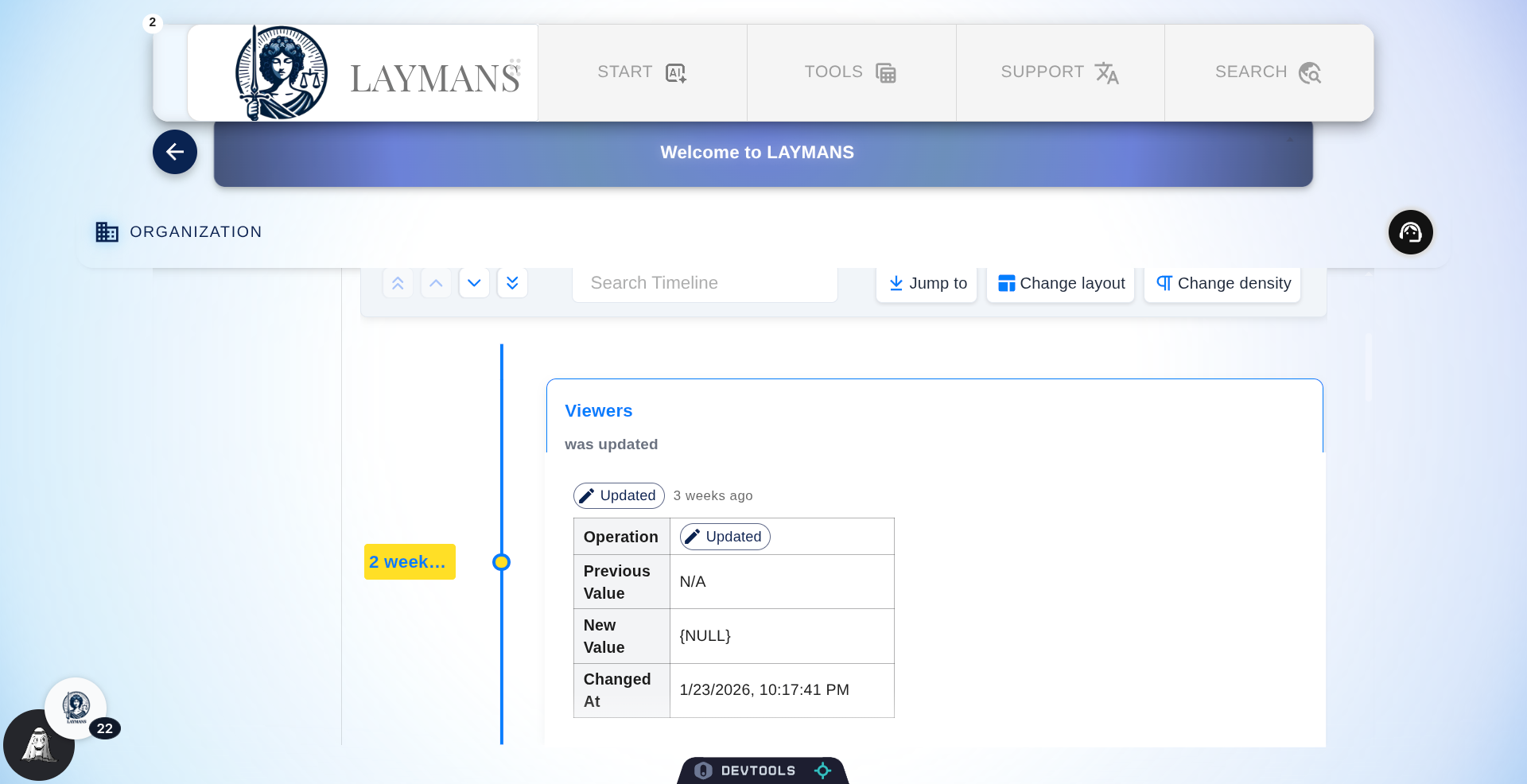
Now here you can get into the Case Timeline, this gives you a bird eye view into changes on our backend regarding a case. You can go deeper in the Security Dashboard under /Work.
15. Timeline Example
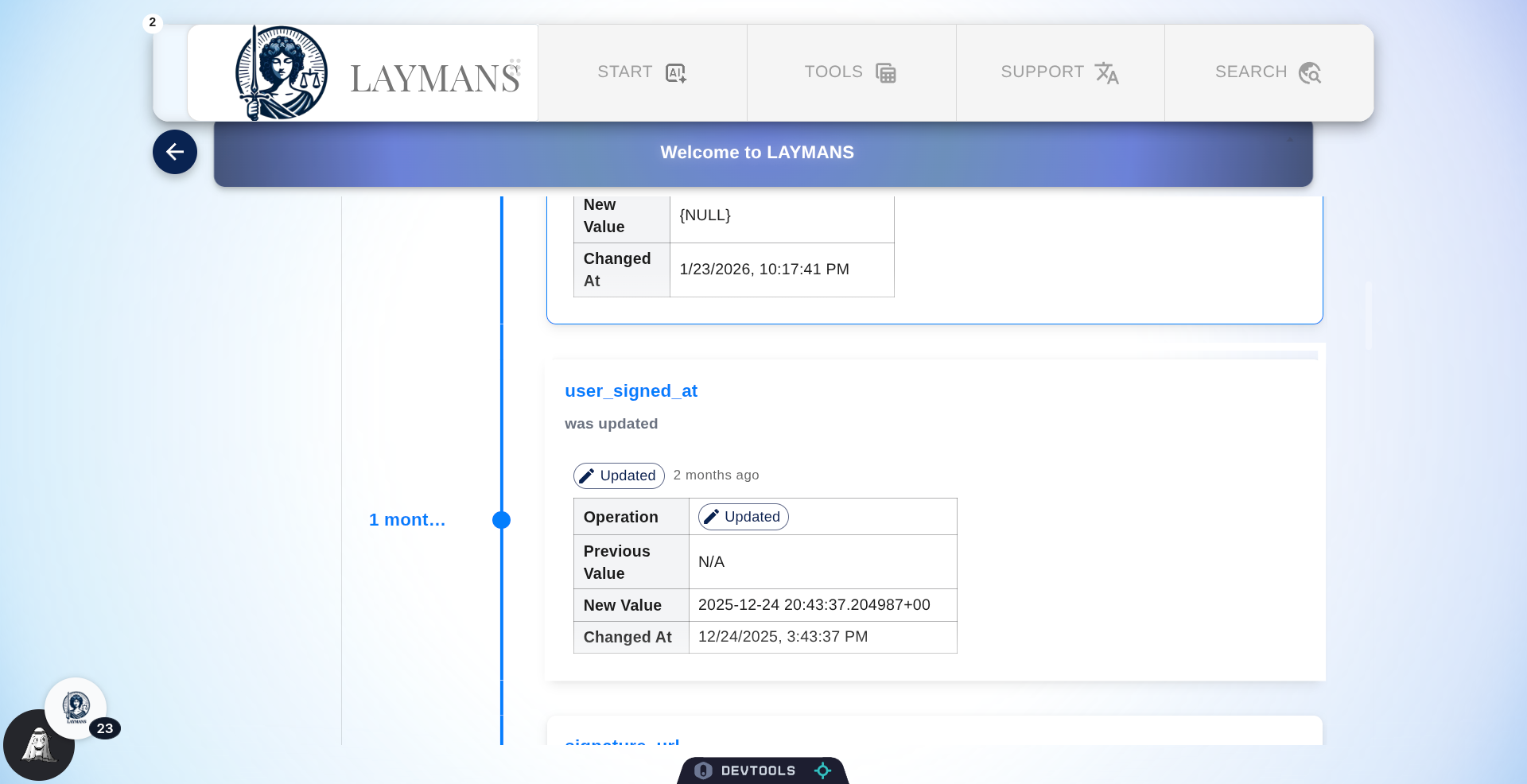
For instance I can see when the client re-signed one of the agreements I sent them. I can also choose to restore the case from this point. You can see the data variables of our model and this timeline again in Overview in the Power Bar when you open the Case.
16. Return To Case Overview
So that's it for the first section of Managing your Company with Laymans. There are MANY, MANY more tools Laymans has to offer practitioners so stay tuned for the Workflow and Company Managment guides.