Manage Company Mission And Team Using Laymans Dashboard
Go to www.laymans.app
1. Introduction
Welcome back! This guide continues on from the Managing your organization guide detailing the Case Feed. I assume you're logged in, have navigated to /Work from swiping the logo, and now are securely on the Work Portal. Now we'll talk about the other tools for reputation management on Laymans.
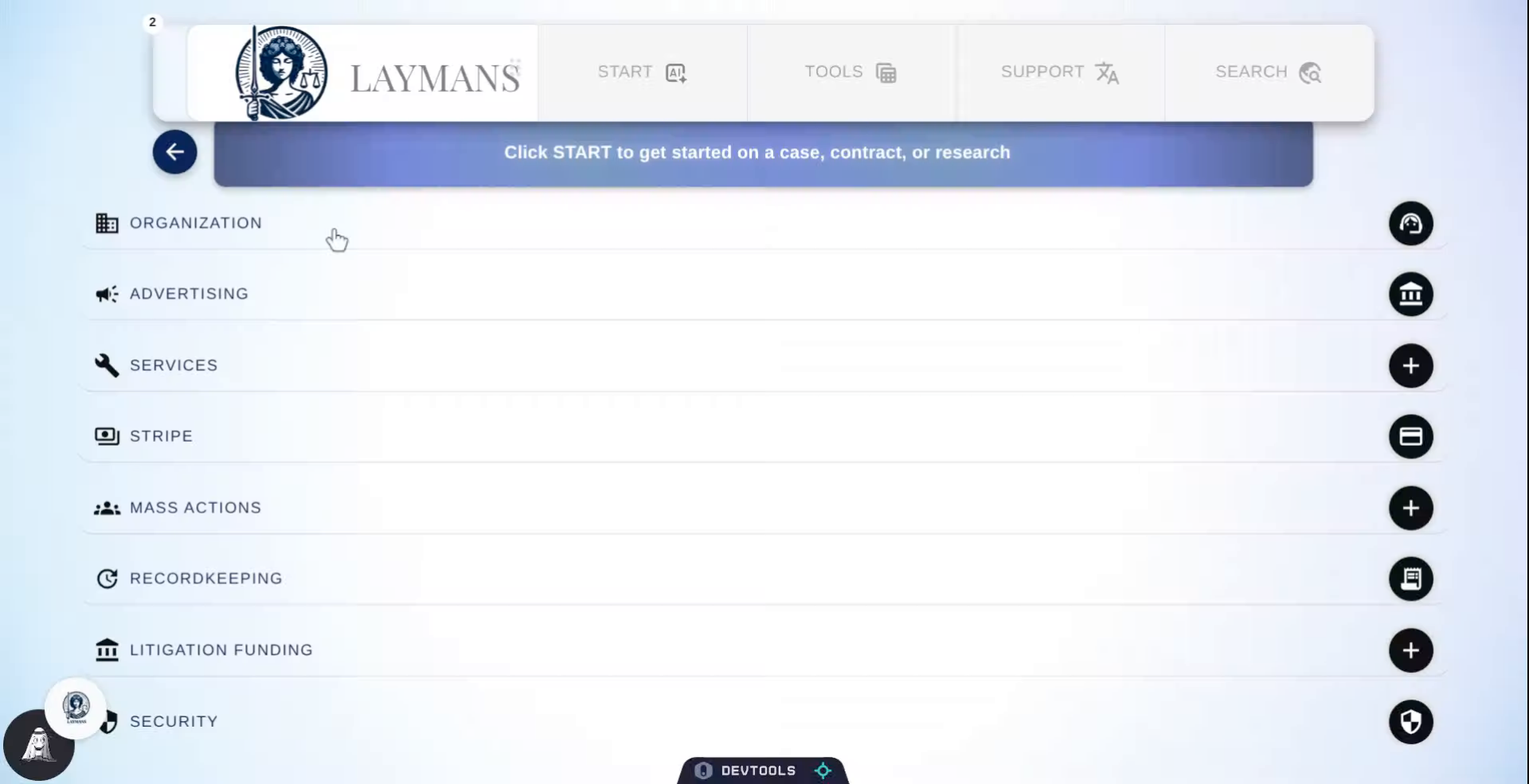
2. Navigate to Organization Section
Let's click the Organization tab again to see the organization management tools.
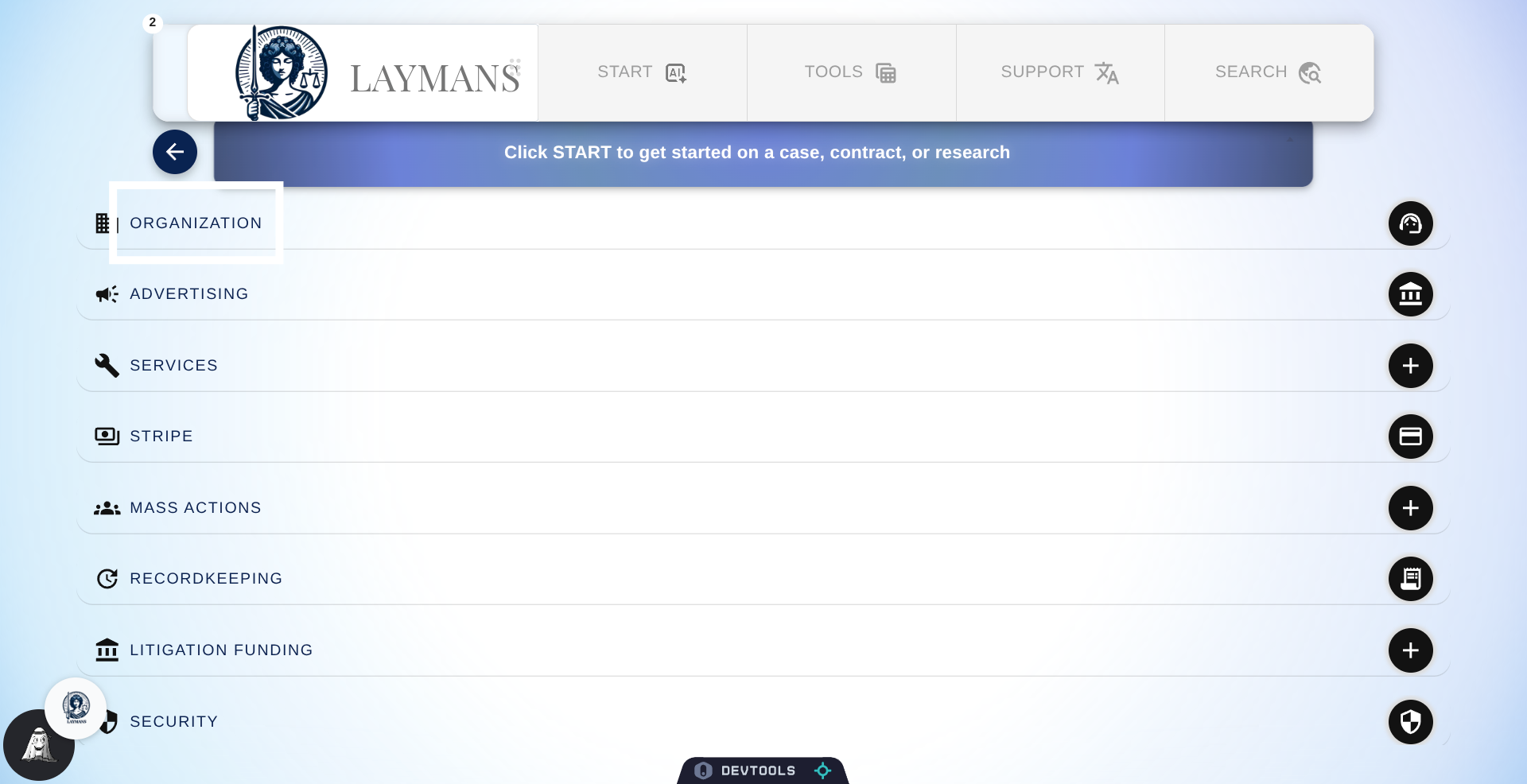
3. Open Profile Settings
We'll start off with the Profile section.
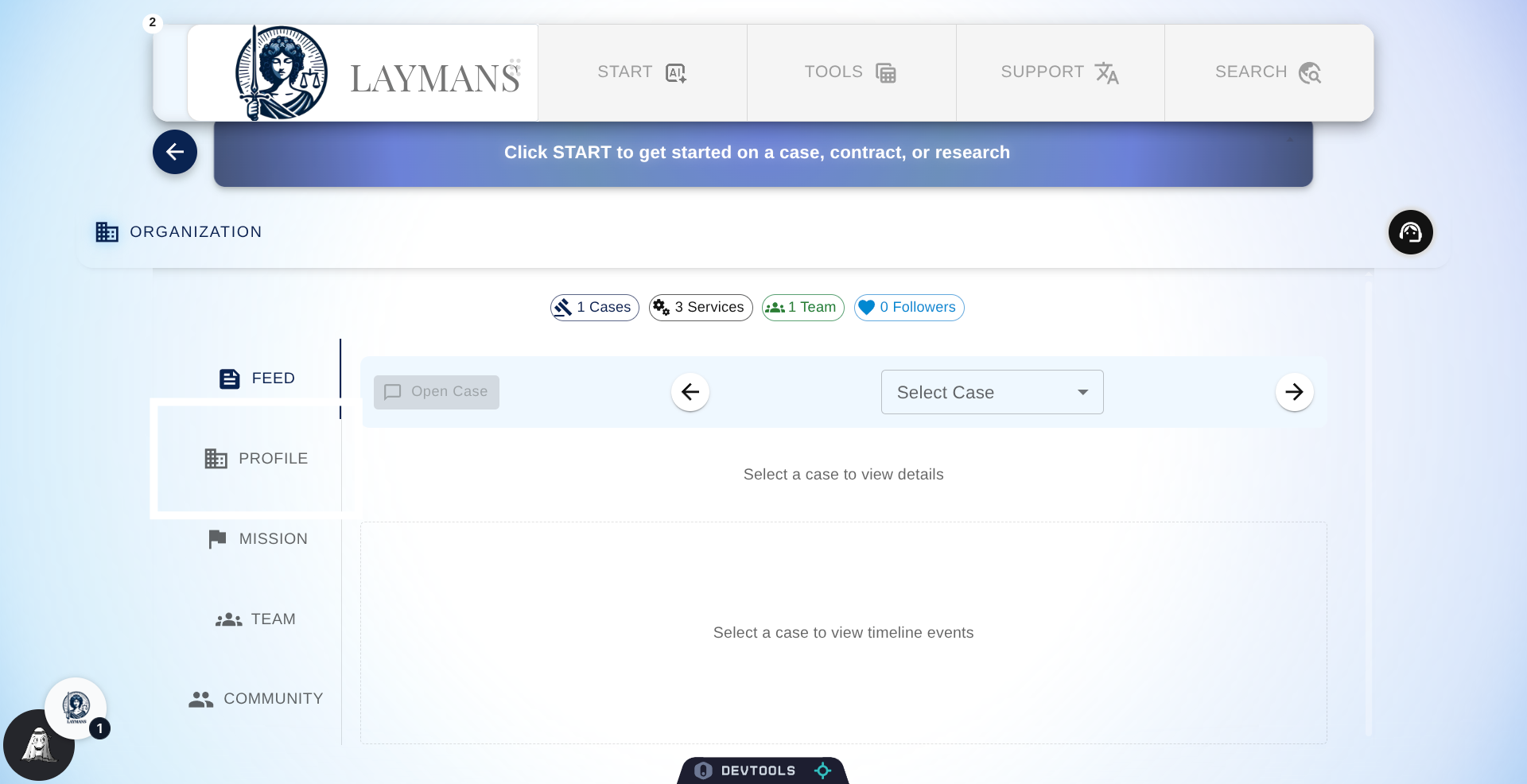
4. The Profile Section of Organization Dashboard
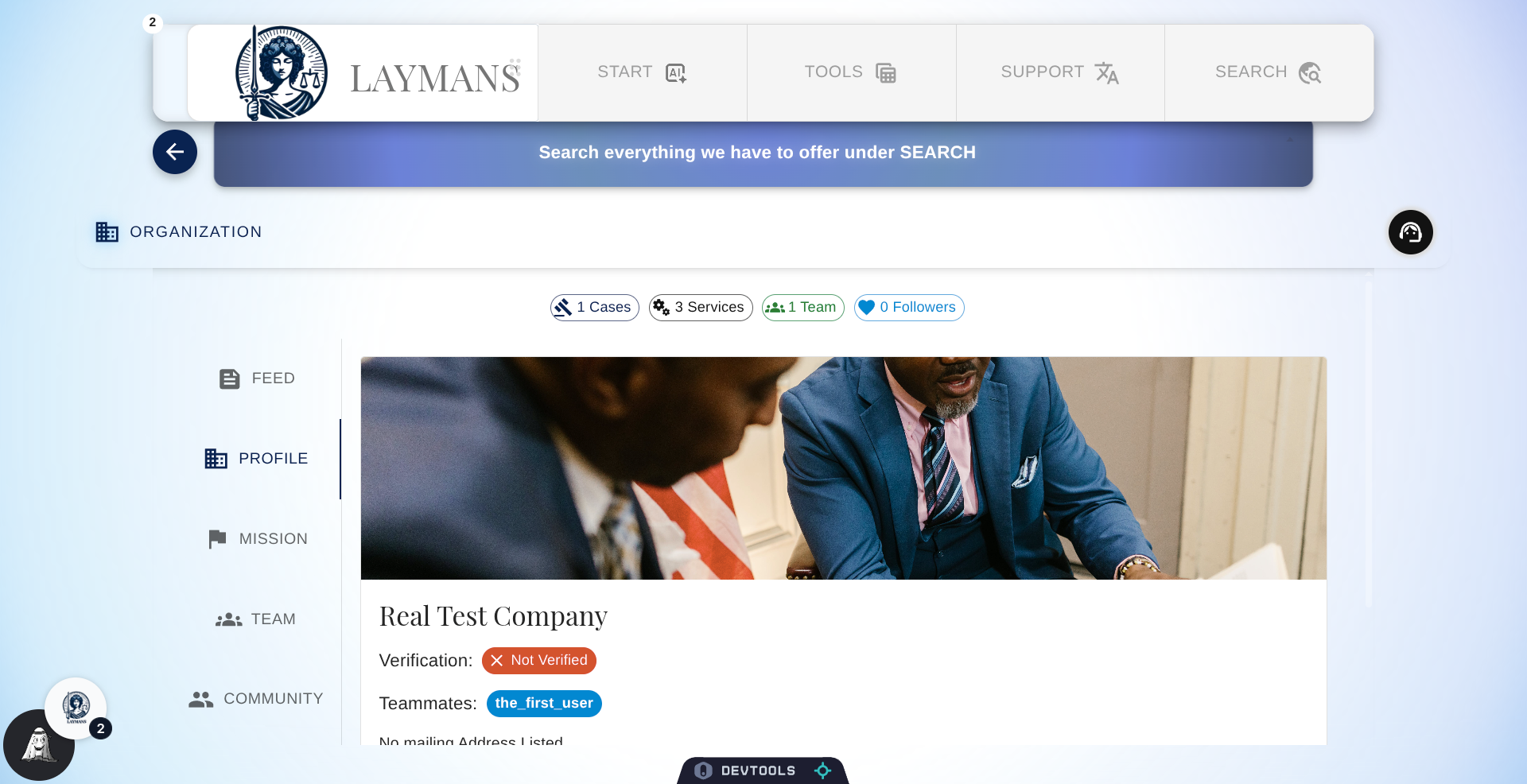
The Profile Section handles your Company Presence showing the title, images, and status related to your company as shown in the marketplace and throughout the application.
5. Select Teammates Section
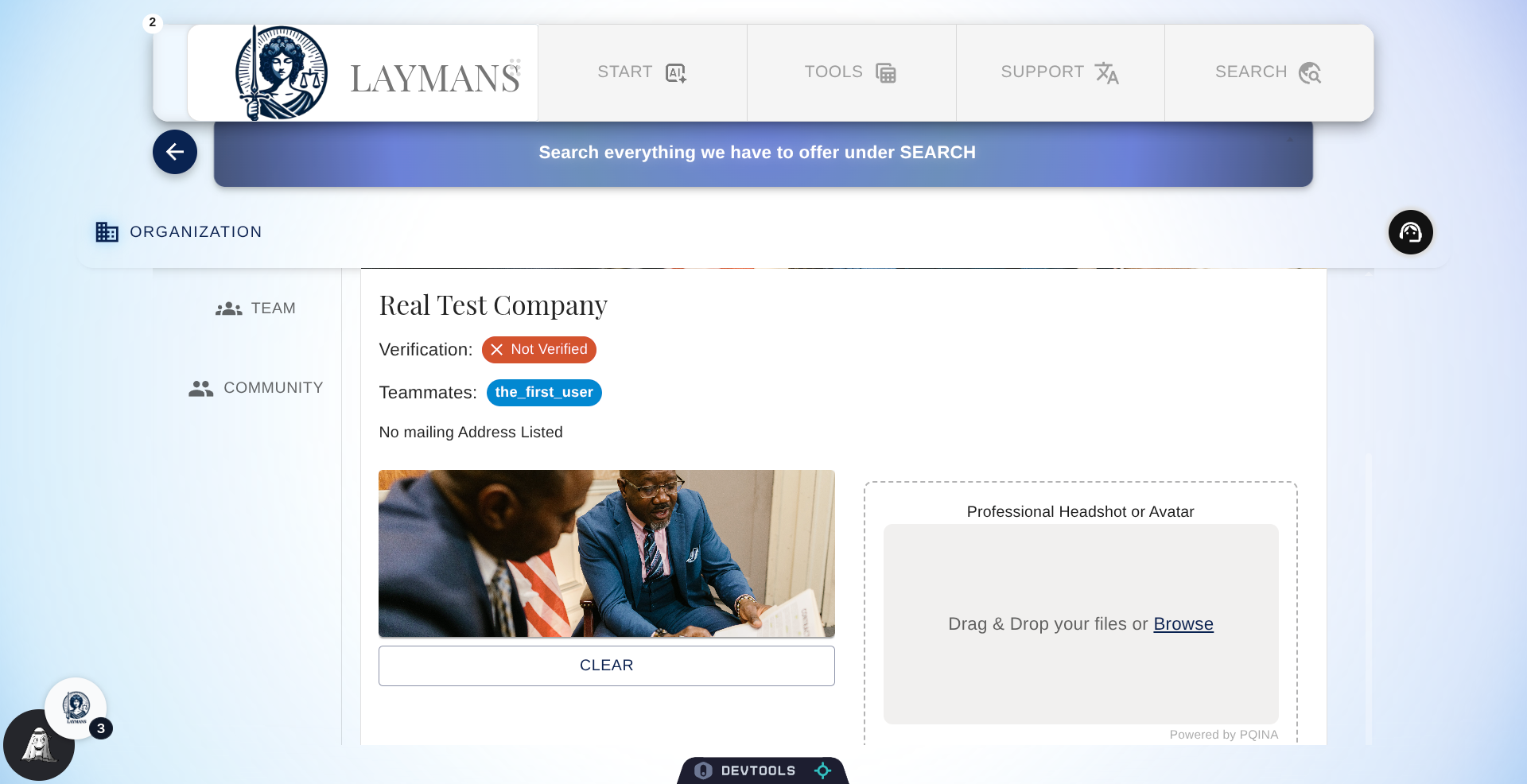
Much of the data here is static and dependent on what we have between the Vendor portal, Stripe, and our backend. Verification is handled through Stripe, asserting your company is legitimate and qualified to give legal services or support. You have to use either Stripe or Vendor Portal to change it. But you can set a Company Image and/or a Headshot of yourself to be associated with your account here. We recommend doing so to make your entity appear legitimate and accessible -- no AI generated images please.
6. Open Mission Tab
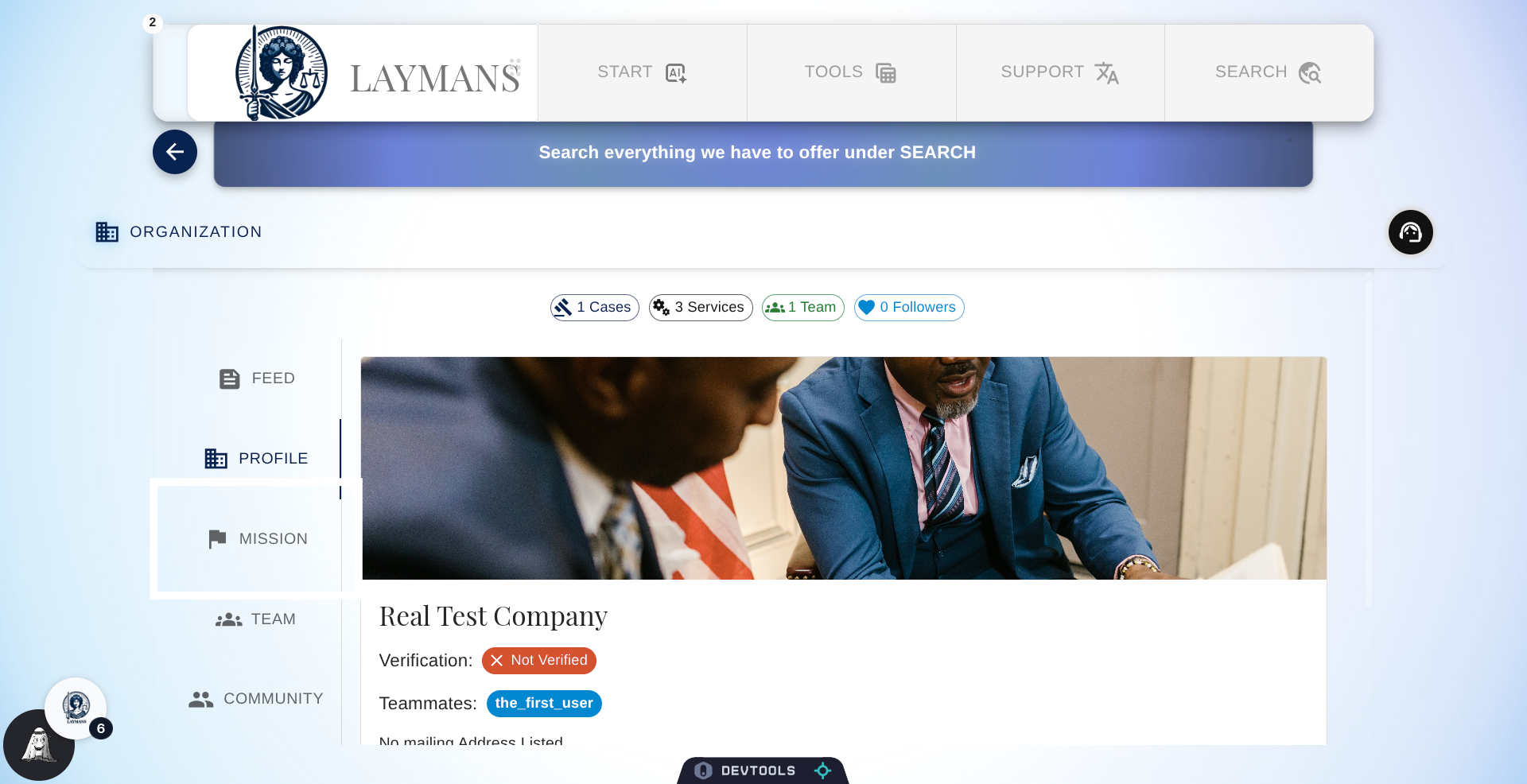
Lets move on to your company's mission.
7. View Mission Details
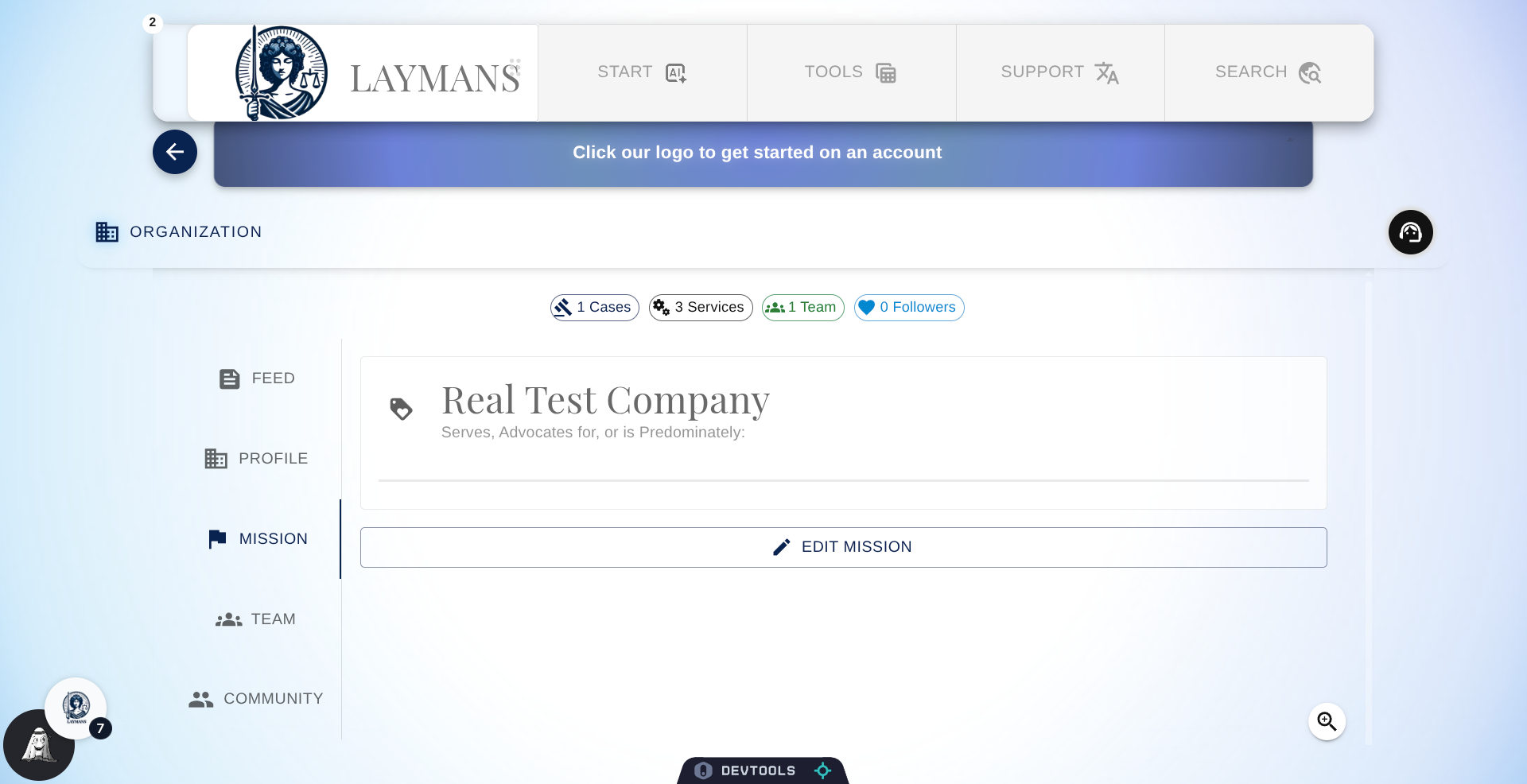
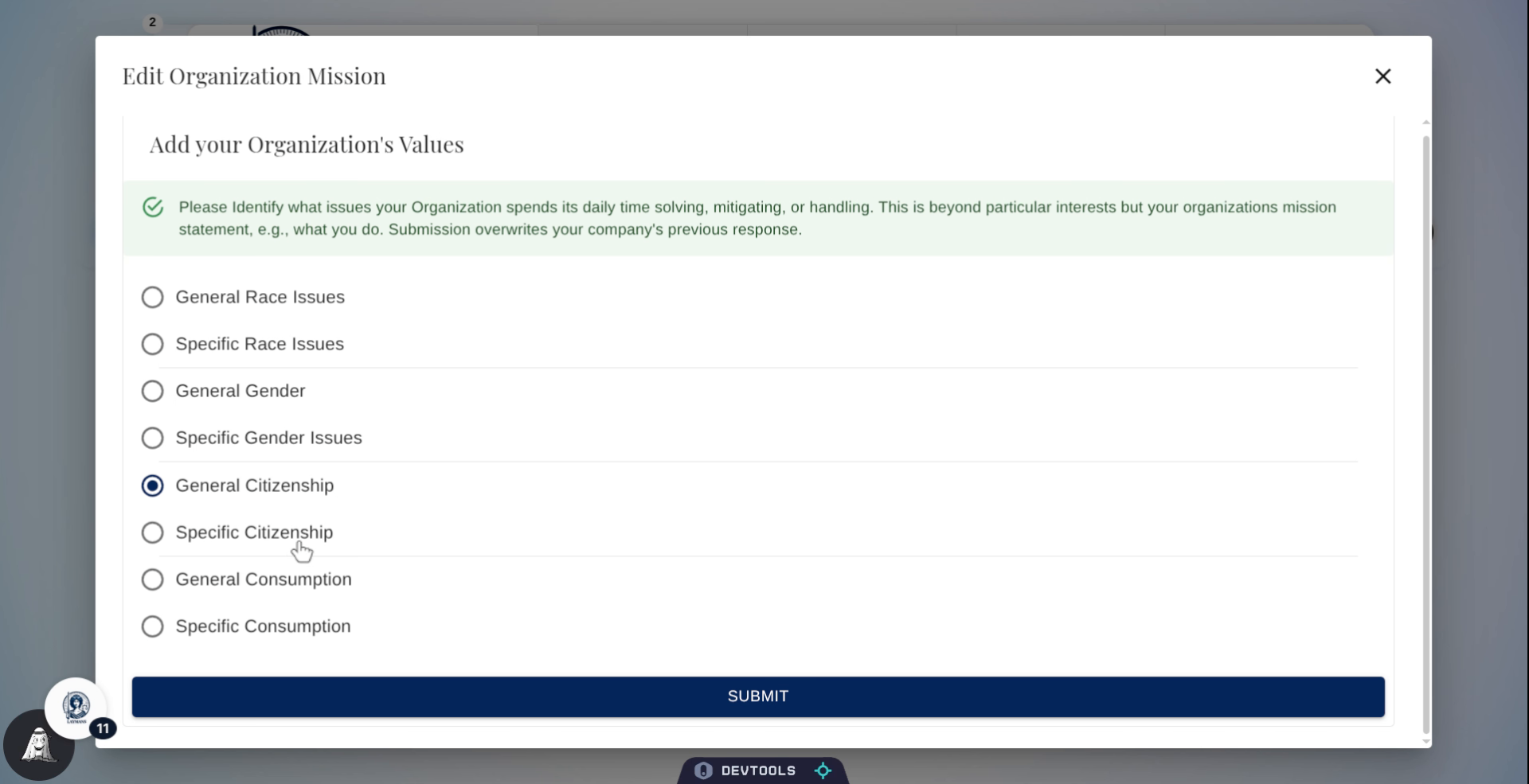
All organizations working on Laymans are given a Mission statement to fill out because Laymans itself exists for the improvement of people's lives. Your mission statement is also a great way to begin shaping the leads your organization will be receiving by reflecting your values and who you are back to interested leads. Lets edit the Mission Statement to see what your options are.
8. Enter Specific Citizenship
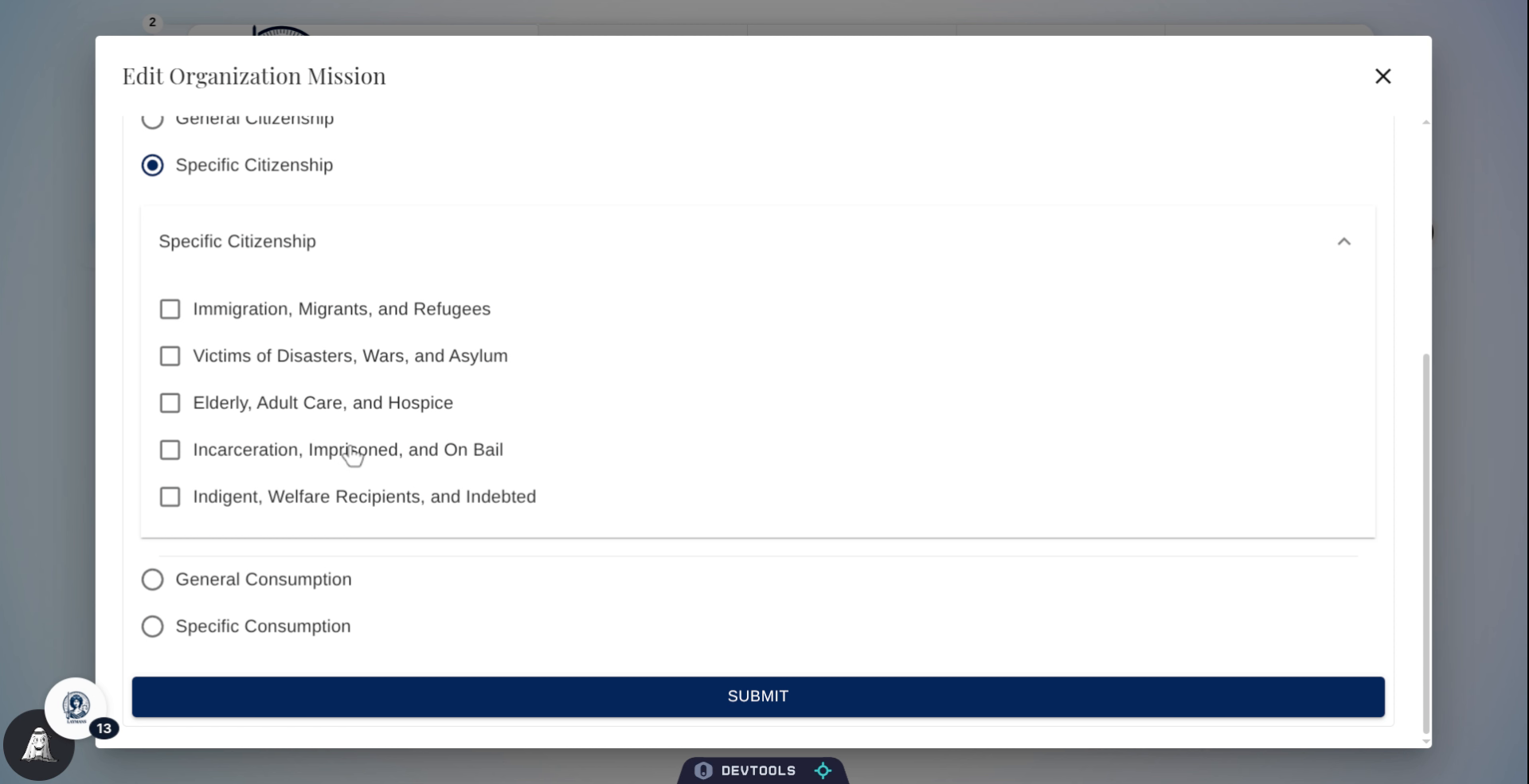
While generalized at first clicking an option will show the level of detail available...
9. Enter Incarceration Details
We tried our best to be exhaustive but let us know if there are any mission areas your company values but aren't reflected here -- we're happy to add them. Click Submit when you're ready to update the mission statement.
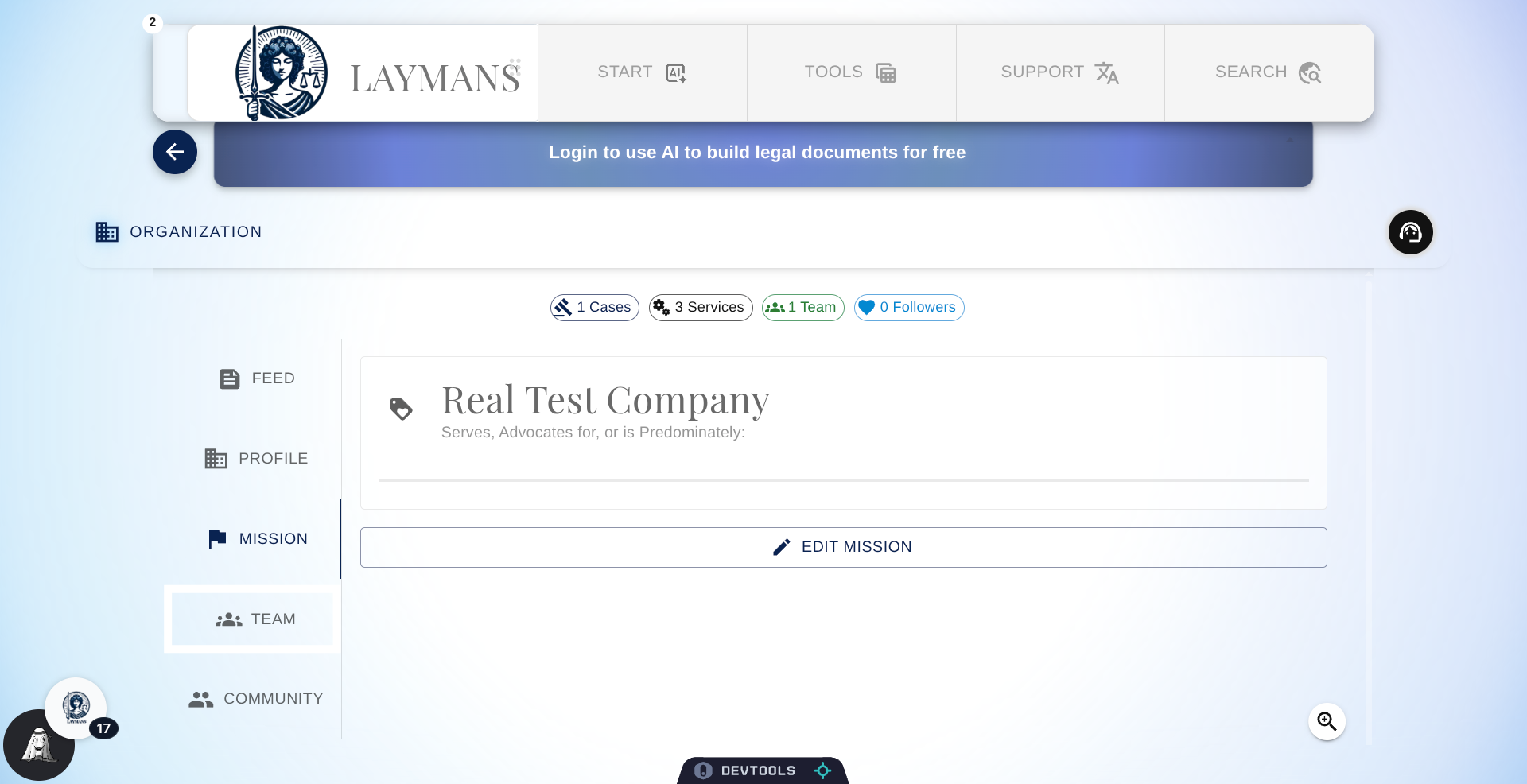
10. Open Team Section of Organization Dashboard
Finally let's go to the last topic of this part of the "Managing your Organization" Series of Guides, a.k.a. "Team."
11. About Teams and Child Companies
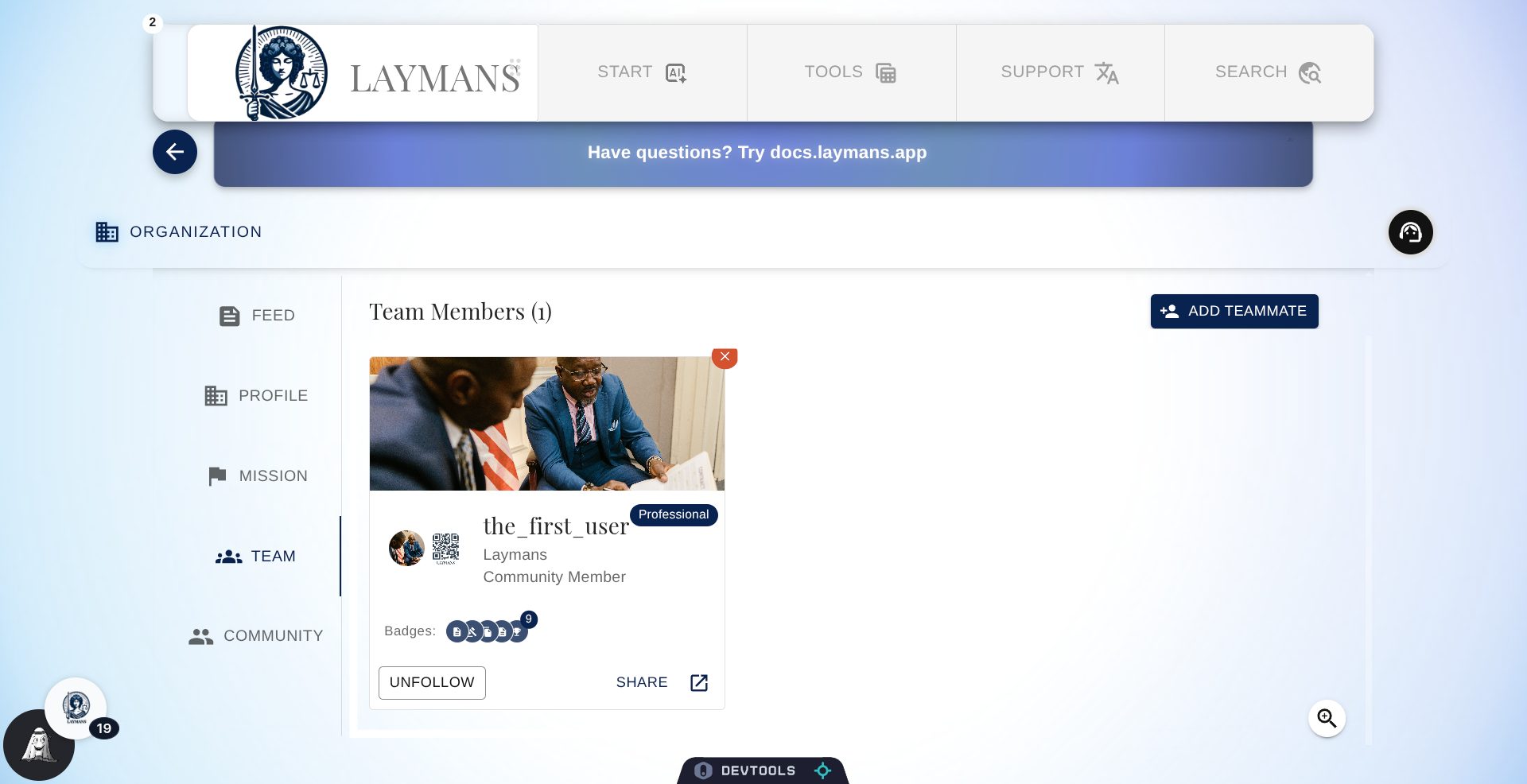
Here you can see all team members associated with your company and quickly add them. For now, team members are not hierarchical in the app, so they have the same access as you do to cases, security policies, and metrics. For cases, you can wall off access by managing "Viewers" in the Overview tab of "Start" in the Power Bar for an opened case. But if you want to manage access more deeply, you can source materials, cases, and services to a child company of which you are a member from this interface as well. Accessing child organizations for parent organizations allows for compartmentalization, like departments, dedicated work teams, or simply child companies. Then companies can share materials and cases in a structured manner through either Movements, a Dedicated Service, or Funds. Child companies do not automatically have access to the cases of their parents, nor vice versa, but once access is given through "Viewers" or a service, all context is shared. You can make your child companies private b setting "Redirect to Parent" to true when you create it on this page.
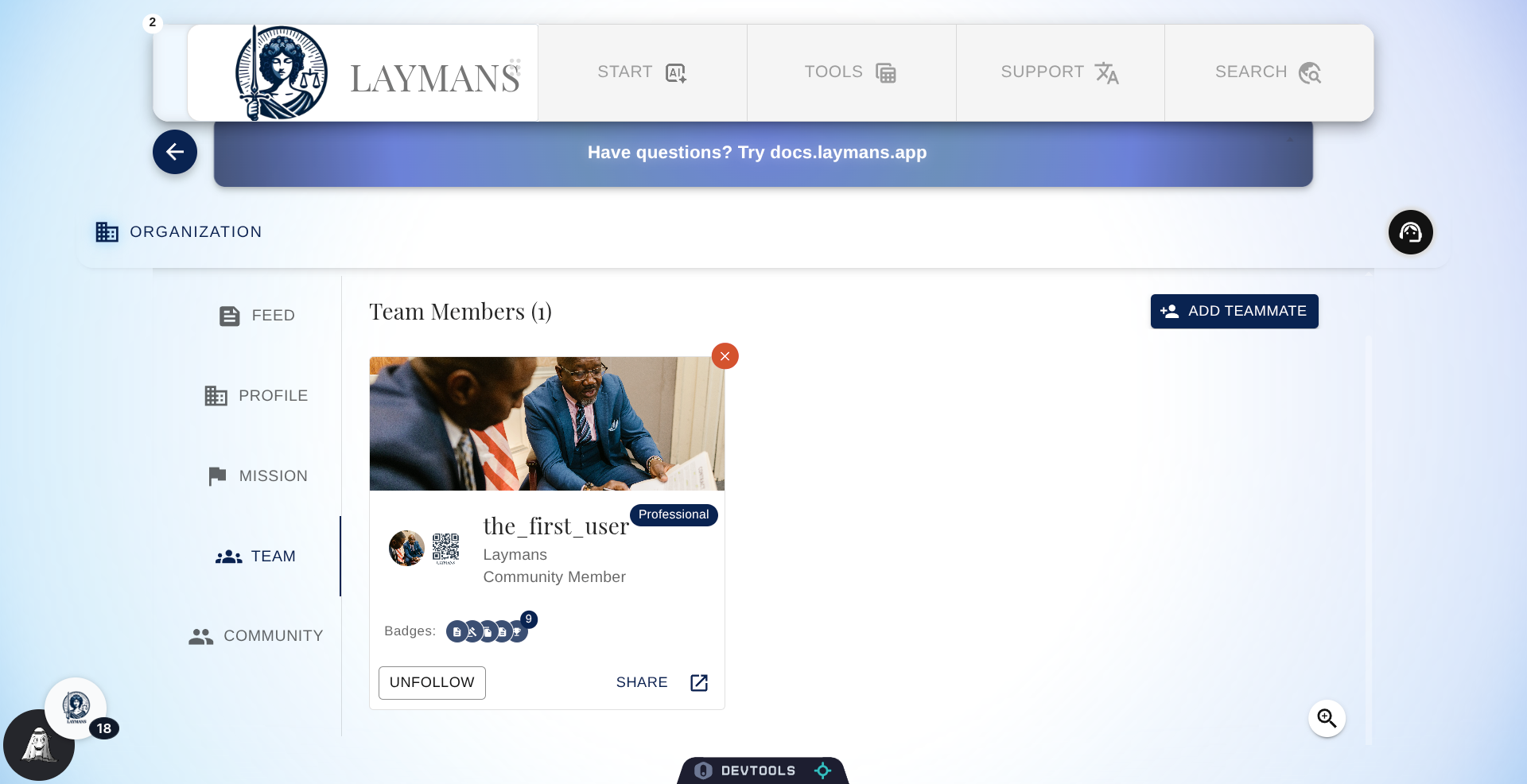
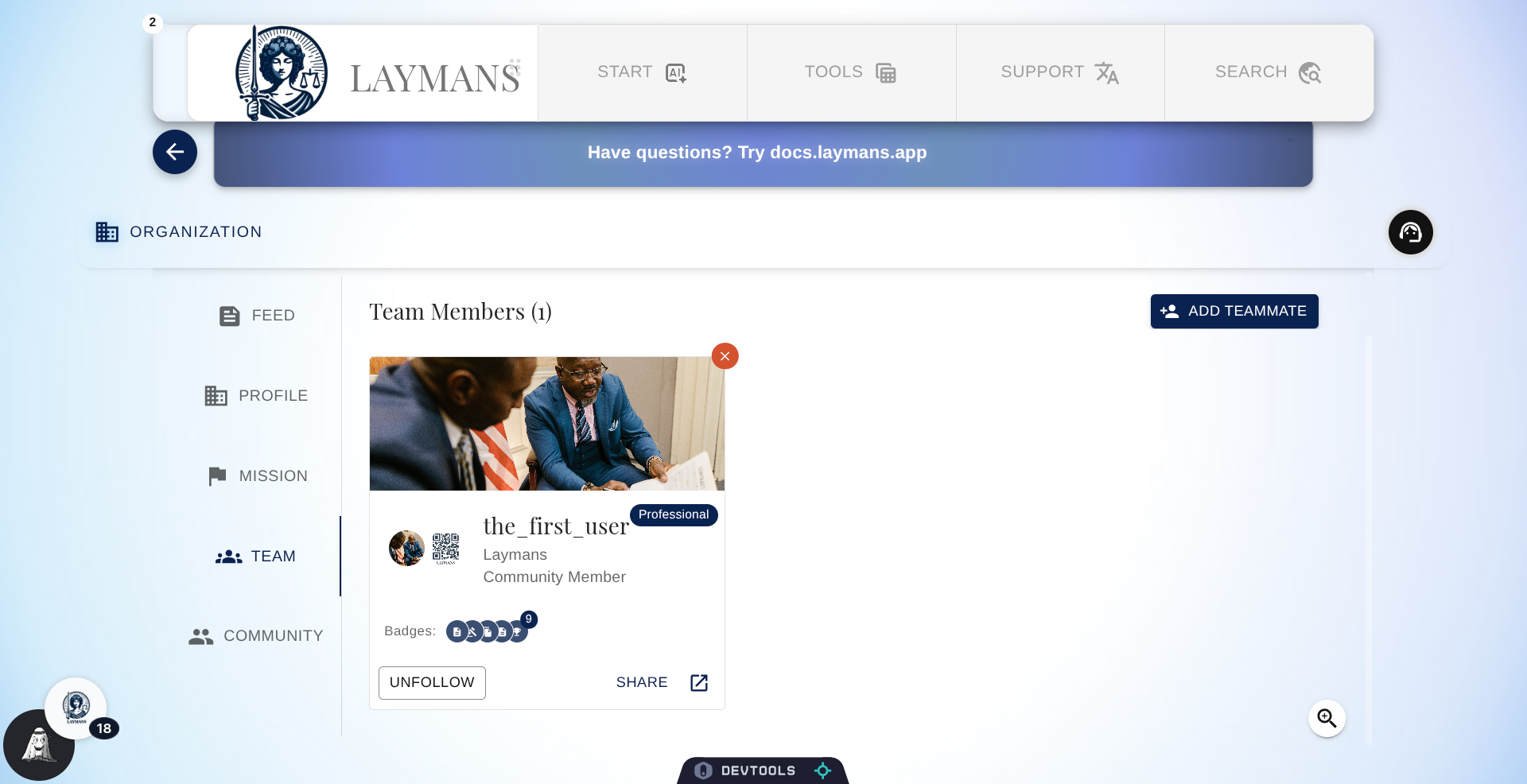
12. Open Team Member Details
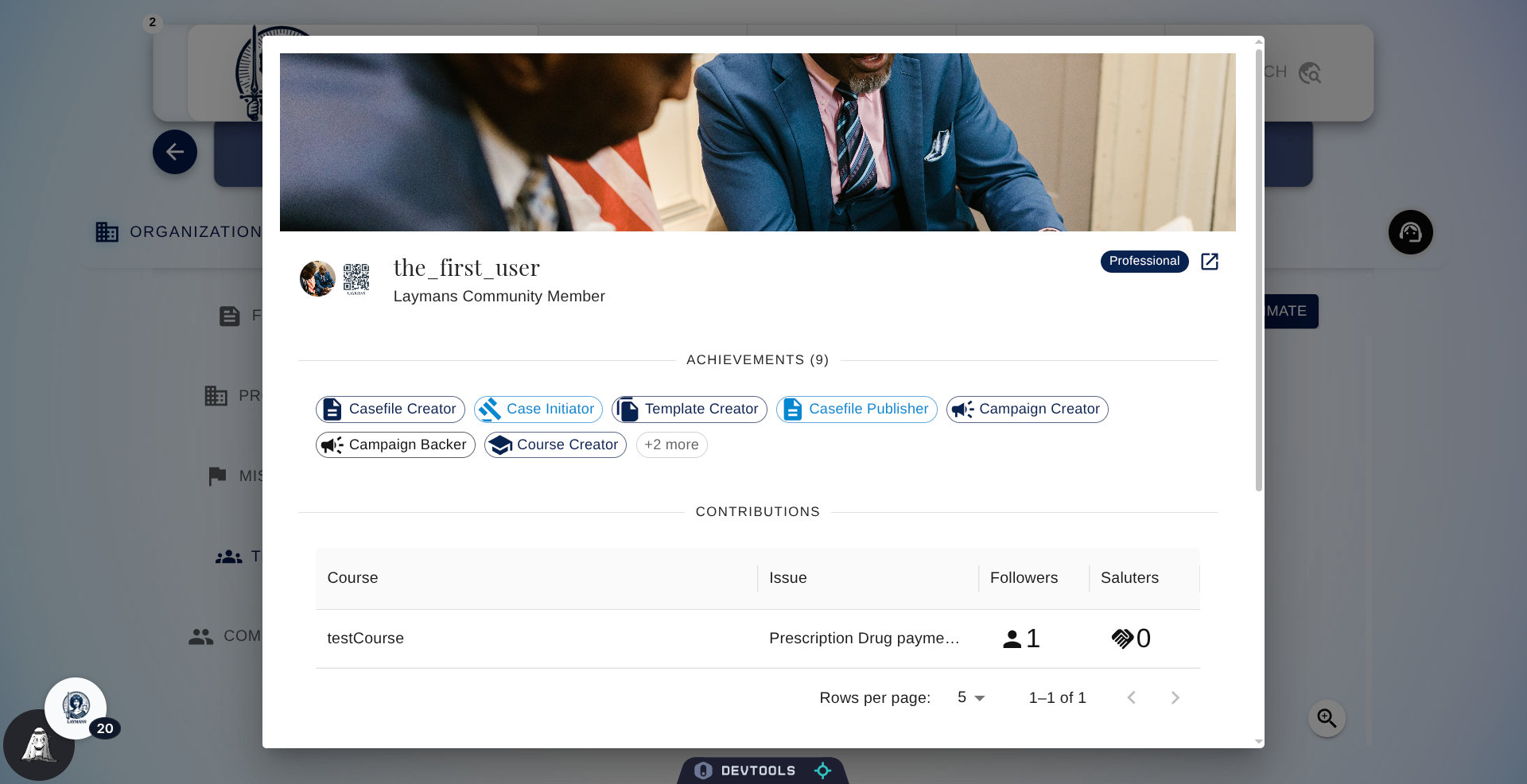
That was a spiel. Let's click on a Teammate's card to see what Laypeople will see when viewing your profile.
13. The User Profile Card
So, if you've seen User Profiles from the Community guide you'll notice that Professional User Profiles are a touch different. They show more information about your contributions and affiliations not present. Laypeople can still follow any professional account like any other Layperson, however they can also follow your company if they so choose.
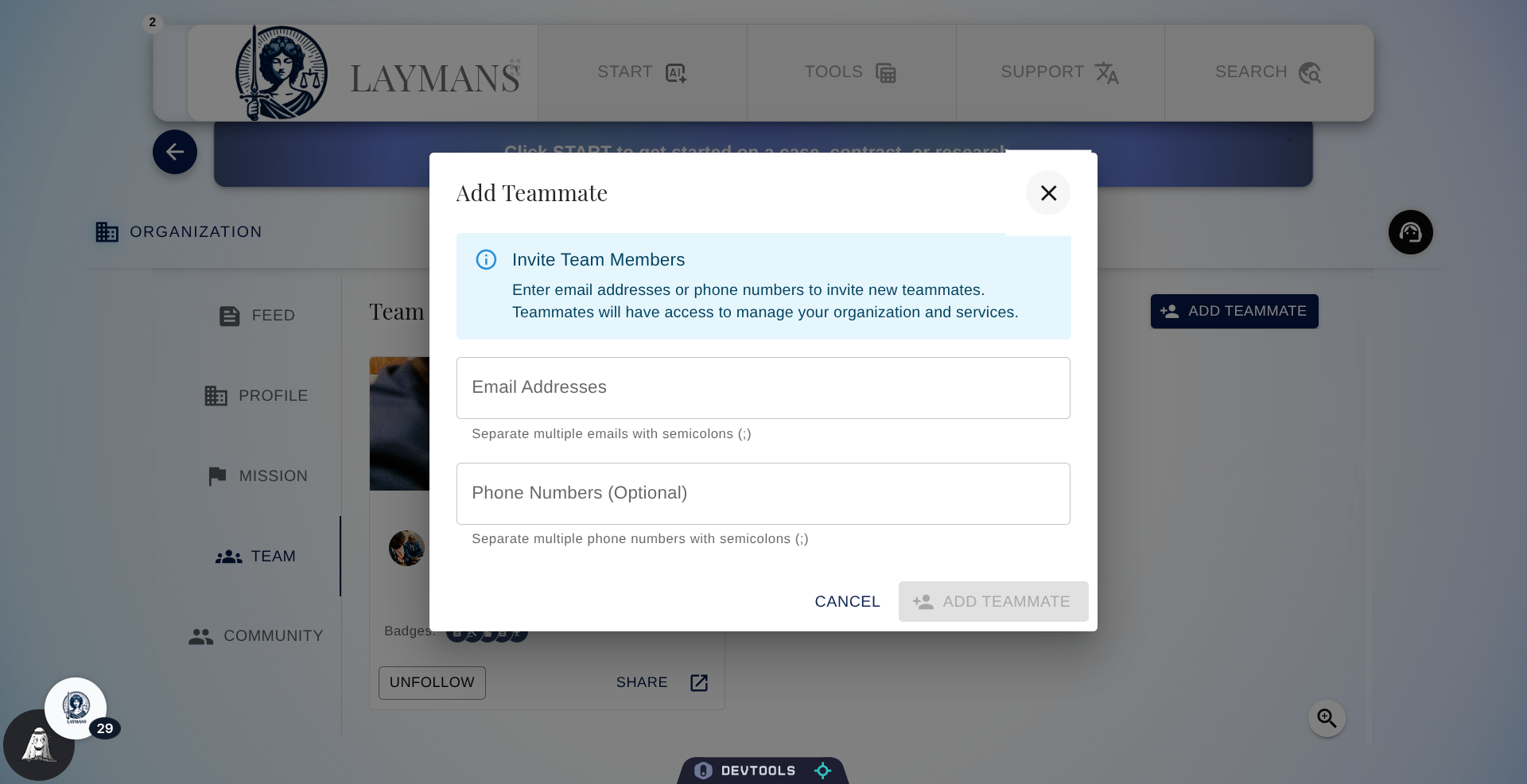
14. Click Add Teammate Button
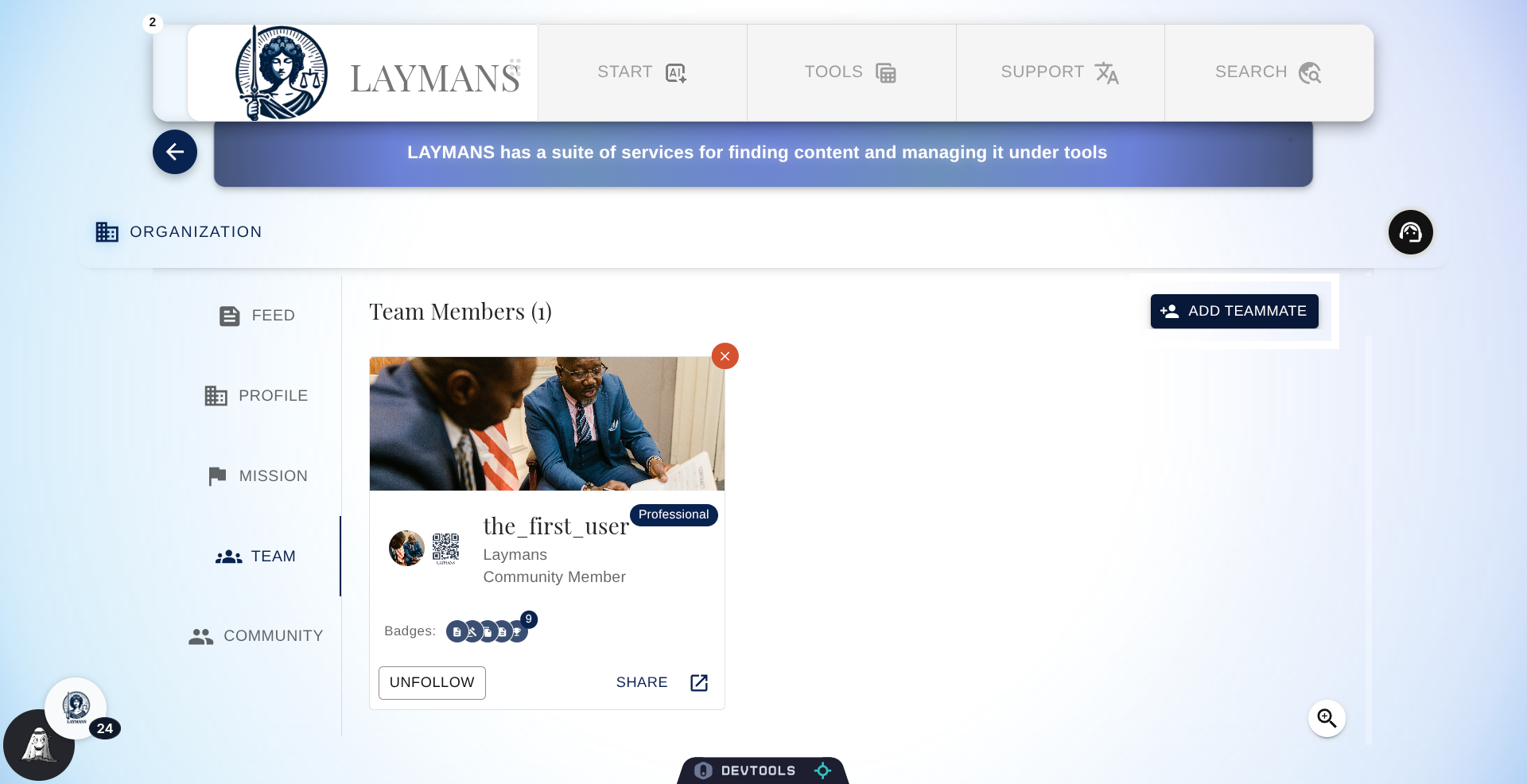
Let's skip ahead to adding new teammates.
15. Open Invitation Form
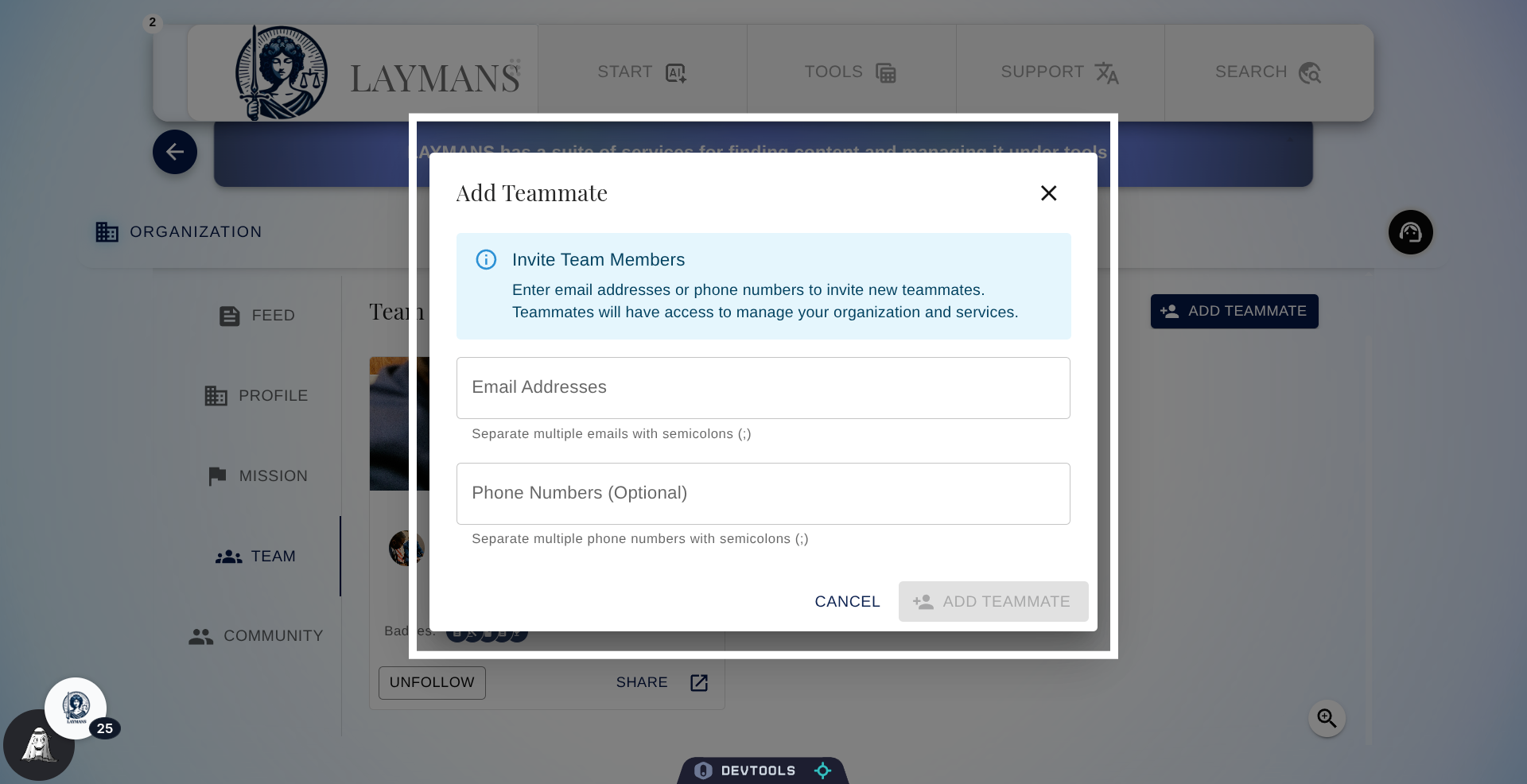
Adding Teammates is rather simple, you just write their email address or their phone number and they'll be invited via that method. Once they join the platform via the given link they'll be automatically associated with your company, you can easily remove them from your company with a similar click. Note ownership and accession of certain materials are profile-based, i.e. legal materials shared within your company created by a particular profile are shared *through* that profile, removing an account -- removes access to your company. Don't worry, while still in the same organization you can either make a duplicate or transfer ownership via the edit options of the given casefiles and Templates or via /Bookmarks before the Teammate is removed. Cases are shared with all members of the Team upon Service acquisition, you must remove the attorney from Viewers if they are removed from a case. Funds and Movements are tied directly to the company regardless of the creating user.
16. Close Invitation Window
Let's close out and wrap this section.
17. In Conclusion
That wraps up this part of managing your organization. It's been a doozy, next we'll discuss the final portion -- follower management and API Keys. If you need any further clarification don't hesitate to reach out to us and our helpdesk at support+hello@laymans.app