How to share and sign Contracts on Laymans
Go to www.laymans.app
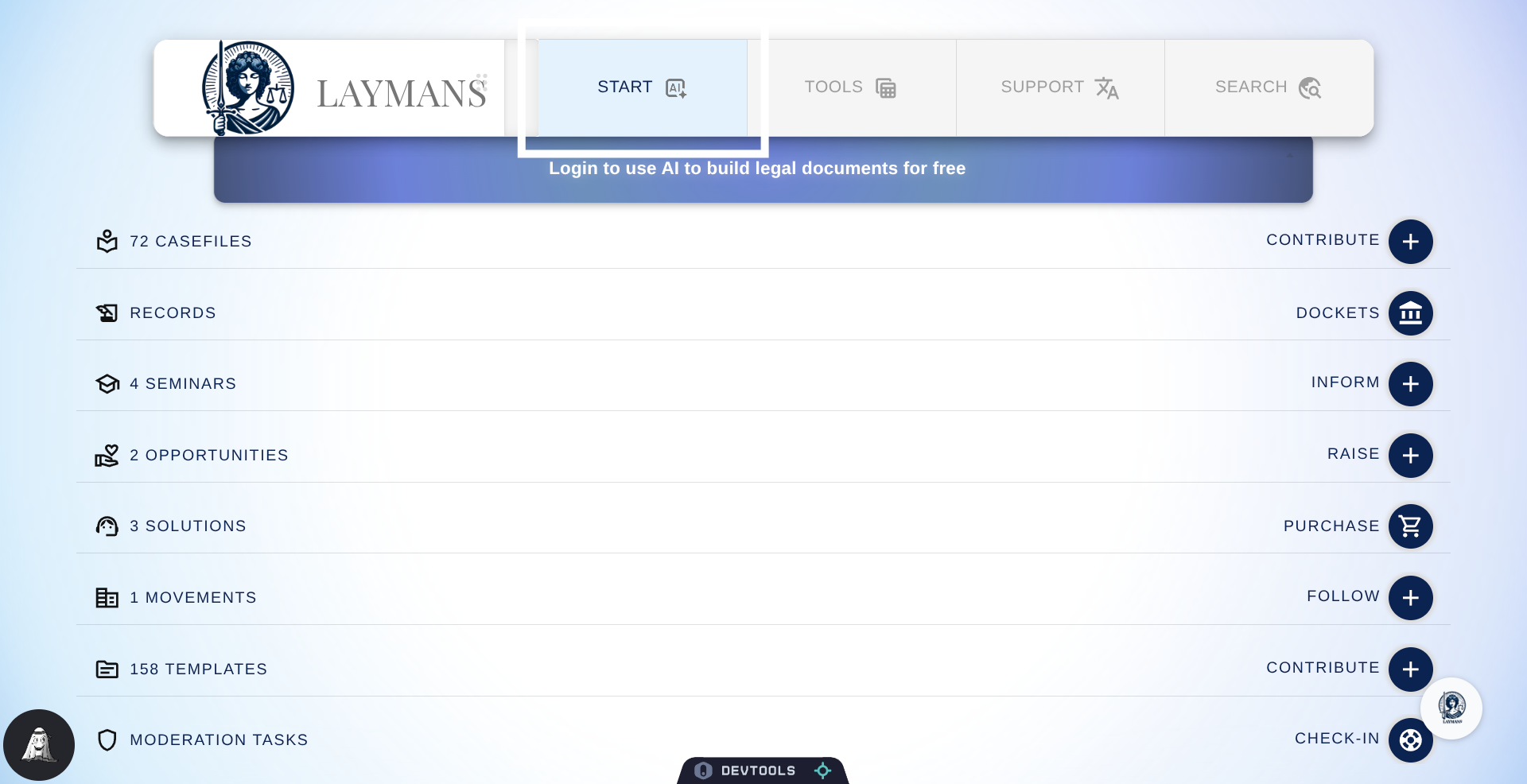
1. Click "START"
This guide assumes you've fully built out a contract using the "How to start a case..." and the "Building your case with..." guides on Laymans, and now you're ready to share it with another party. Sharing contracts to maintain decentralized audit trails, recordkeeping, and legitimacy through AI and automation is not only easy but also free on Laymans. First, click start.
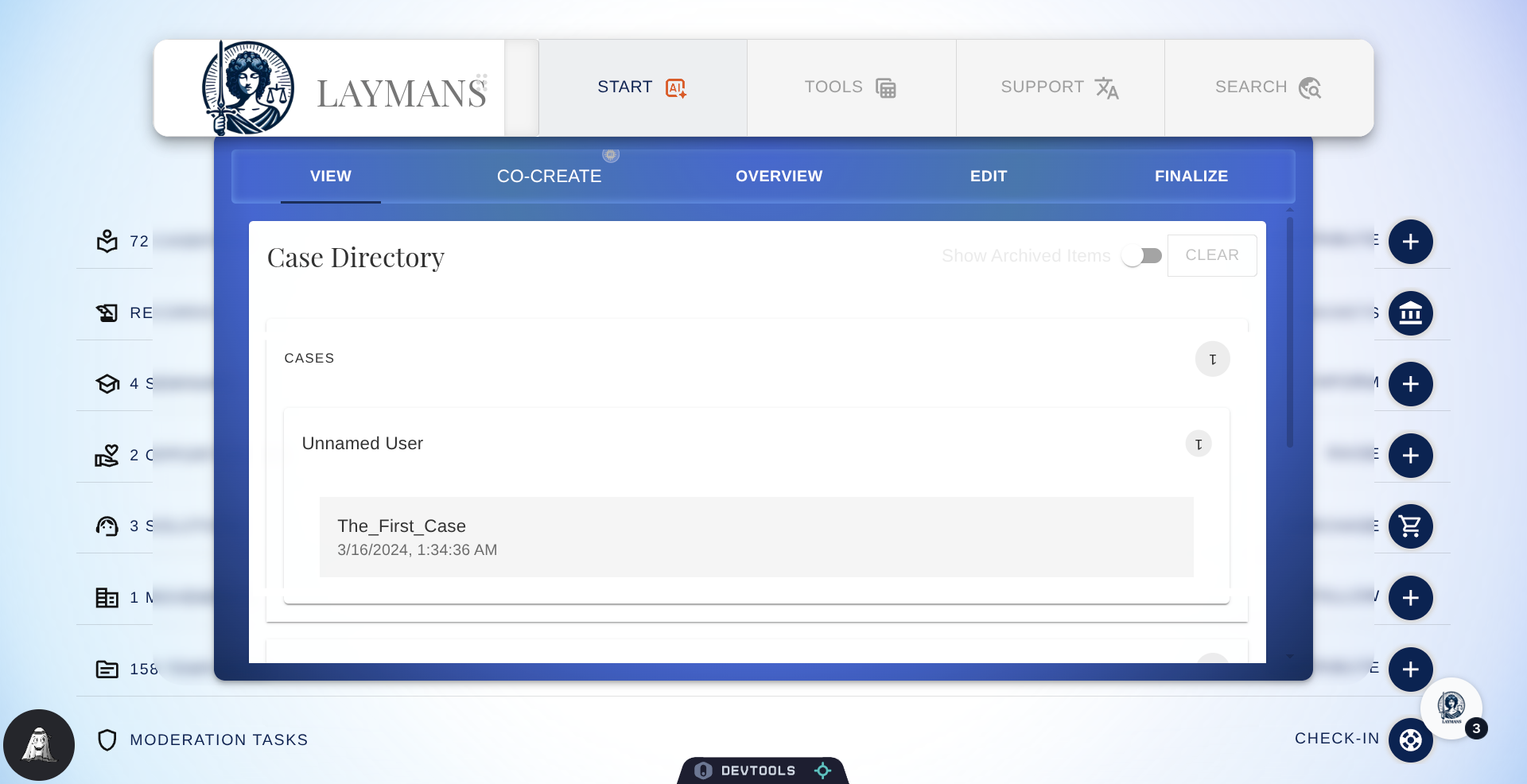
2. Click "The_First_Case"
Then select the case you want to work on -- where your contract is.
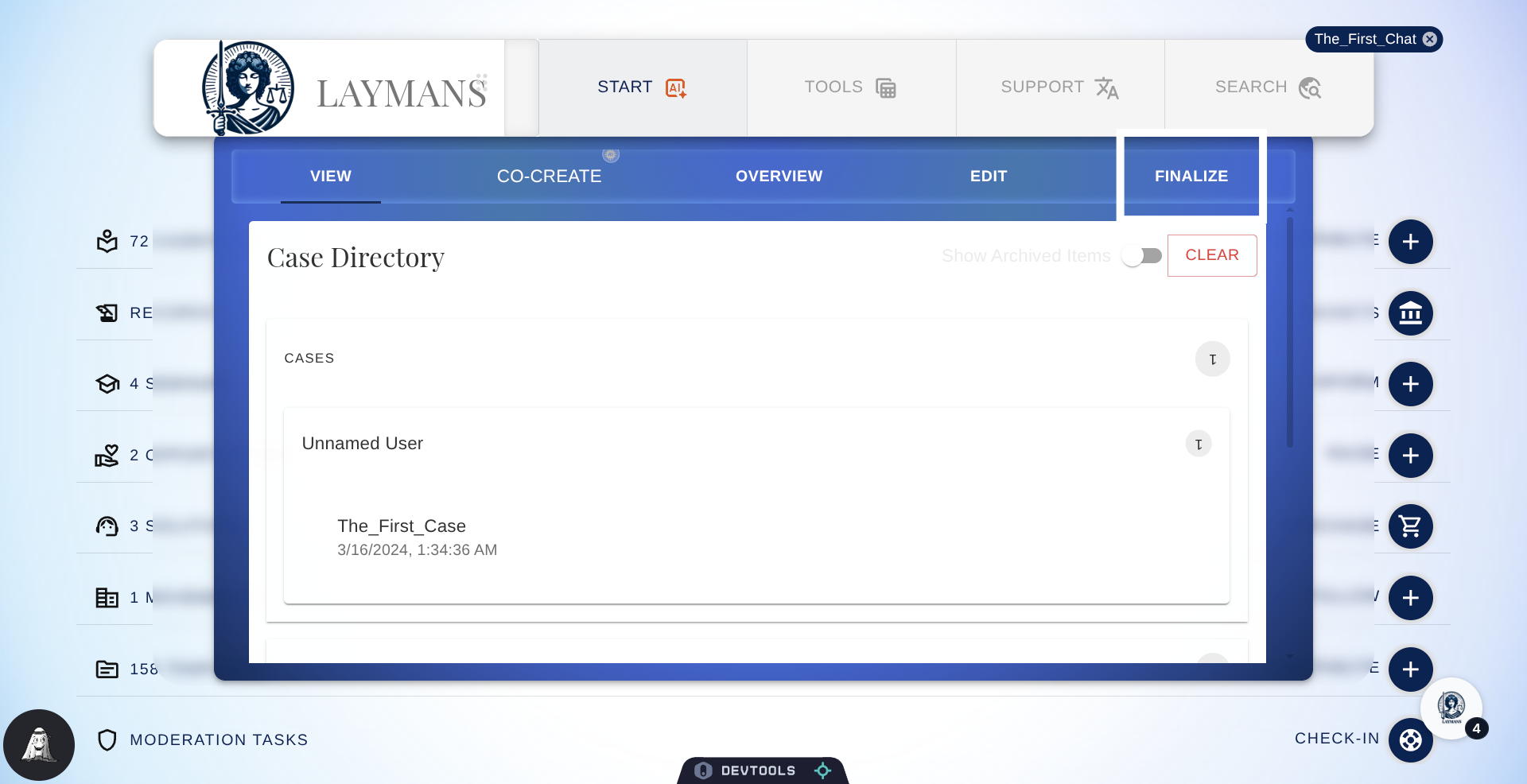
3. Click "FINALIZE"
To access details about inviting signers and their status, click "Finalize."
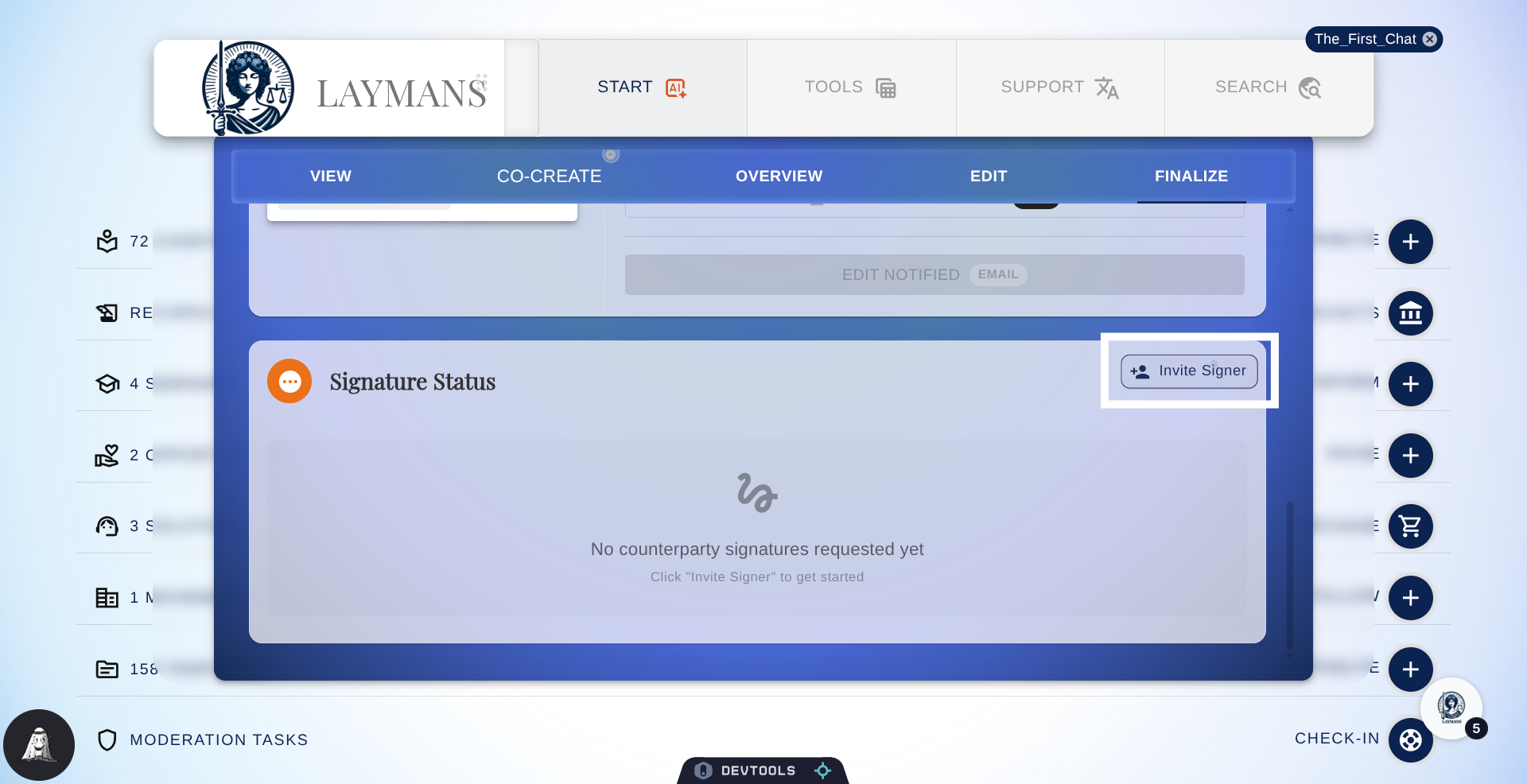
4. Click "Invite Signer"
If the case type is "contract," then a Signature Status Card component will be available under the Finalize tab of "Start." Scroll down, and you will find the "Invite Signer" button.
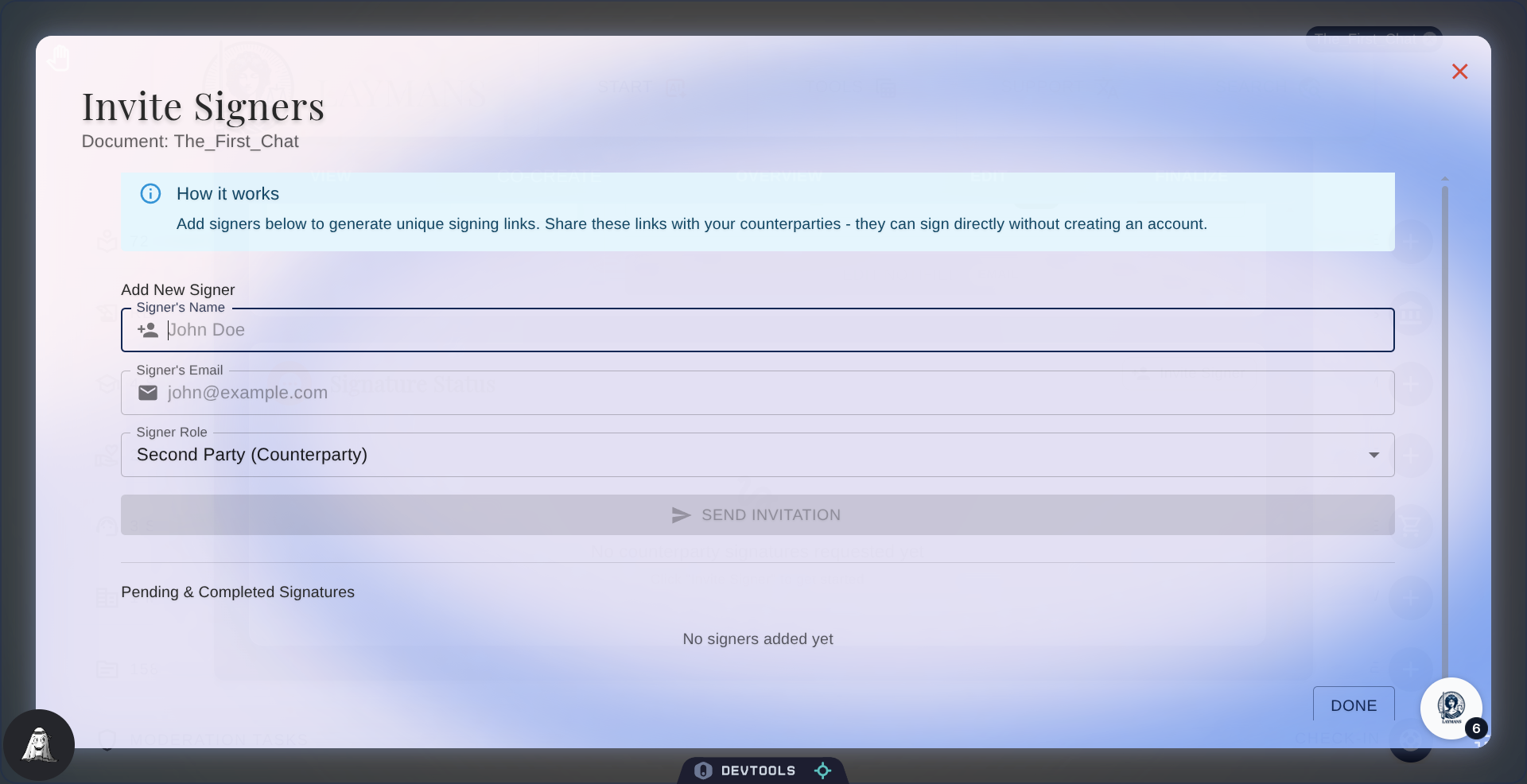
5. The Invite Signers Dialog
Welcome to the invite signers dialog; here you can specify the individuals you would like to sign your contract by name and email. If they have a Laymans account already, the contract will be associated with that account; inversely, if they don't, they will be invited to the platform. However, everyone must have a laymans account to sign -- don't worry they're free and we don't message much
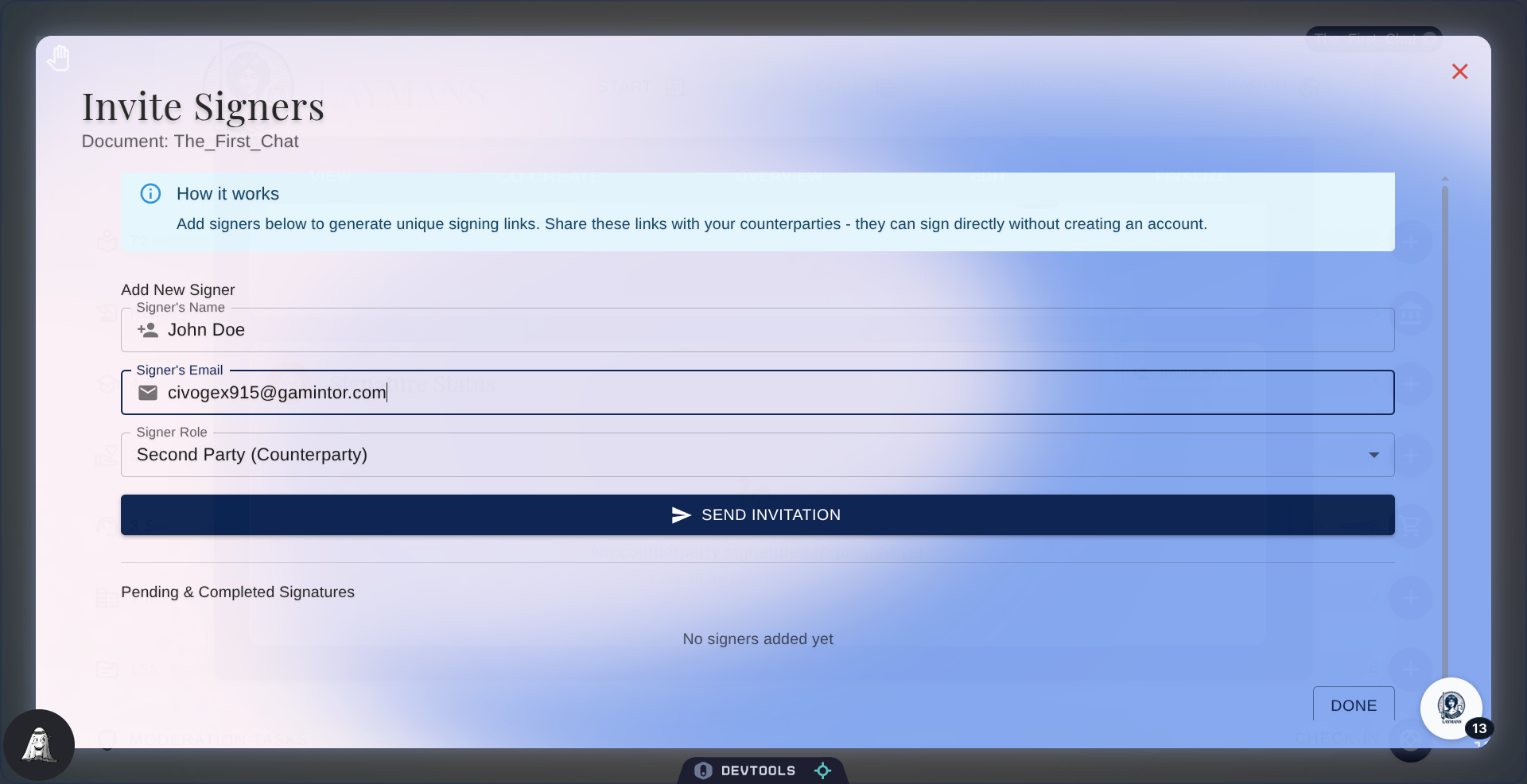
6. Fill in Invite Details
Let me just fill in the Signer name and Email so that we can move on...
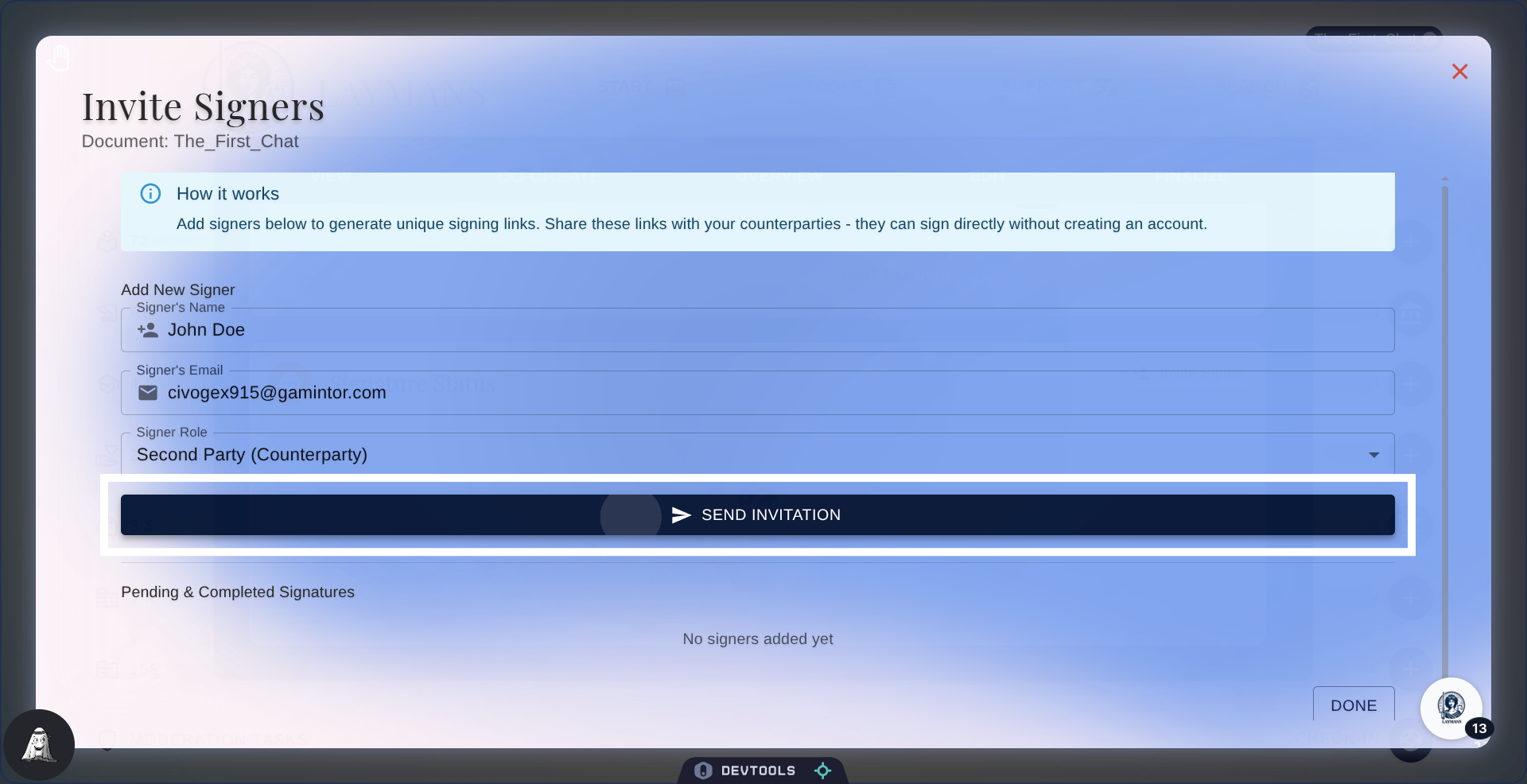
7. Click "Send Invitation"
Once done, click "Send Invitation" to send out your invite.
8. Invitation Success
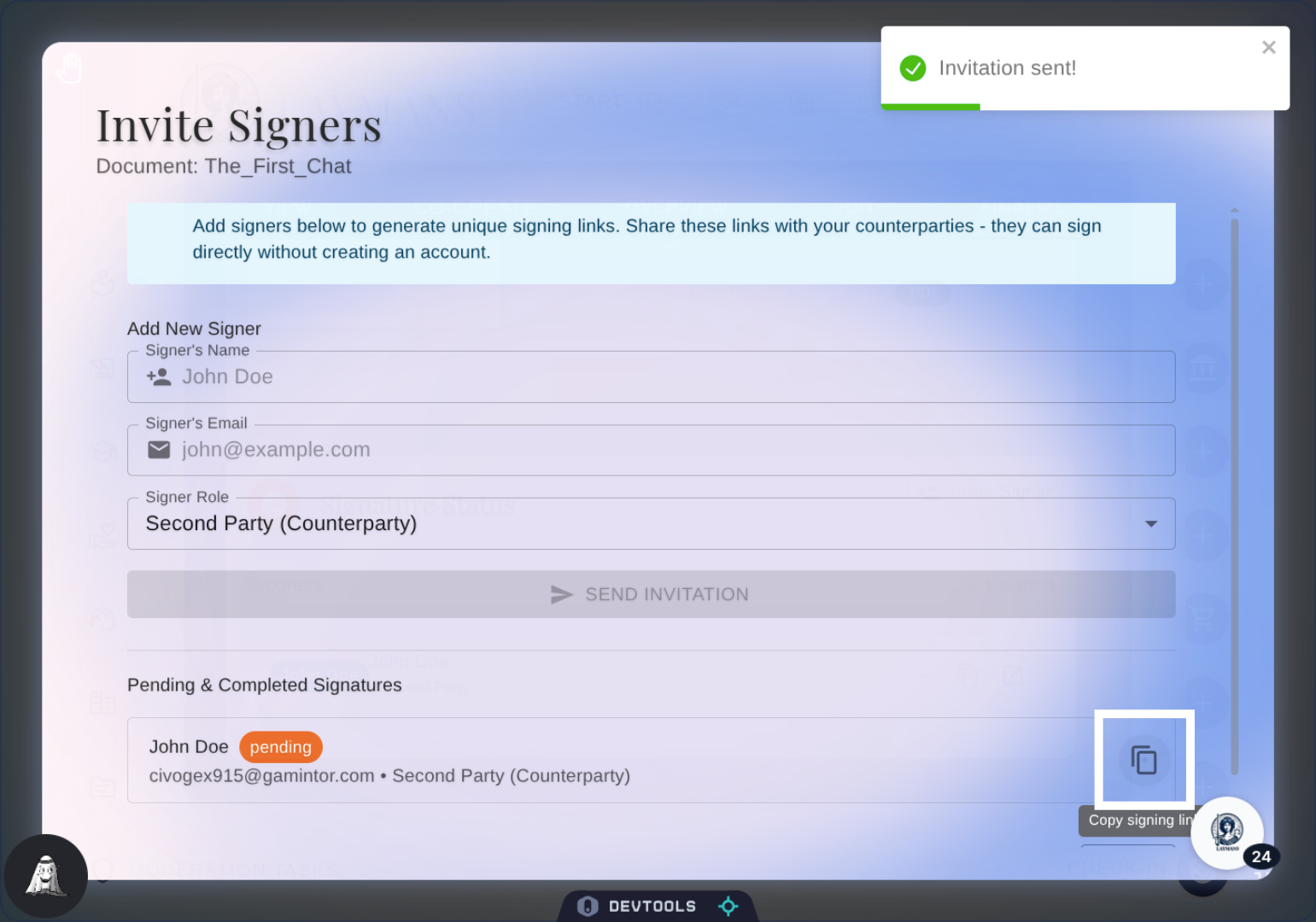
The invitation was successful! You can immediately see the signing status in the dialog and the Power Bar. The other layperson should receive an email with a link to log in, followed by an email with the link to sign the contract.
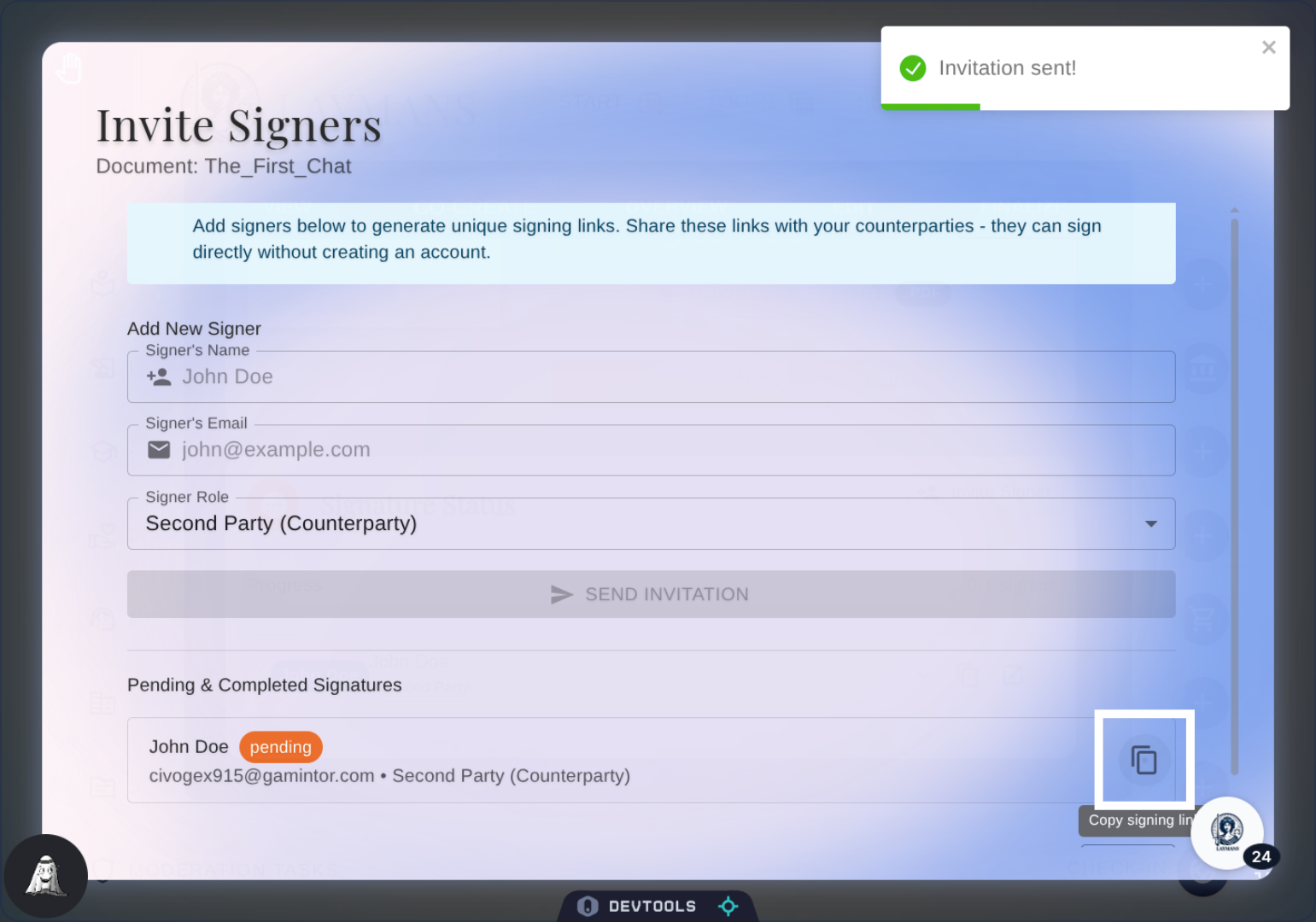
9. Copy Invite Url
Let's click here to copy the invite URL and see the signing page for ourselves.
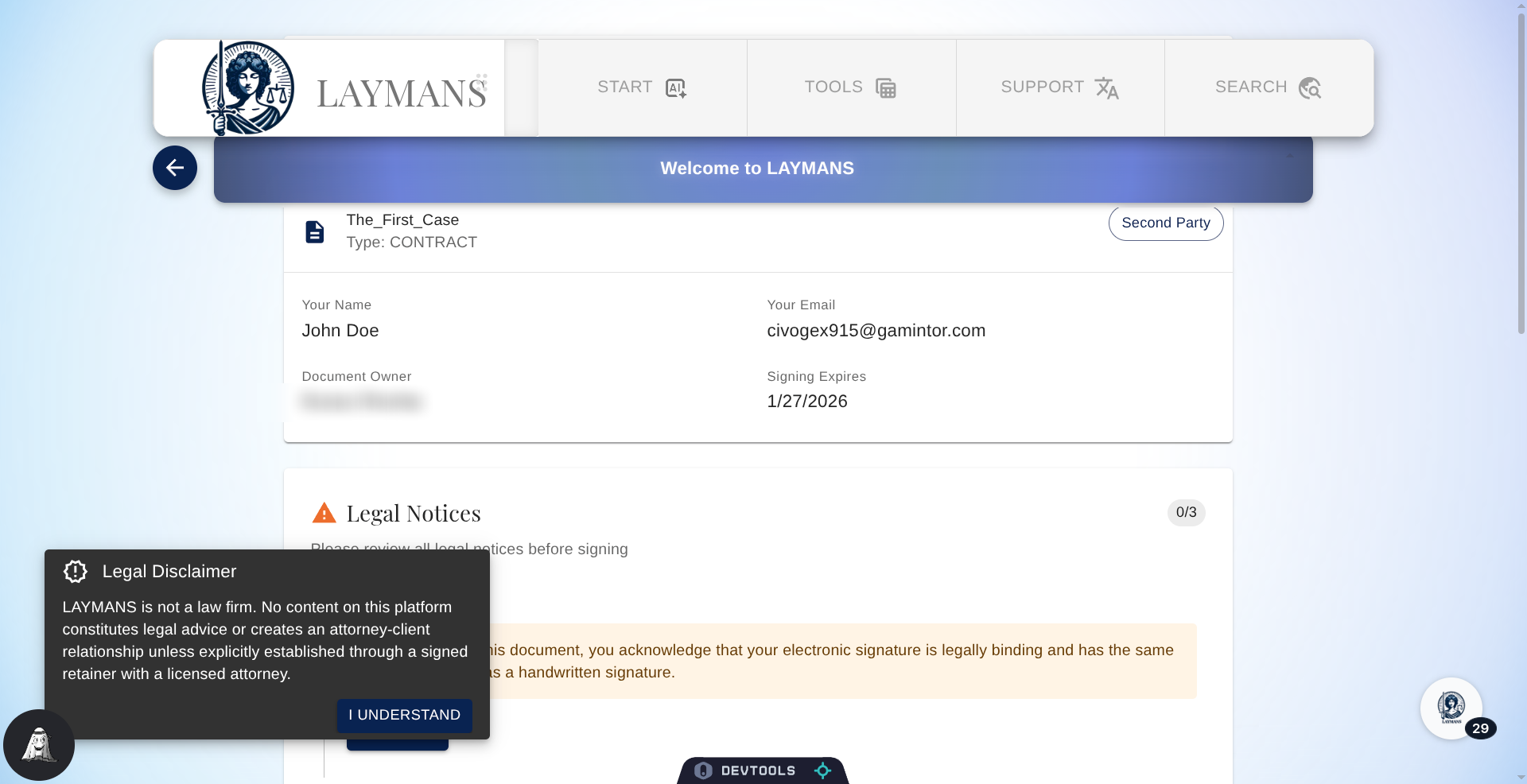
10. The Signing Page
Just a heads-up: anyone with the invite link can get to the contract signing page, so make sure to keep that link safe! But don’t worry, only the right invitee can actually sign it. When you get to the page, you’ll see some info about who the invitee is, so just double-check that you're the right person!
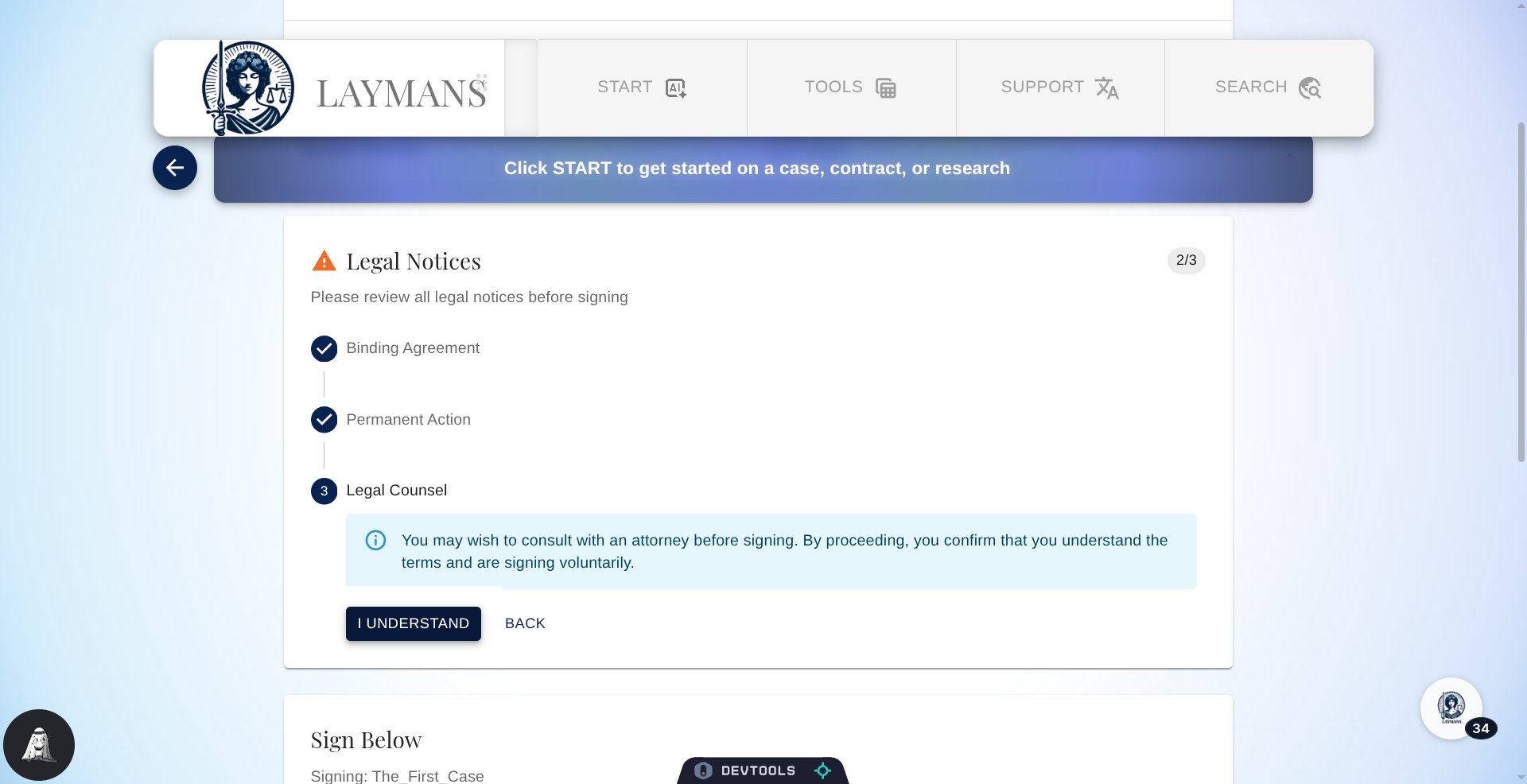
11. Click "I Understand"
Then you'll receive some legal notices about using Laymans for contracting—make sure to read them in detail! In summary, we suggest you get an attorney; this is a binding agreement. You assert that you are the invitee, and we aren't liable for the agreement, as we didn't review it, nor are we your attorney
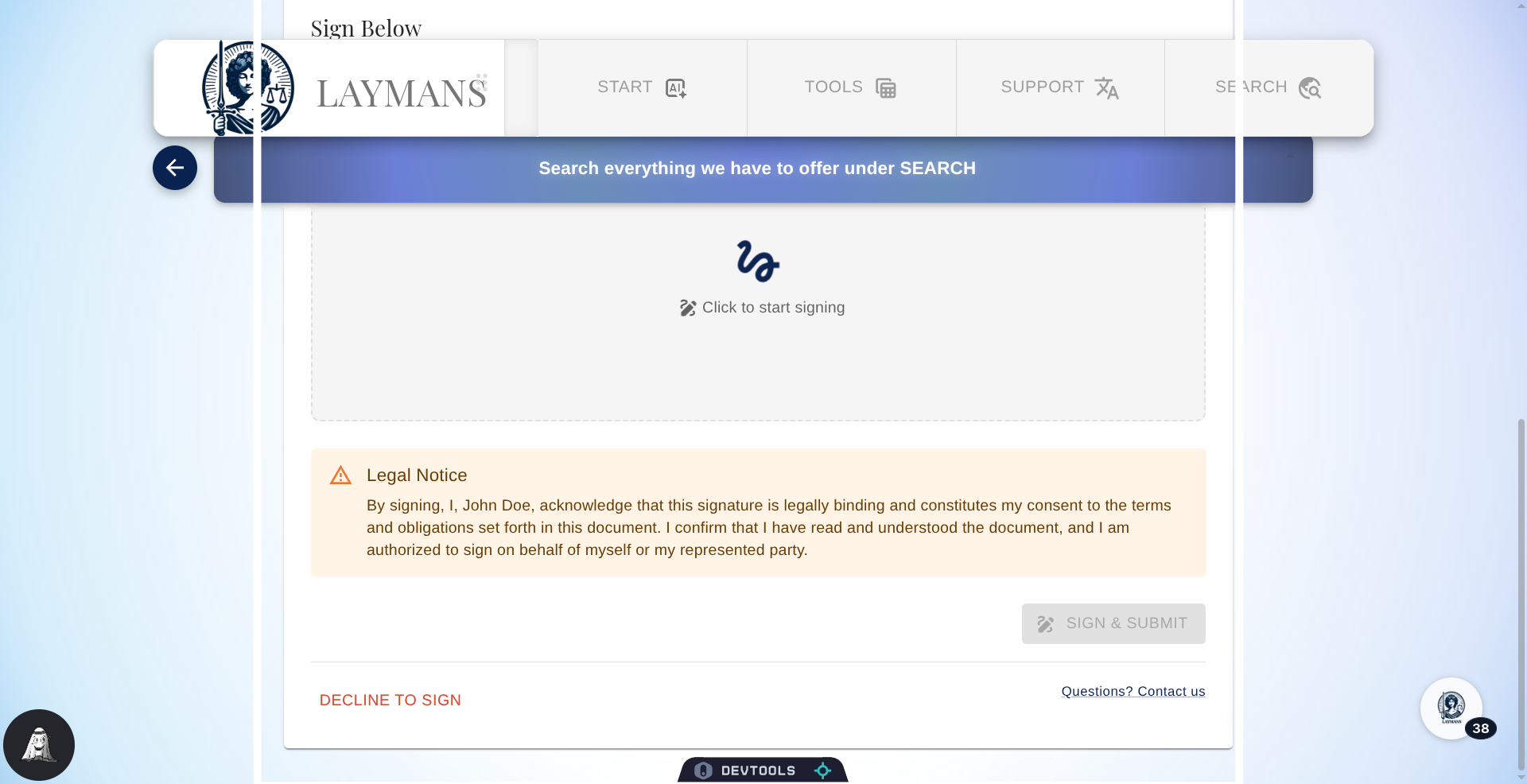
12. Click to Start Signing
After reviewing the contract above, you will come to the signing pad. Like other endorsement elements, you just need to click to draw and use Enter or Space to end. We register and update the contract with your signature and signing certificates asynchronously, so you'll receive updates later as everyone signs.
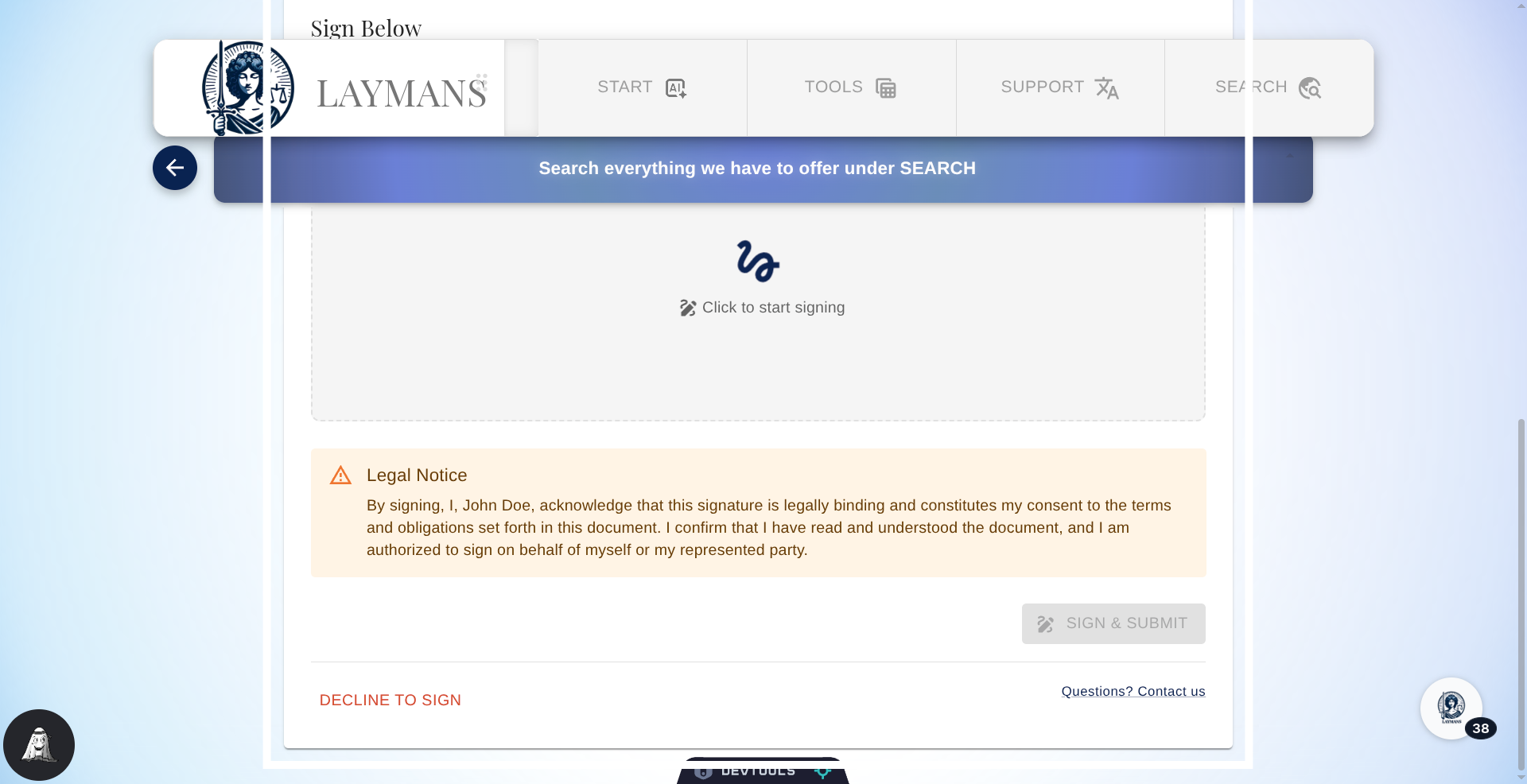
13. Click Questions, Decline to Sign, or Transfer
Here you will conditionally see a set of buttons: You can decline to sign the document; you will be prompted to share your reasoning, which will be shared with the document owner for review—this is great for sharing any contractual changes you may want. Then, if there are any warnings regarding your ownership of the document, you may see a "Transfer Invite" button—this allows you to transfer your invite to your main account if you have one. Note, if you have a main account and the contract has been sent to a new account or another email you own, you first have to log into the assigned account correctly to transfer. Finally, you can ask us any questions in Verify.
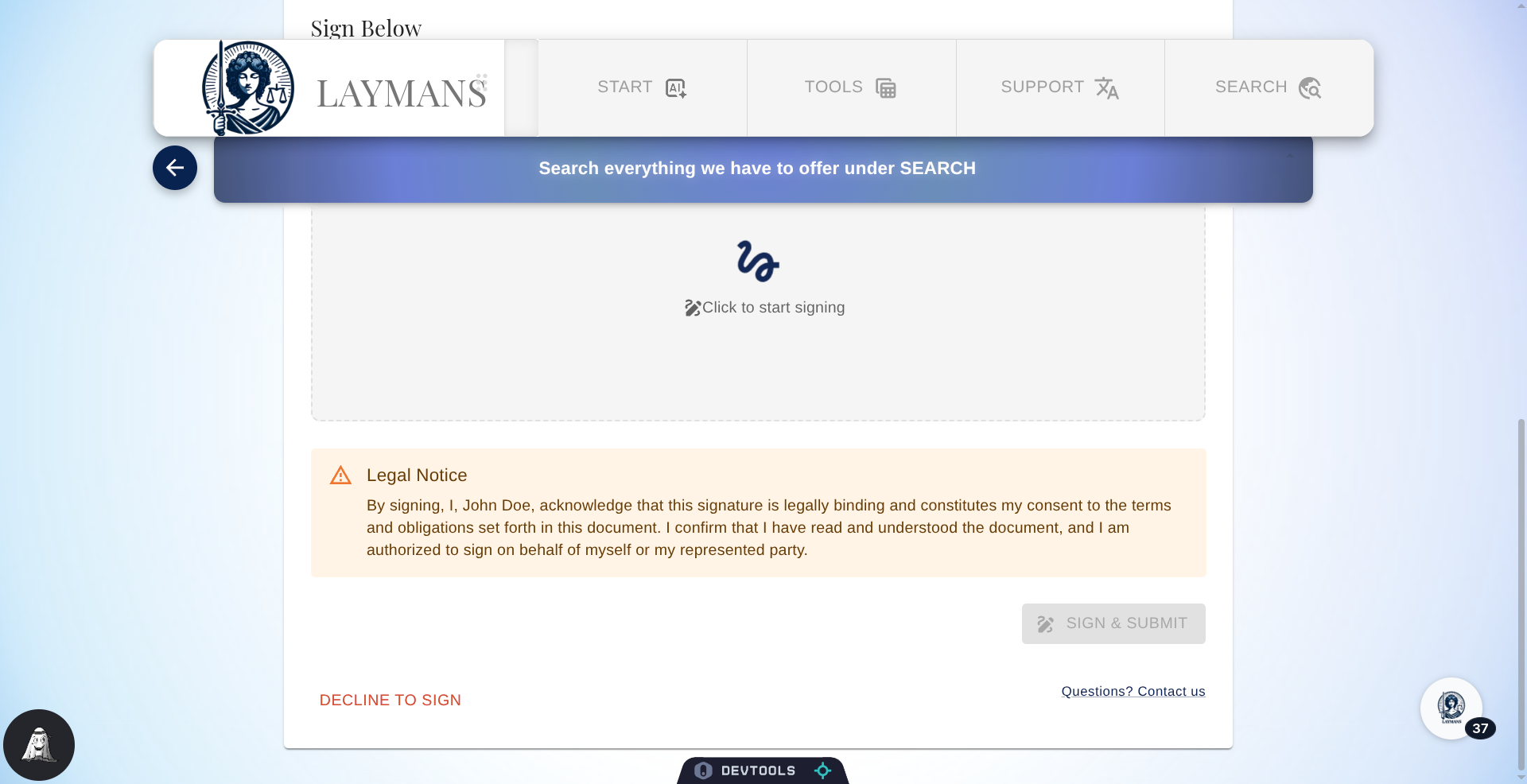
14. Click Sign & Submit
When you're ready and have placed your signature, you can click "Sign & Submit" to move to the confirmation page. If you're still unclear, you can click the Explain button on the contract to get a quick introduction from me, Layla, Layman's AI, to the document using Layman's terms. We facilitate contracts to make contracting around the country more transparent, equitable, and actionable. Whether you're a freelancer, an artist, or a business owner, we recommend protecting yourself with Layman's.