What is the Laymans Briefcase?
Quick Start
Go to www.laymans.app to get started with Briefcases.
Introduction
Welcome to the Layman's Briefcase! You were probably given a link to one or came upon one while building your case and now want some more information. Briefcases are how laypeople and lawyers template and reuse resources on Layman's to quickly make legal cases. Let me get you up to speed.
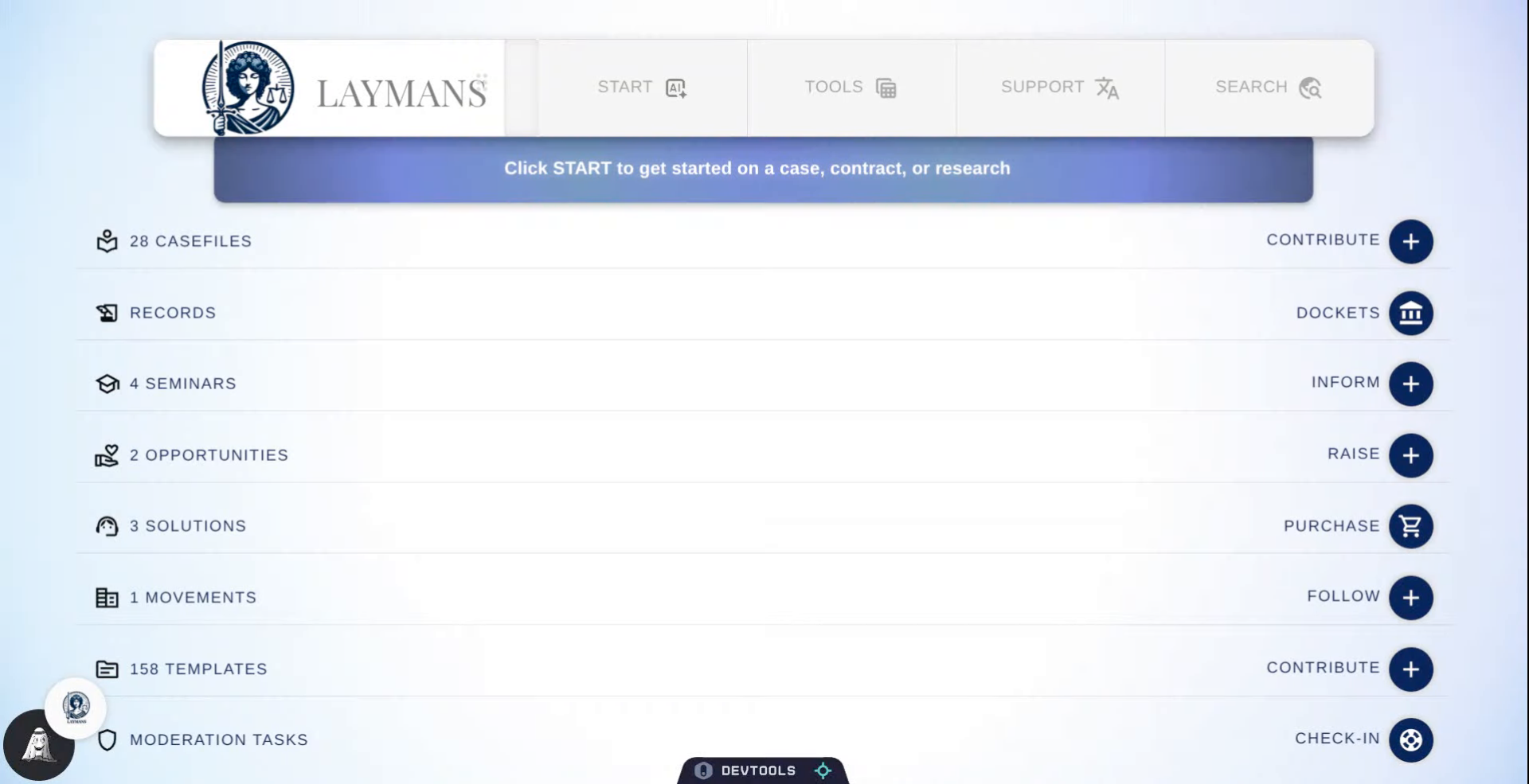
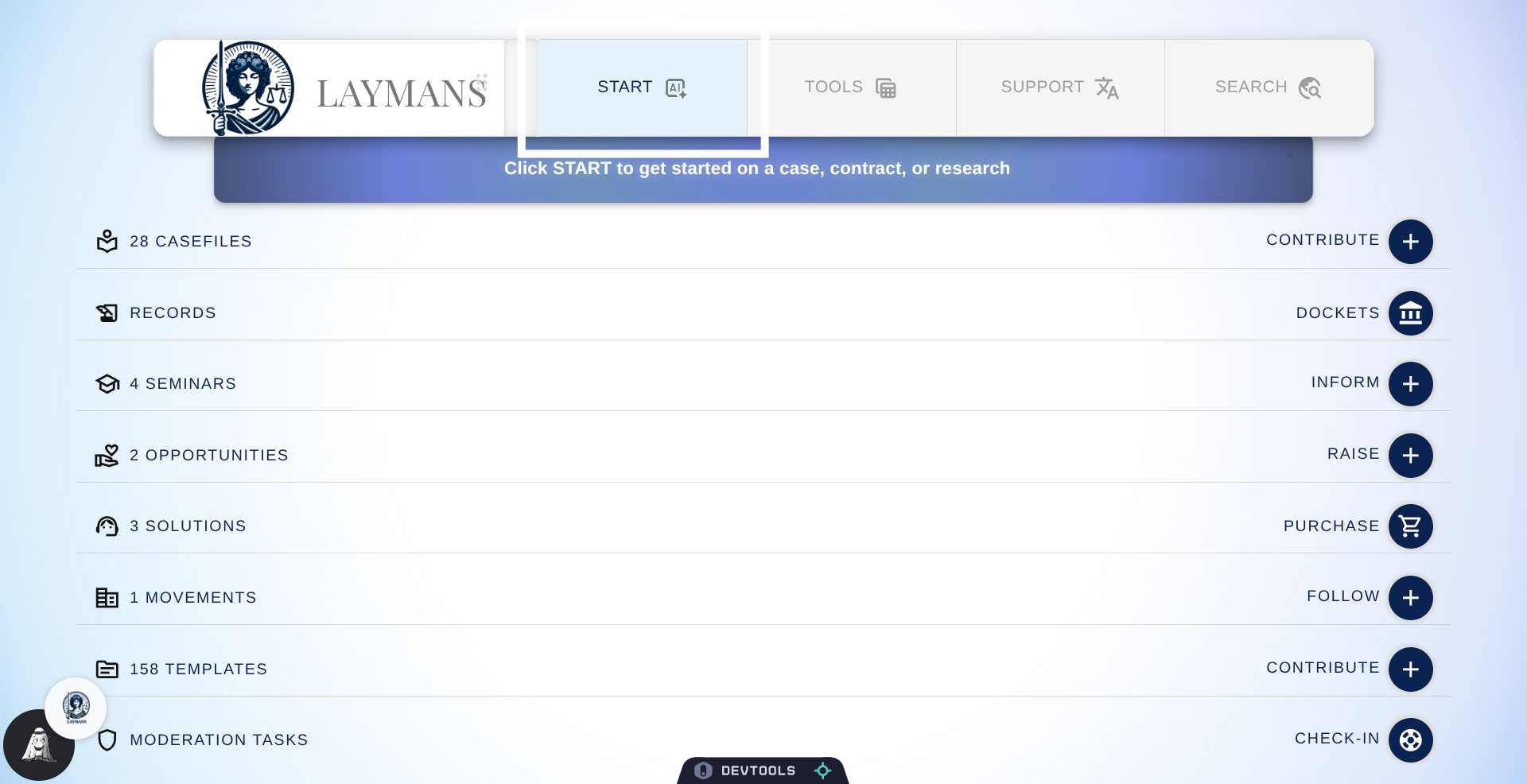
2. Click Start Button
If the Briefcase didn't show up automatically from the URL, you can reopen it via the Case Directory under the Start Button.
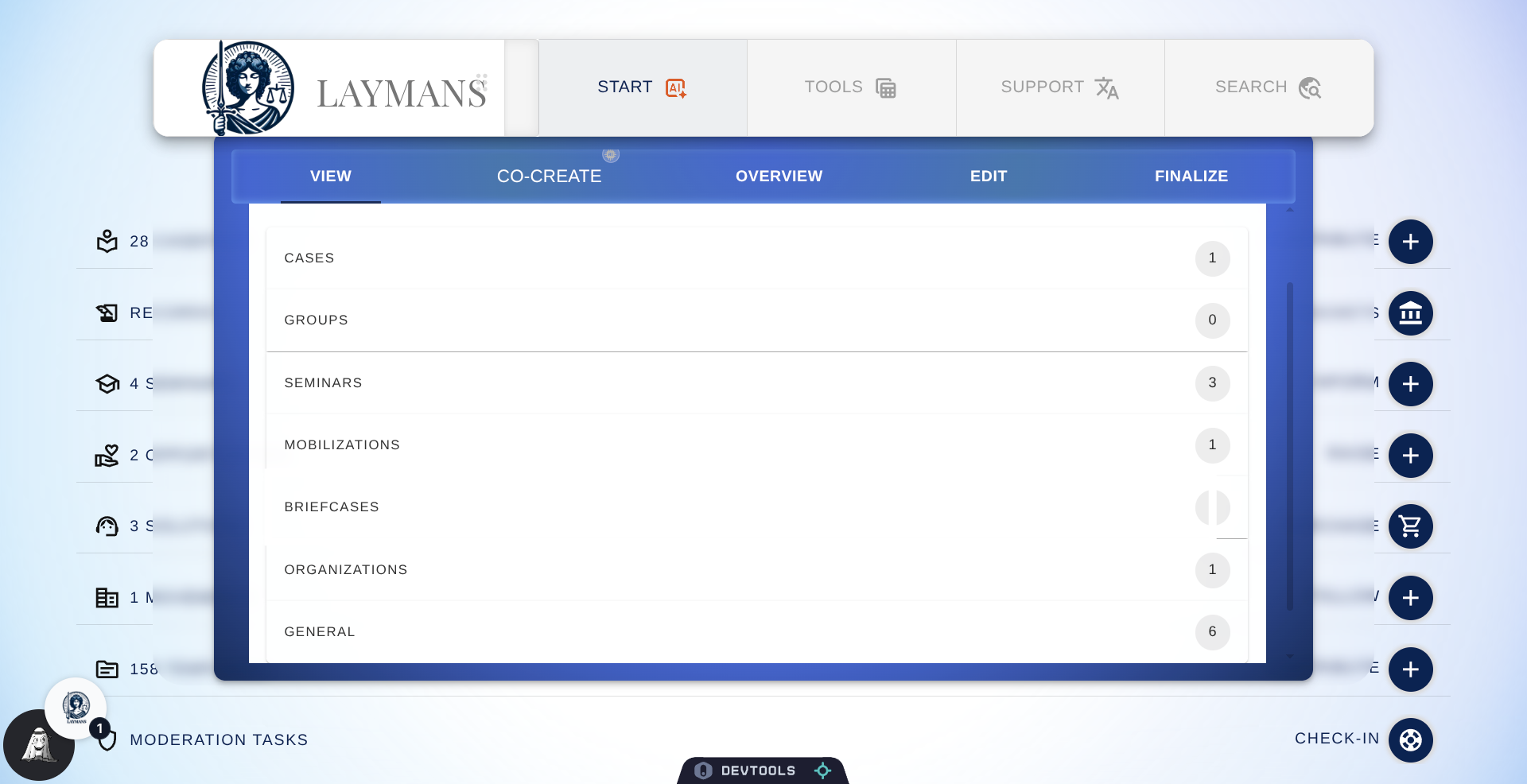
3. Select Briefcases Section
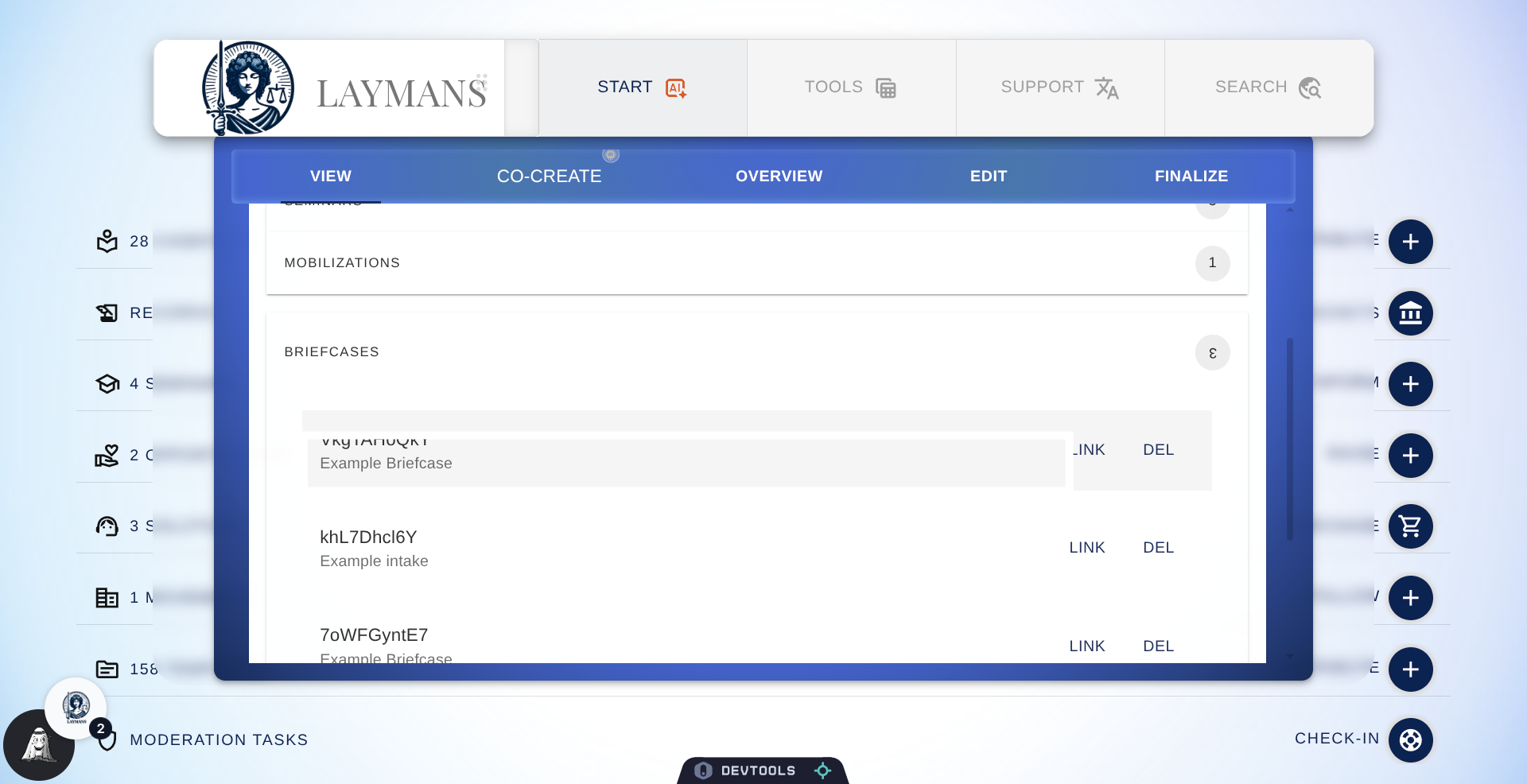
In the Case Directory, you'll find the context for many complex resources on Laymans, including briefcases.
4. Open Example Briefcase
I'm going to select this "Example Briefcase" to review, but any Briefcases you own or have bookmarked will show up here.
5. About the Laymans Briefcase
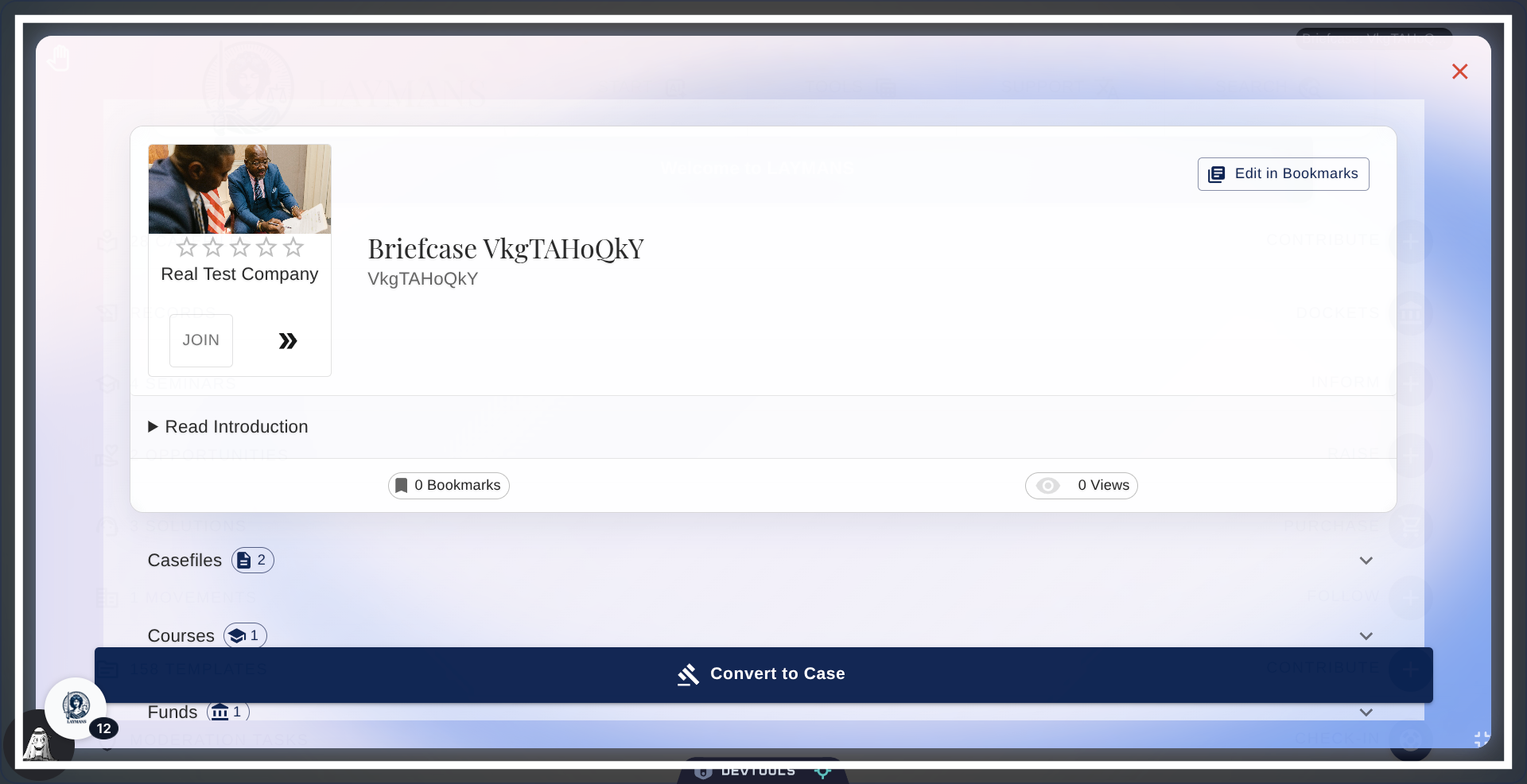
Welcome to the Laymans Briefcase. In a Briefcase you can find an aggregation of Laymans titular resources including casefiles, seminars, funding, templates, and services, for quickly making a case from scratch. Between lawyer-made packages of resources and me, Layla—Laymans' AI—making a legal contract or document can take only seconds instead of hours. Let's go through it.
6. Click Casefiles
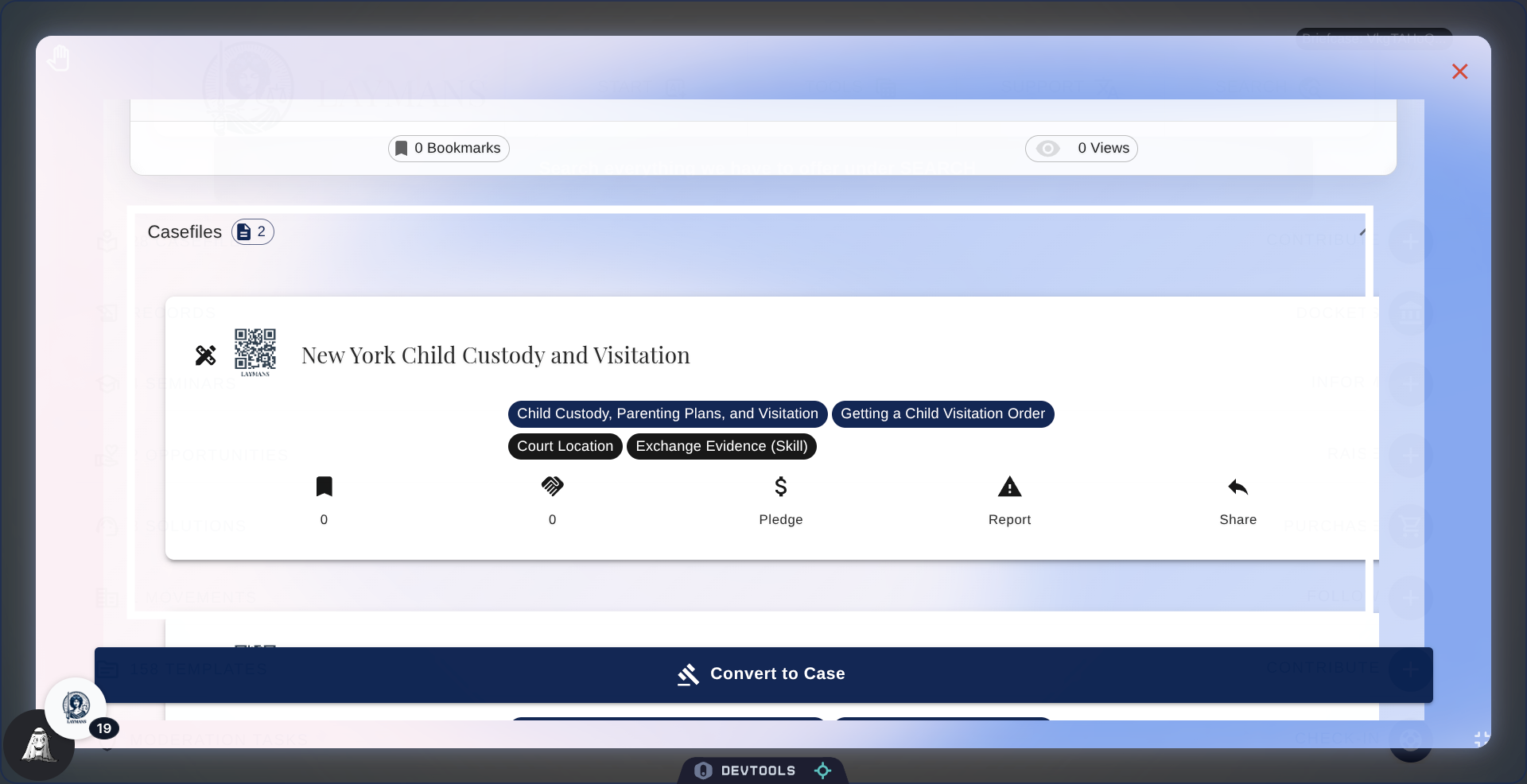
First are the Casefiles; these are the granular resources— the meeting links, addresses, pamphlets, specified forms, or discussions—the Briefcase's creator thought would help you. If you create a case using this Briefcase they will be added to it.
7. Click Seminars
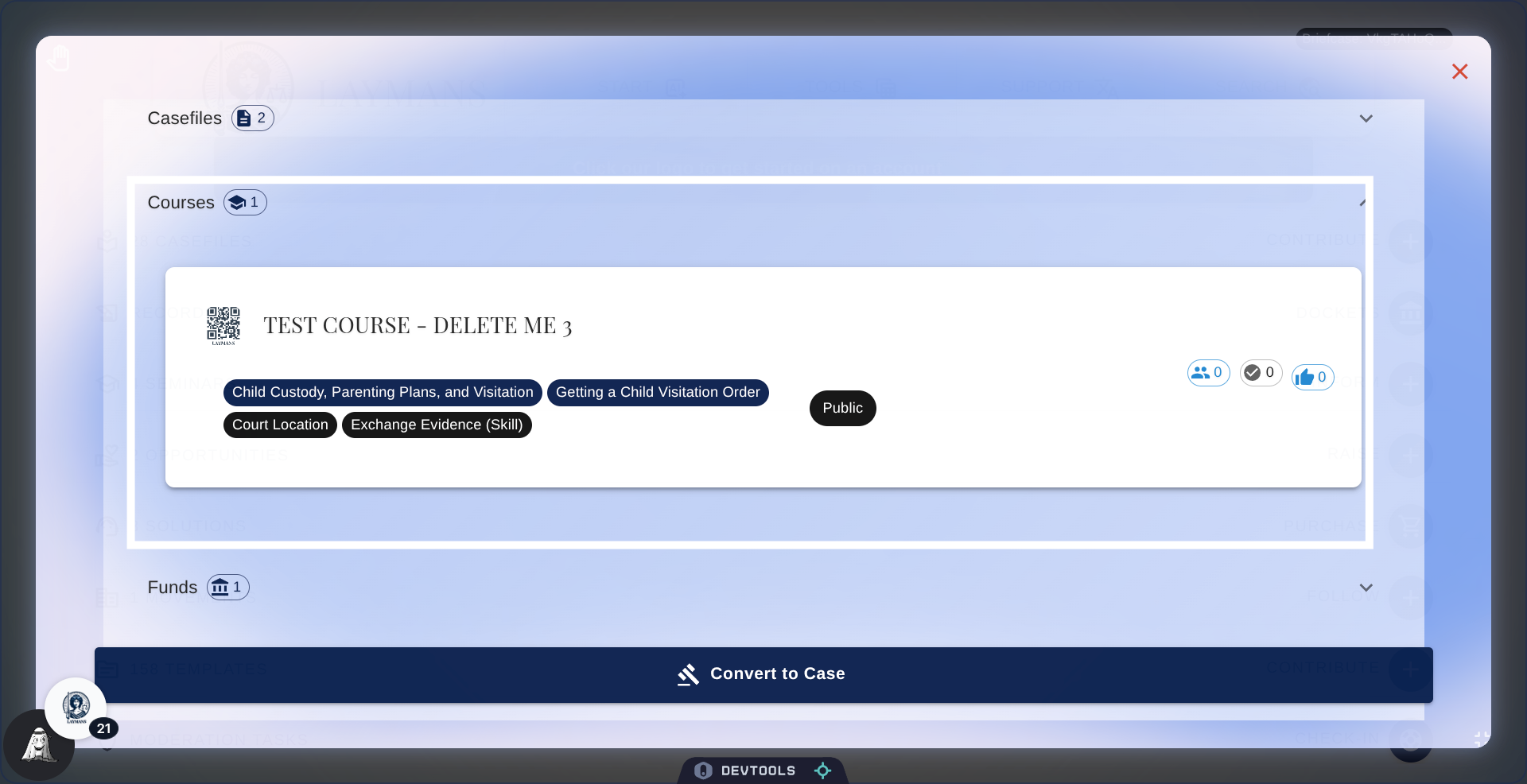
In Seminars, You'll find the educational courses the Briefcase Creator may've thought relevant to any case you may try to build with this Briefcase. If you create a case with this Briefcase you will be enrolled as a follower of the given Seminar to study at your own pace.
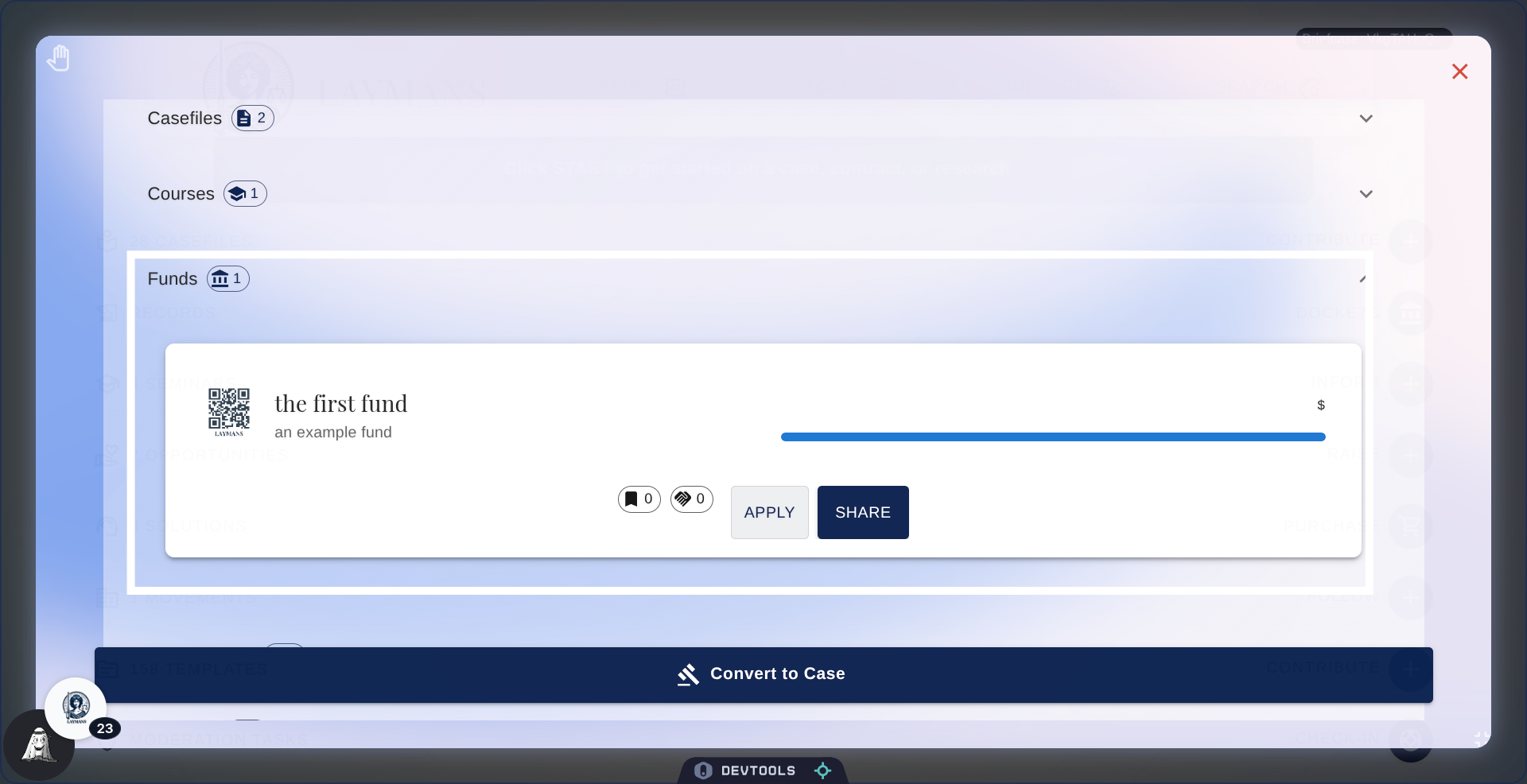
8. Click Funds
Briefcase Creators can refer Funds they believe are relevant to any case created from this Briefcase. Once you create your case, you'll havean opportunity to apply for funding if needed.
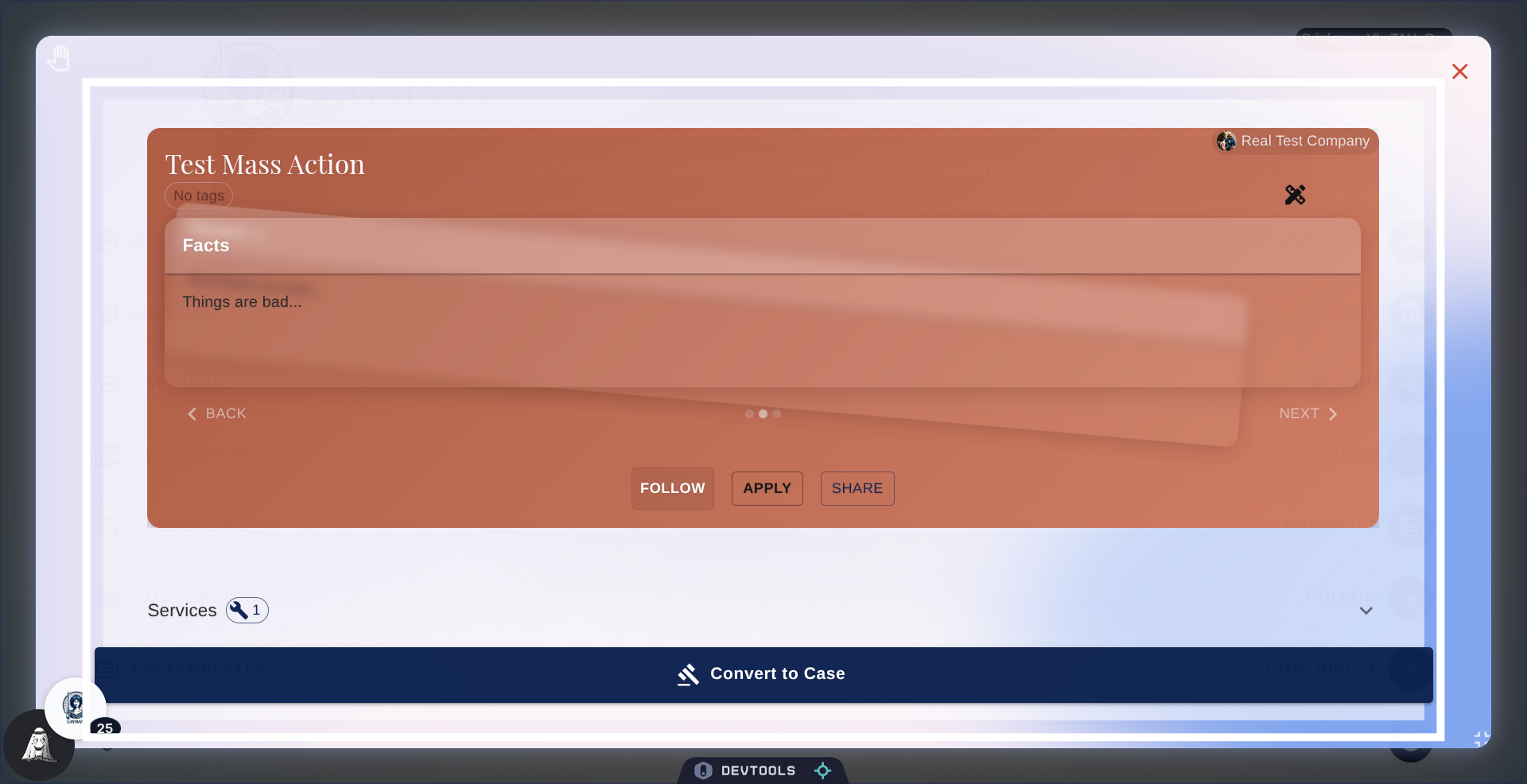
9. Click Mass Actions
In the Mass Actions section, you will find Mass Actions you can apply to that the Briefcase's creator thought relevant to any cases coming out of this. Once you've made your case, you will be provided an opportunity to apply to a mass action for, potentially, more support, resources, and funding.
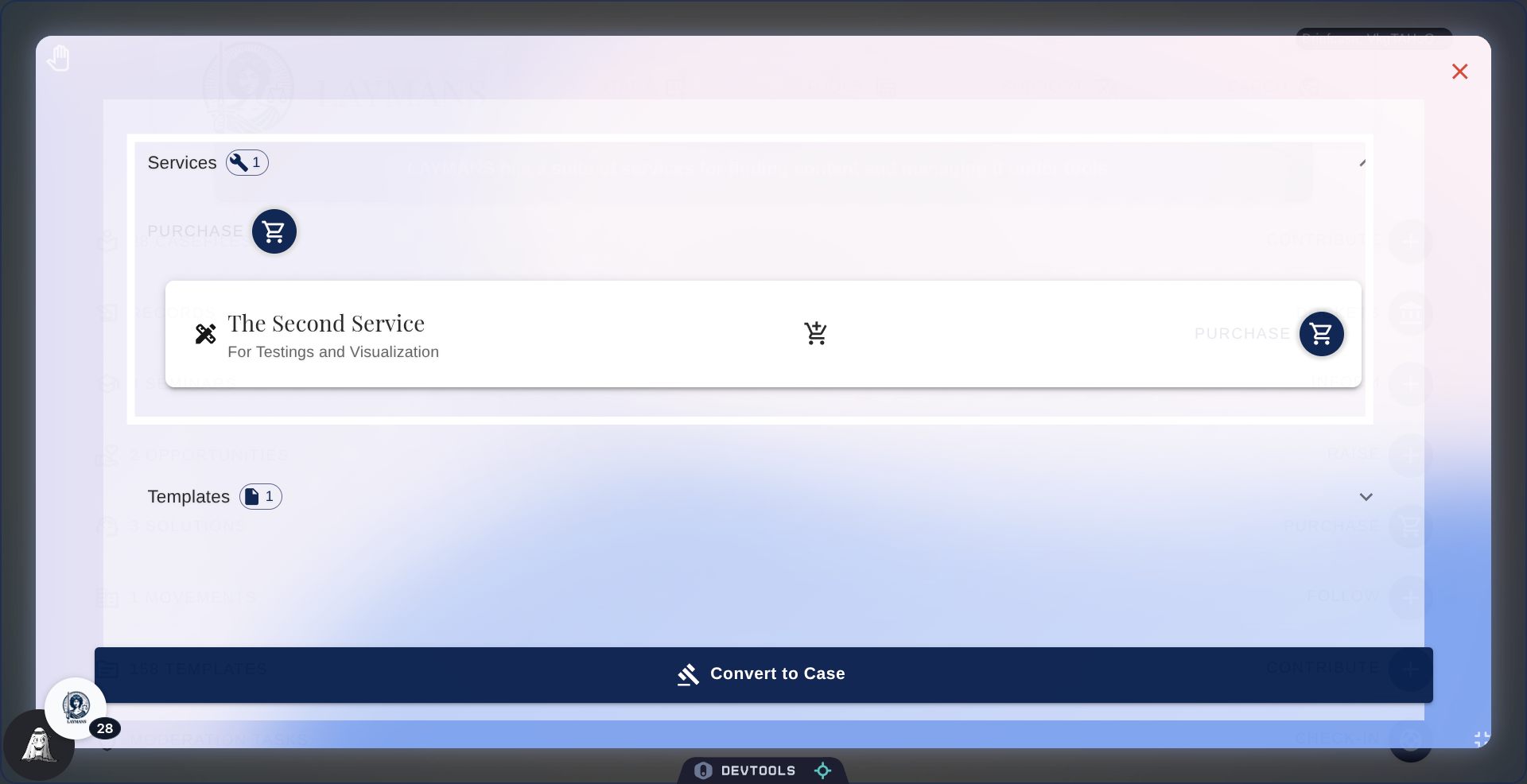
10. Click Services
Next you'll find any services that the Briefcase owner found useful or relevant, which will be added to your cart once a case is created from this Briefcase.
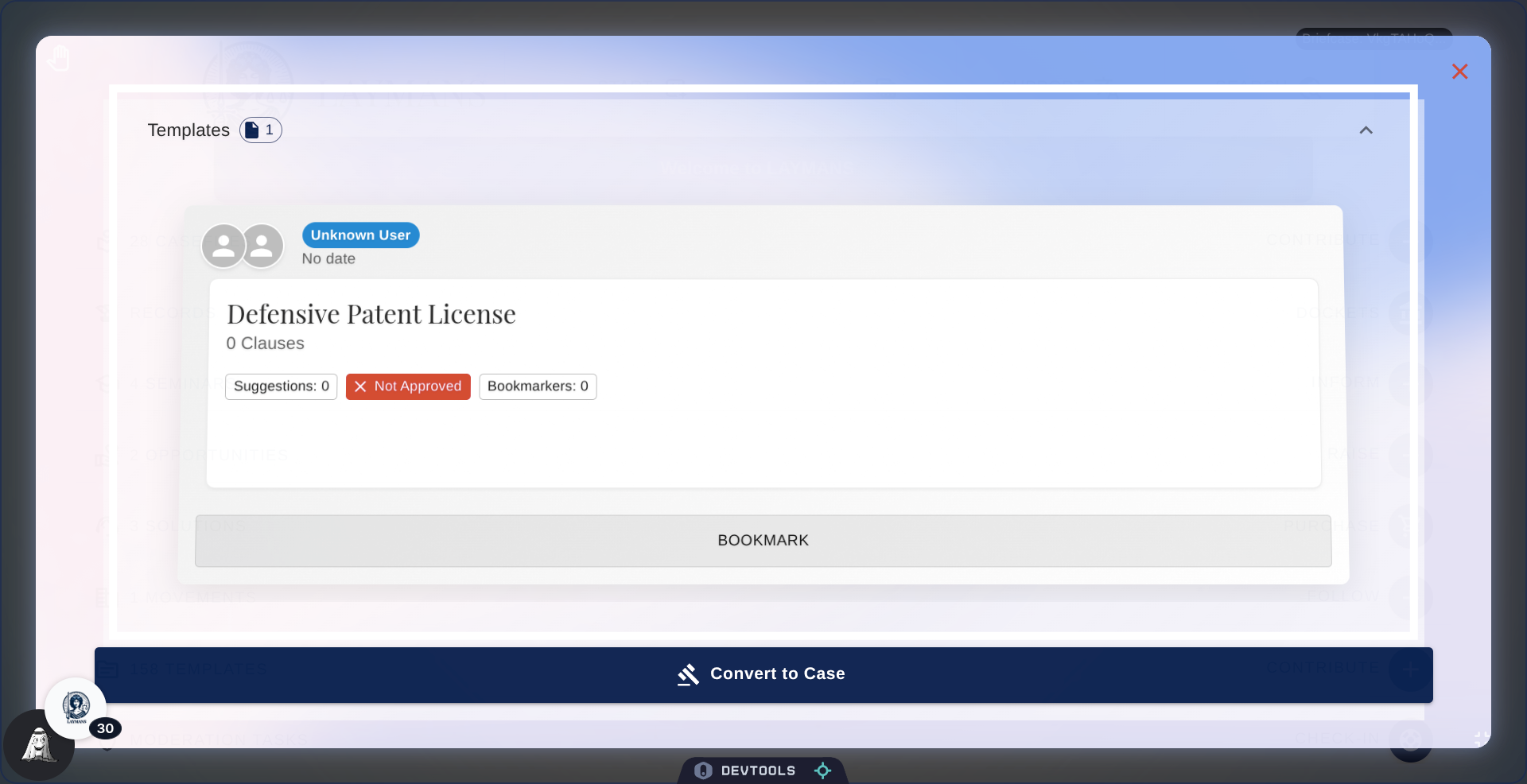
11. Click Templates
Finally you'll find the Templates section, where any template that the Briefcase creator thought should be applied to the cases created by the Briefcase will be automatically added to your case -- allowing for the legal document to be auto-generated.
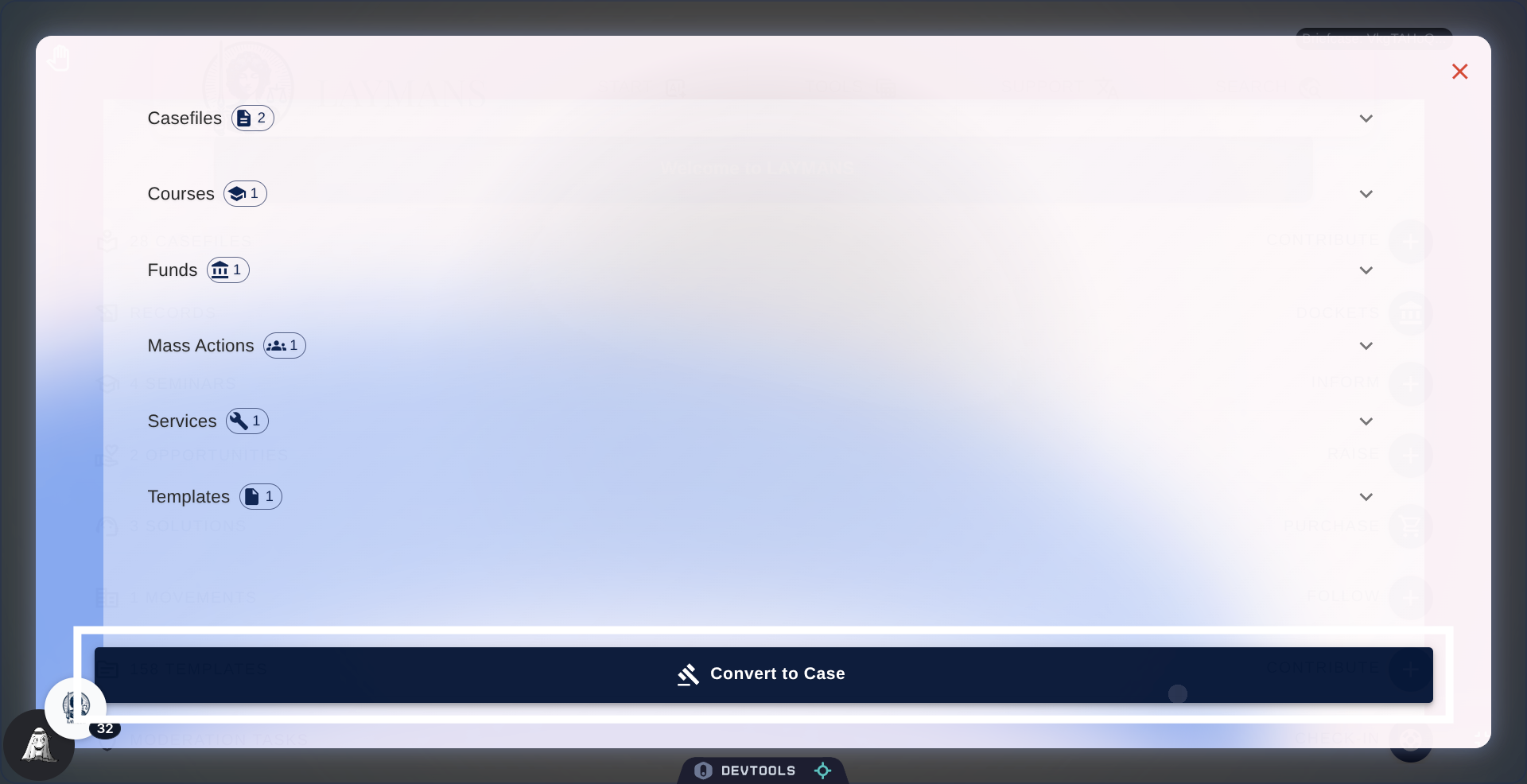
12. Click 'Convert to Case'
Now that we've went over that, we're ready to make a case from this Briefcase!
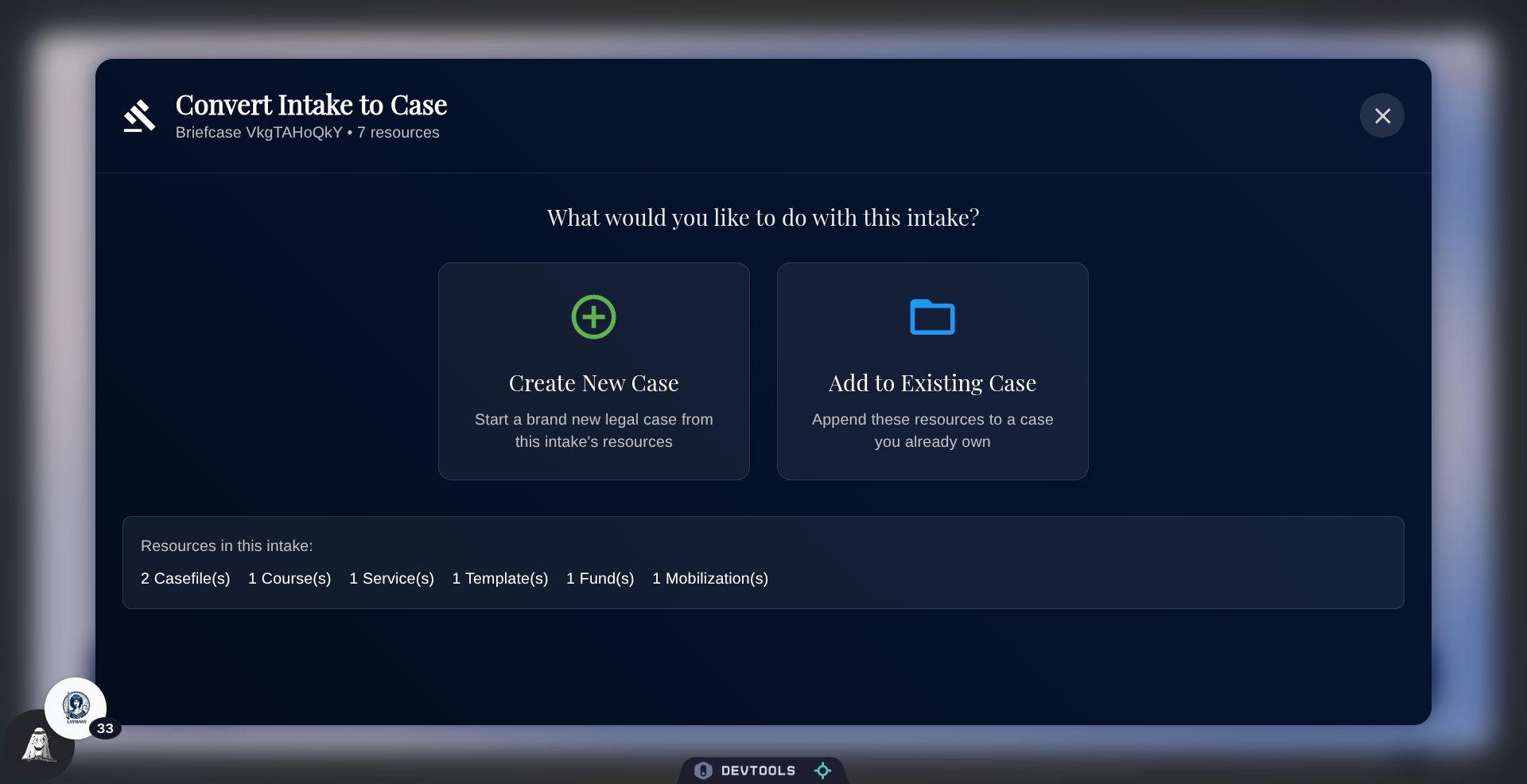
13. Choose your Briefcase Action
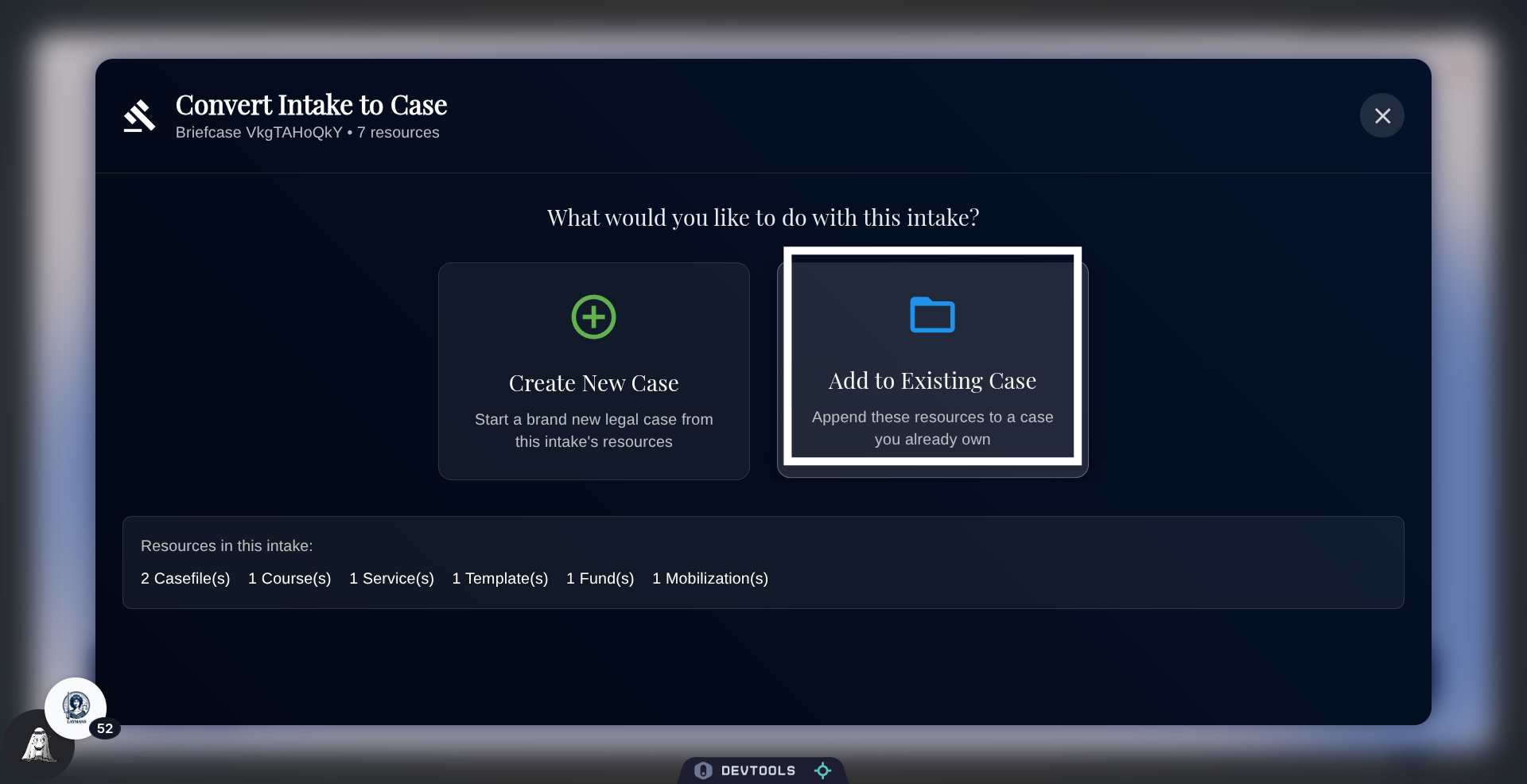
So there are two ways to use a Briefcase in your legal cases: 1) You can create a new Case from scratch, or 2) You can add to one of your preexisting cases.
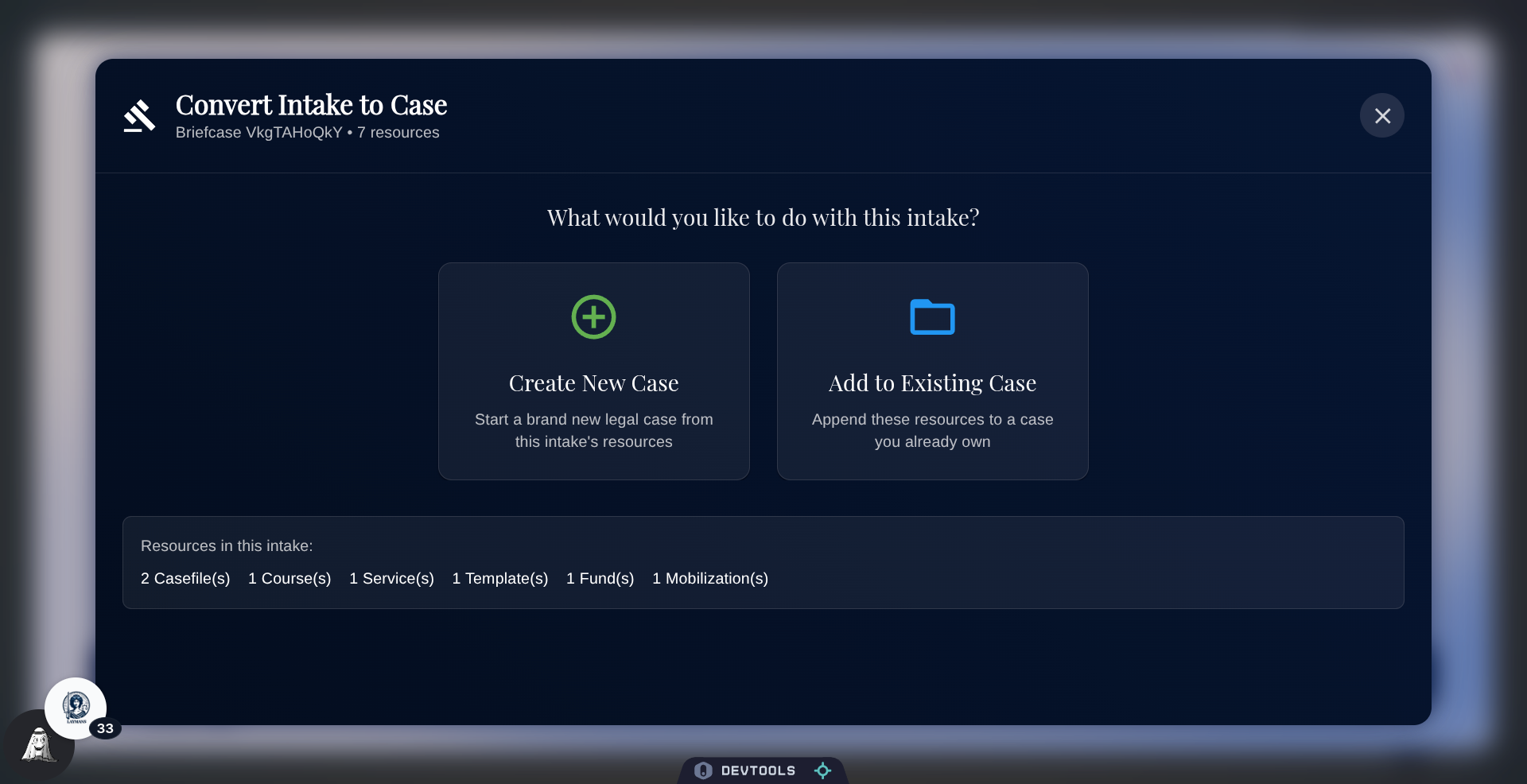
14. Click Create New Case
I'm going to demonstrate both—starting from "Create New Case."
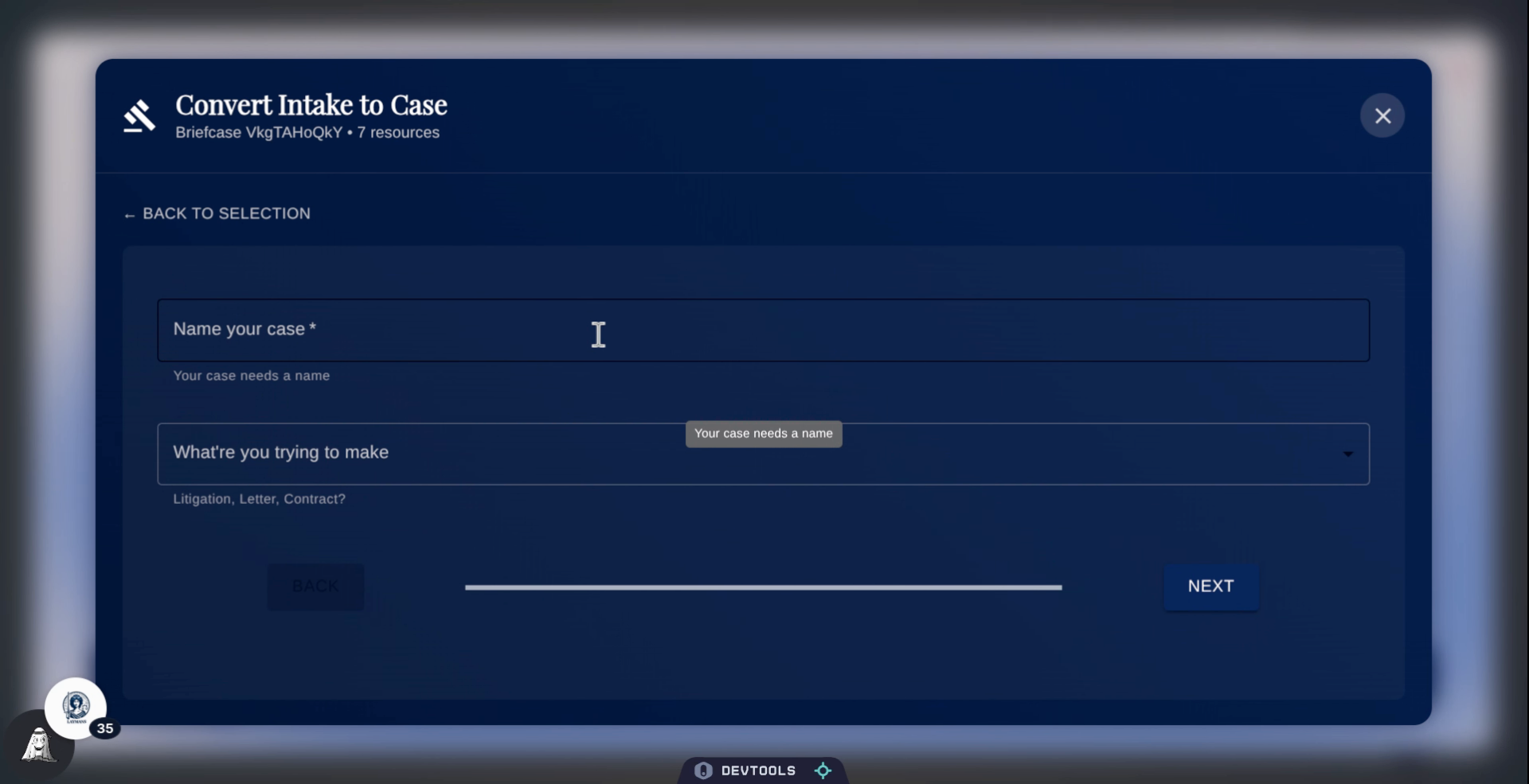
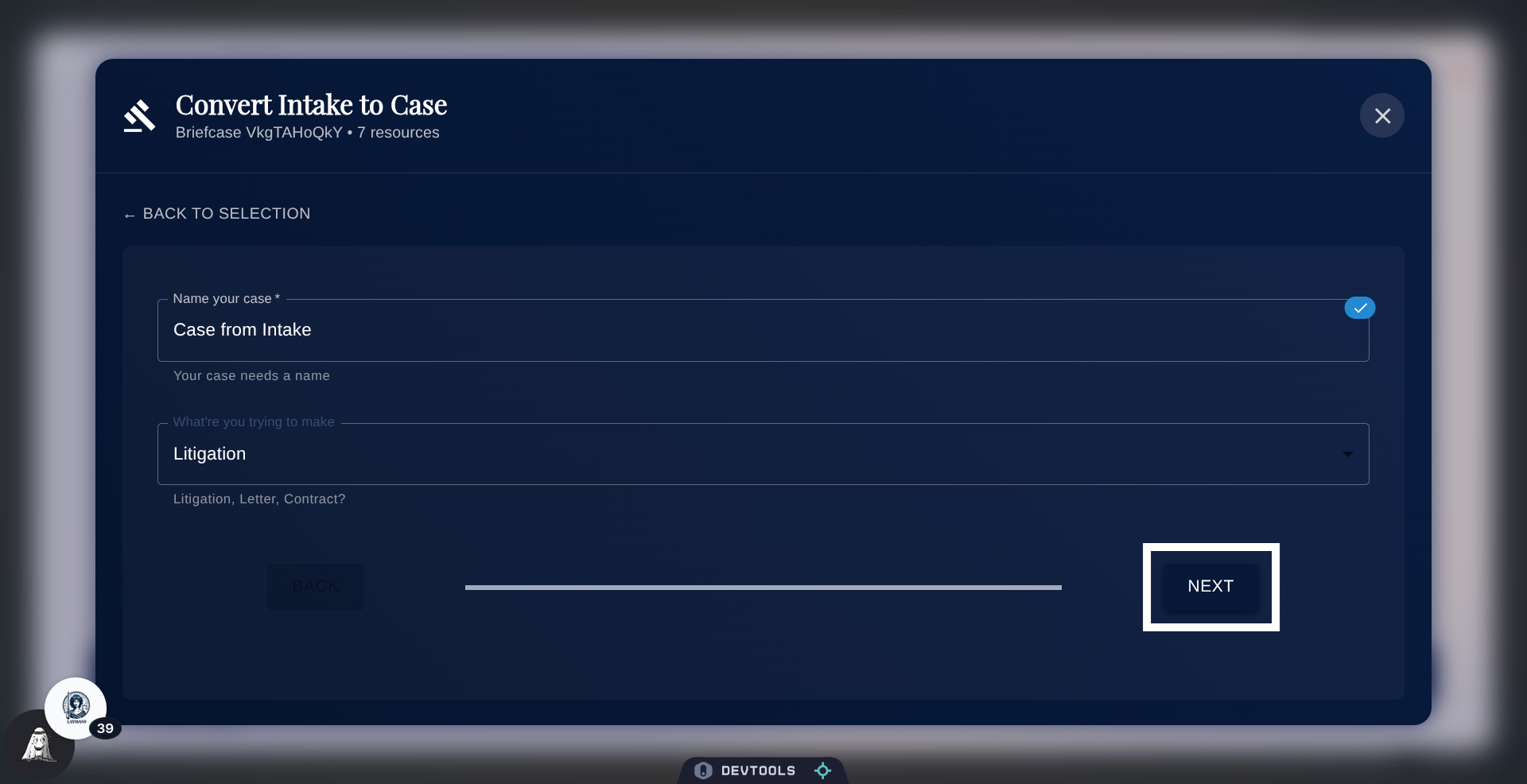
15. Fillout your base Case Info
So first we'll name our case as usual, and highlight what we're trying to make.
16. Click Next Button
Lets move on.
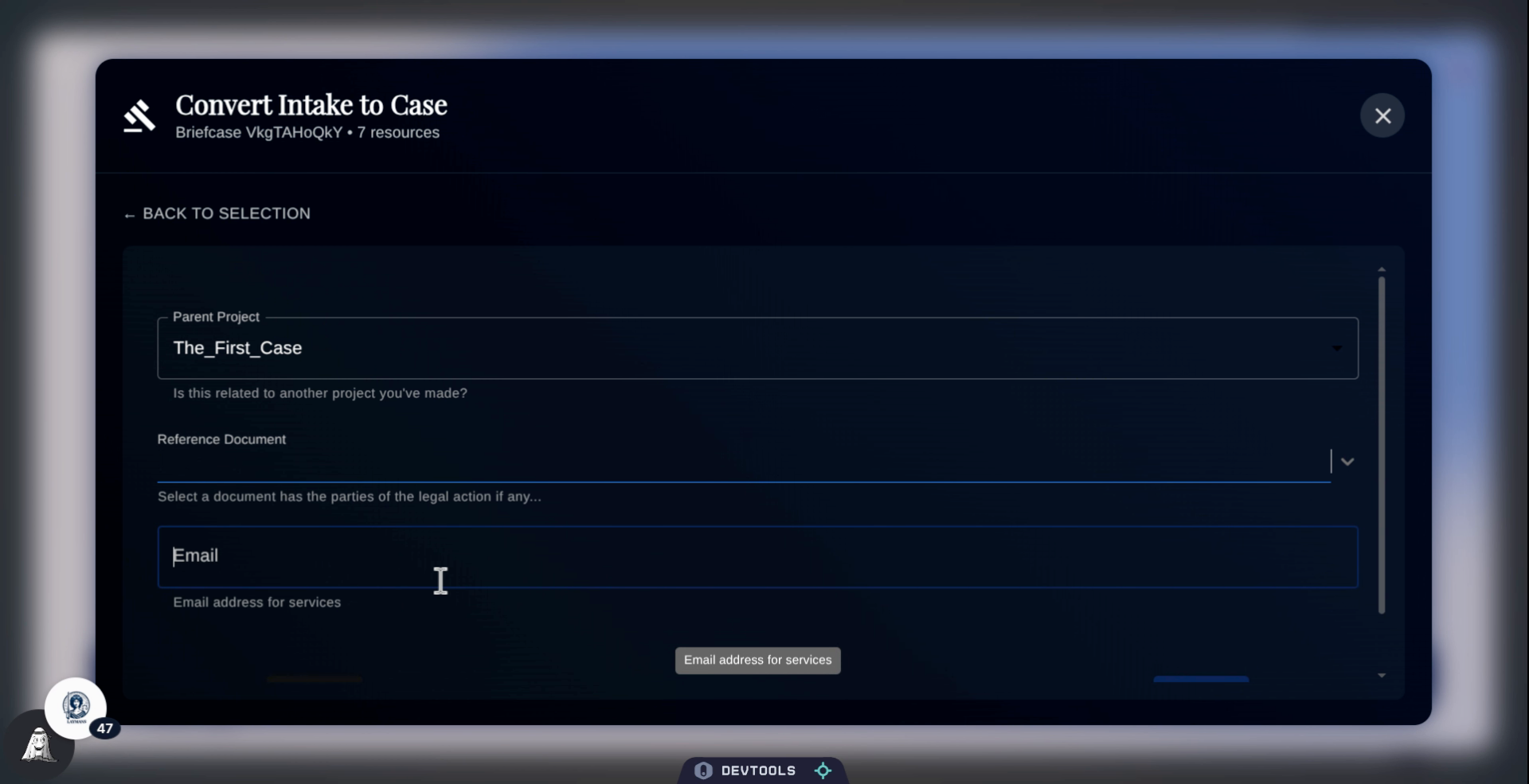
17. Fill out more information
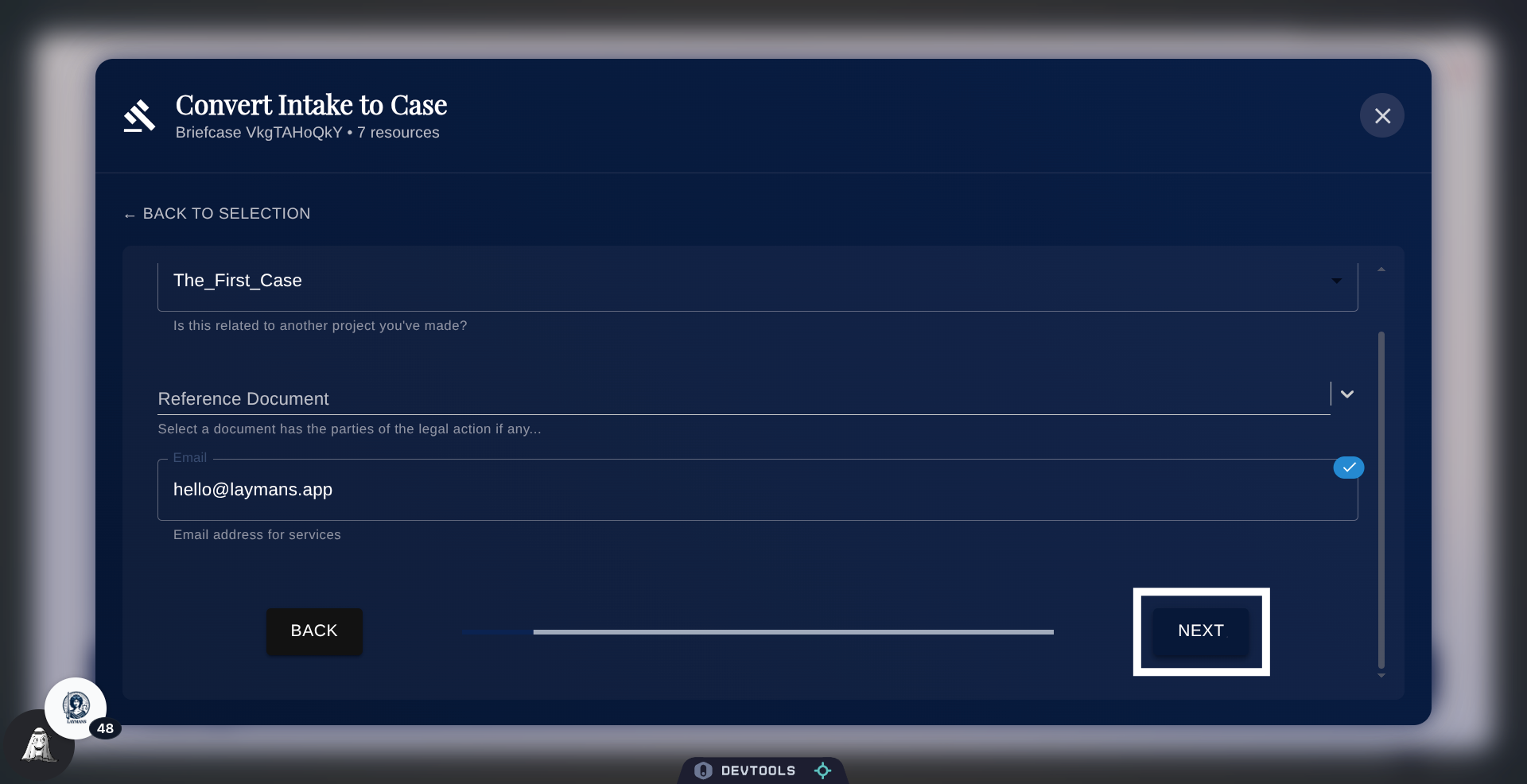
Here, we'll specify any prior legal documents that this new case will rely on: The first being a layman's case and document, and the second being a casefile that may have info about the parties -- like your's and the other side's name and address. Finally, we'll specify an email that any billing may be associated with.
18. Click Next to Proceed
Let's go to the final page to review.
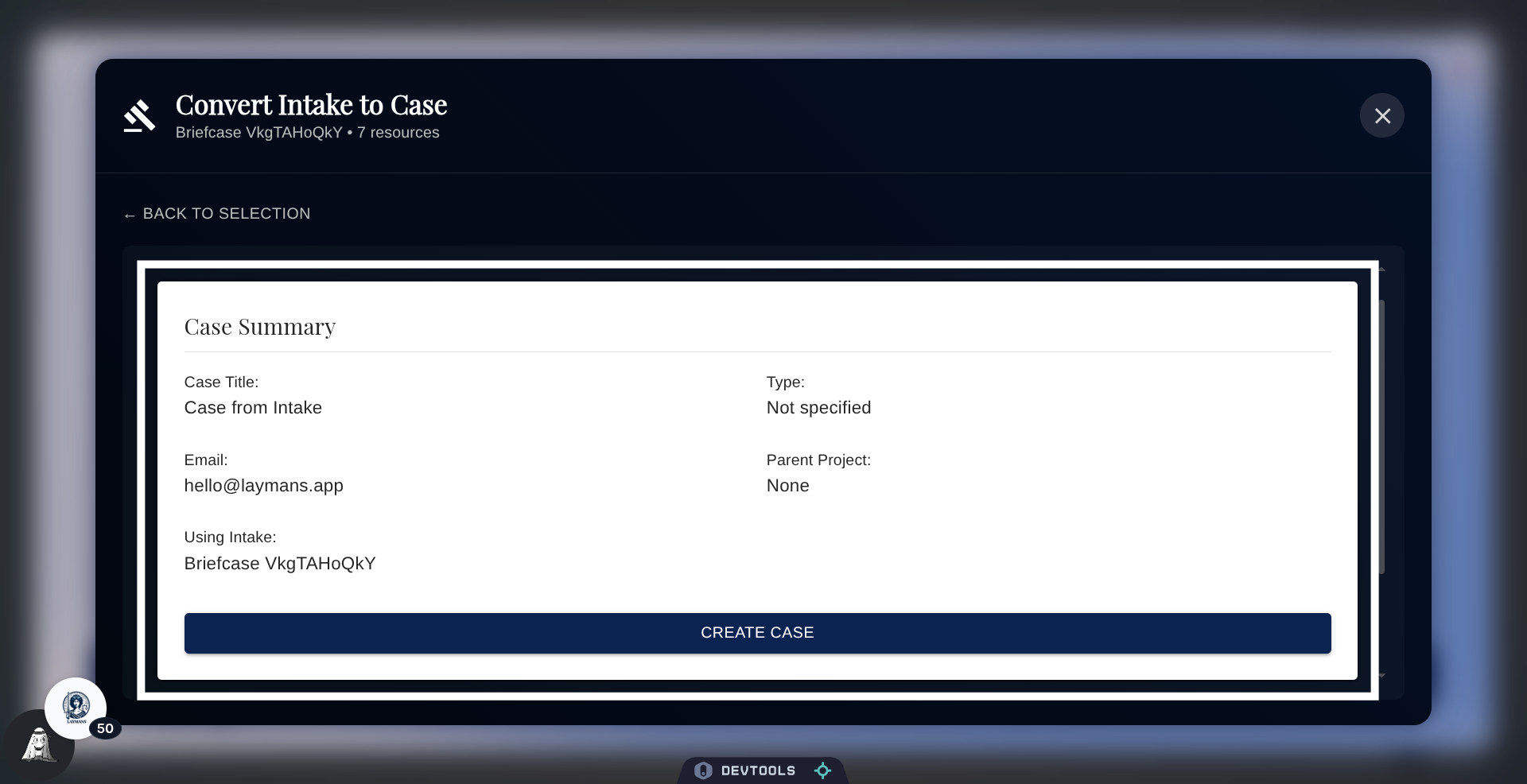
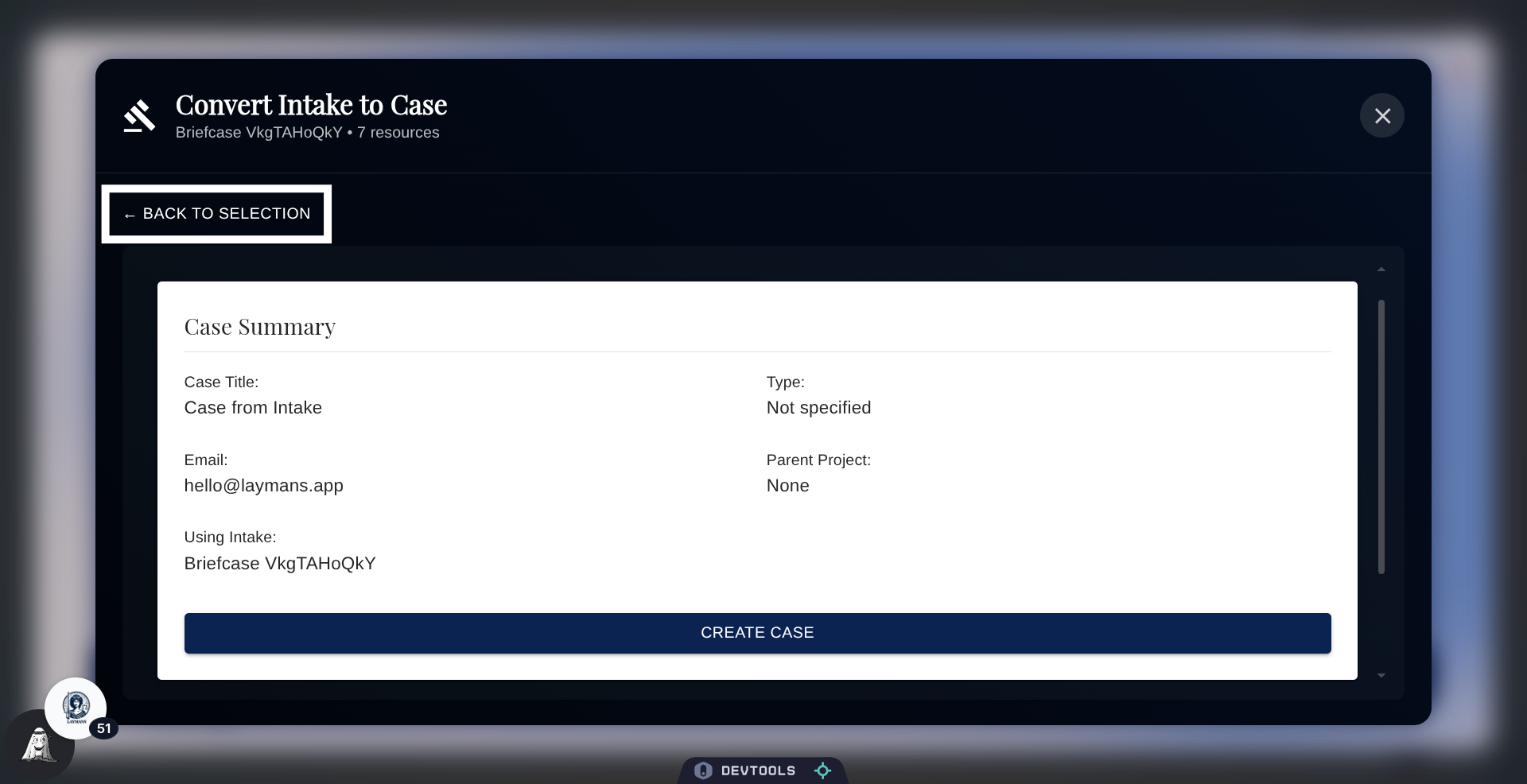
19. Review Case Summary
Now, we can create our case from scratch. If this is alright click "Create Case."
20. Return to Selection
Otherwise, I'm going to navigate back to show you the faster add to pre-existing path
21. Click "Add to Case"
Click "Add to..." to a case you already own to add new materials to an existing case.
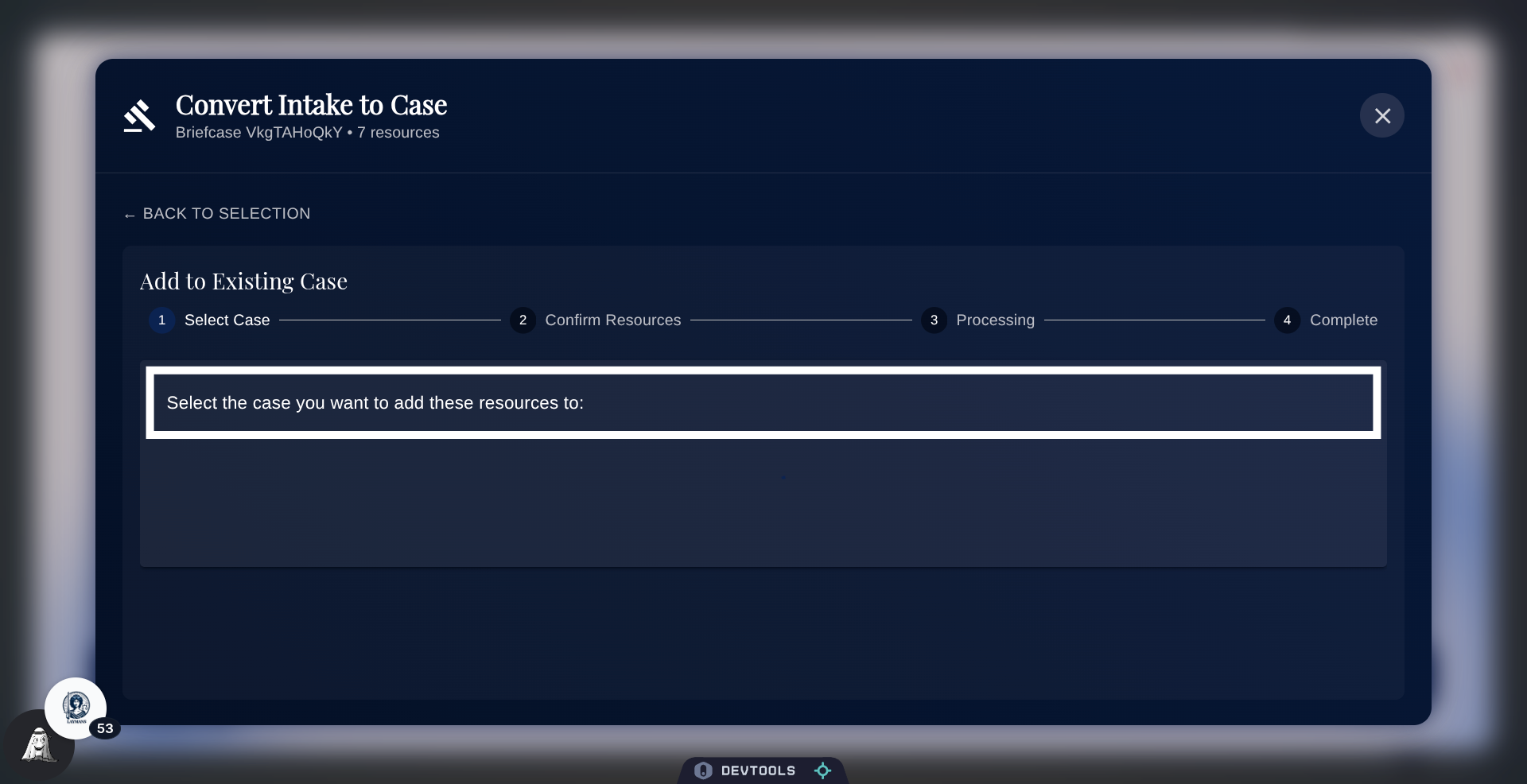
22. Select Case for Resources
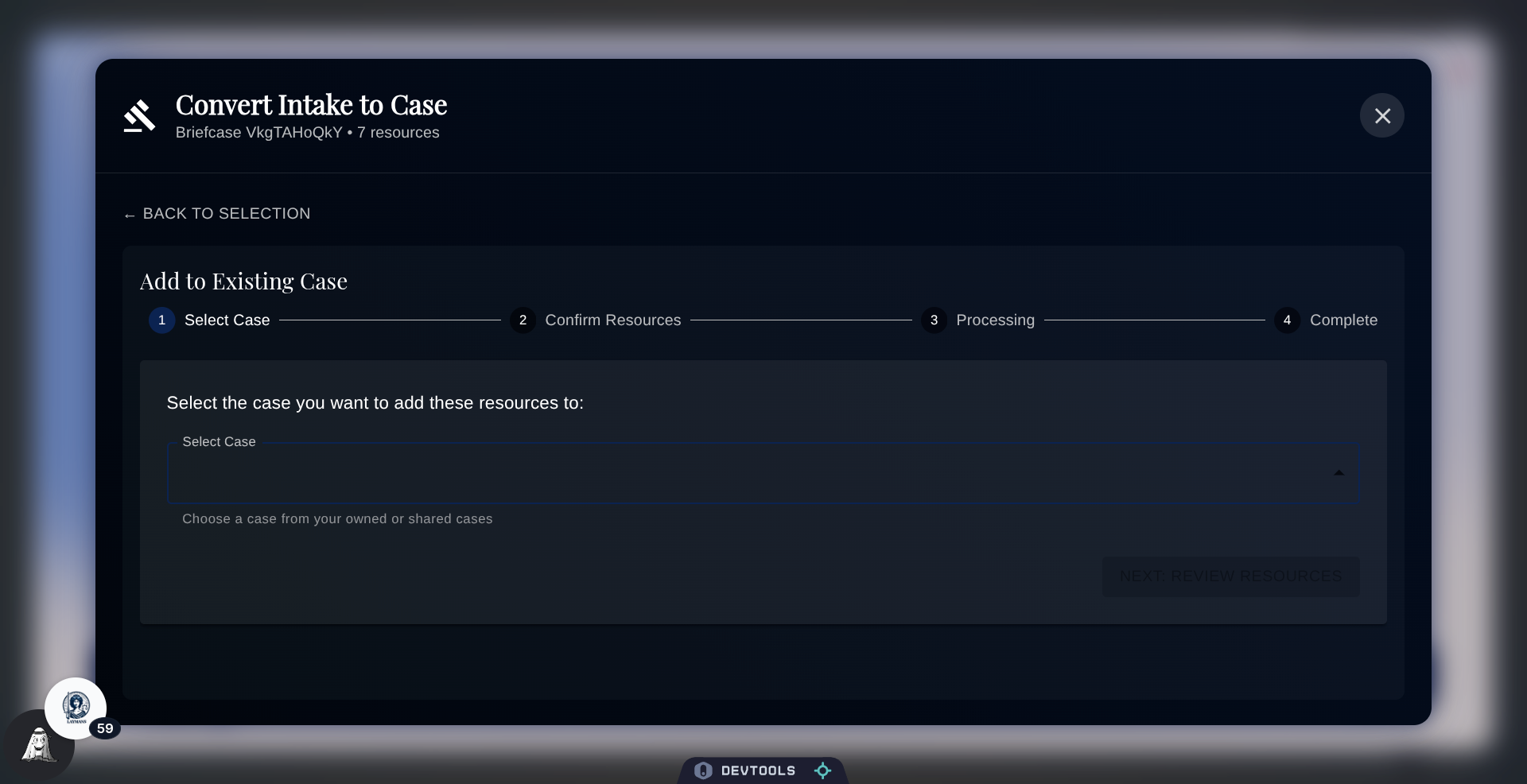
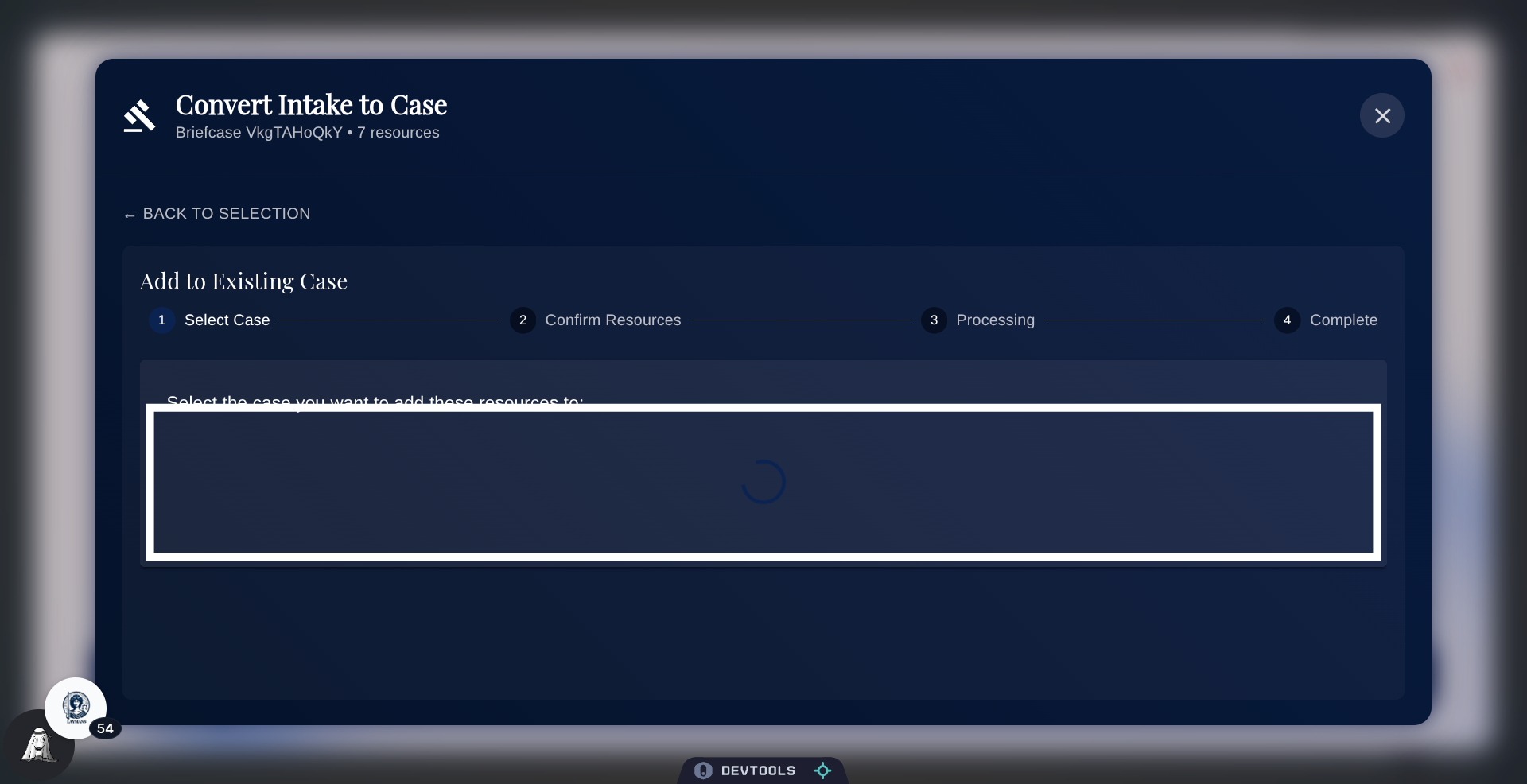
Select the case you'd like to add to. In this case, I don't have cases to add to, so the Wizard won't go further.
23. About "Add to Existing..."
However, if I did select a case, I would then be given the option of which resources I would like to add. Not all resources will be added, unless you want them -- adding a layer of granularity for the ongoing Laymans cases already in use.
24. In Conclusion
With this, that concludes Case Creation via Briefcases. Once your case is created or added to, the PowerBar will update with the new context for your Case. You can continue to work on your case conversationally using me, Layla, in the Power Bar under Start and Co-Create. Or, you can go directly to Edit, to begin editing the written output of your case if I've already gotten to it. To continue working on your case we recommend reviewing the "How to add to my Case" guide. Good luck with your legal materials!