How to use Laymans Bookmarks to manage your resources effectively
Go to www.laymans.app
1. Introduction
Laymans Bookmarks completes Laymans as an OS for navigating, using, and mastering the Law using Laymans. All of your bookmarked and created resources are available on one page, www.laymans.app/Bookmarks, to be quickly reused in cases, briefcases, and seminars. Let's go.
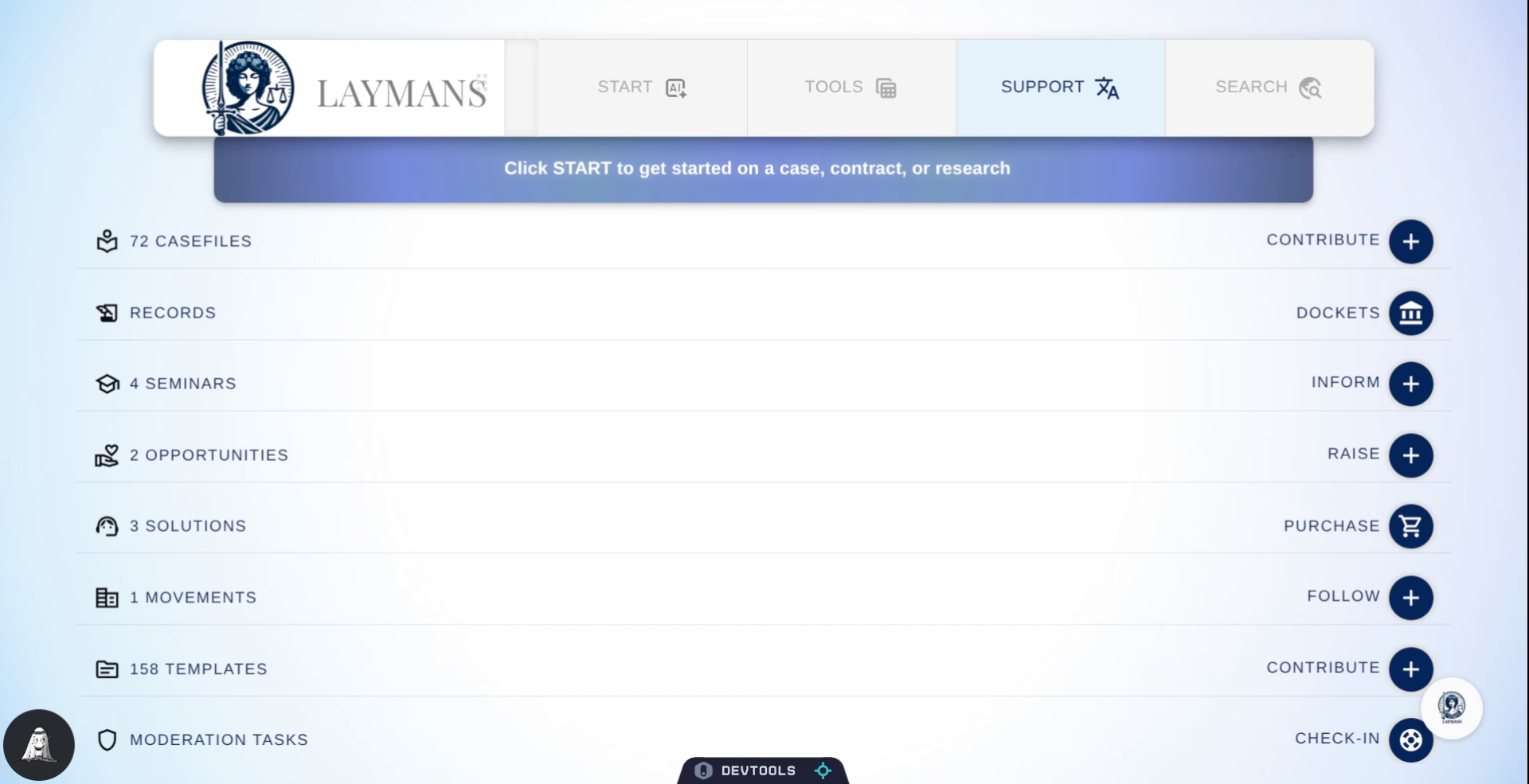
2. Click Search Tab
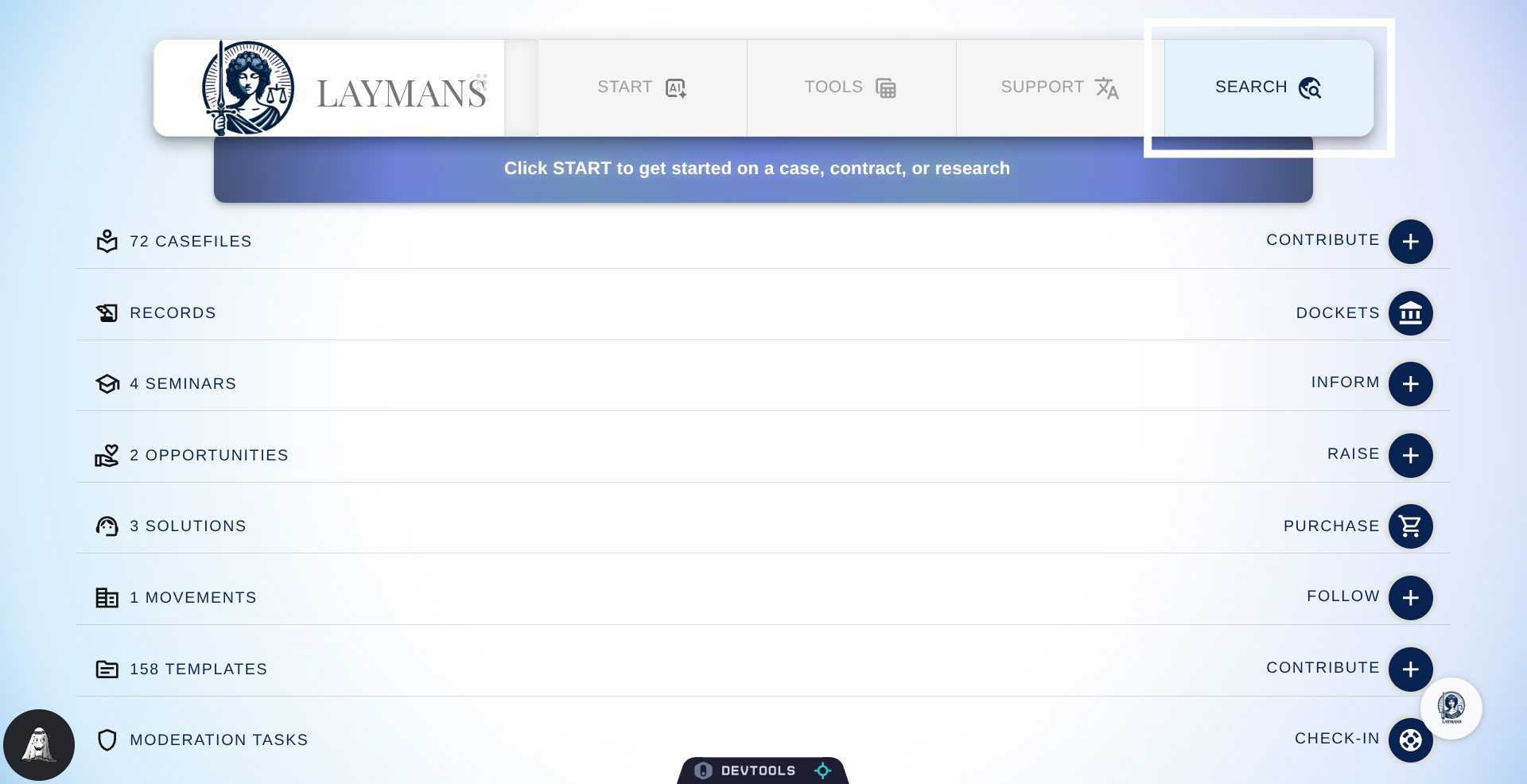
To go to your bookmarks, you can either go to the page directly or click Search in the Power Bar above.
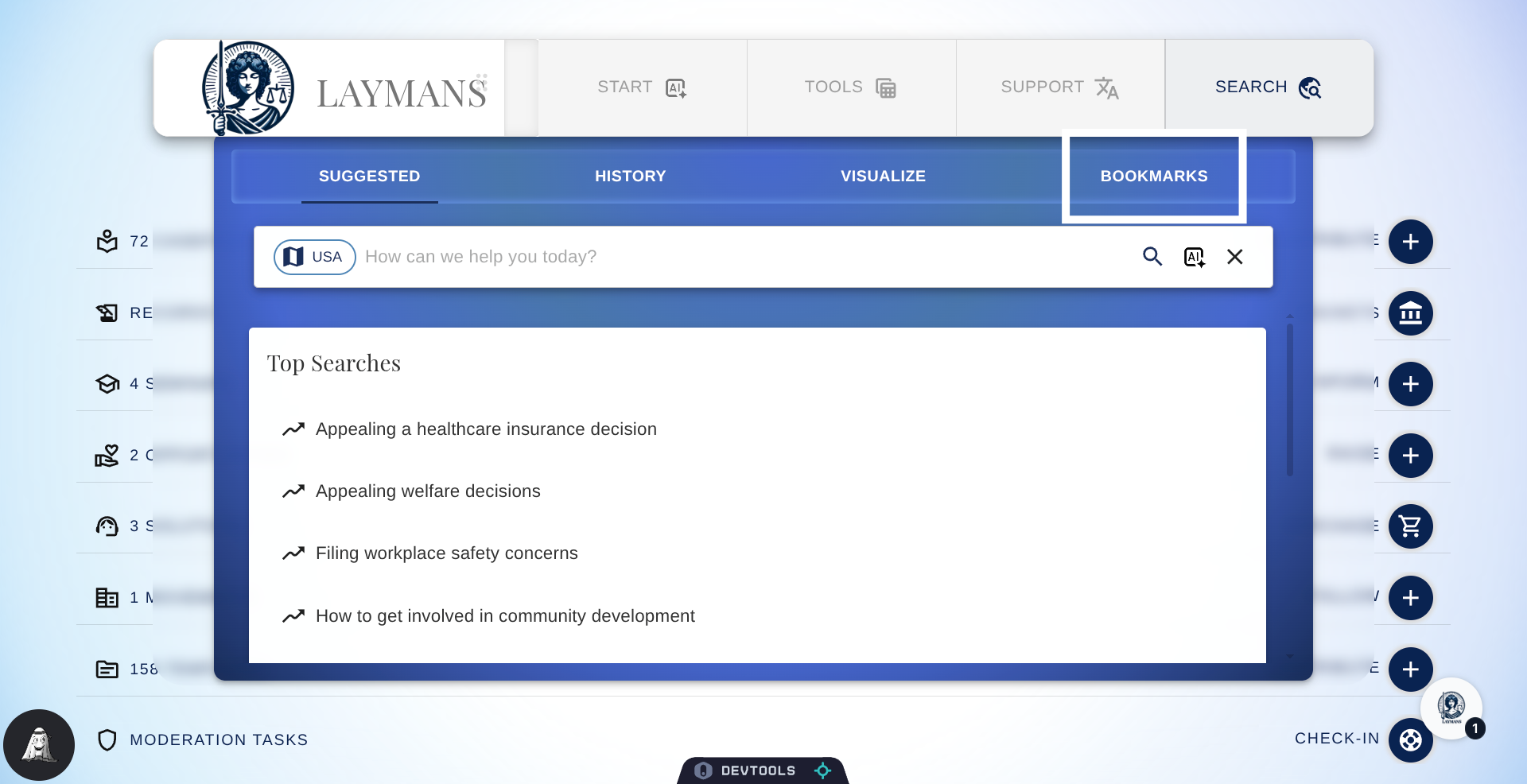
3. Open Bookmarks Section
Once open we're going to click Bookmarks to go to the Bookmarks page.
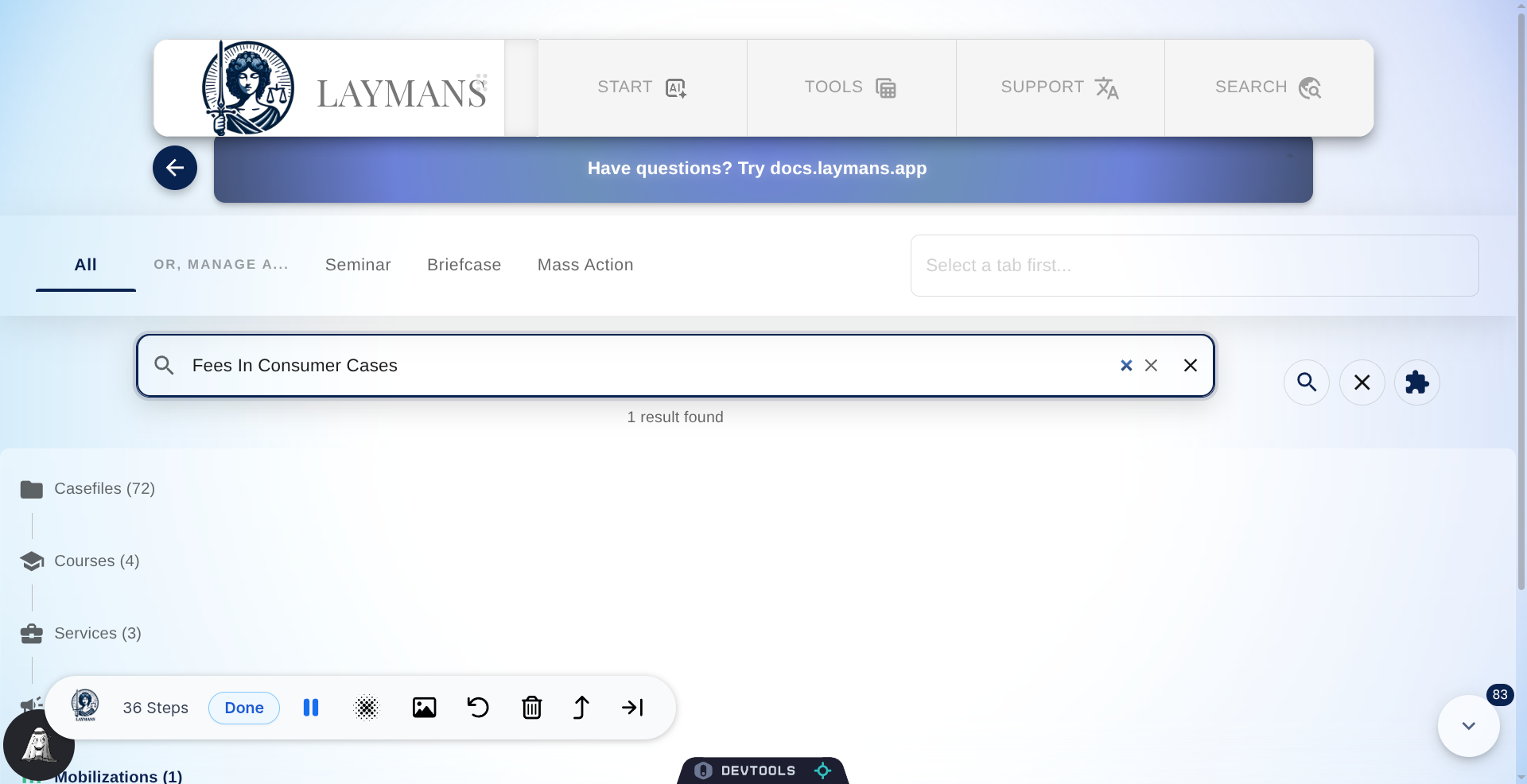
4. The Bookmarks Page
Welcome to the Bookmarks Page, for managing your resources across the platform you will find tools to help you quickly make other aggregate resources from bookmarks, do mass opening and deletion actions, and quickly navigate to any individual resource.
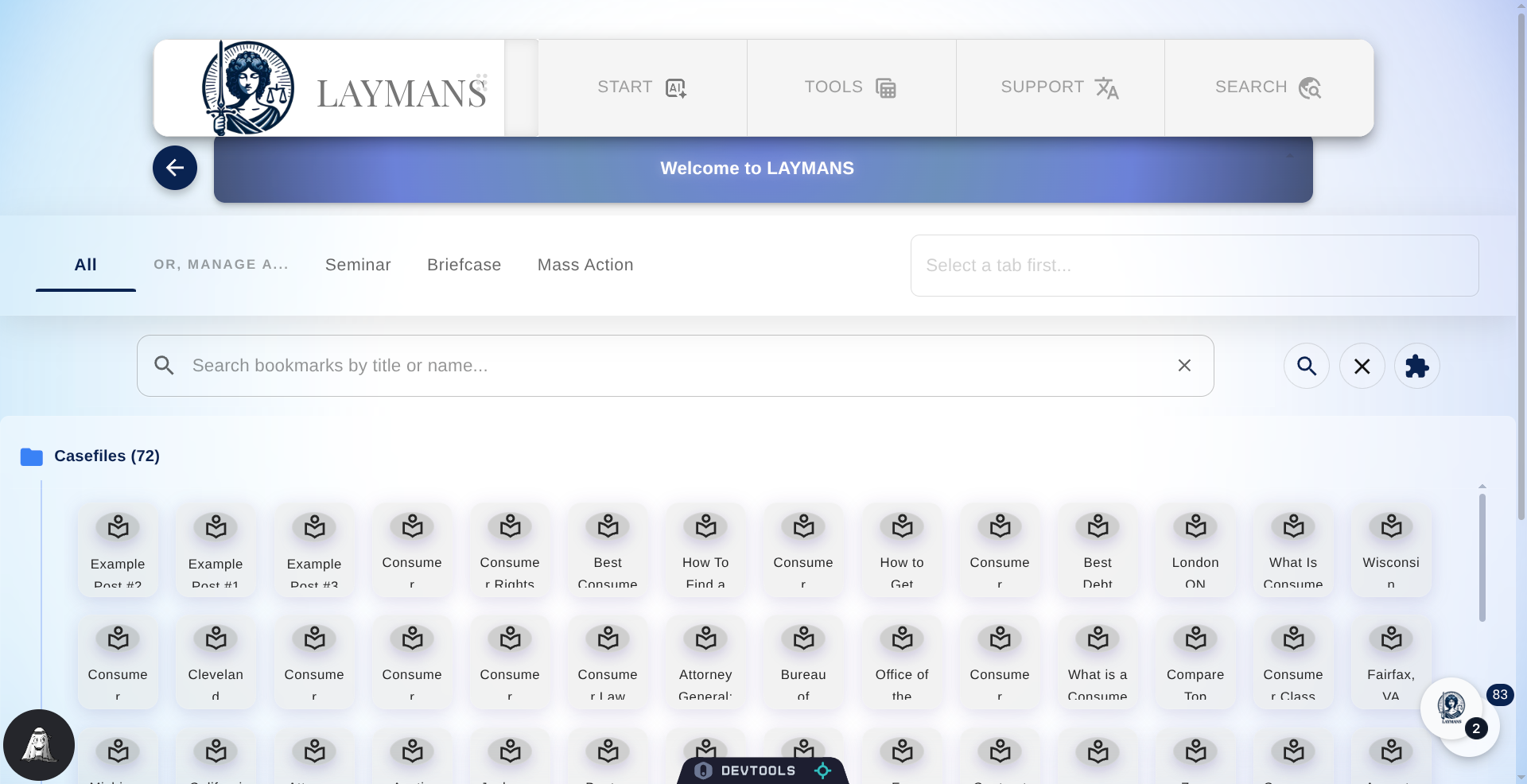
5. The Select to Creation Pipeline
So the header here, allows you to select one of our mass creation contexts for "select-to-create." I.e. after choosing one of these contexts your resources below will be filtered to only those resources applicable to the creation of a Seminar, Briefcase, or Mass Action, and then by selecting items you can quickly make the given grouped resource. Providing another, faster way of resource creation on Laymans for power users in addition to using the Homepage or Co-Create under Start.
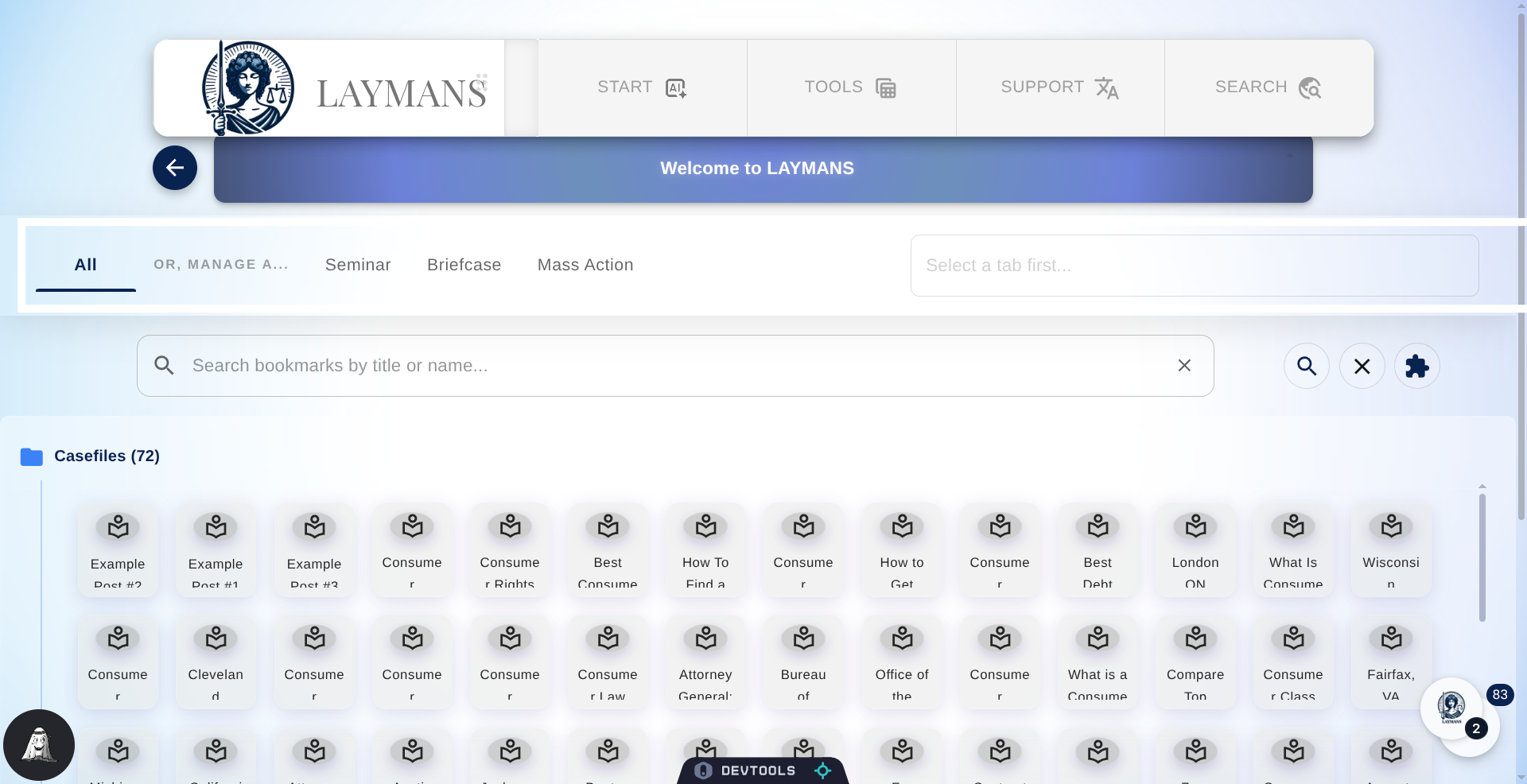
6. Choose Seminar Tab
To go through the Bookmark page contexts, Seminars can only consume casefiles to make educational materials for laypeople.
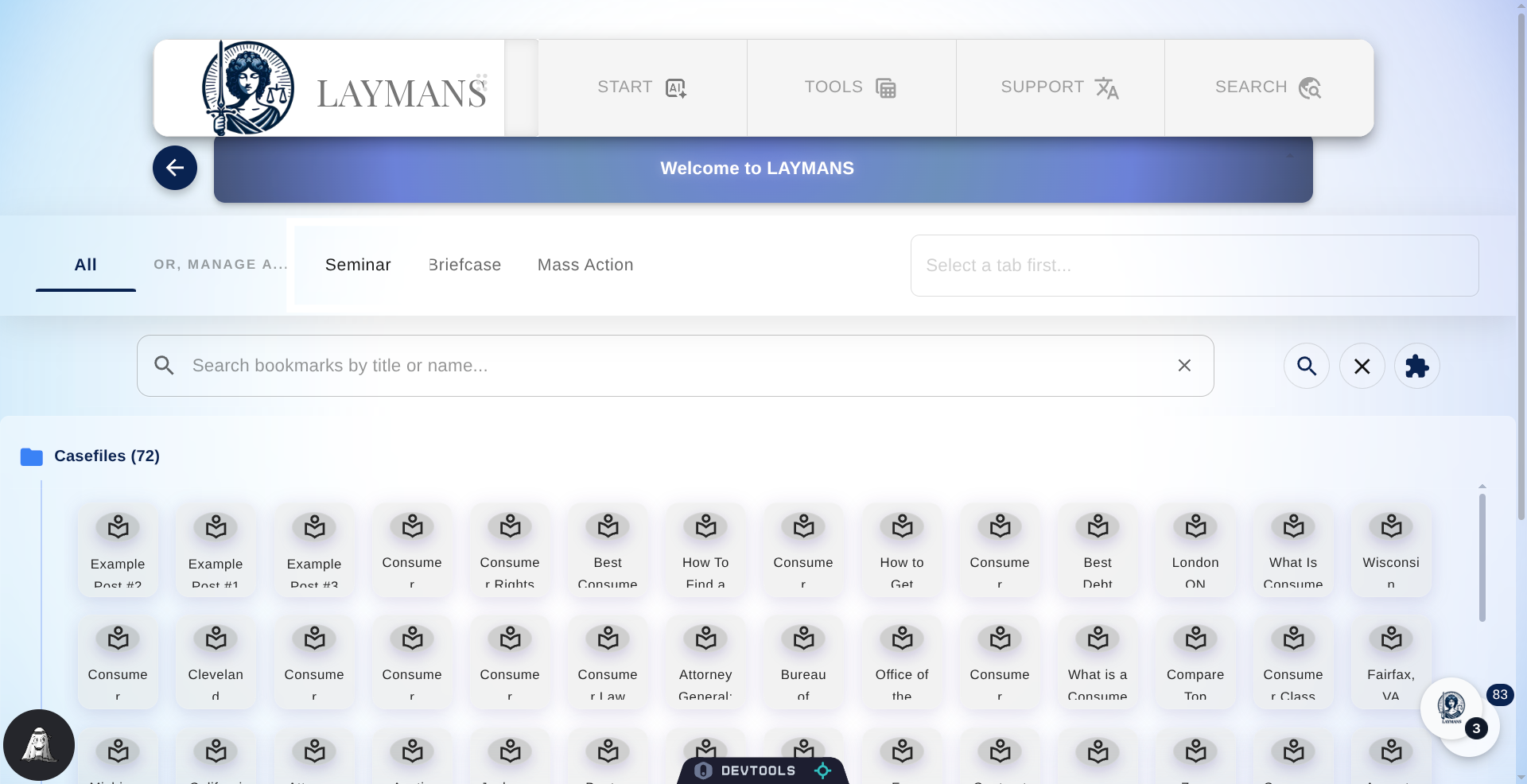
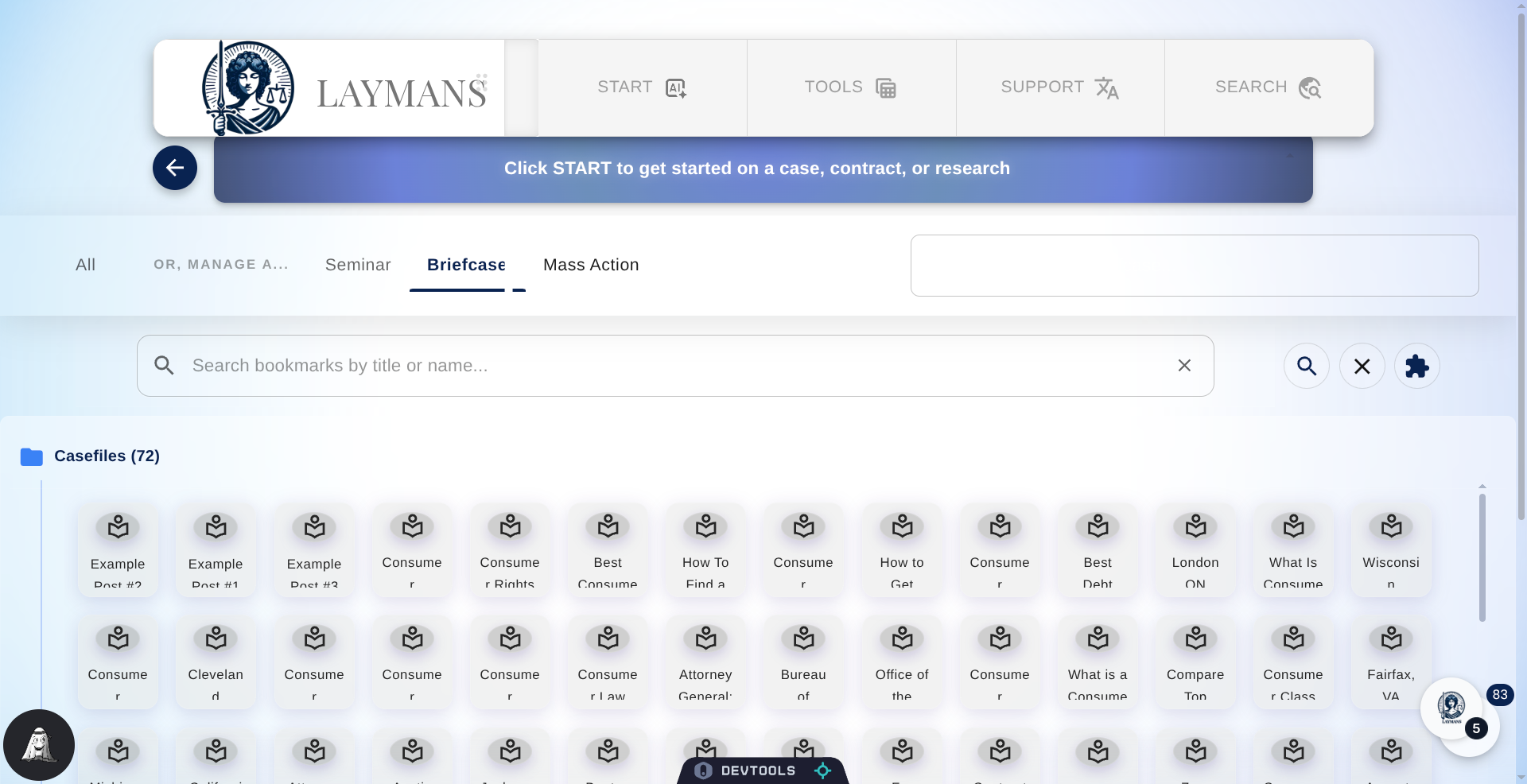
7. Select Briefcase Tab
Briefcases can actually consume most if not all resources to create a template for other laypeople seeking to make a case quickly.
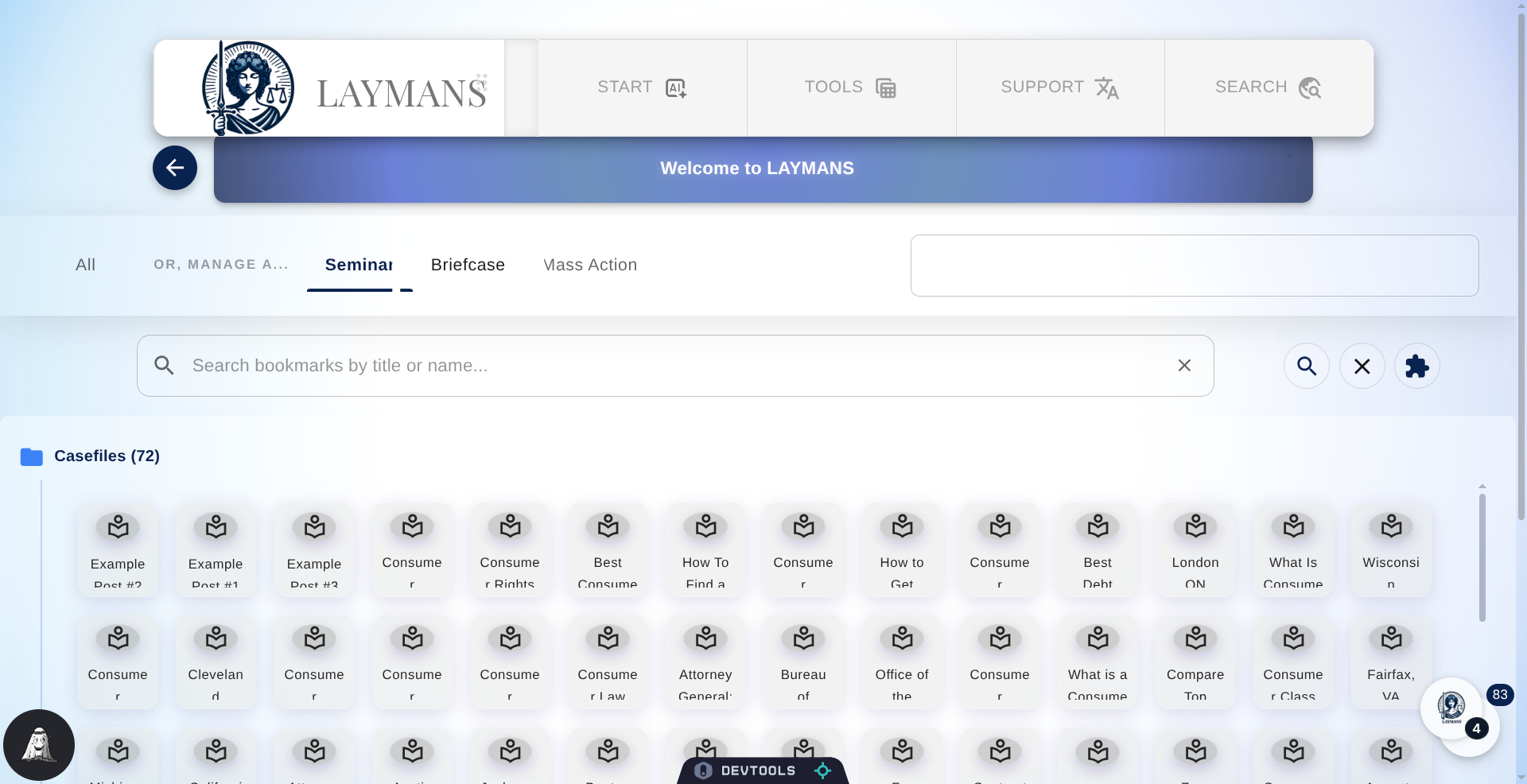
8. Access Mass Action Tab
Finally, Mass Actions -- only available if you're a lawyer -- can use most resources as well to create a grouping of resources around a legal issue as the precursor of a class action.
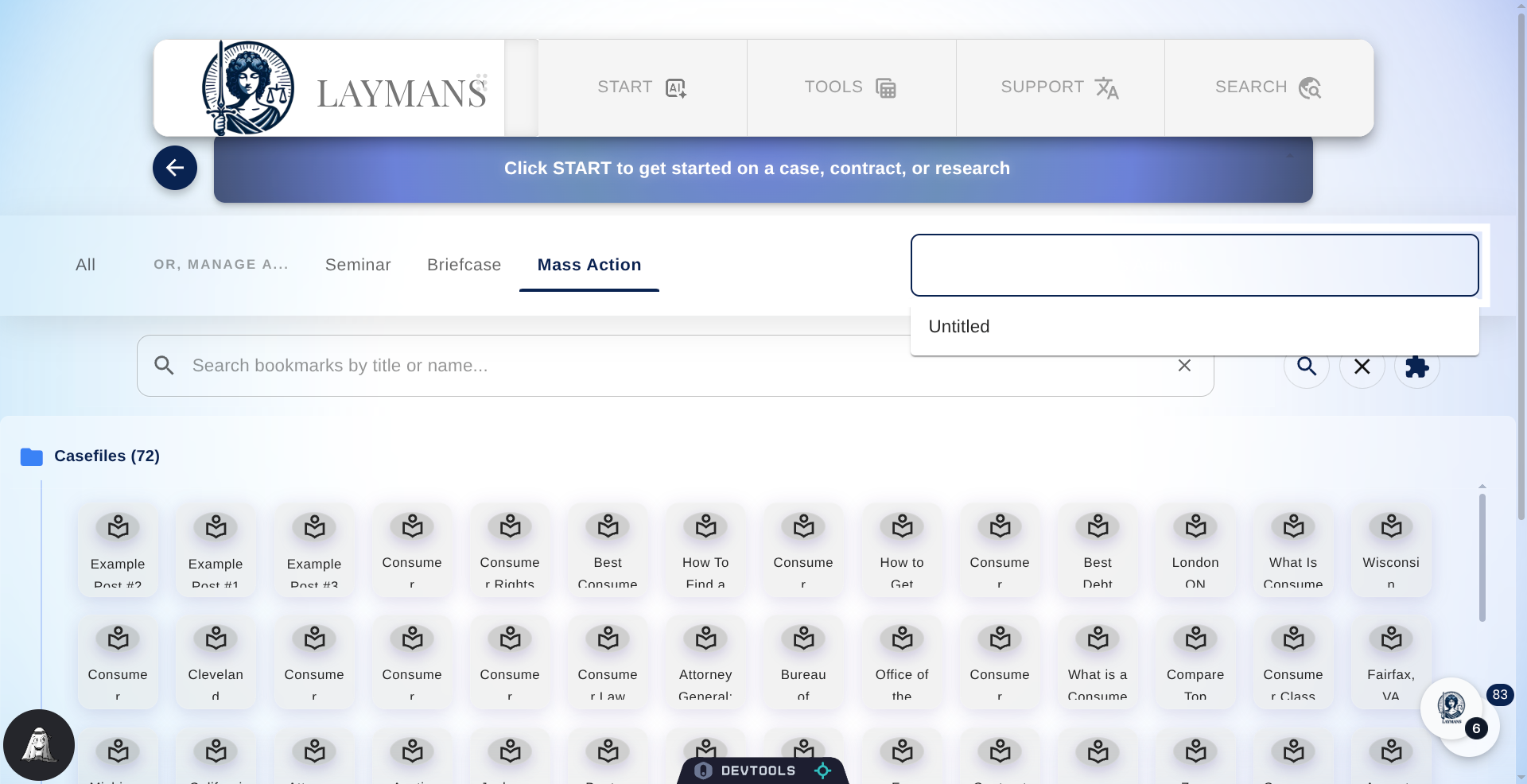
9. Choose or Create Mass Action
If you would like to quickly add these resources to a pre-existing Seminar, Briefcase, or Mass Action, you can click this text field to search for and choose a pre-existing resource once you've chosen a context.
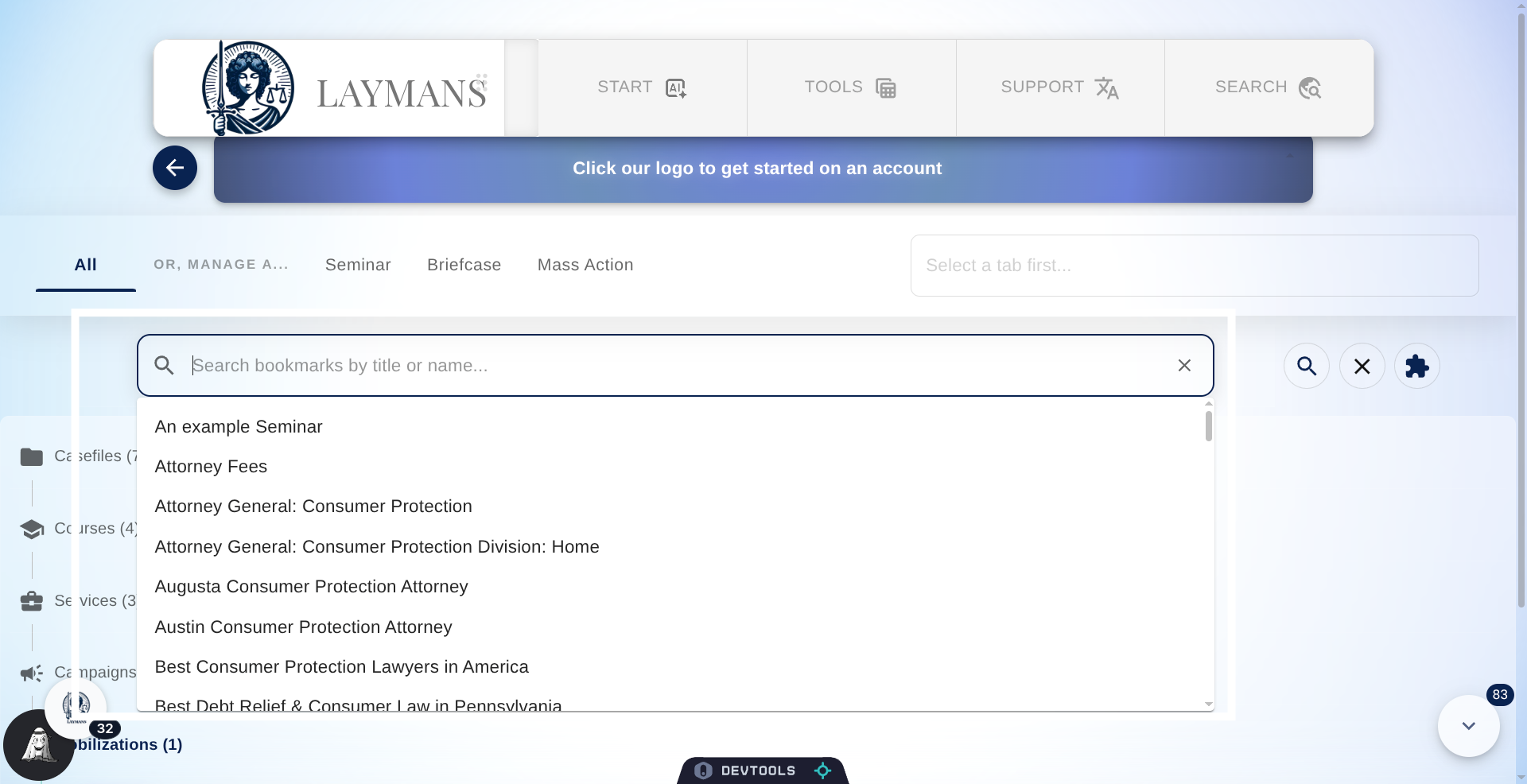
10. Search Bookmarks
Then you can use the search bar right below the header to quickly navigate to ANYthing you've bookmarked by searching for.
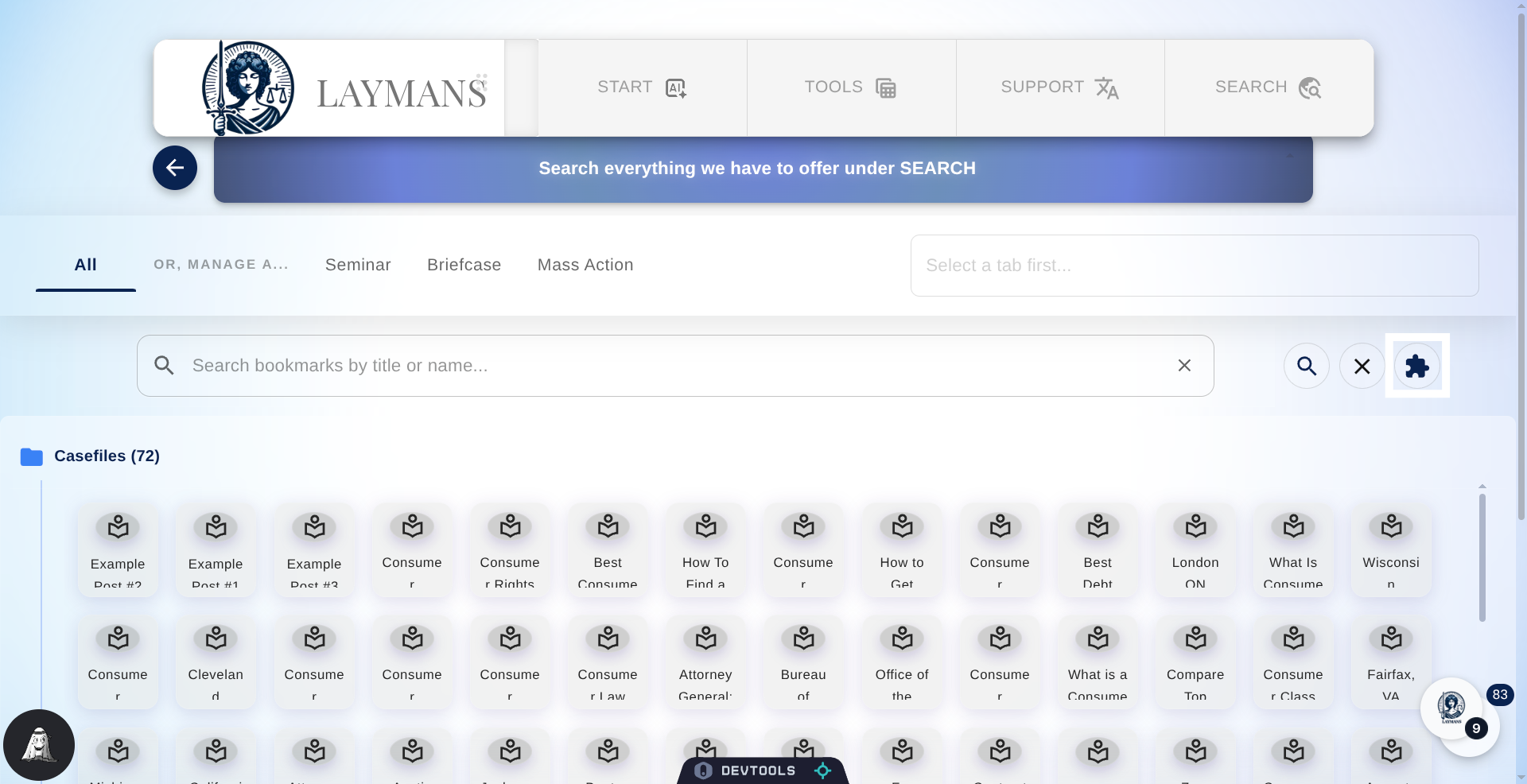
11. Click the Extension Button
Next to your common Search Buttons, "clear" and "search," you'll find a button with an Extension Icon and the text get Extension. Click it so we can discuss the Laymans Extension which builds on all this amazing bookmarking capabilities.
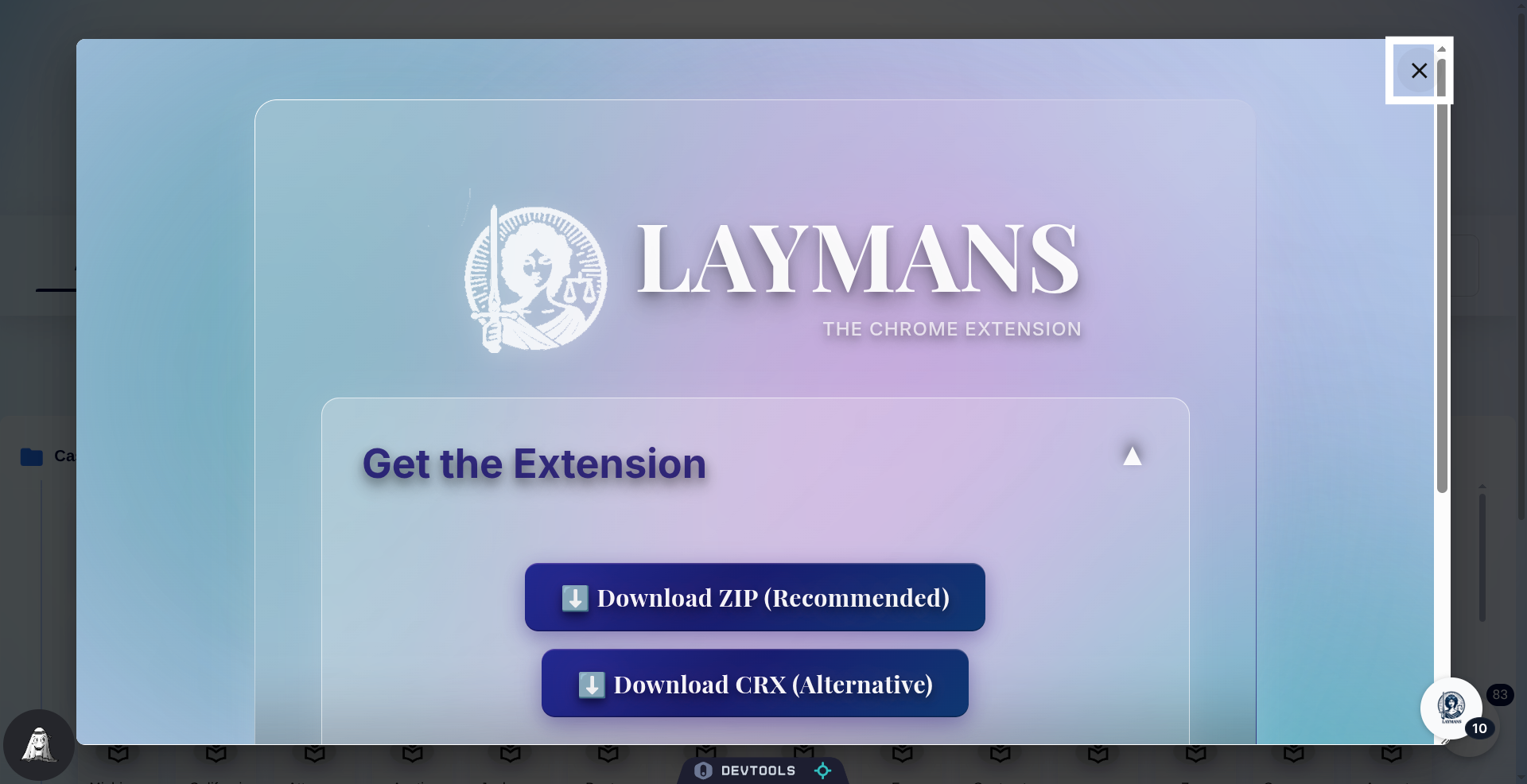
12. The Laymans Extension
To recap again, Laymans also has a google extension! We can't follow you everywhere you navigate on the web as you research for your cases and seminars, but our extension can! Designed for creating multiple Laymans bookmarks instantly, you can turn whole Chrome windows into casefiles, seminars, and legal services on our platform. Once created you'll find them here, on the Bookmarks page, categorized and ready to go. Let's continue on.
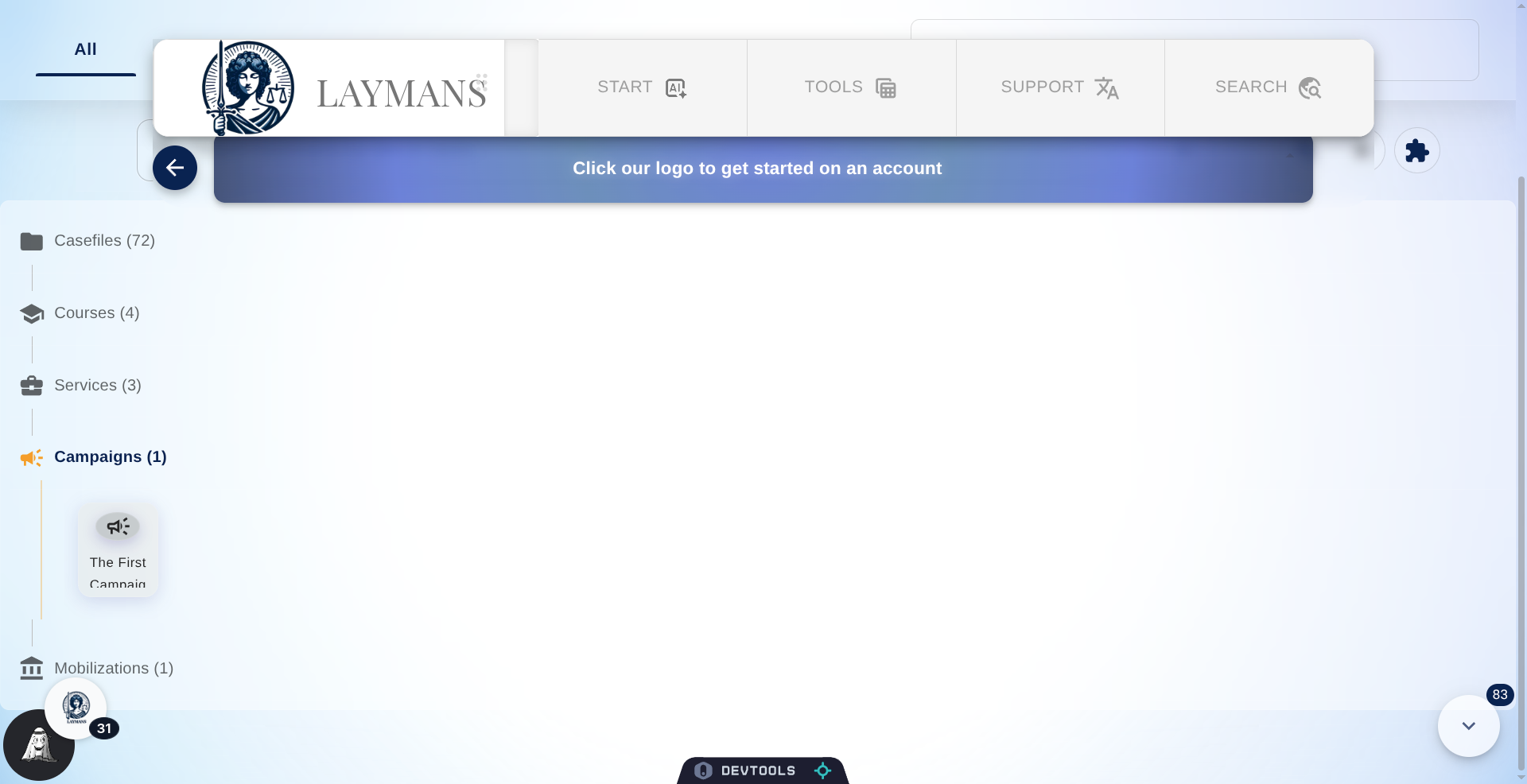
13. Resources available
To recap, the resources available here include Casefiles, Seminars, Services, Campaigns, Mass Actions, Laypeople, Organizations, and Funds you've created or saved at any point in time. The only resources unavailable here is Briefcases and Cases; you can find those in the Case Directory under Start in the Power Bar.
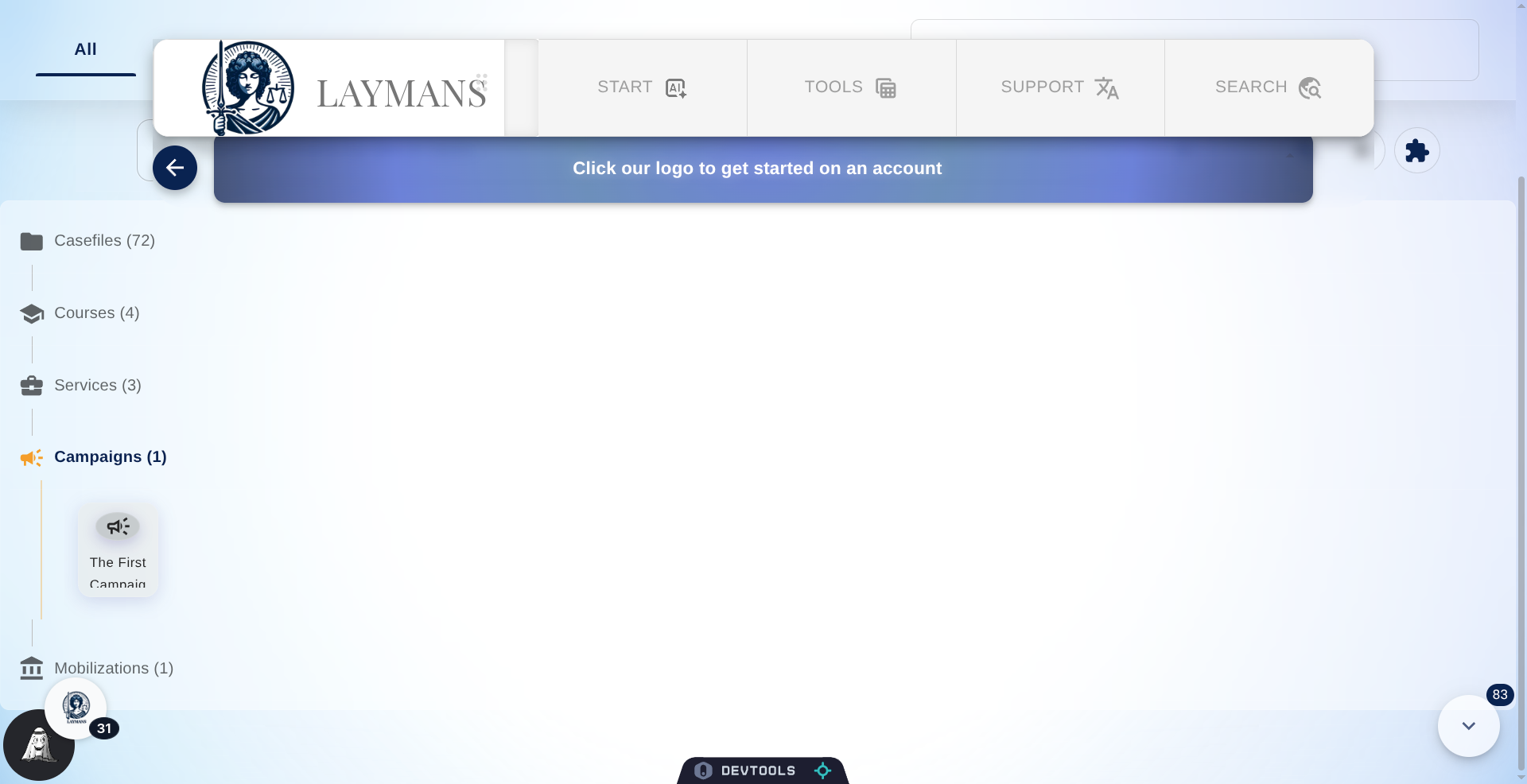
14. Quick Jump Resources
You can click this Floating Action Button to quickly jump to any resource and see a total number of resources bookmarked.
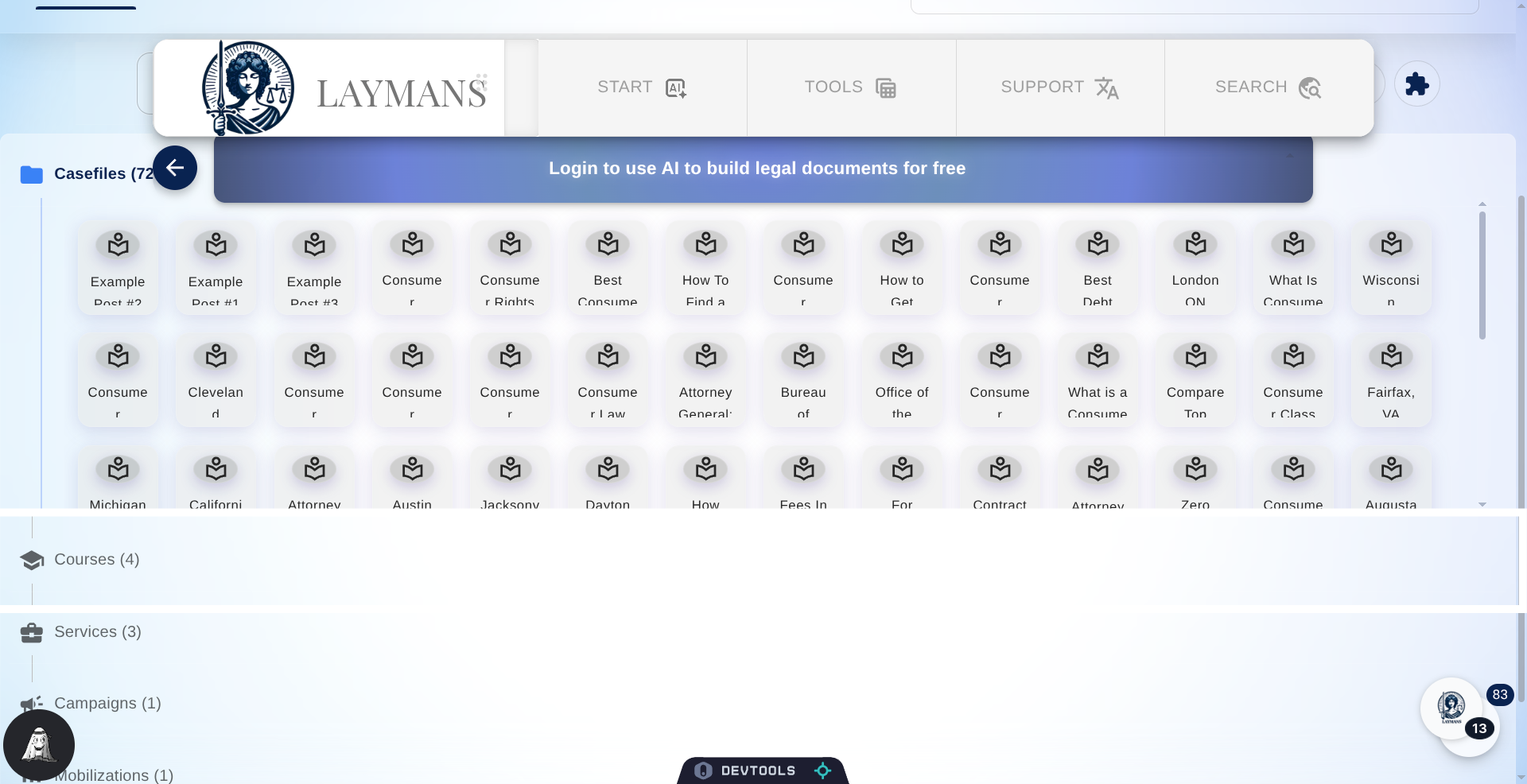
15. Click the Seminars section
Let's navigate to the Seminars section to explore the selection capabilities of the Bookmarks page.
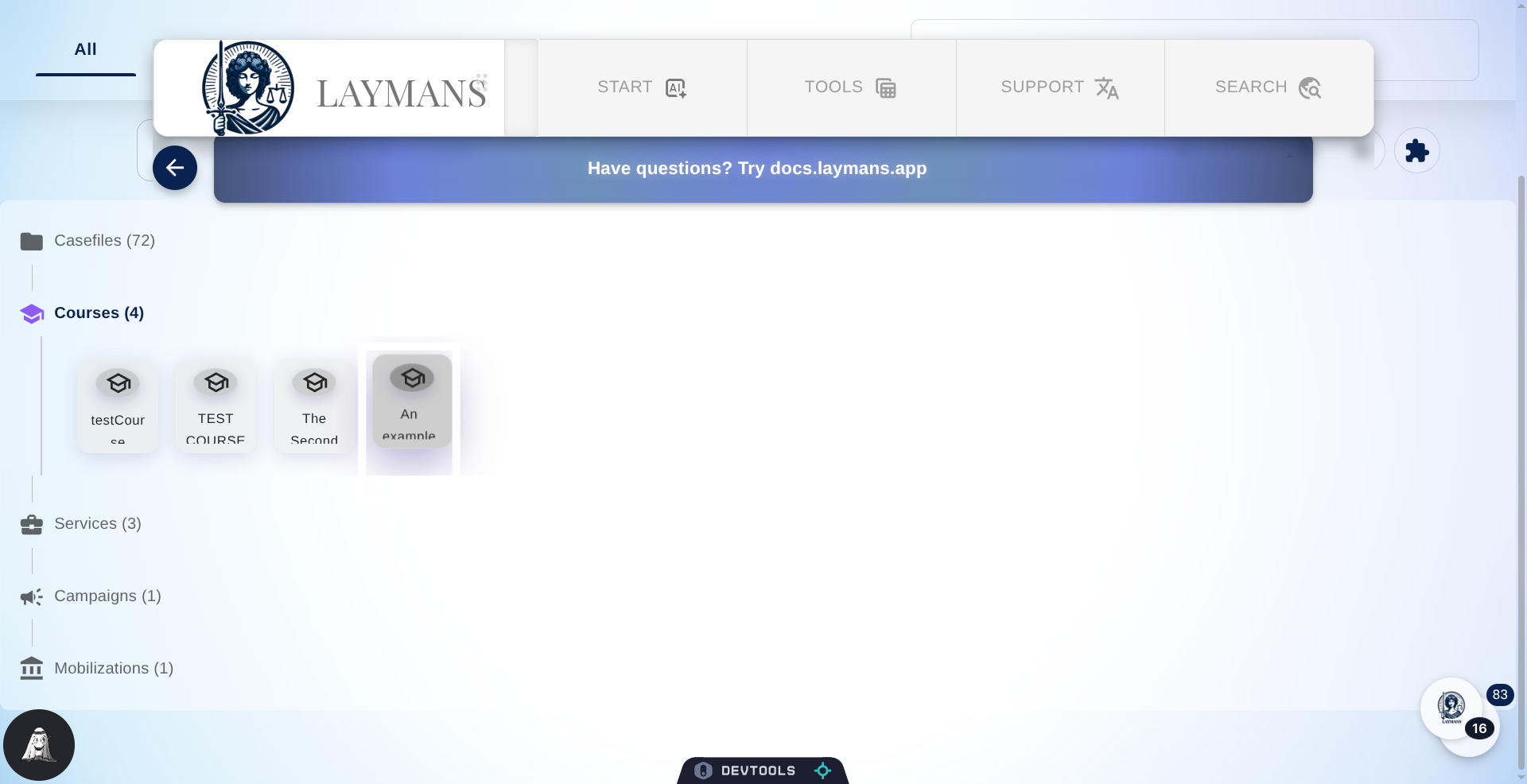
16. Click a Seminar
Clicking a seminar selects it for your Selection Options, double clicking it immediately navigates to that record.
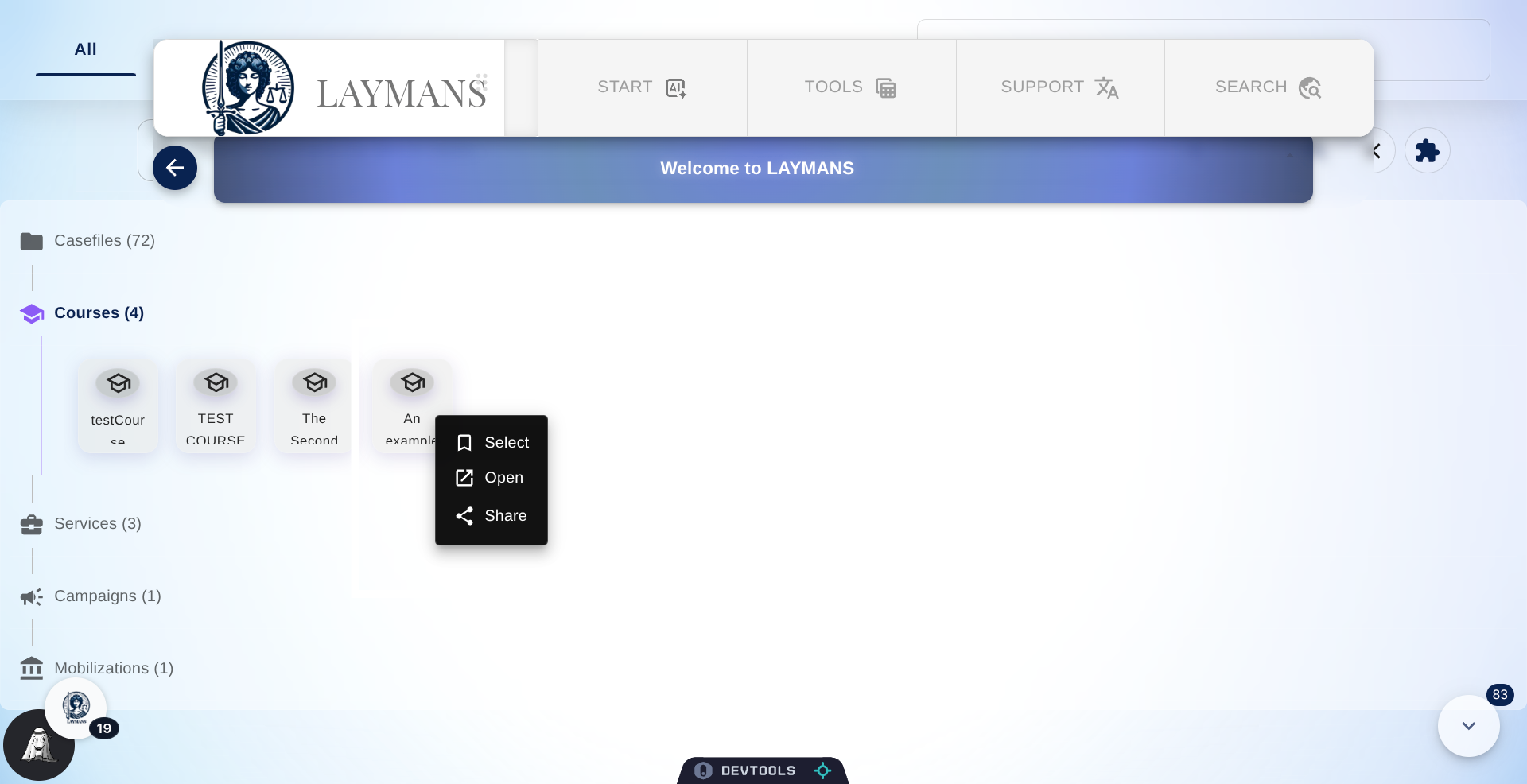
17. Right-click a Seminar
Right-clicking opens up a context menu with many of the same options. ncluding selecting the item, opening it in a new tab, and sharing the item socially.
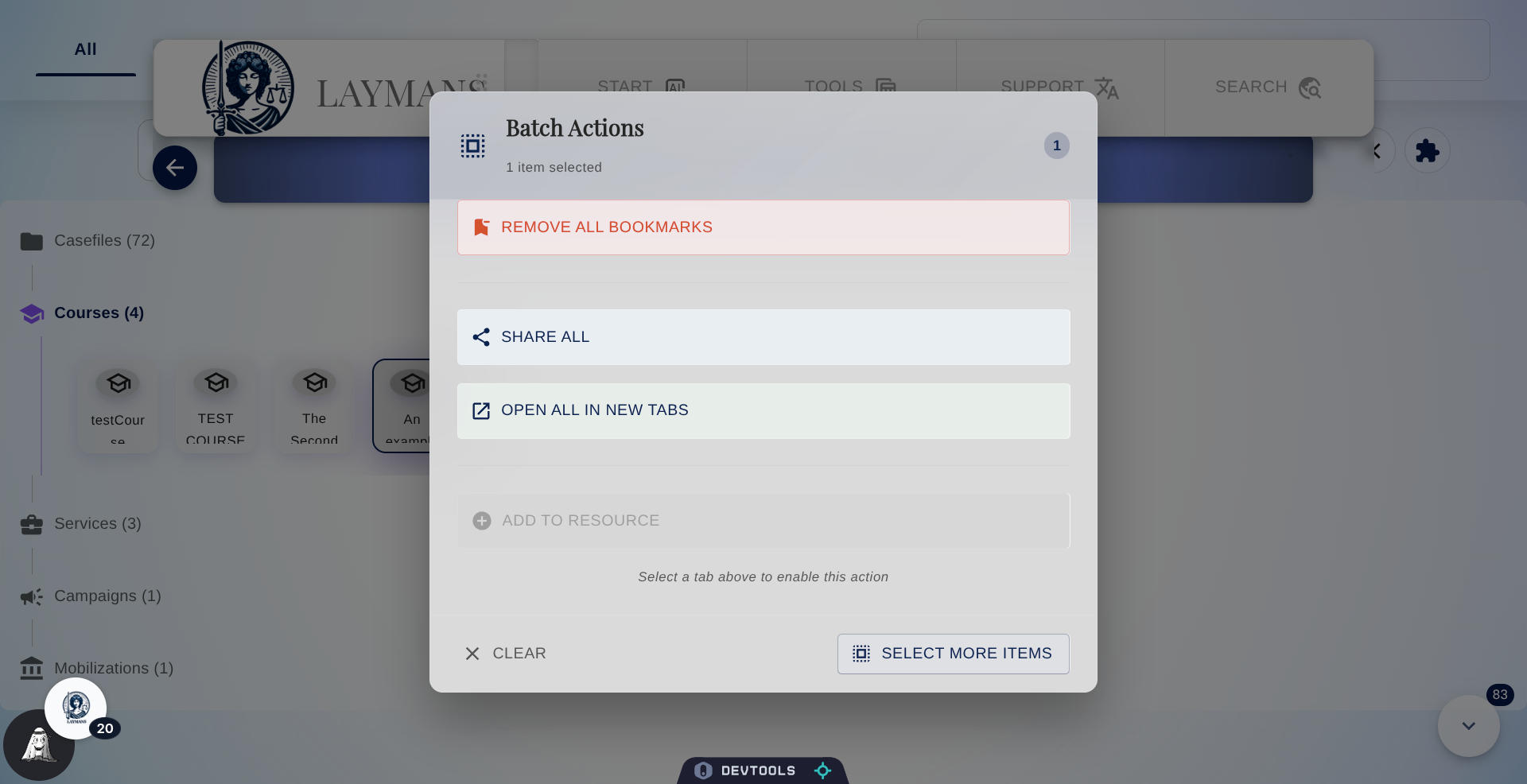
18. The Selection Modal
Once you select an item, a modal will show up providing you with your selection actions. You can remove the selected bookmarks as bookmarks—this won't delete them if you own them. You can attempt to share all of them—we add the records to your clipboard. You can open all of them in new tabs for viewing. Or, finally, you can add them to one of the aggregate resource contexts you chose before—Seminars, Briefcase, Mass Actions—using Add to Resource.
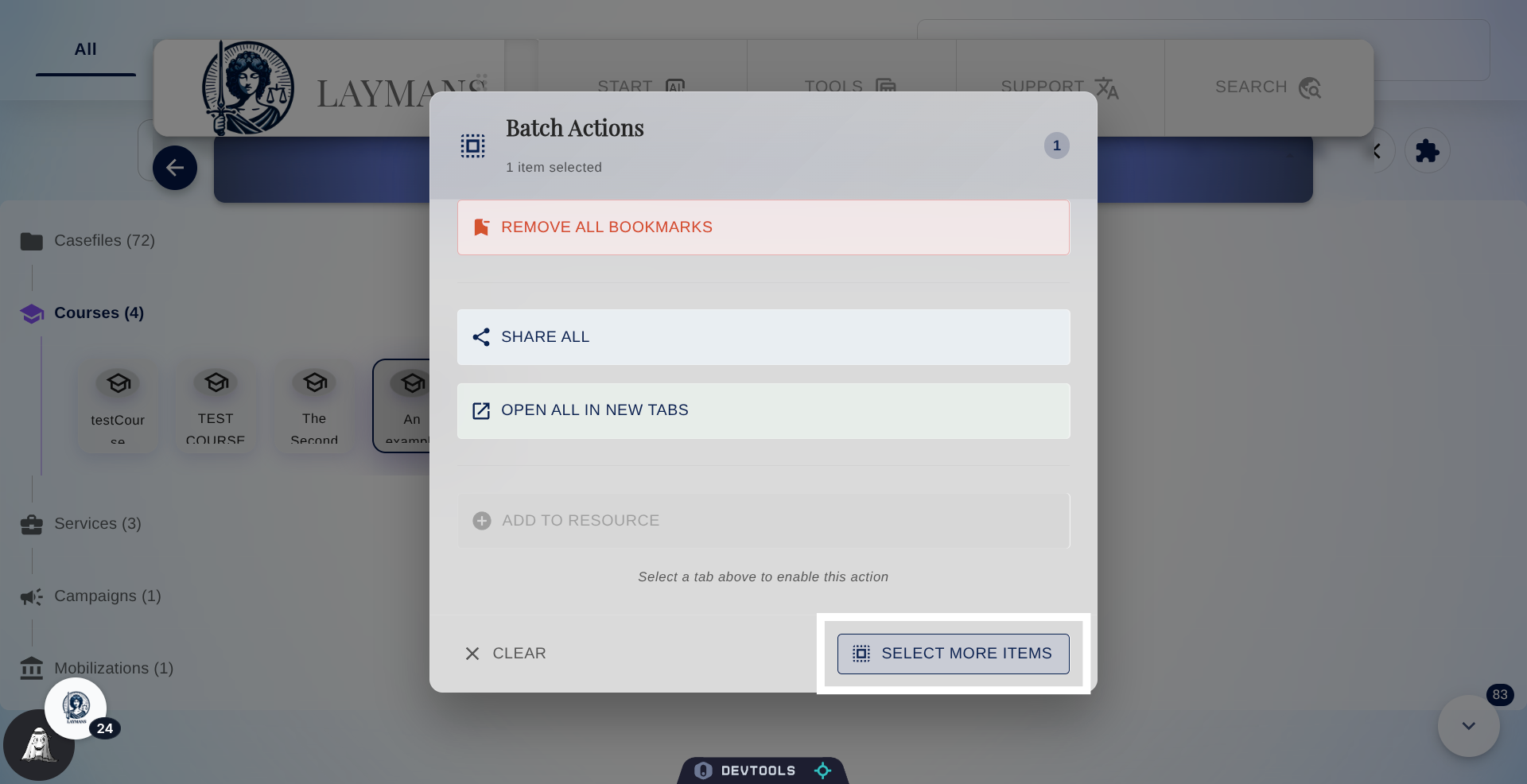
19. Click "Select More Items"
Most importantly, you can click "Select More Items" to actually select multiple items at once—like a File Manager!
20. Mass Selection Mode
After clicking Select More Items, you'll enter Selection Mode. In this mode, you can freely click or drag over items to add them to the selection. You can quickly open all at once, remove all bookmarks at once, or use them for our aggregate creation options.
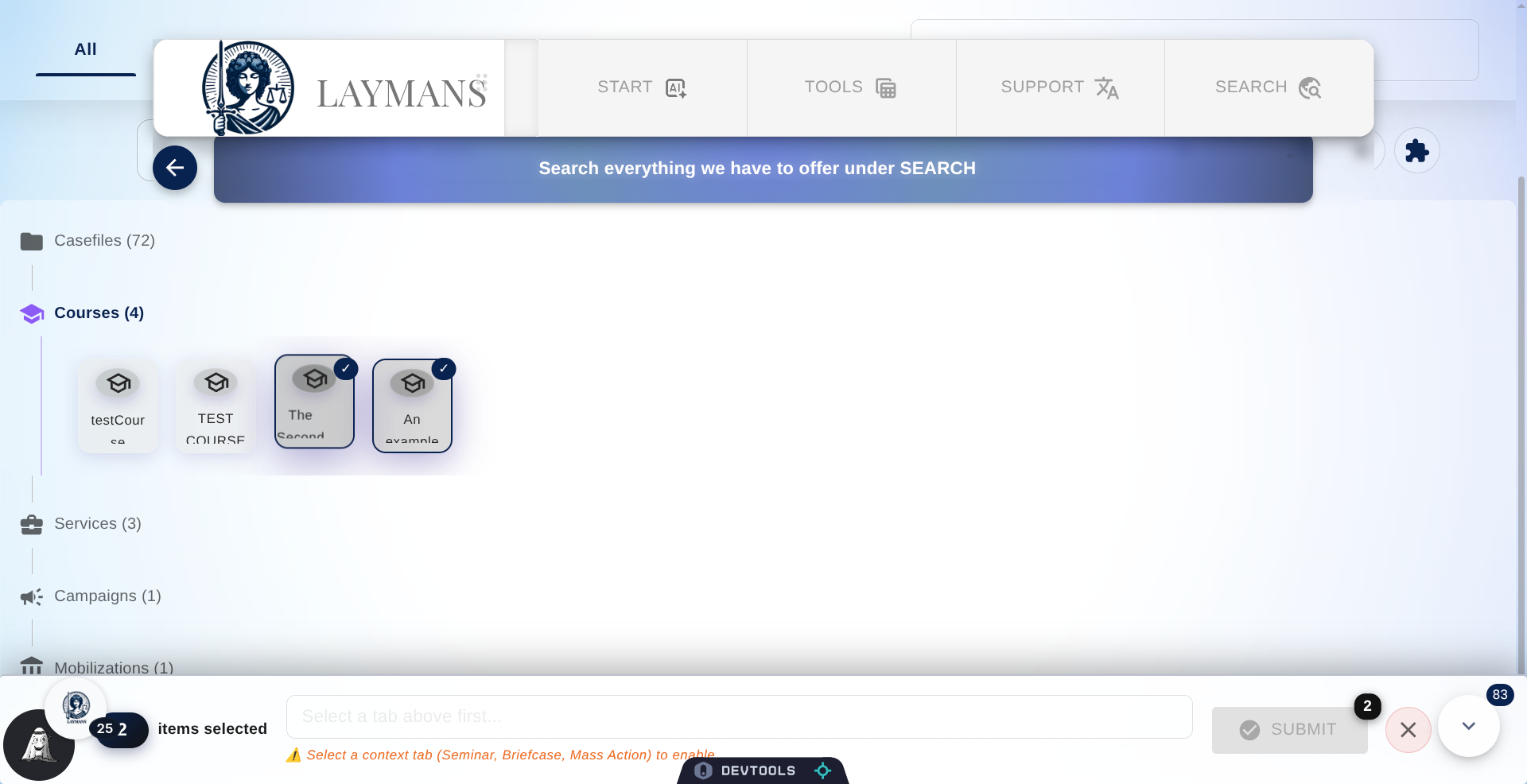
21. Click Clear on the Selection Dialog
That's enough fun for now; let's click Clear on the Mass Selection Bar or the Selection Modal to clear out our choices. As a final note on selection, to the right of every opened section will be another search bar—you can use this one to quickly add an item to your selection if you have a lot of bookmarks.
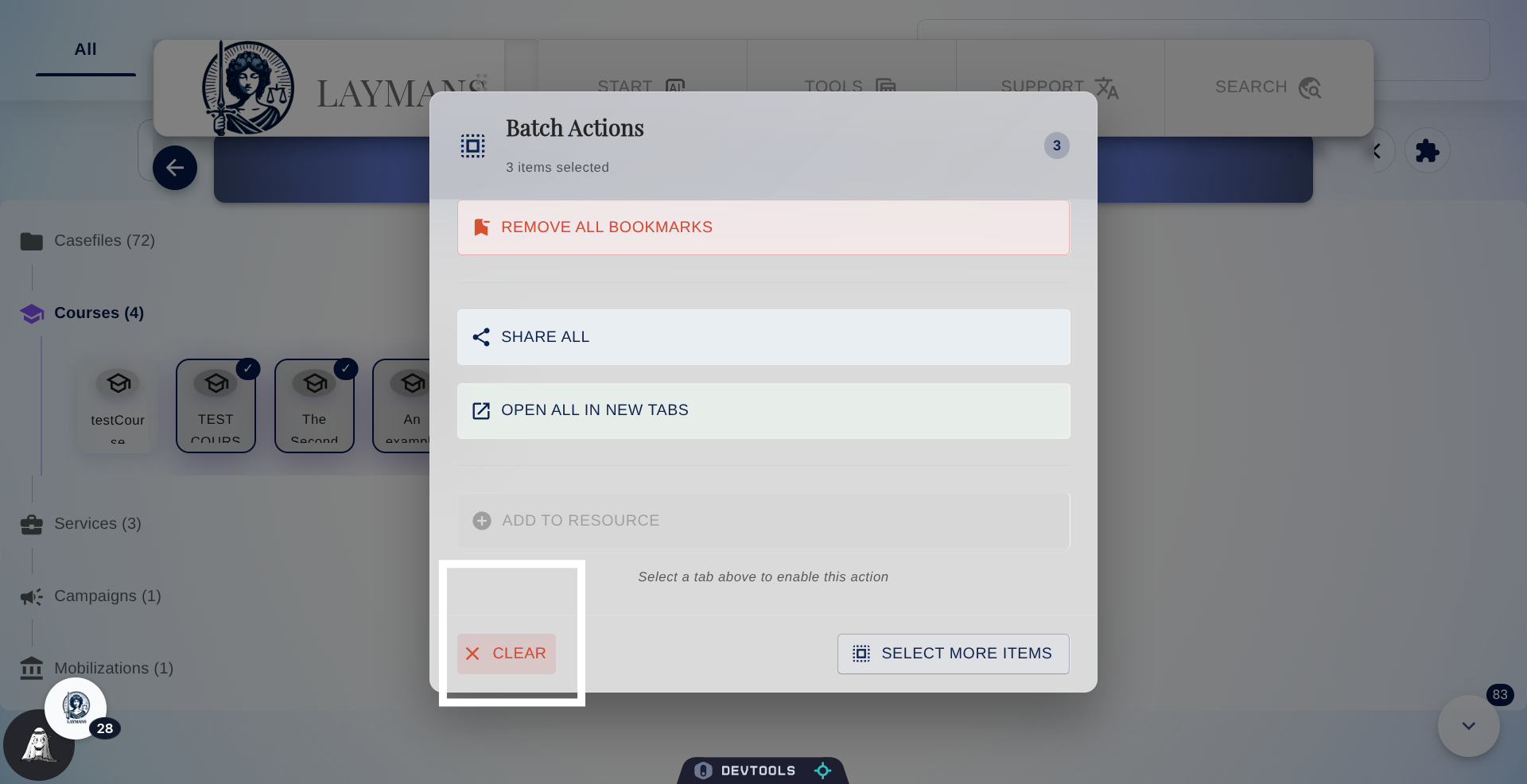
22. In Conclusion
Laymans is designed to be best in class in case initiation, localized research, and case management, and to do so, we offer many building blocks and frameworks to make legal knowledge accessible and shareable. The cornerstone of managing all that depth and detail is the Bookmarks page—providing an intuitive user interface for legal knowledge management—for free—for everyone. So you should never feel afraid to dive into the law.