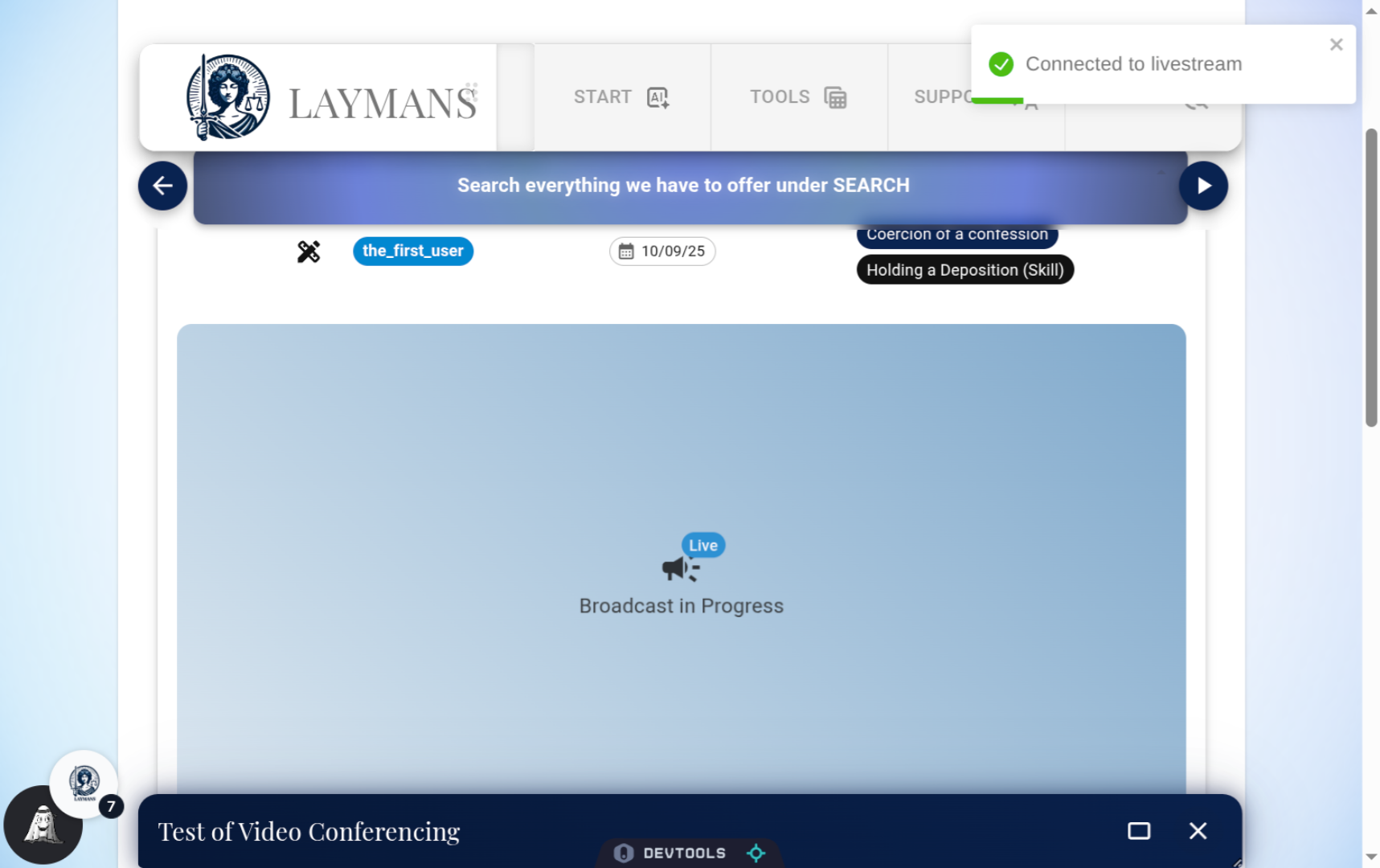
How to access your Video Conference or "Broadcast" on Laymans
Go to www.laymans.app
1. Introduction
Did you get a notification that you have a video conference scheduled on Laymans? Did you schedule a broadcast to go public in a few hours? Let's get you to it.
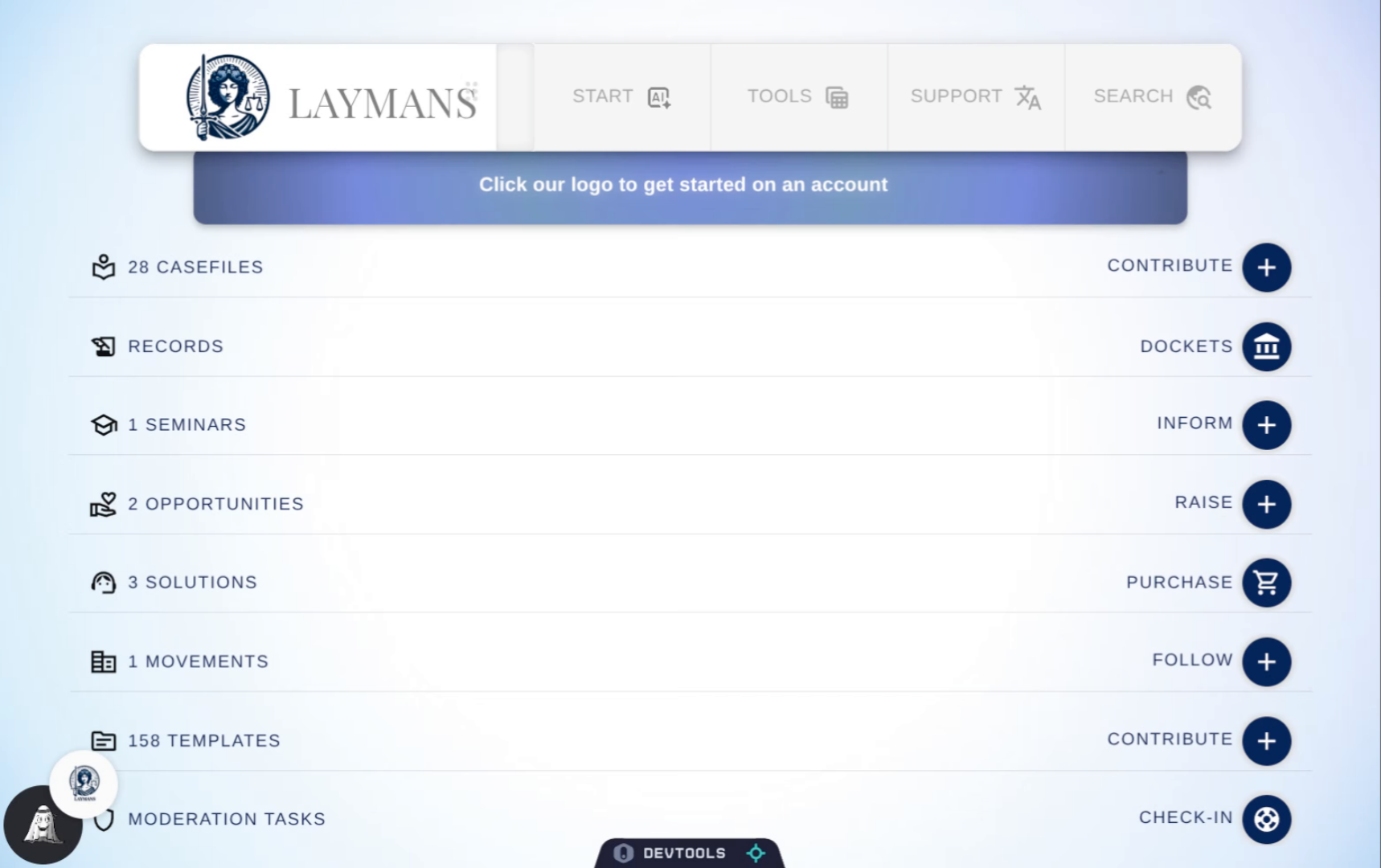
2. Click "Laymans"
Video conferencing is one of those specialized features Laymans is happy to host for you as a free account-wide service. Click "Laymans" to get started. Pss, we like to call them "Broadcasts."
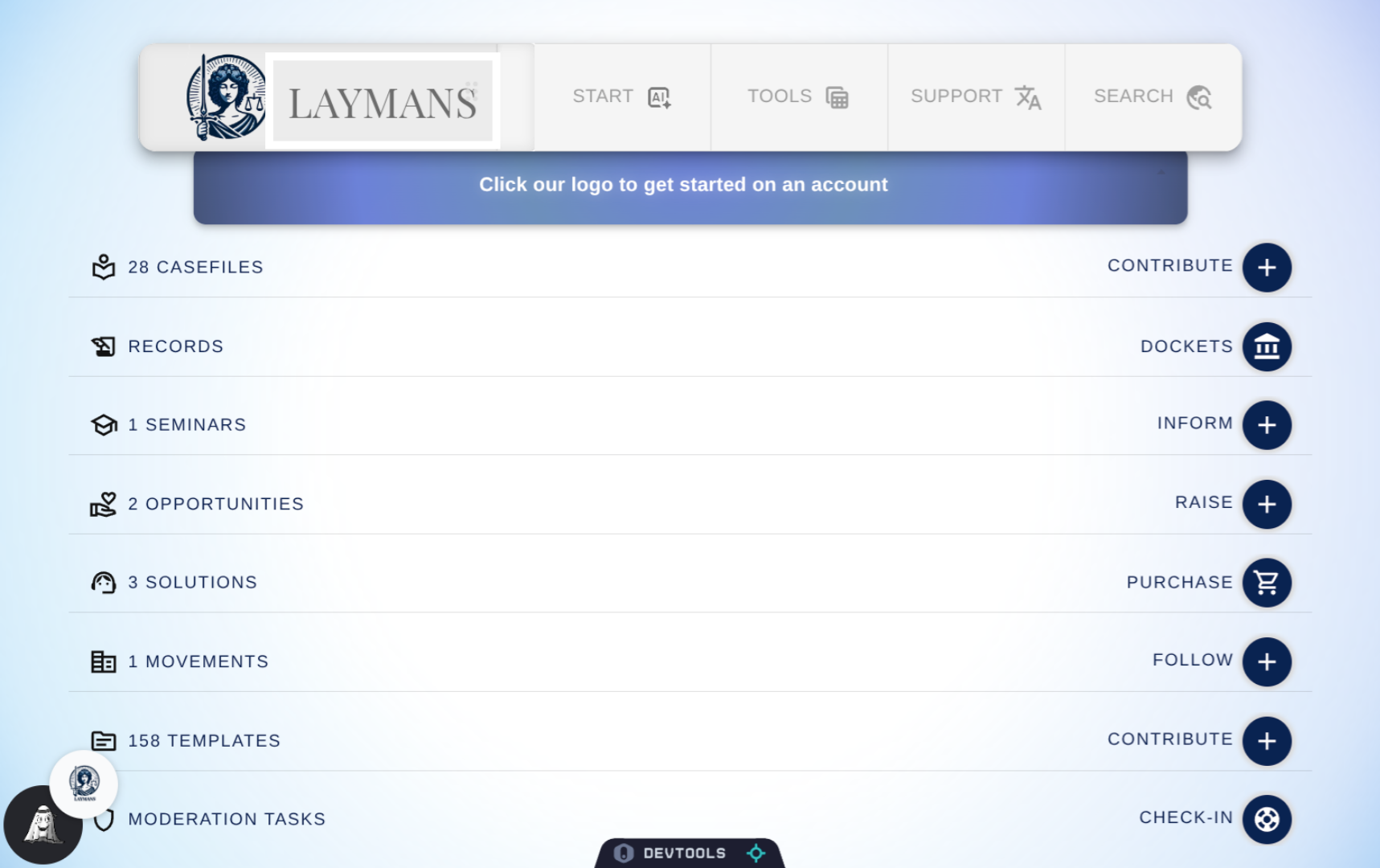
3. If you're the owner you'll get a notification
One of the first places you can go to navigate to your Broadcast is your Notifications. In notifications, if you are the owner, you will find a special link to the broadcast containing all the room owner controls such as screen share, kick users out, and designating another speaker.
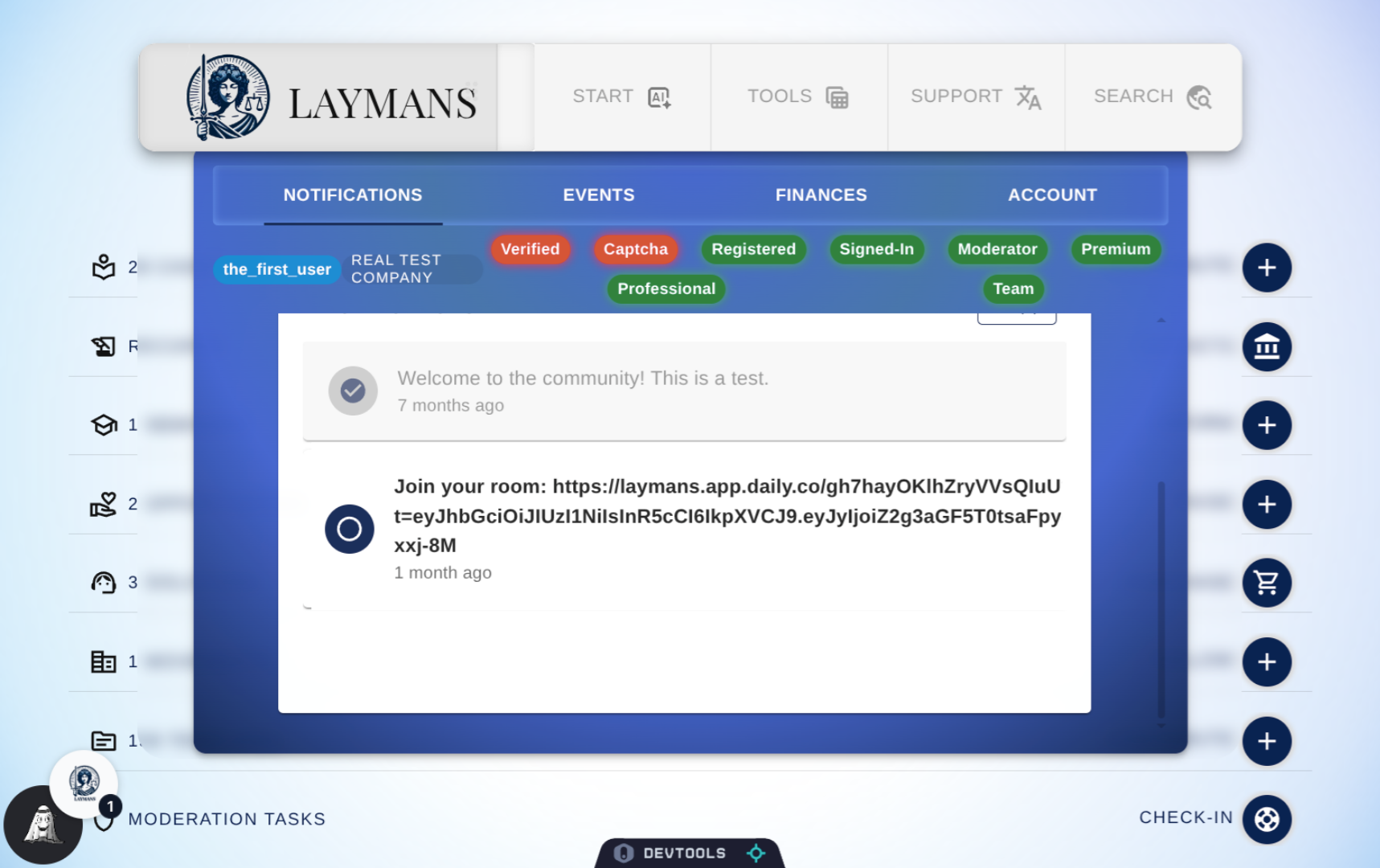
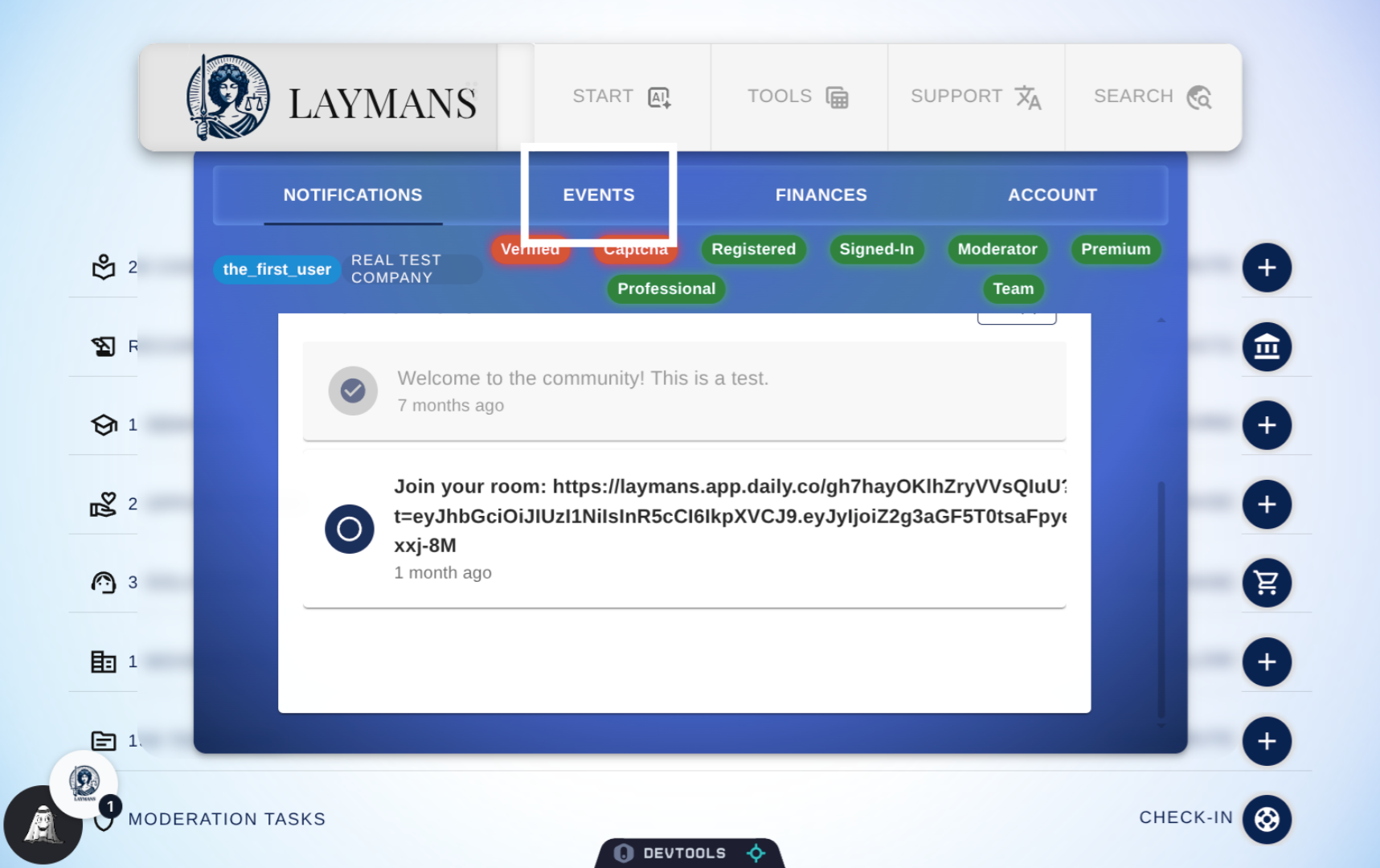
4. Navigate to Events Section
Otherwise, you can click Events to see all physical and virtual events on the platform...
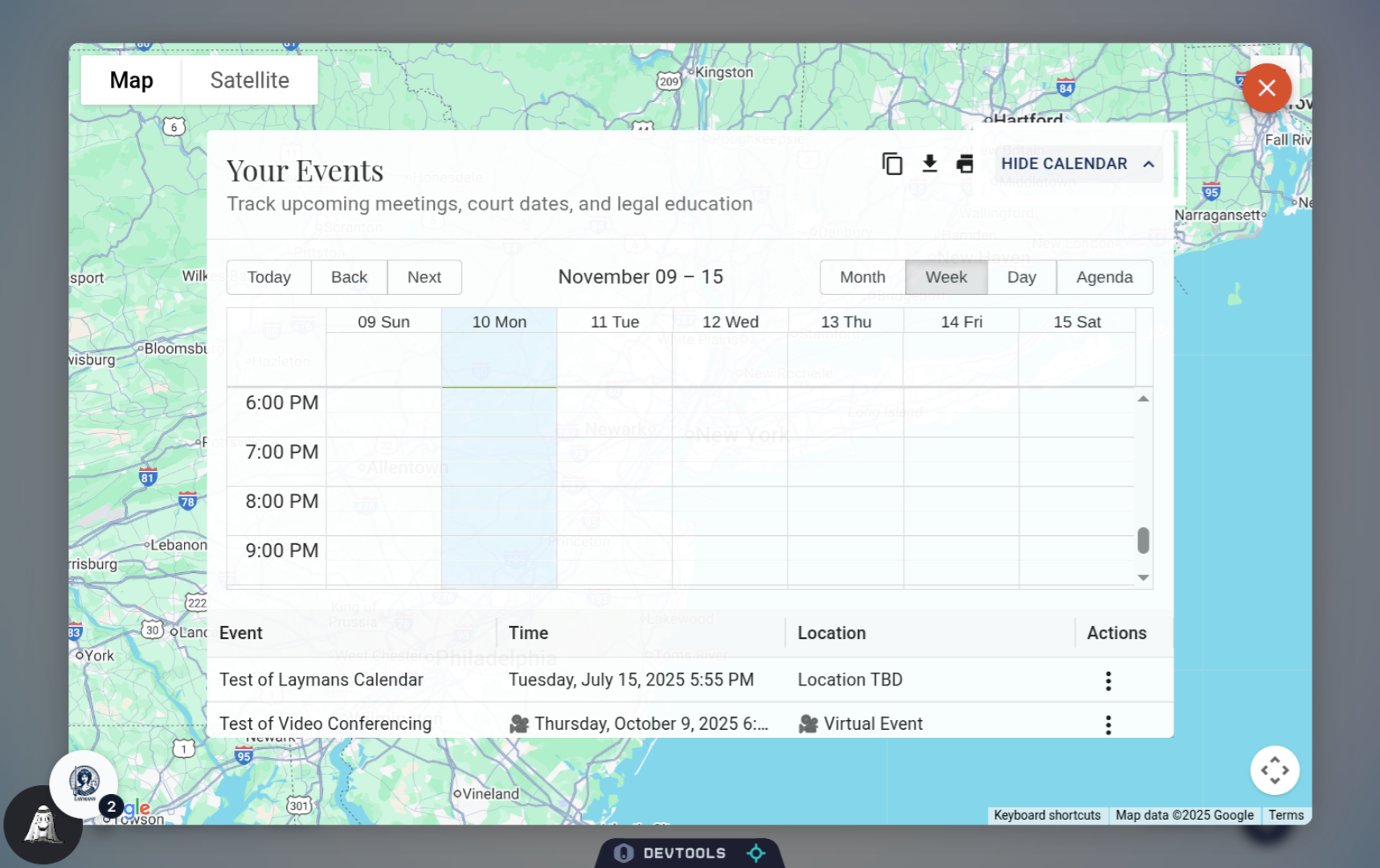
5. Hide Calendar View
I can already see the event I'm heading to at the bottom, but Im going to click "Hide Calendar" to get a better look.
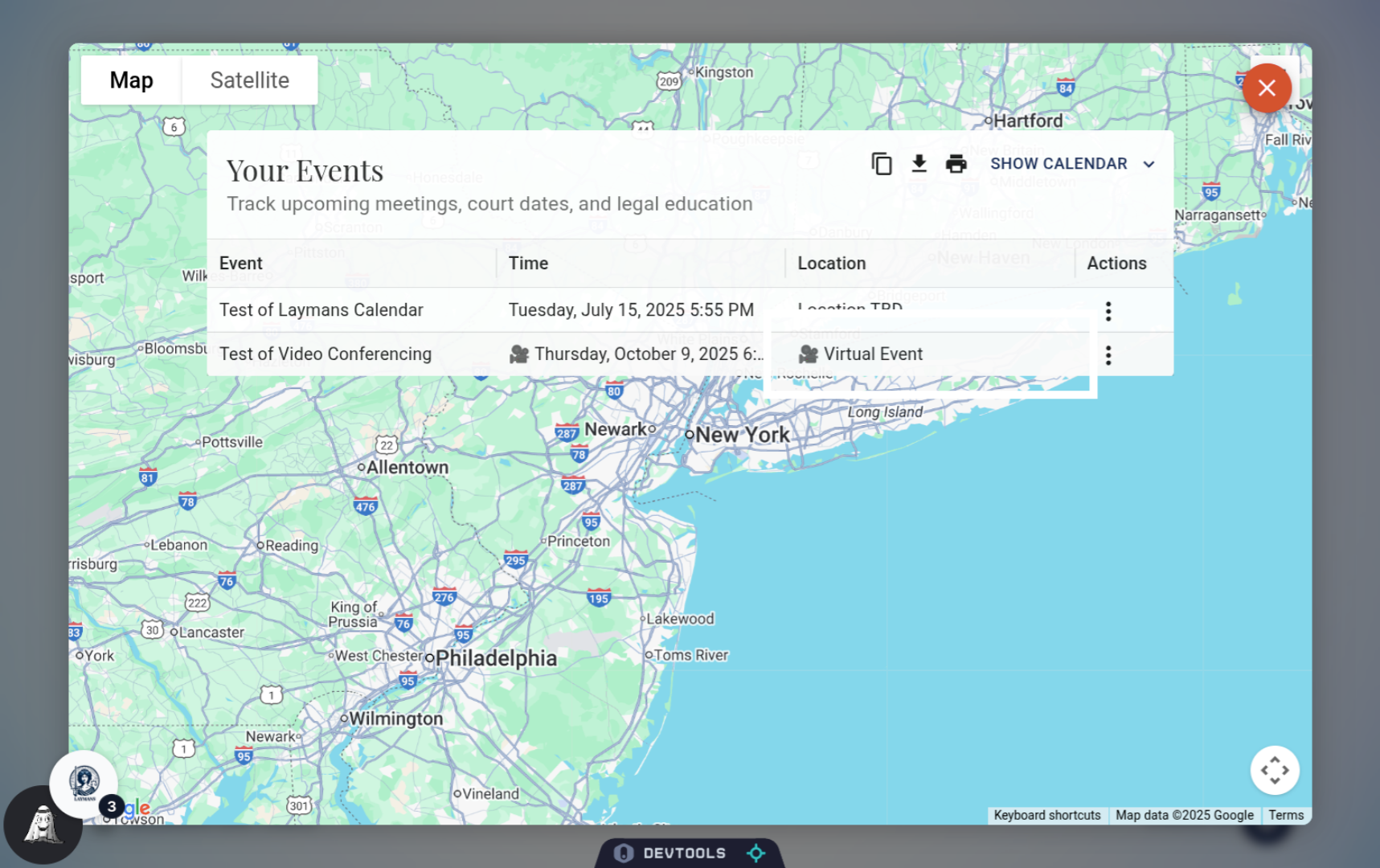
6. Select the Virtual Event
Remote events on Laymans will be clearly designated with the little Video Emoji! Click it to navigate to the relevant casefile.
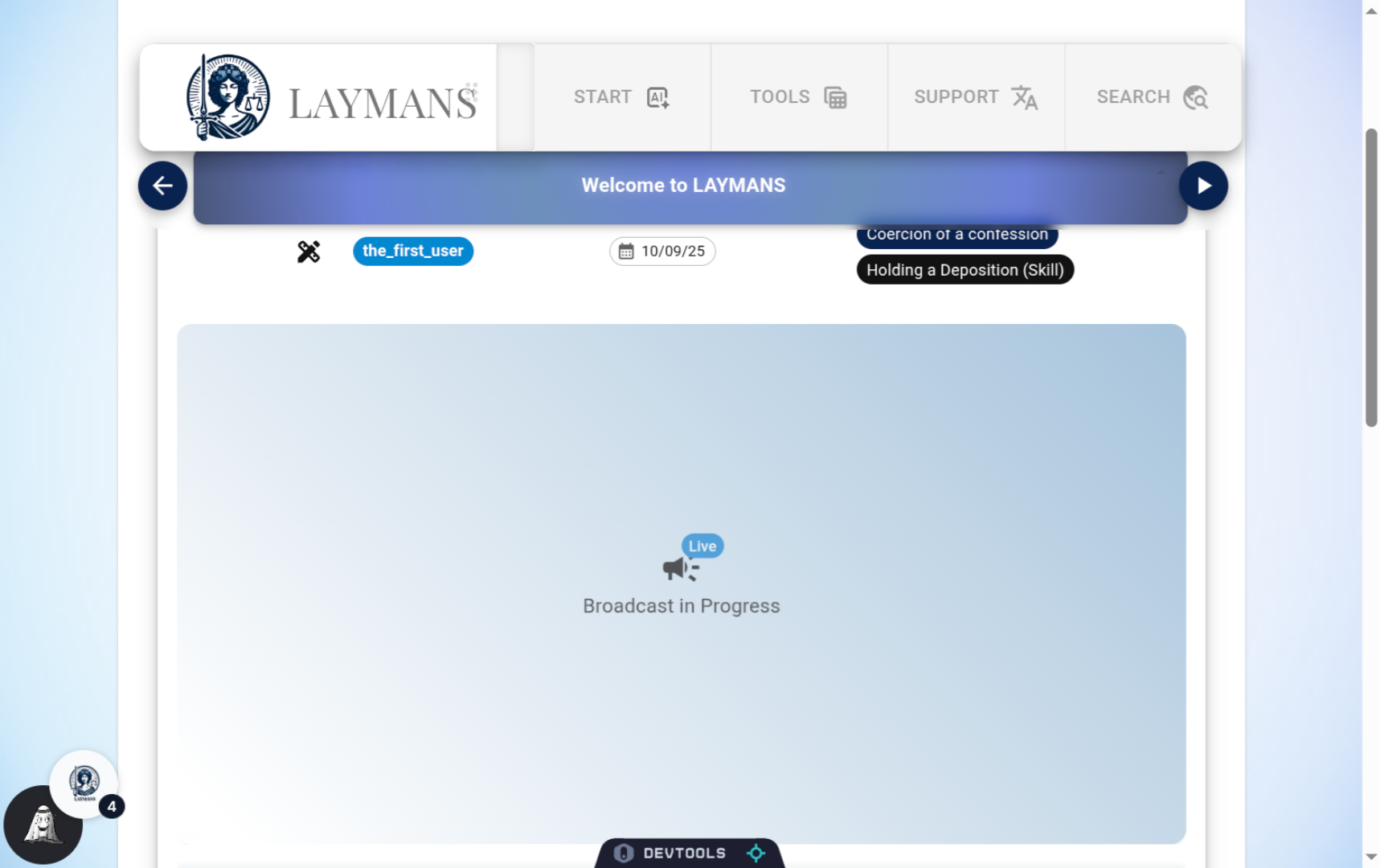
7. Click the Broadcast Icon
If the Broadcast is still ongoing, you'll see an interface like this - click it to open the Broadcast Viewer!
8. About the Broadcast Viewer
Welcome to the viewer, it will look *something* like this - with different features dependent on whether the attached casefile is private, public, owned by you, or being viewed without an account. To keep it simple, on private casefiles everyone can use the chatroom, mics, and video; if public, only the owner can, and logged in people can only chat. Think of it as private = zoom and public = live. Private Broadcasts via private casefiles, are limited to those you share the casefile with -- and, if they are attached to a case its a great way to quickly arrange a web meeting with all those working on your case. Meanwhile, public broadcasts are livestreams, teach-ins, community meetings etc.
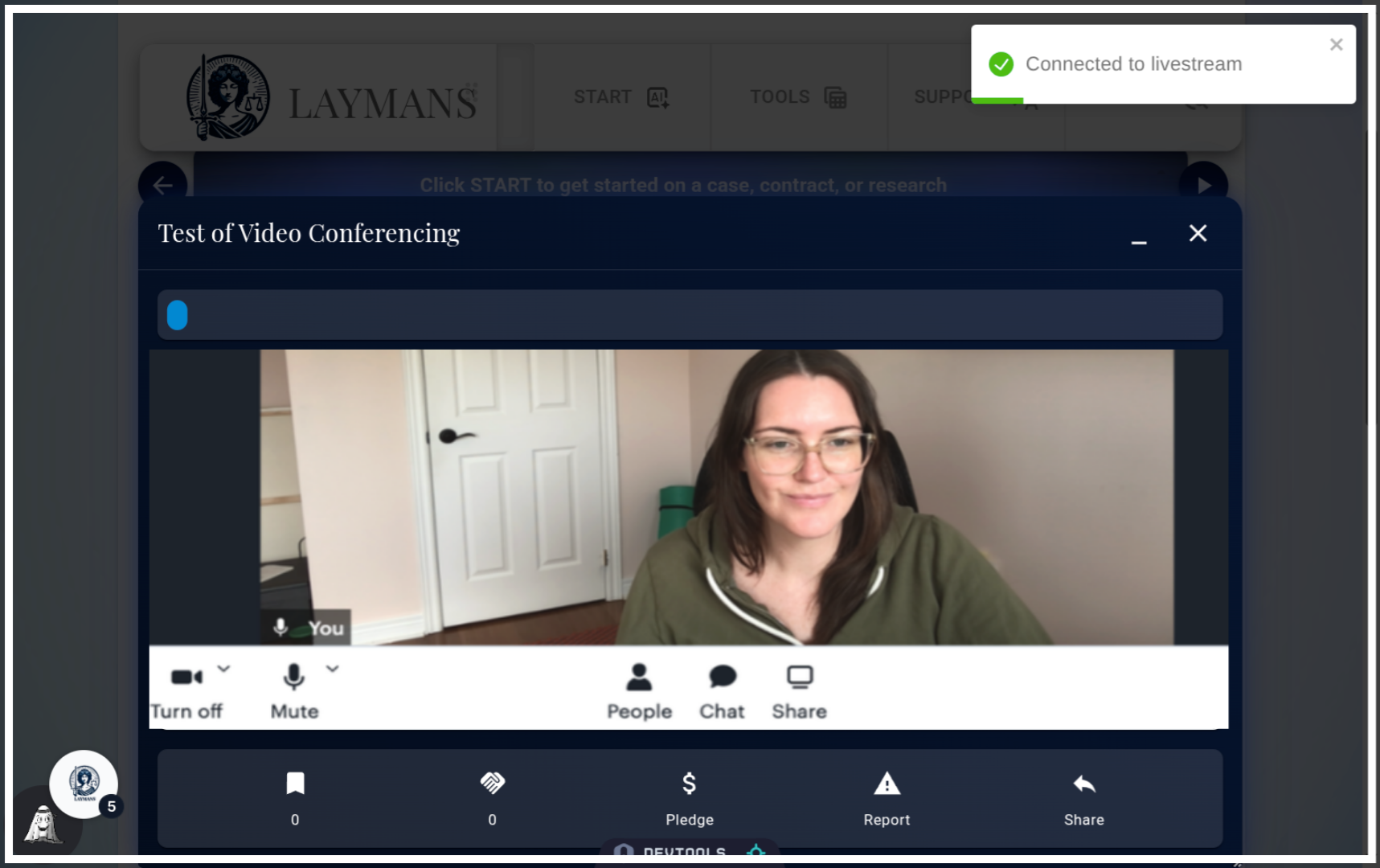
9. Minimizing the Viewer
Want to continue doing work? No problem, you can drag the drawer to either side to get out of the way. Or, better yet, click the minimize Icon to minimize it.
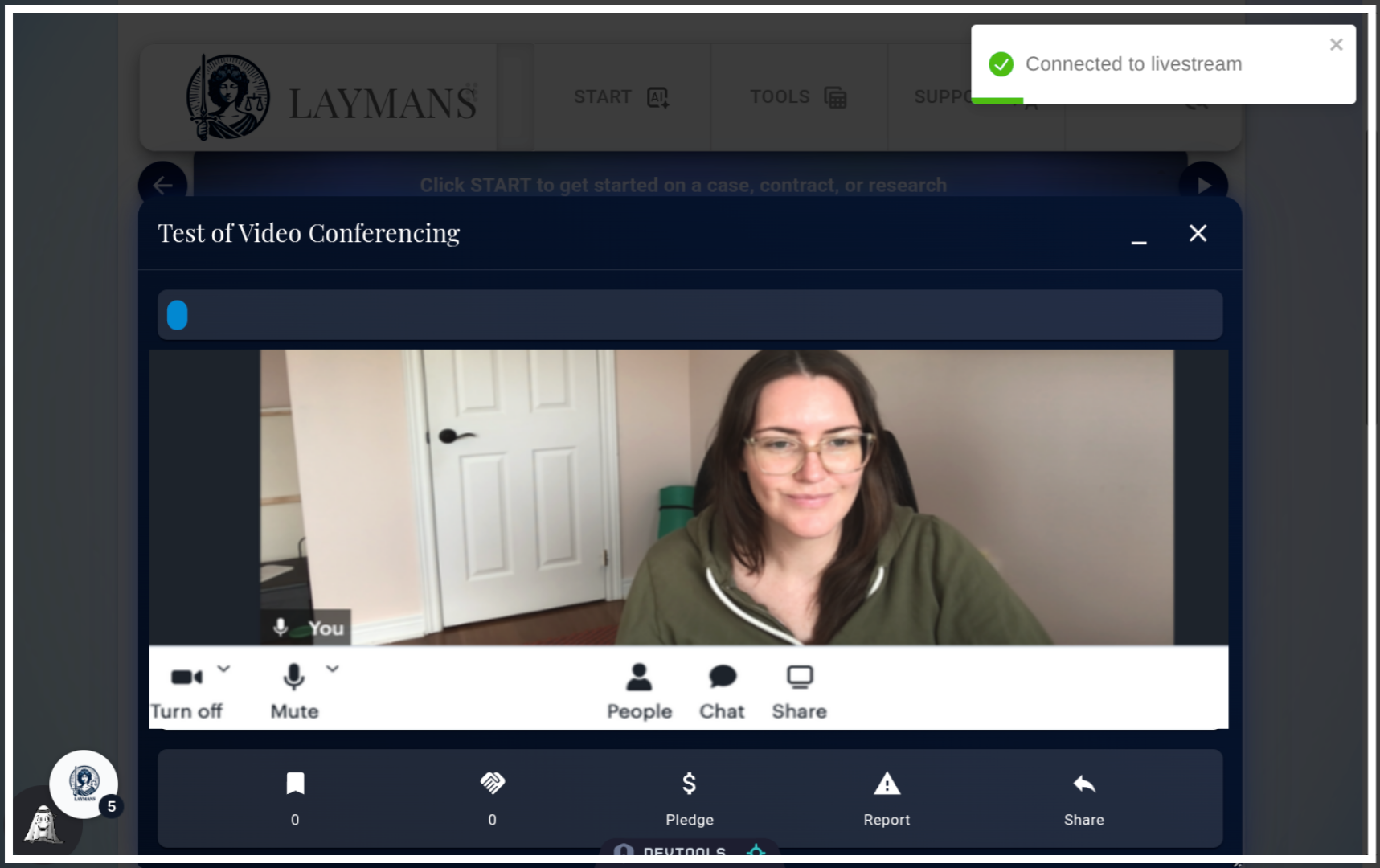
10. Closing out
Cool, huh? We're keeping this instructional video short by assuming that most laypeople are familiar with web meeting software. You can go here if you're not: https://www.wikihow.tech/Video-Conference. Laymans Video calls are by default secure and encrypted with hardcoded accession through our apps protocols, however, video calls are a max two hours and only paying users can record calls. It is our goal to make communication between advocates and servicers even easier by attaching secure communication, work, and research in one place -- let us know if you have any issues with our system.