How to upload Multiple Casefiles at Once
Go to www.laymans.app
1. Introduction
Laymans is the best at managing your case, however, you may be coming from somewhere else. Don't worry, it's easy to get up and running with Laymans by uploading your folder of digital files as casefiles.
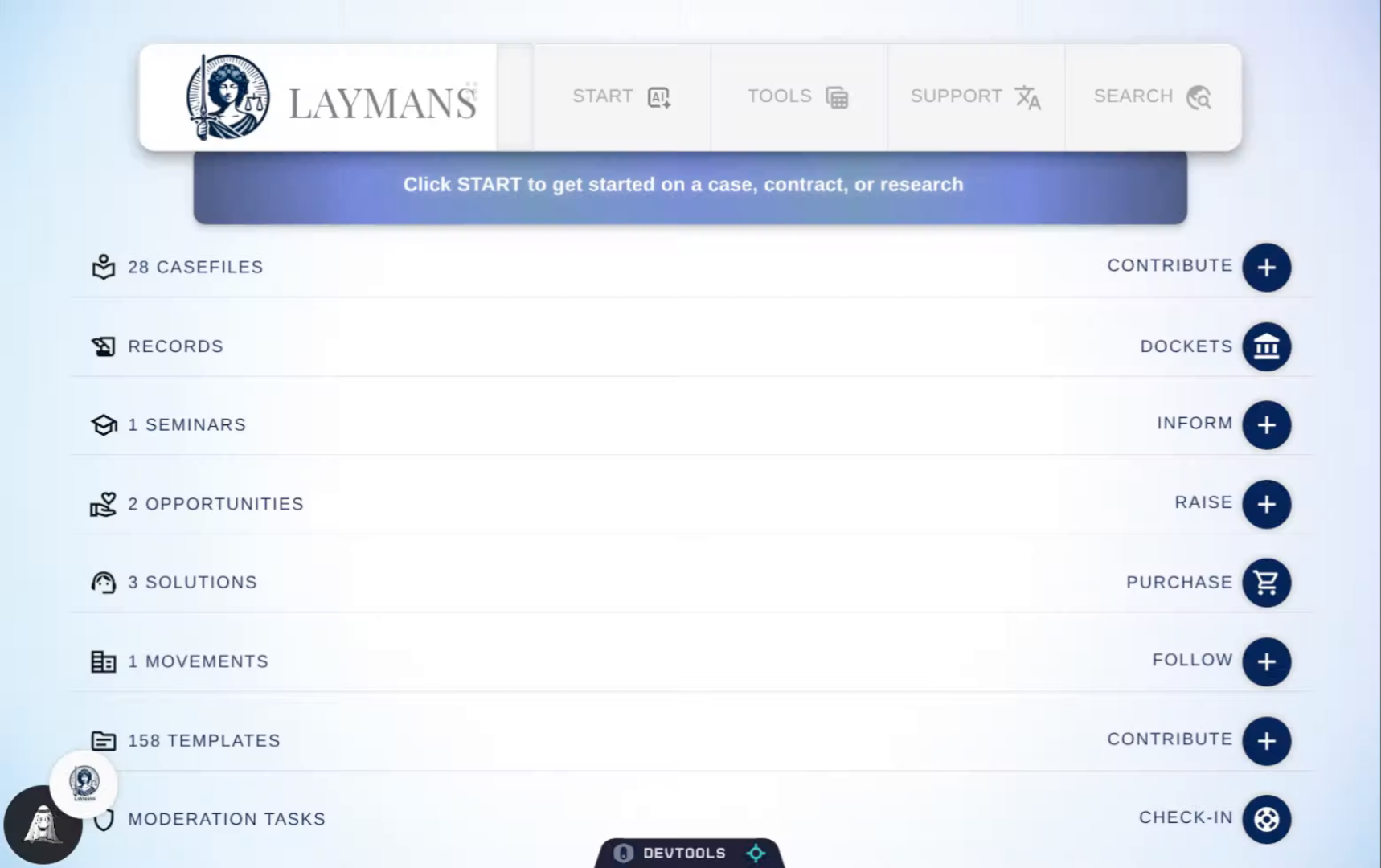
2. Click "Contribute"
First, we will click Contribute, or use the Power Bar: "Start" > "Co-Create" > Casefiles, to get to the Casefiles wizard.
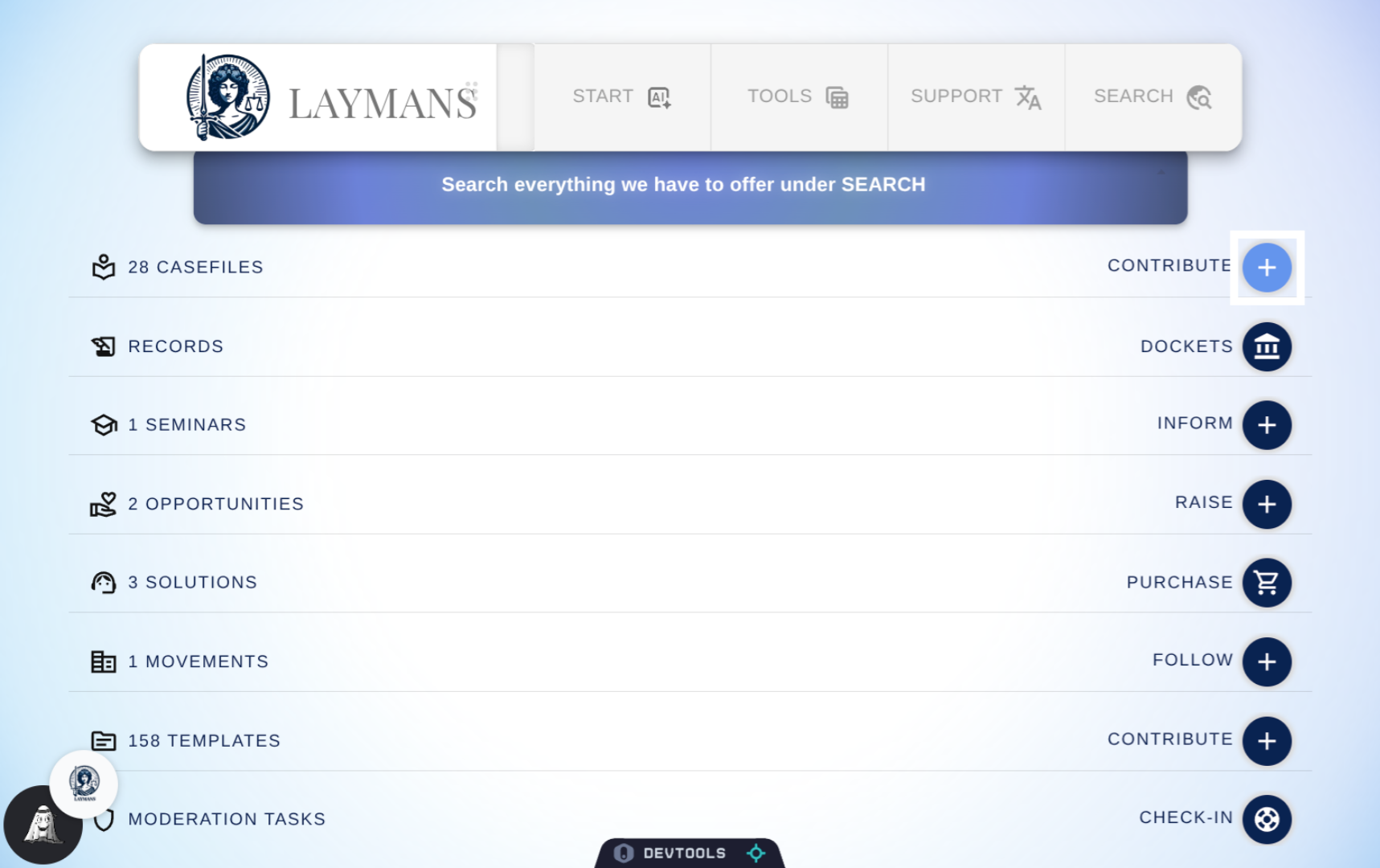
3. We'll move quickly, click "Next"
Click "Next" to continue to the following screen.
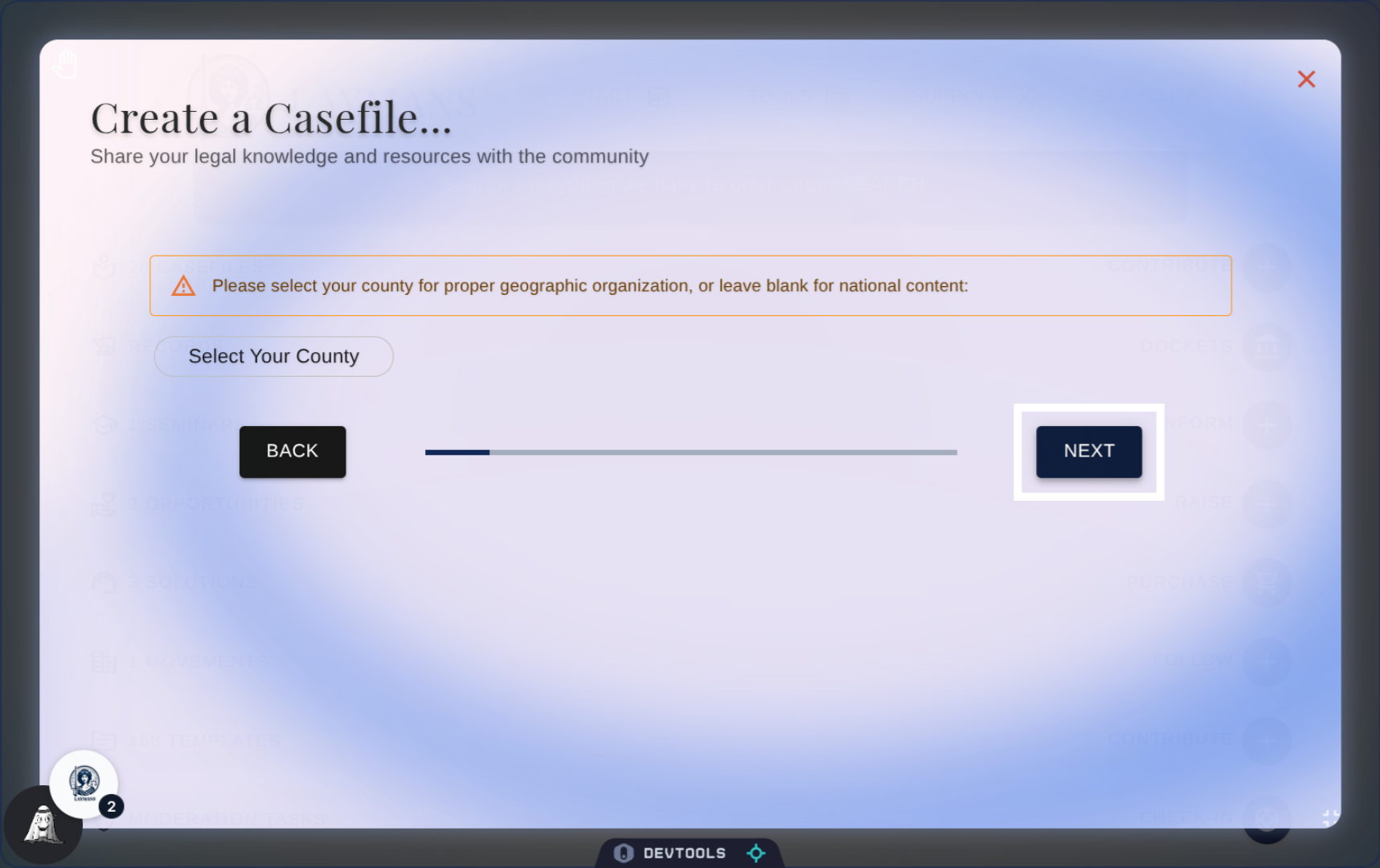
4. Click "Next" or select your County
The first step of the Casefile workflow is to select your County; For your mass upload, you can only upload casefiles to one county at a time. Inversely, deselecting a county makes the content national in nature. You should always attempt to locate your resources and files to a county in the country, but know that "National" is the default.
5. Options for Mass Upload
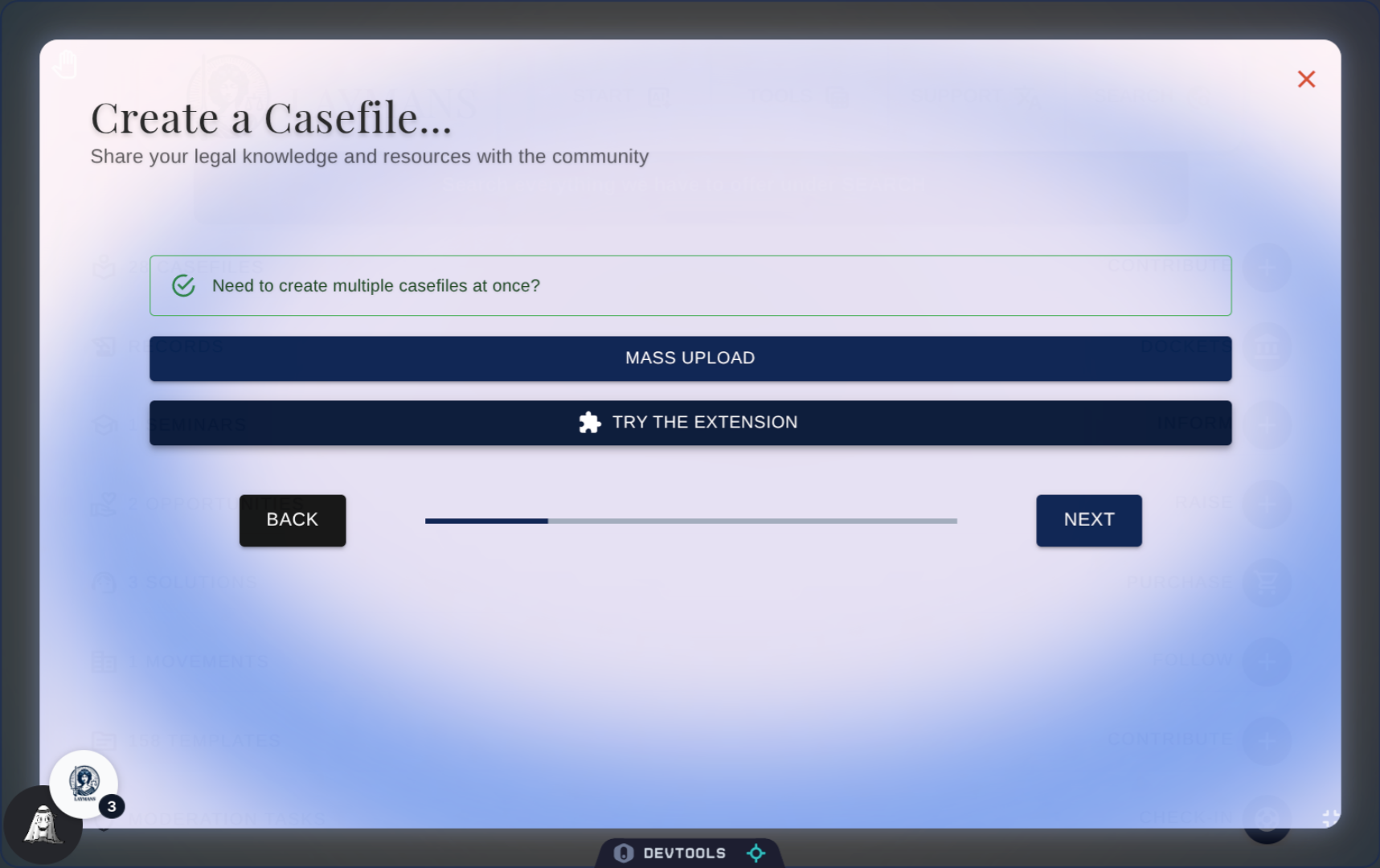
There are two methods for mass upload, we'll quickly hint at one of them before continuing on with the other:
6. About the Laymans Extension!
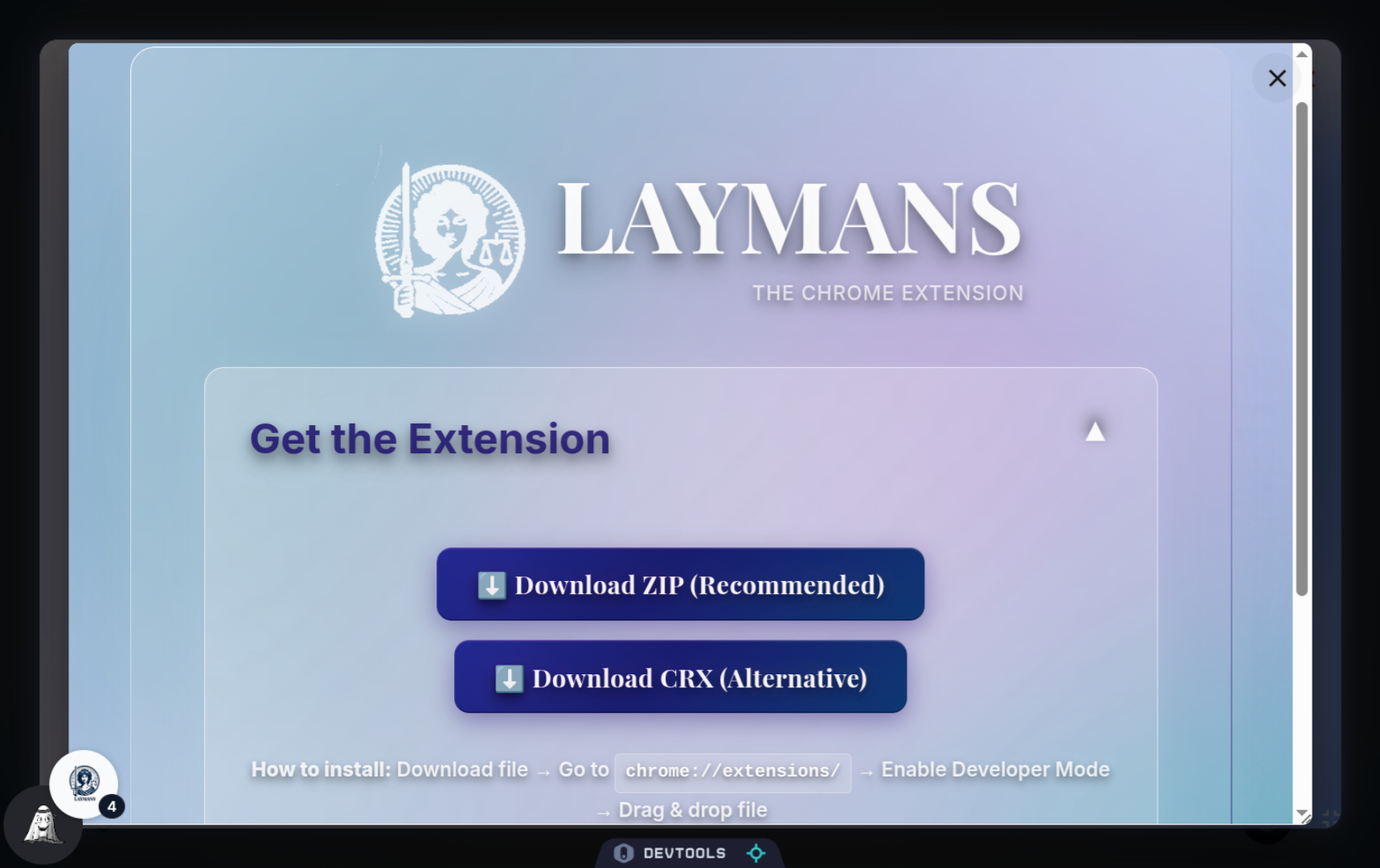
The secondary, but even easier, way of uploading many casefiles, templates, and other resources to LAYMANS is through our extension: Our Google Chrome extension allows you to save your browser tabs as casefiles in bulk, helping you to research and organize in-tandem.
7. Alternatively, click "Mass Upload"
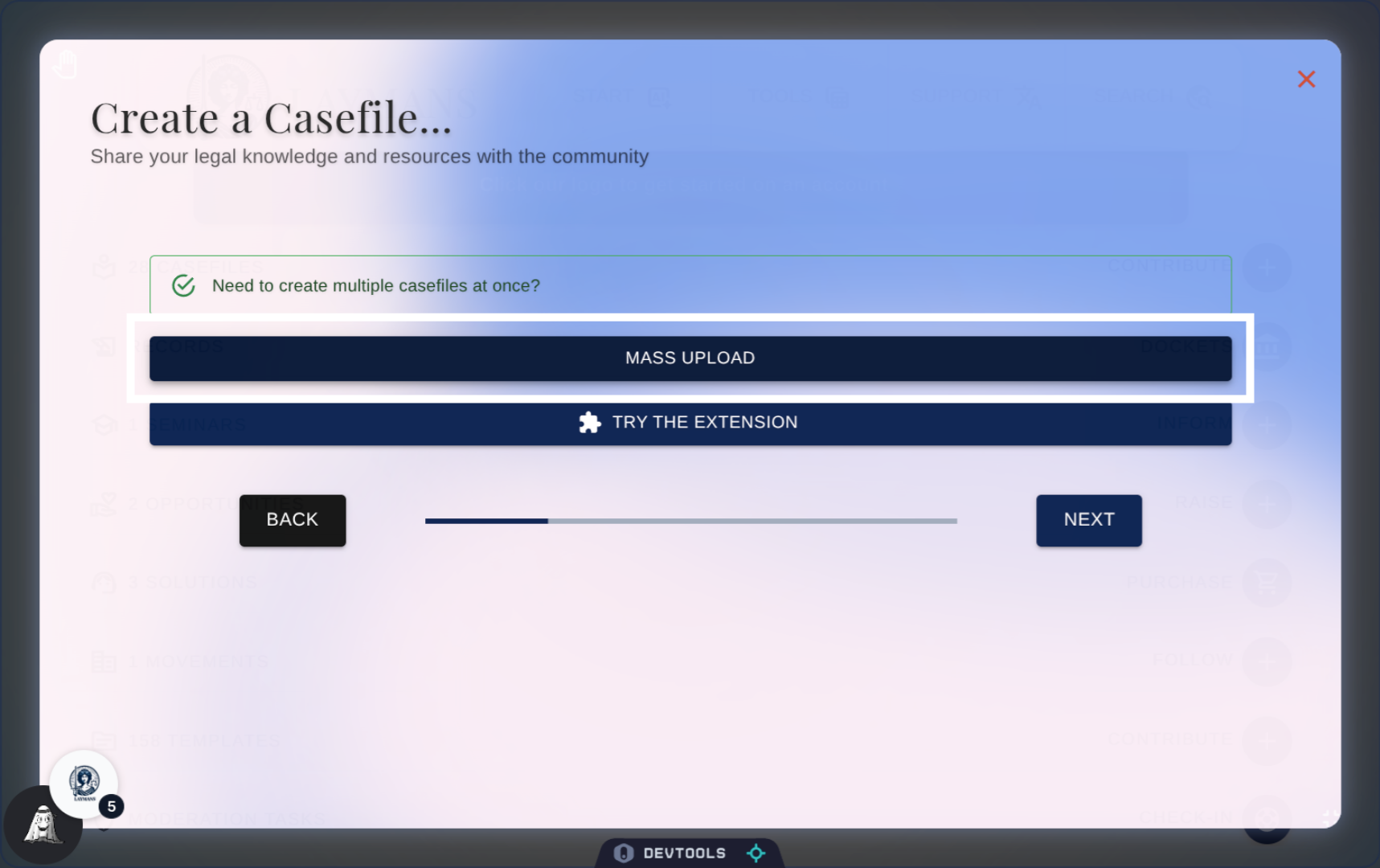
Now to the other way of uploading many casefiles, click "MASS UPLOAD" to start uploading multiple casefiles simultaneously.
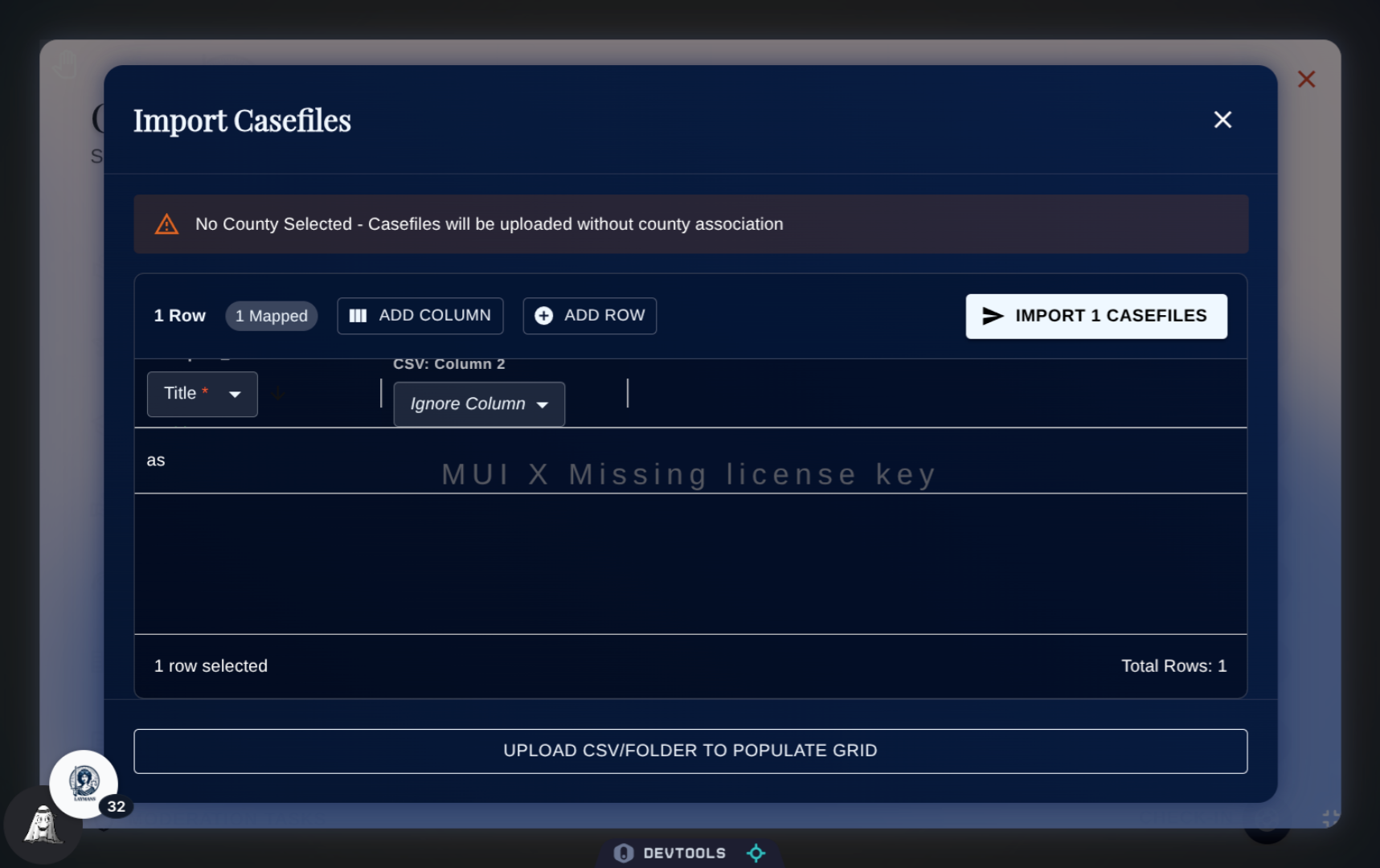
8. The Mass Upload Modal
This setting of the wizard allows you to manipulate an excel-sheet of options to upload many casefiles at once.
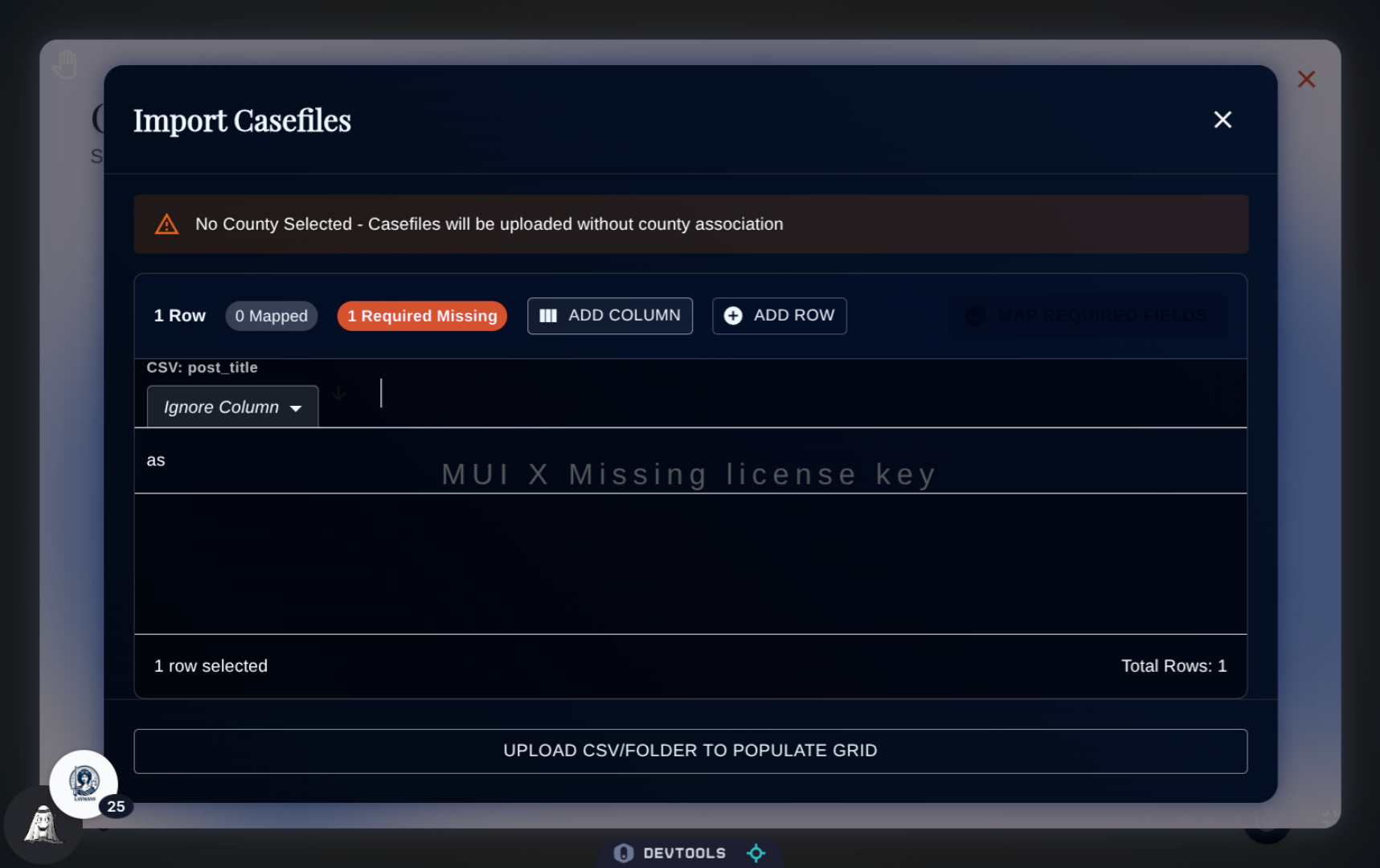
9. Upload CSVs, TSVs, or Folders
Click here to upload a CSV, TSV, or Folder to work on. We'll chart your columns and files for upload and then you can map them to what Laymans expects.
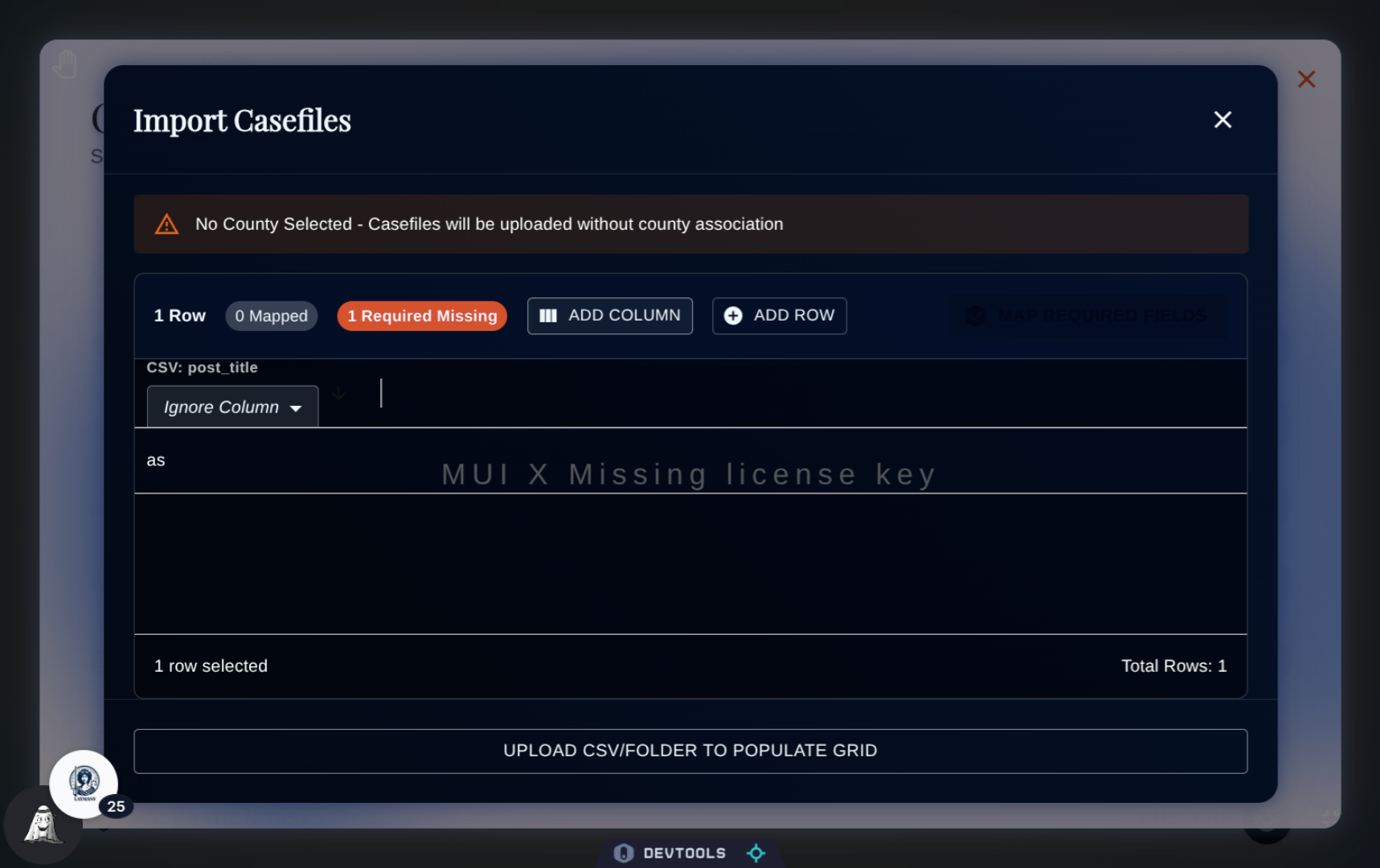
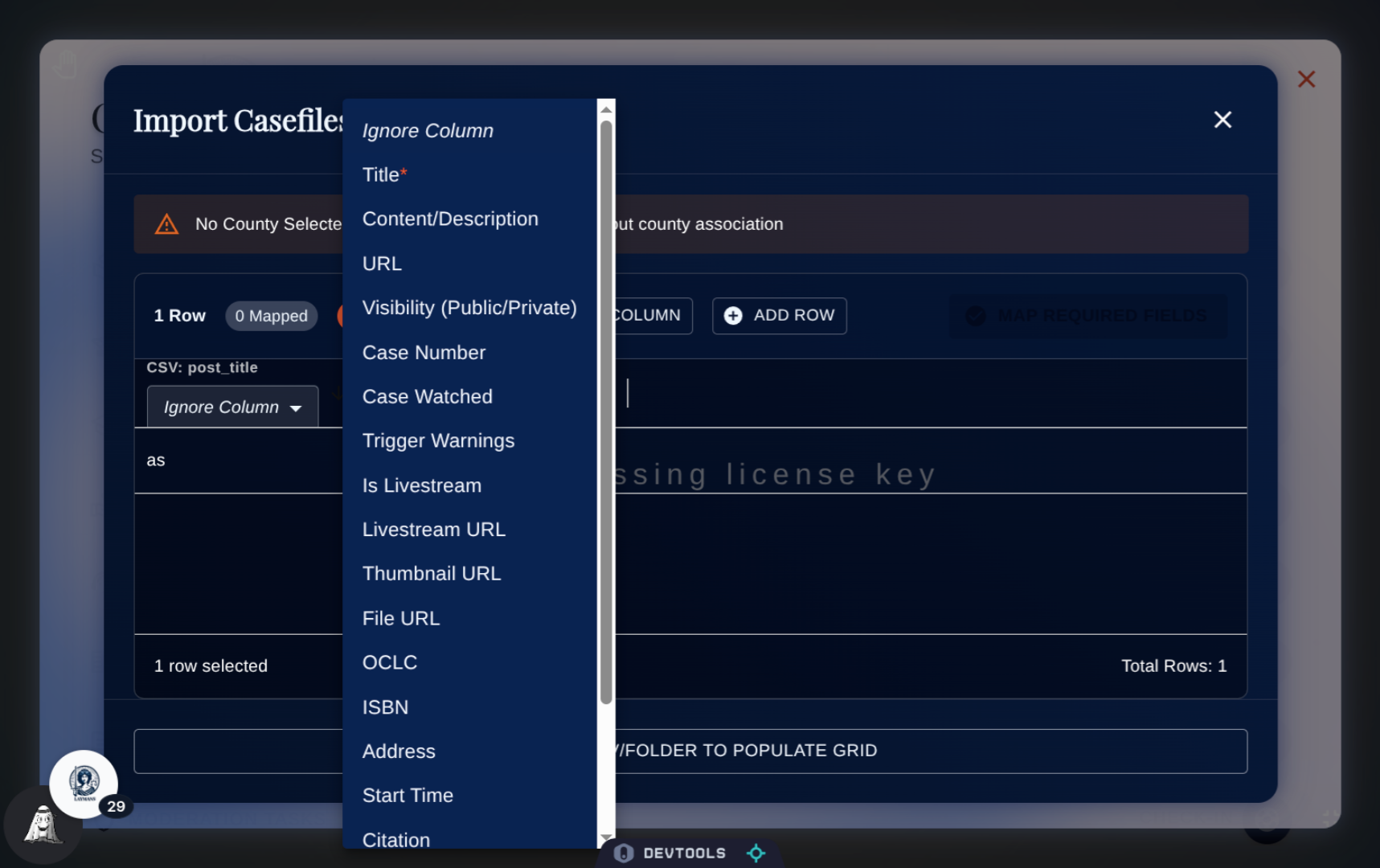
10. Map your Columns
Click on the column to map the column's value to one of the expected values of LAYMANS database. For a refresher on what each column stands for,you can review the "create a casefile" guide.
11. You can edit values before upload.
Clicking on an actual cell allows you to edit its values, allowing you to quickly edit your uploaded files en-masse.
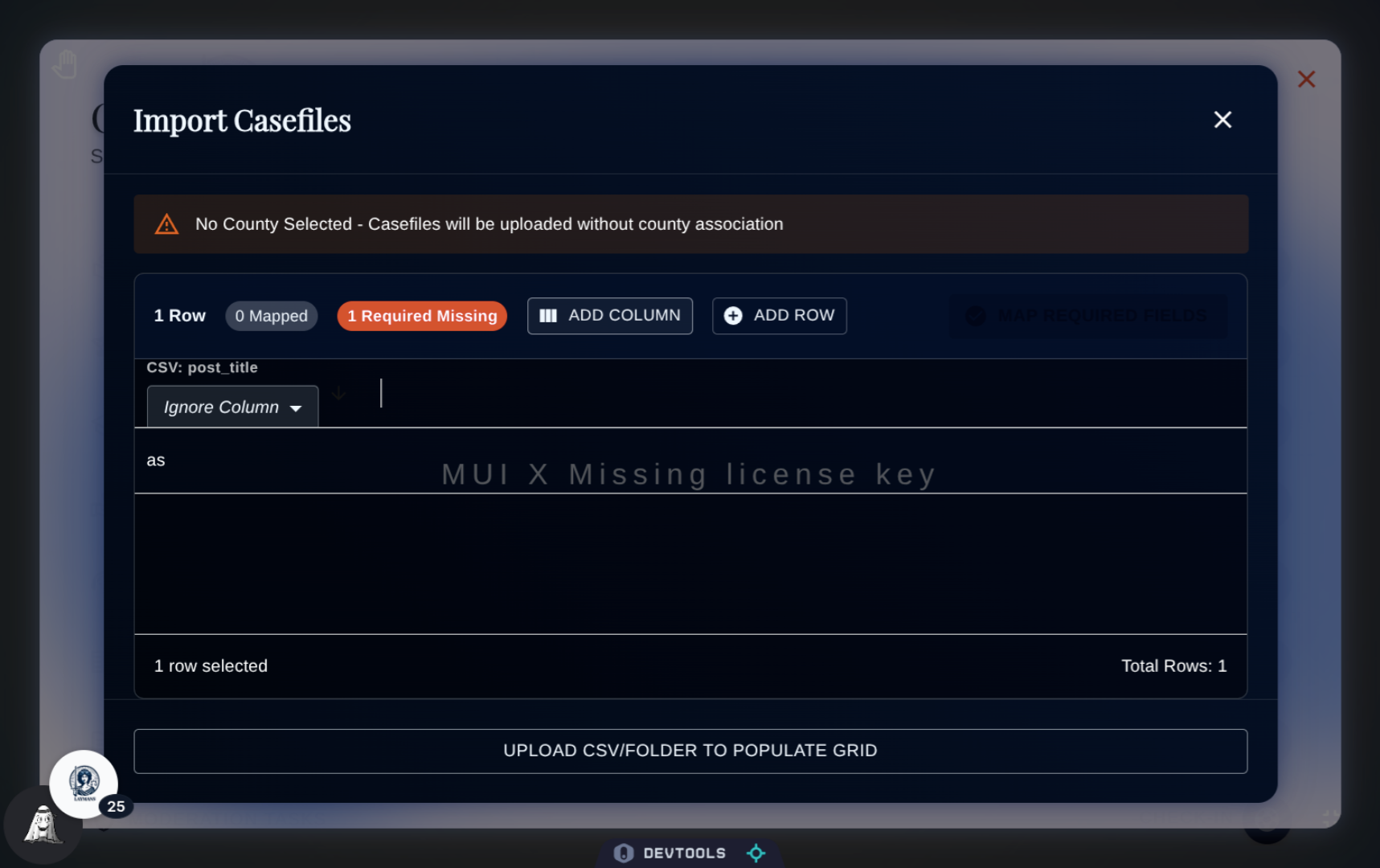
12. You can build out your upload here.
The Buttons "Add Column" and "Add Row" allows you to fully build out your casefile mass upload on this modal, adding additional template records and specifying optional columns as necessary. But note, only the columns relevant to our database will be uploaded in the end.
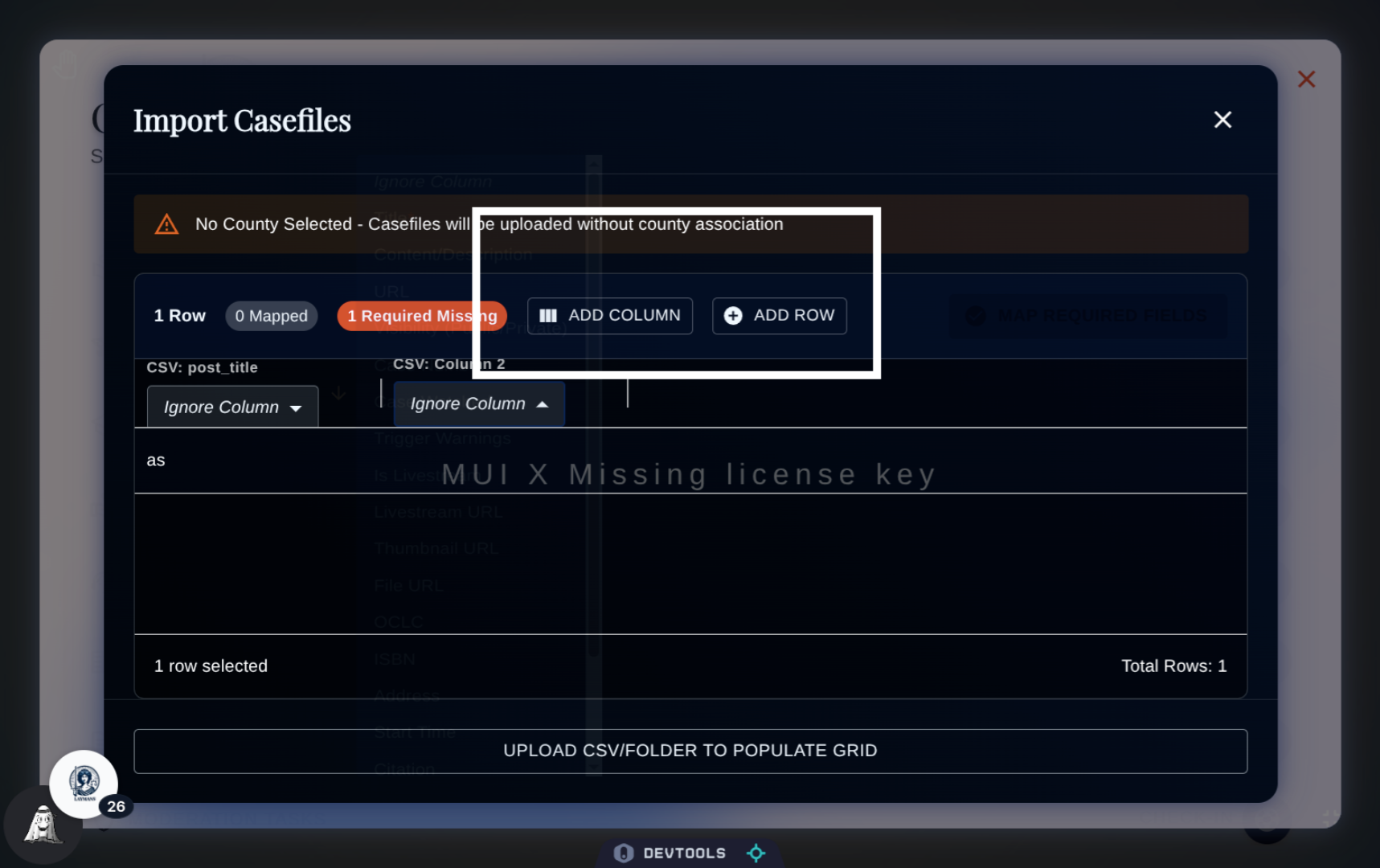
13. Click "Import" to Upload!
Ready? The modal will validate itself as you work, once you have records ready you can click "Import Casefiles" to upload your casefiles into our system. Theres a max of 200 at a time, but we recommend not going over fifty!
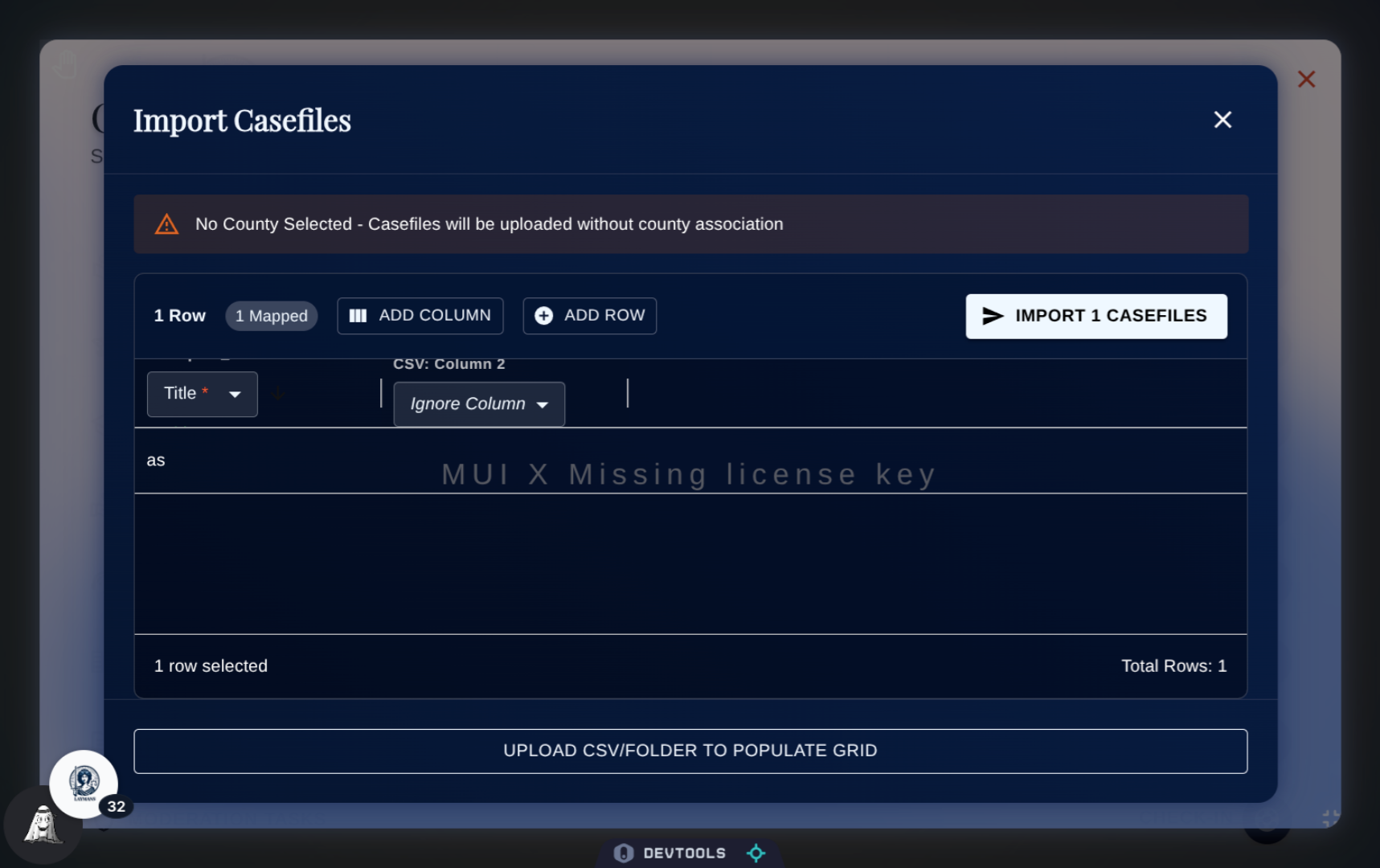
14. Why mass upload?
Casefiles are the building block of laymans cases, and it could be frustrating trying to get a case, briefcase, seminar, or mass action started if you had to upload each individual file through our Wizard. Our mass uploader allows you to take a folder or table and get up and running quickly! Once uploaded, you can go to Bookmarks, or use Co-Create under start, to quickly make these casefiles into action. We hope you enjoy this quality of life improvement!