Build Your Case Using Conversational AI on Laymans
Quick Start
Go to www.laymans.app to get started with AI case building.
1. Introduction
So there are three ways to add to your case once you create the outline in the form. The first and easiest one is to just talk to me—Layla, Layman's AI.
2. Click "Start"
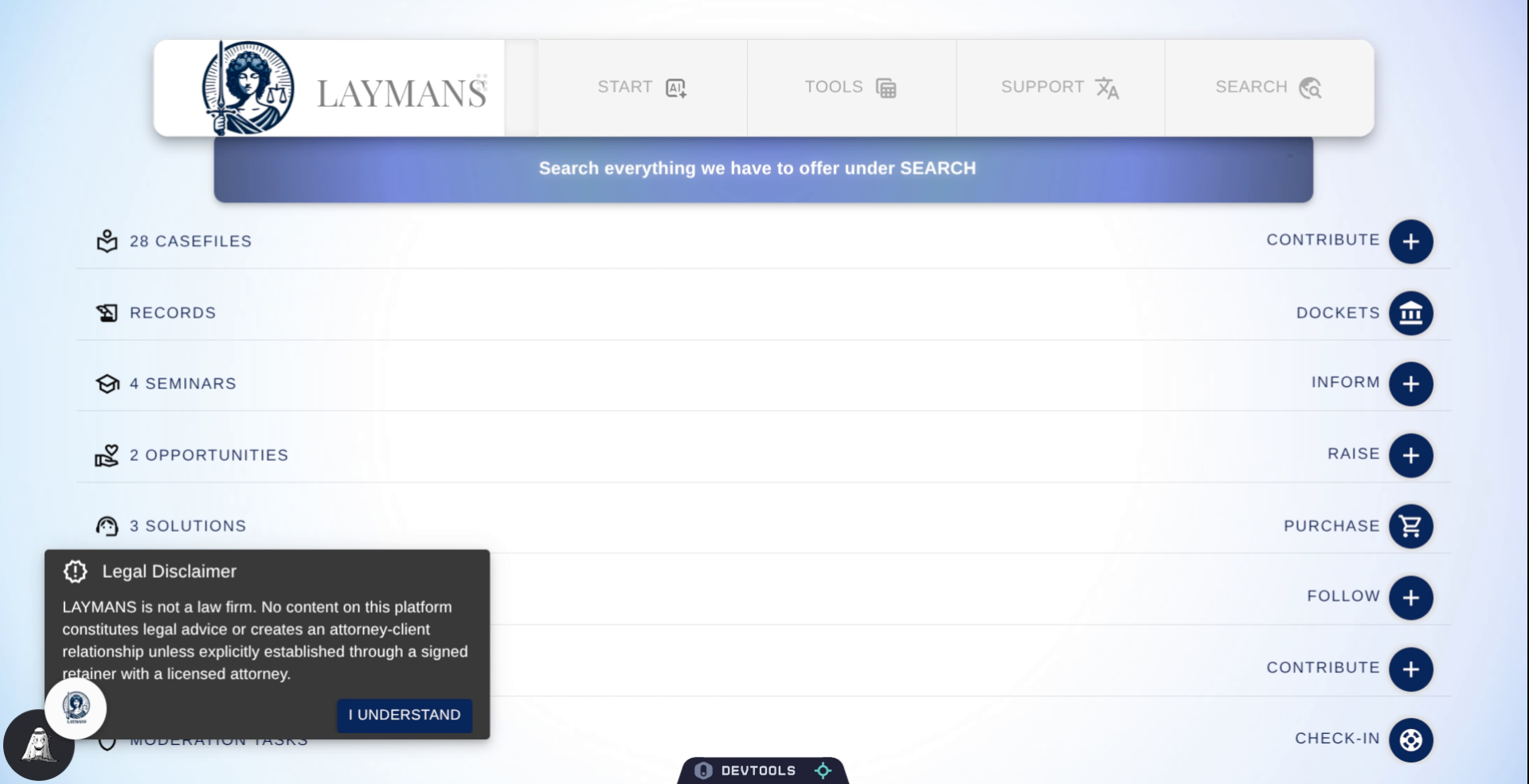
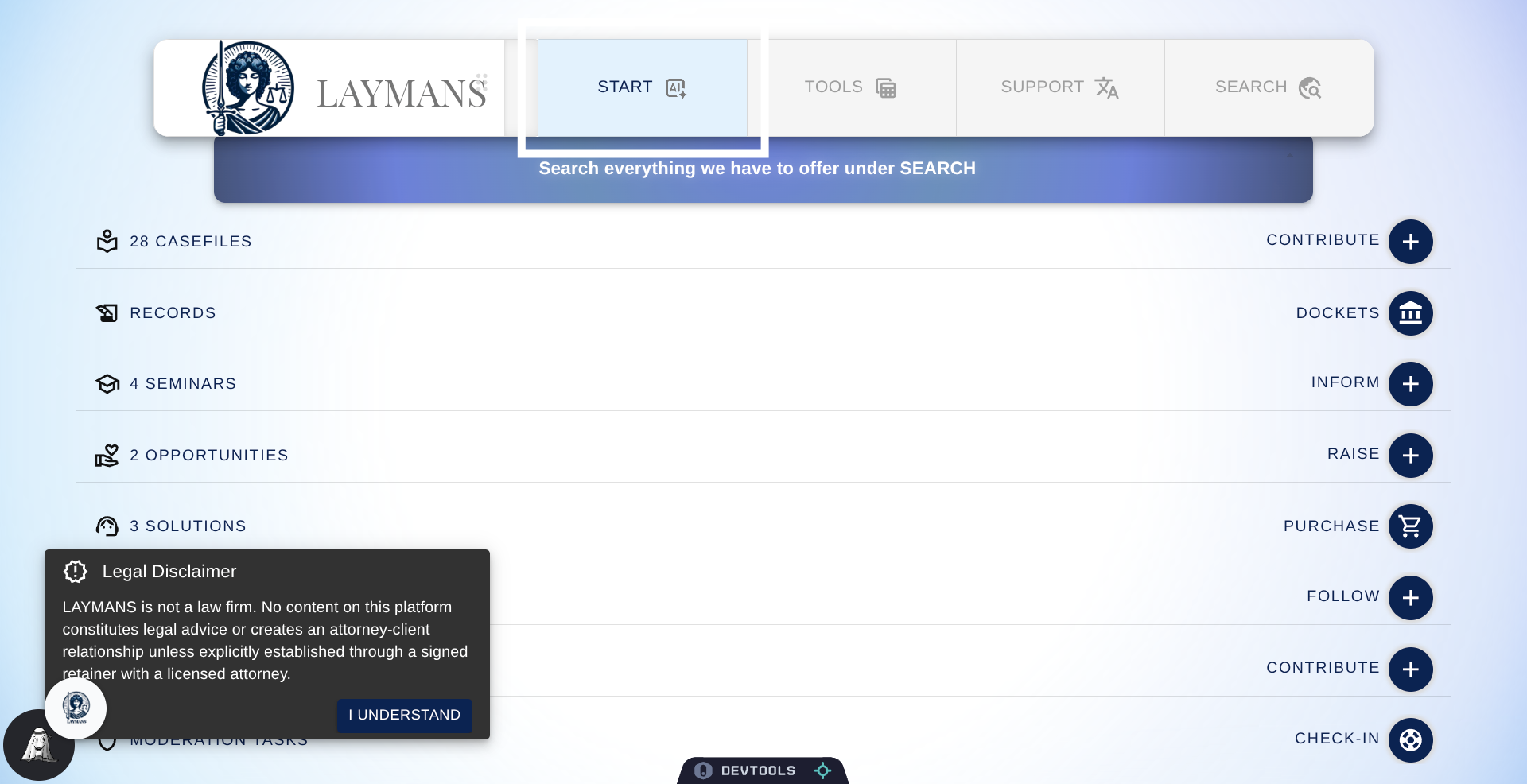
To work on everything related to Cases click "Start" in the homepage.
3. Navigate to your Case in Case directory
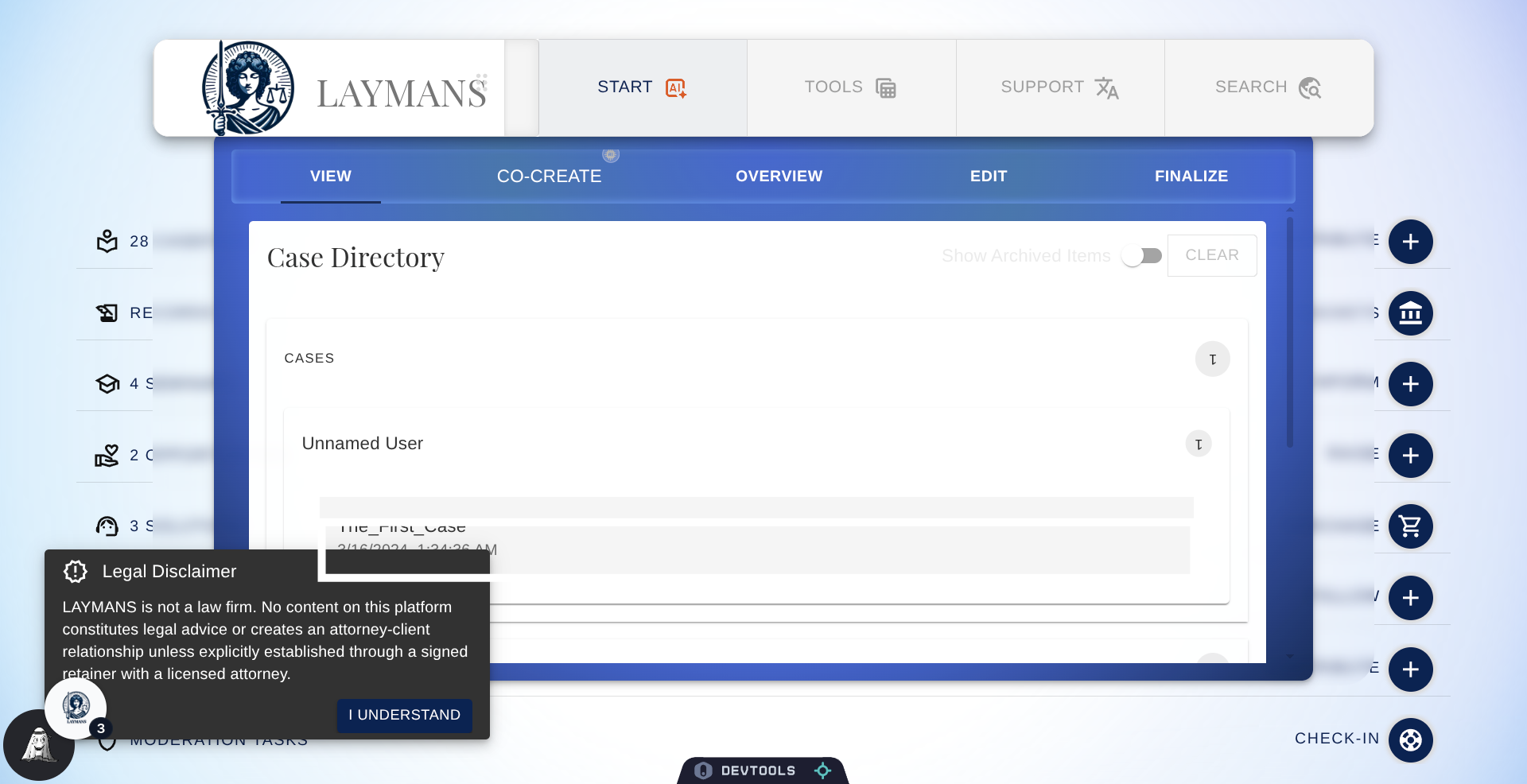
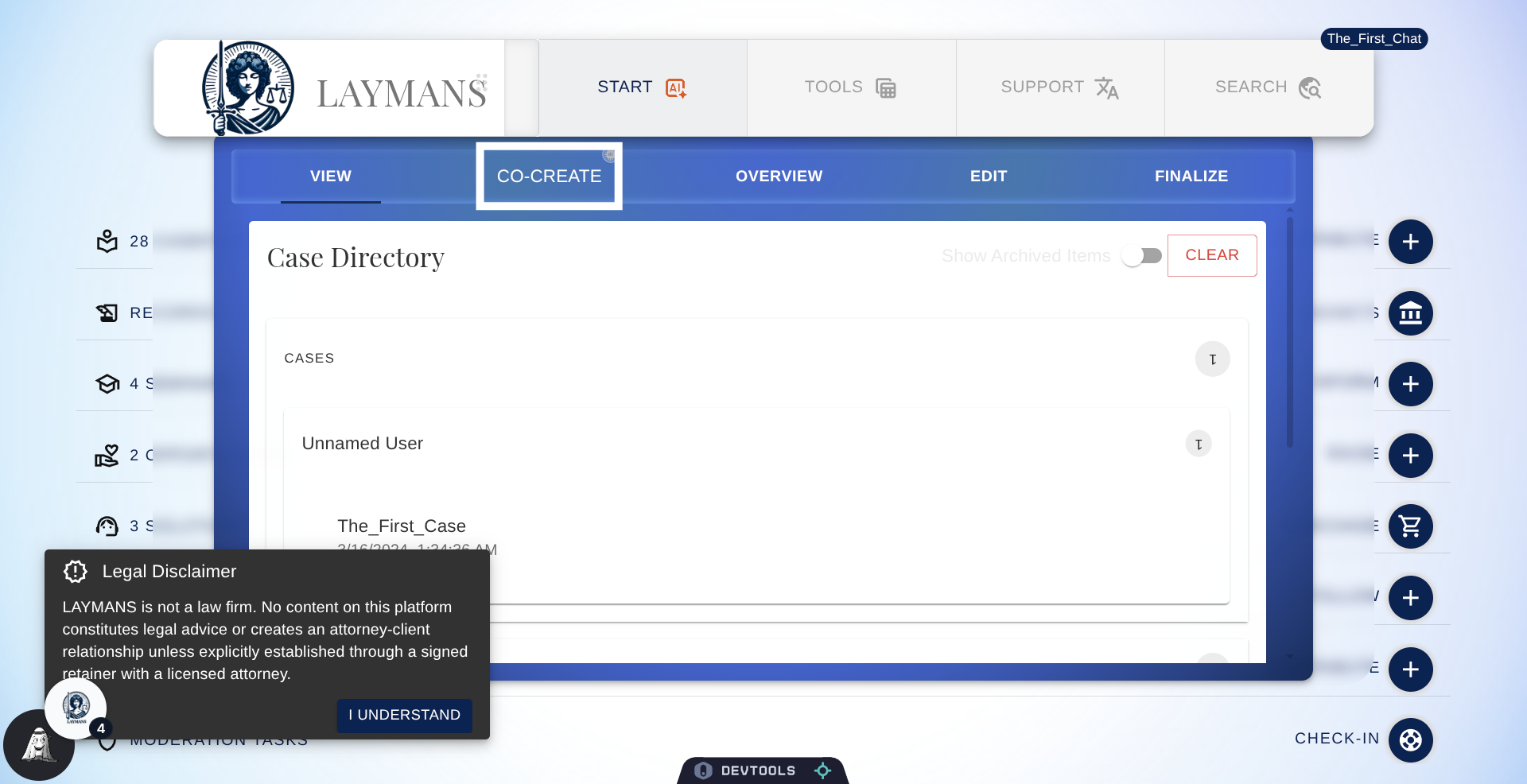
This guide assumes you've already completed the 1-minute "how to start a case" guide, and your case is ready to work on. To continue working on a case, you'll go to Cases here in the Case Directory, but you'll also have an opportunity to make one in Co-Create if you haven't already...
4. Then Click "Co-Create"
Once the case context is set -- the little blue chip in the top right corner of the power bar is visible -- let's click co-create.
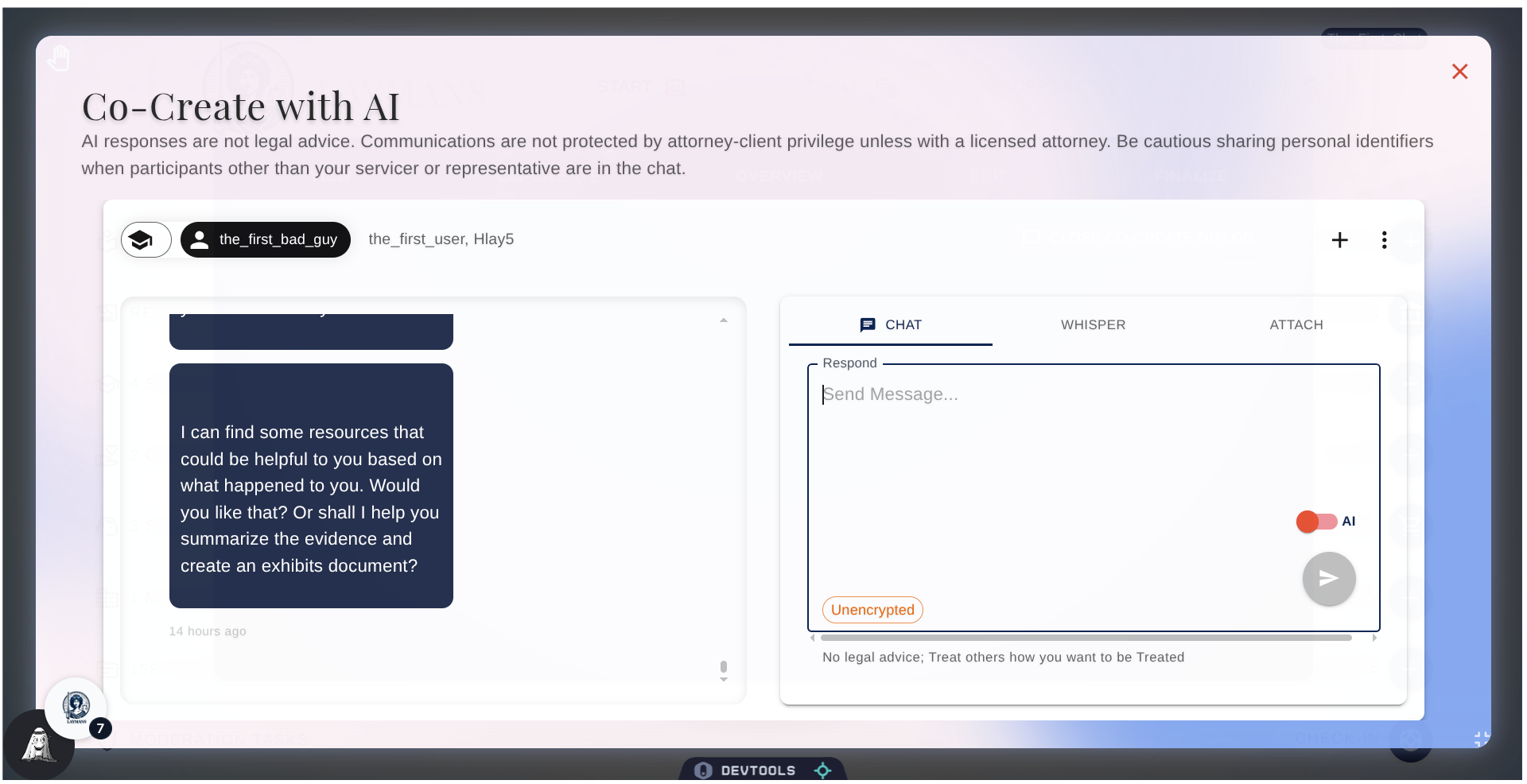
5. Welcome to Laymans Co-Create Interface
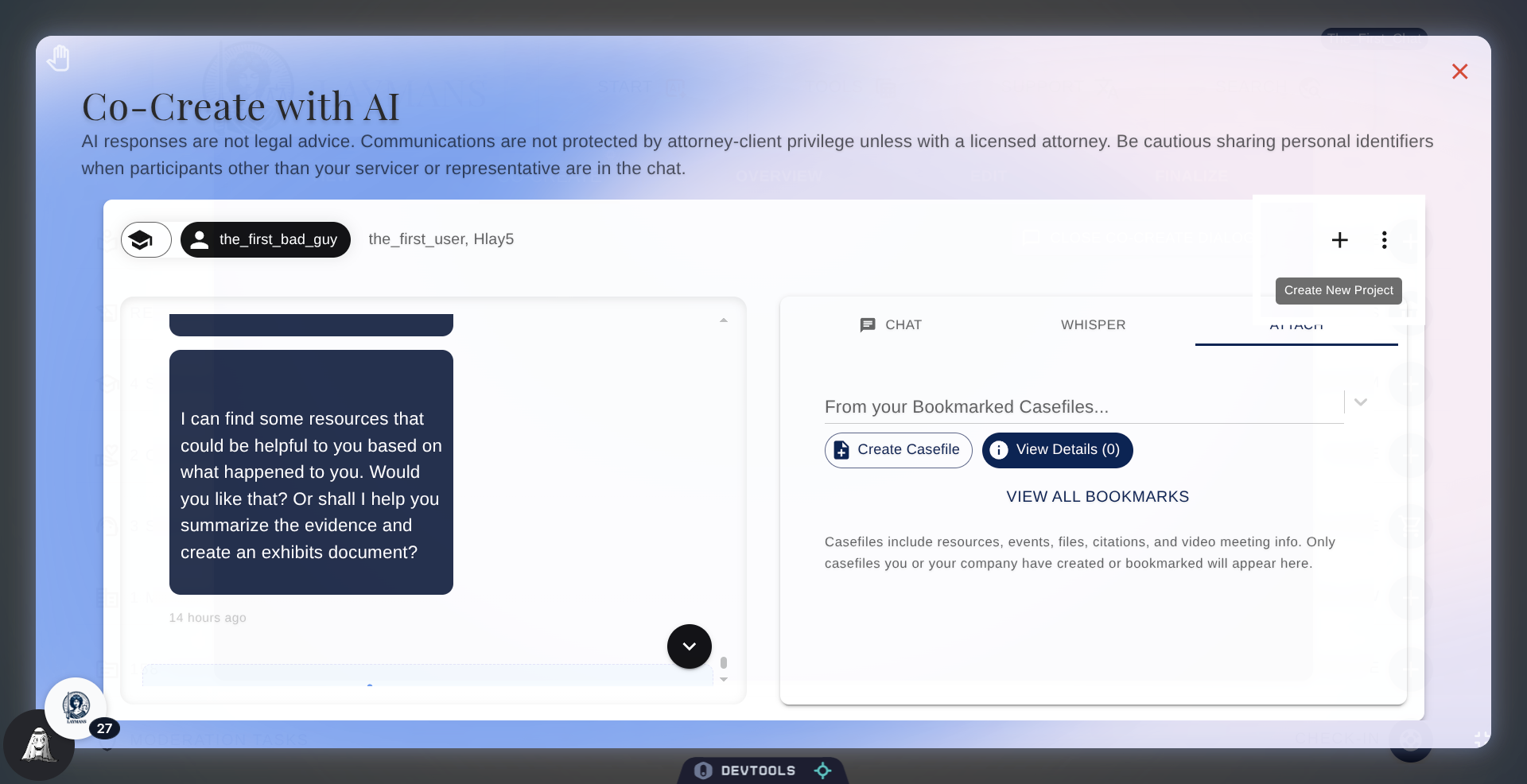
Welcome to the Chat Interface. In the Chat Interface, you can discuss with your servicers, representatives, and the AI model. Let's quickly go through the settings.
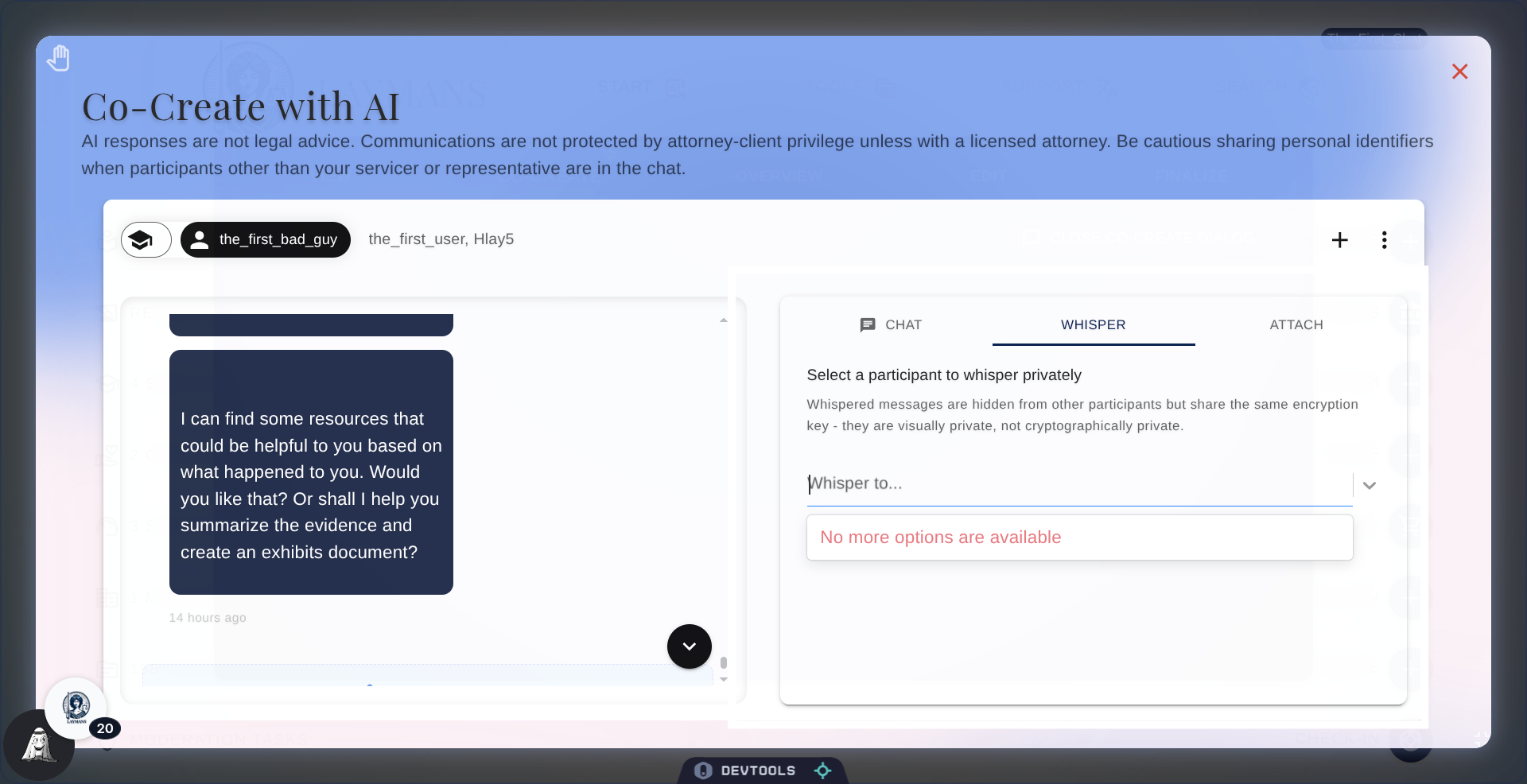
6. Click "Whisper"
First, you can whisper to anyone in chat; this means the message will be visible only to the recipient. This is the recommended way to talk to your representative when in a crowded chat with other services. You can whisper to one person or to multiple, allowing teams and servicers to interact in the same thread and context.
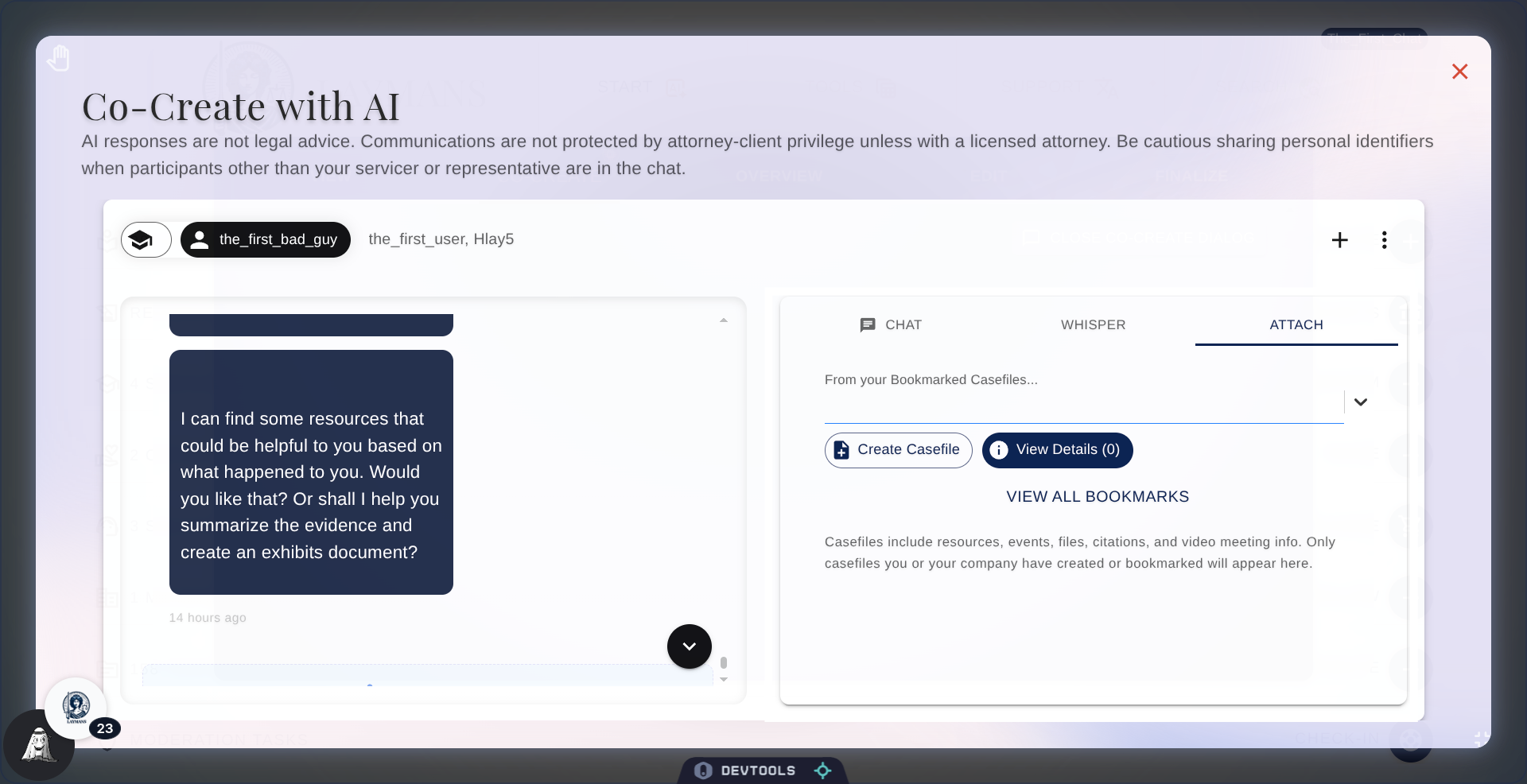
7. Click "Attach"
Then, you can easily add casefiles to not only the chat but also the case context itself. This allows you to add virtual meetings, locations, calendar dates, and resources and have them saved to the case's history and remain reusable by the team and AI.
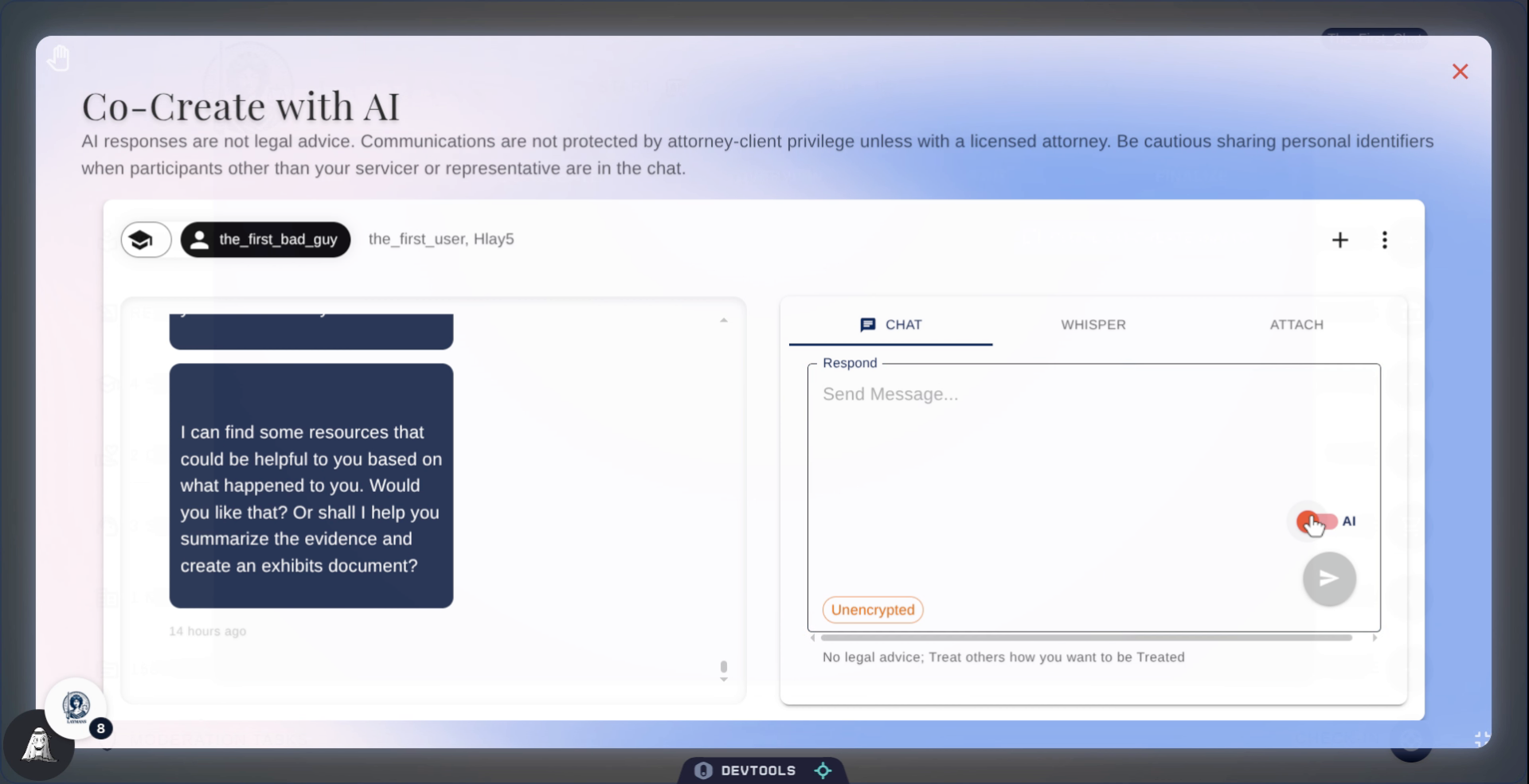
8. Turn On AI Mode
Now let's simulate an AI conversation to build your case.
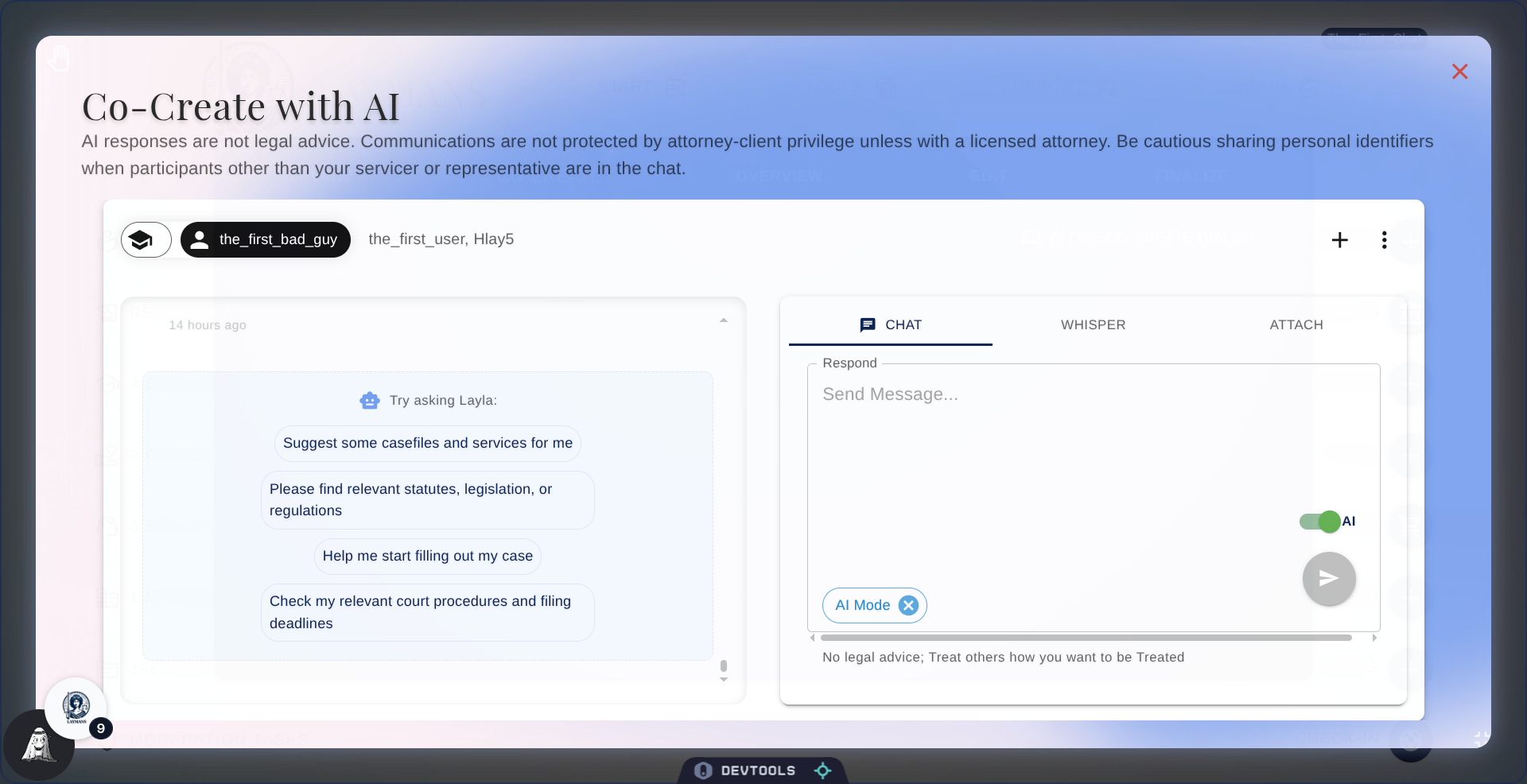
9. AI Quick Options.
When you first turn on AI, some quick options will show up. Laymans' AI has deep connections to the Laymans' System, including creating casefiles, seminars, and briefcases; updating your case documents and status; and then performing legal research, like reviewing courtroom procedures, searching public records, and looking up case law—or just getting support with the app.
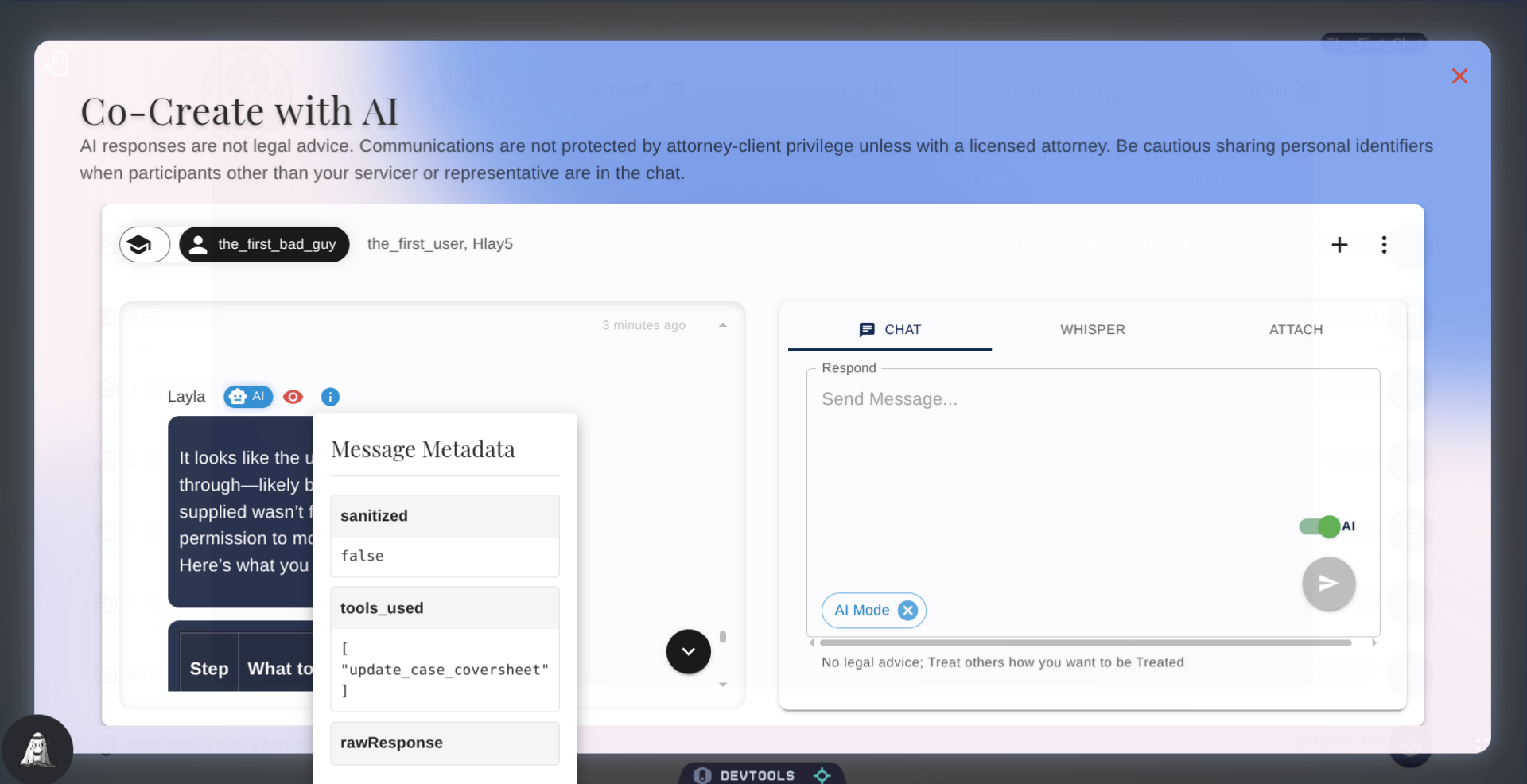
10. About the Metadata
One of the ways Laymans ensures accuracy is through our metadata and tone. Every message from me can be verified by clicking the info icon above. Or, I'll mention it if I'm unsure about something or couldn't fact-check—I'll be the first to let you know using our own proprietary blend of models and logical infrastructure.
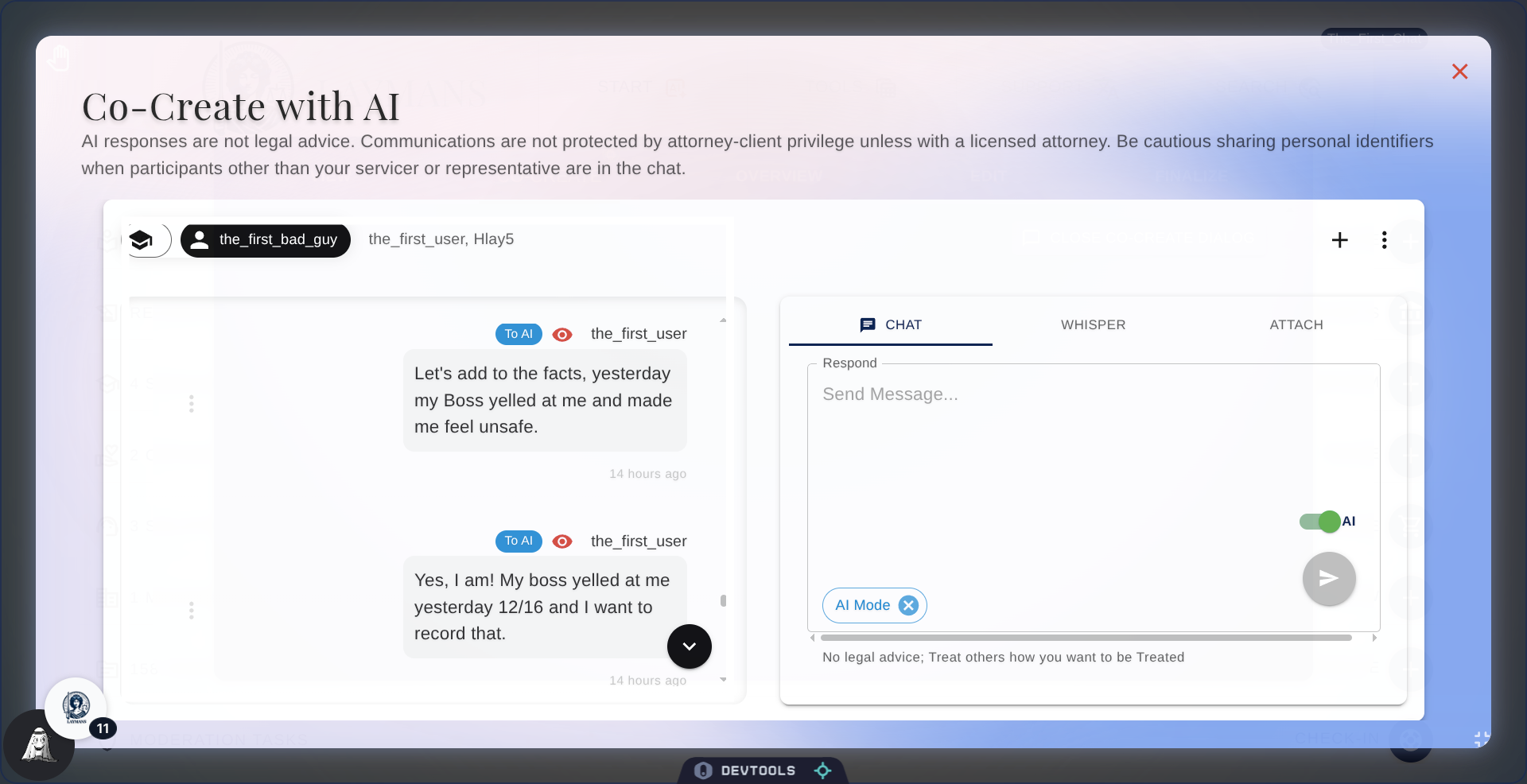
11. While AI is On send a Message
So, let's send a couple of messages. While AI messages are uniquely unencrypted -- for now -- in certain circumstances, the model will default to whispering, like when talking to a servicer directly. Don't worry, there's no information the model has that the creator of the case doesn't.
12. AI Responses: Fact-finding
So, as you can see, there's actually an encoded process to how we do things at LAYMANS. When working through a case conversationally, first I'll try to get the facts. Assert what happened clearly through bullet points and more.
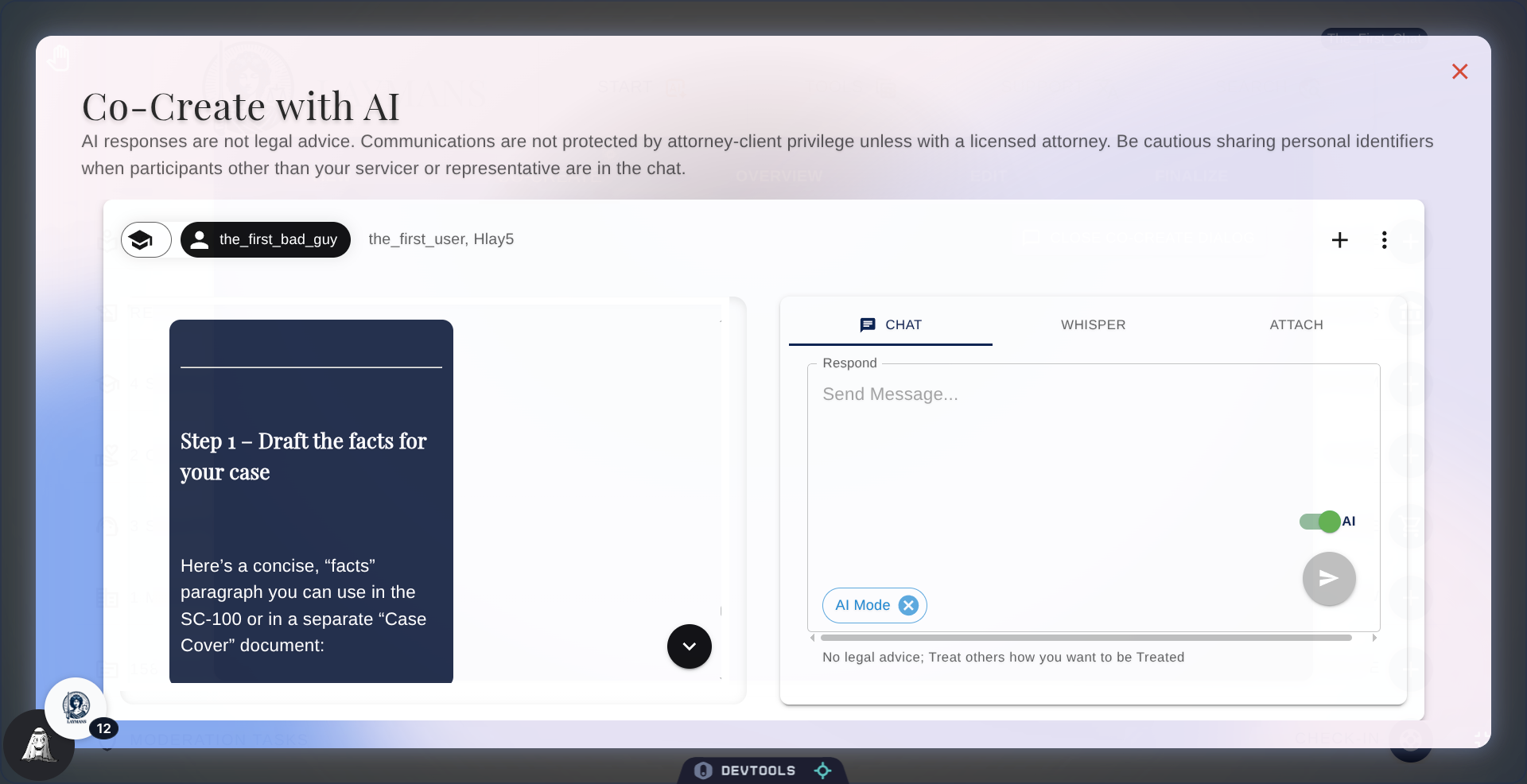
13. AI Reponses: Case Management
This is what I plan on committing to the Laymans system for edits. I will do my best to structure, tie to date and time, and more. Certain case elements are permanently saved to your case's memory to be used in building legal documents. You can find them in your Project Details.
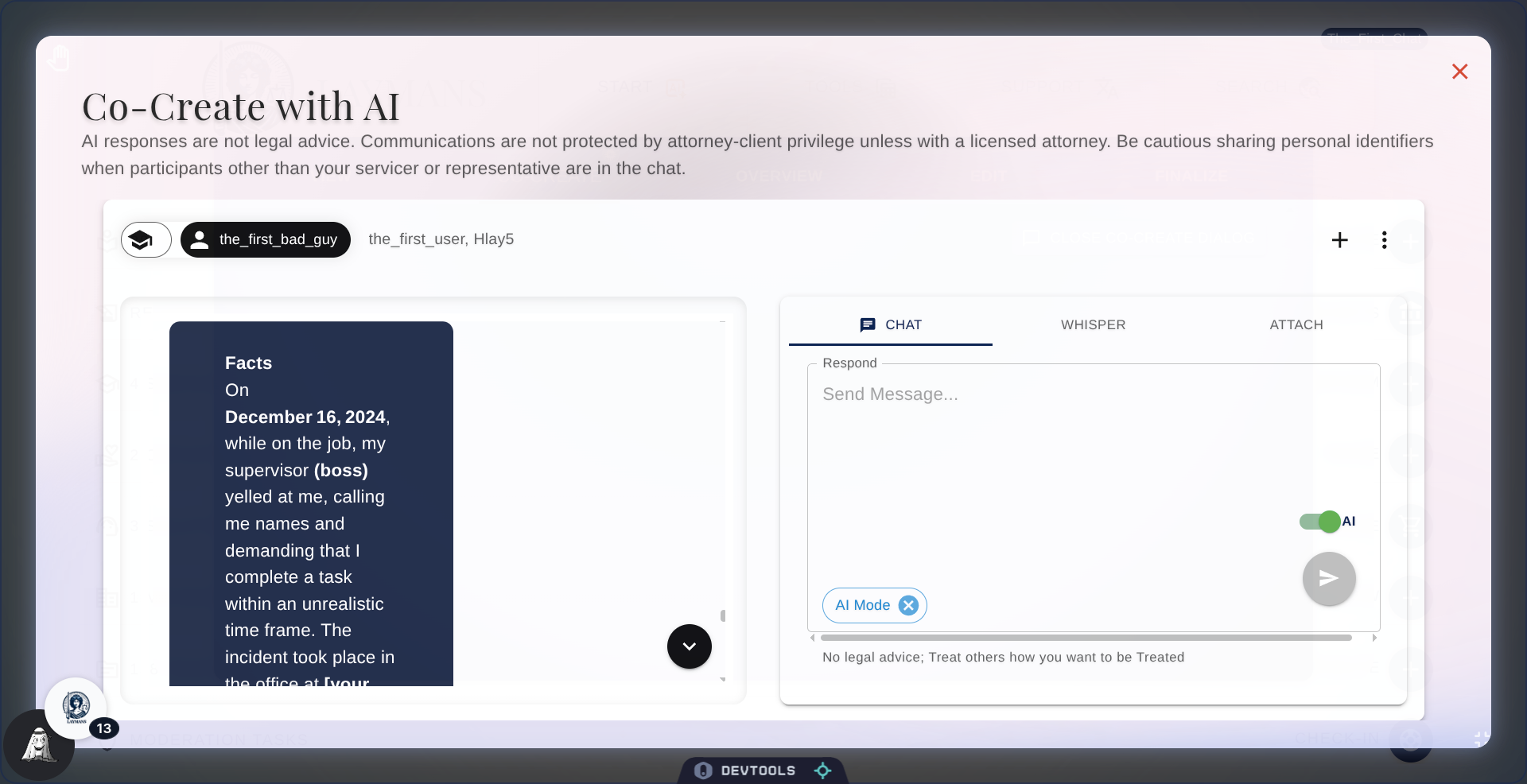
14. AI Responses: Resources
The next step is usually determining what Laymans Resources would help you, that includes templates, casefiles, funds, or services. For the former two, I can even help you to put them together into a editable, printable legal document you will find in the Text Editor on Edit under Create.
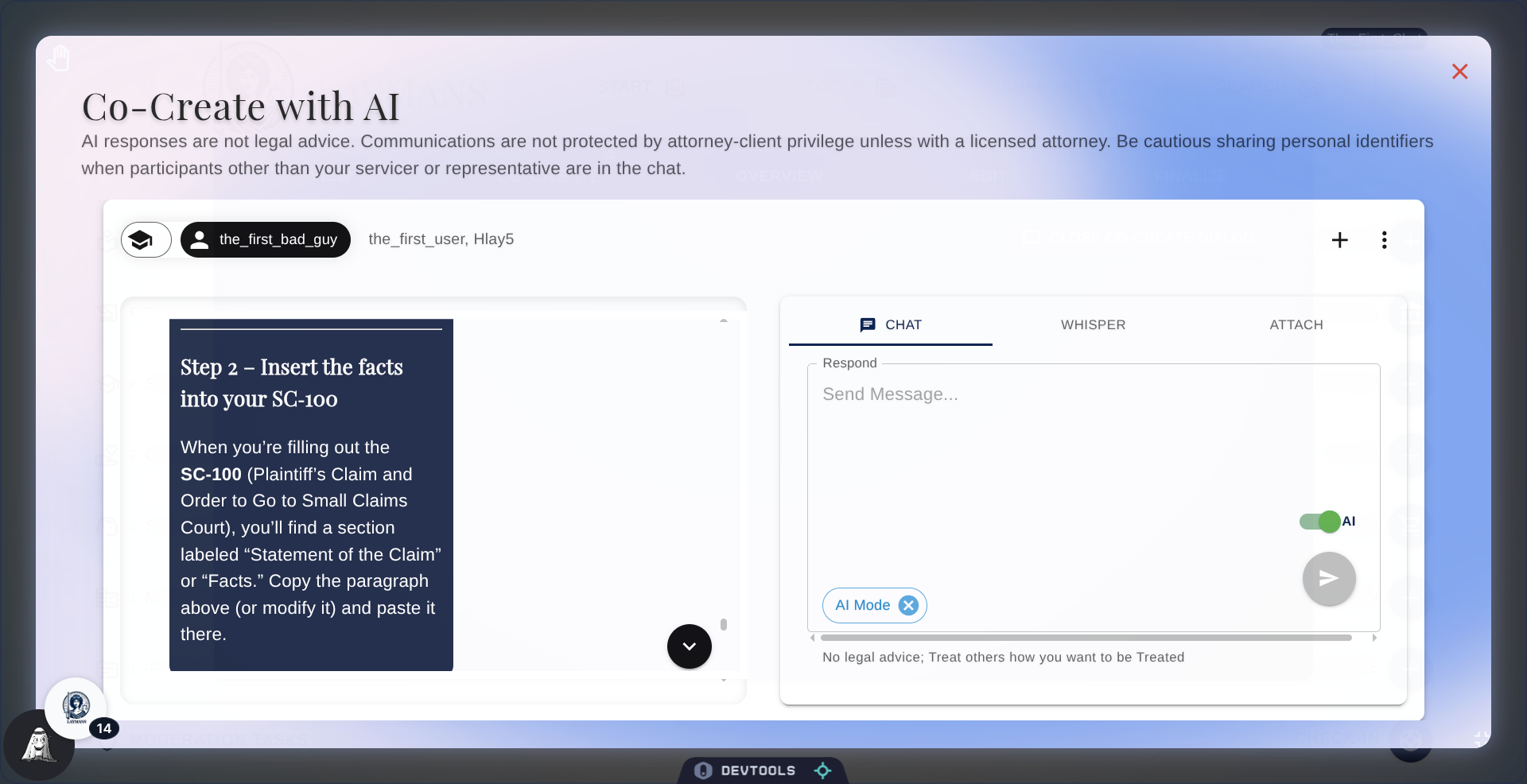
15. AI Responses: Data Collection
There are structured variables to every case we try to create. Invariably, you have to give us your name, what type of case it is, what you would like the outcome to be, and the defendant.
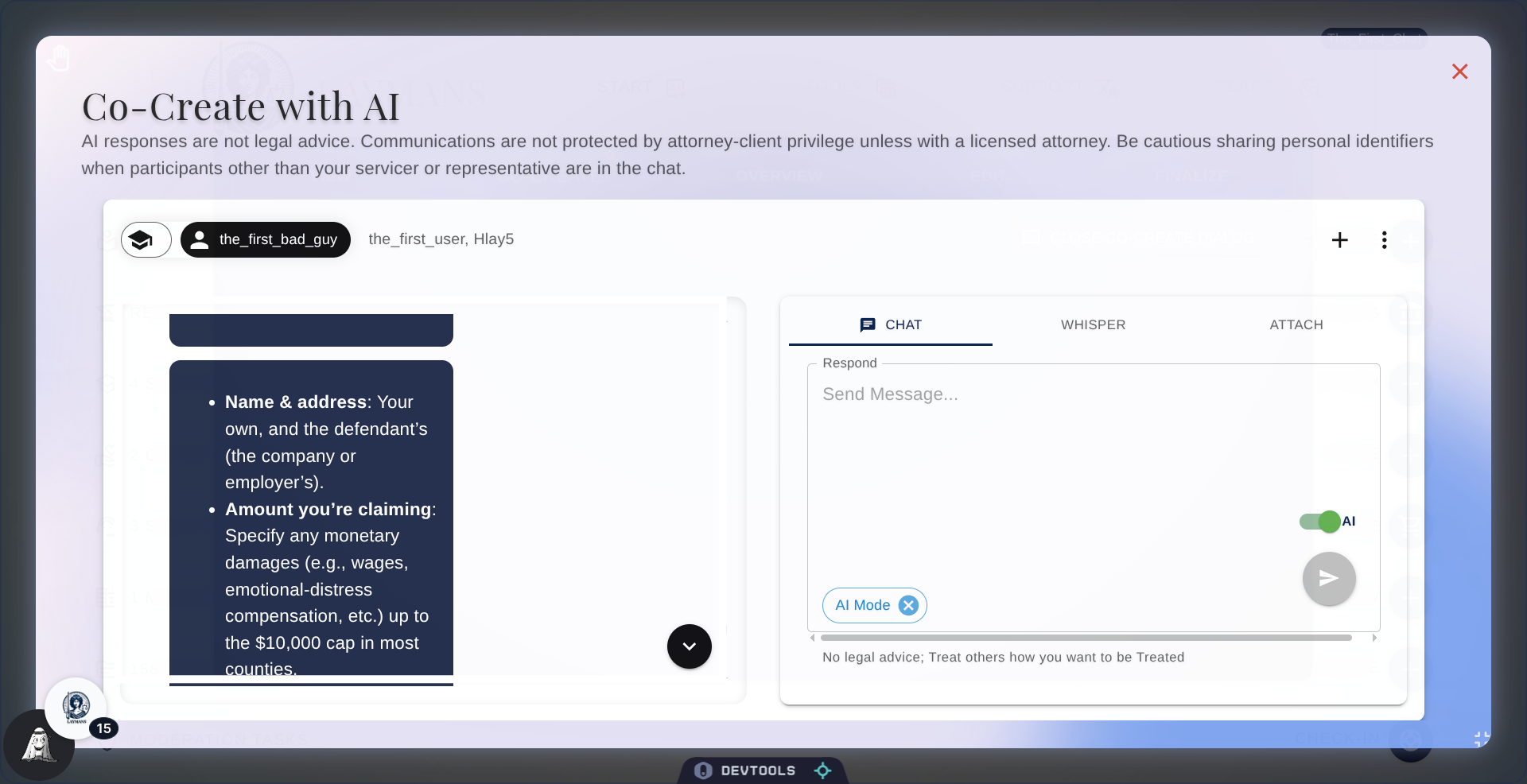
16. AI Responses: Planning
Once I have everything I need as your AI legal assistant, I will attempt to put it together in a legal document and determine the next steps for you and your servicers. This can include additional service recommendations, educational materials to read, check-up questions from your representative, or simply tasks to follow.
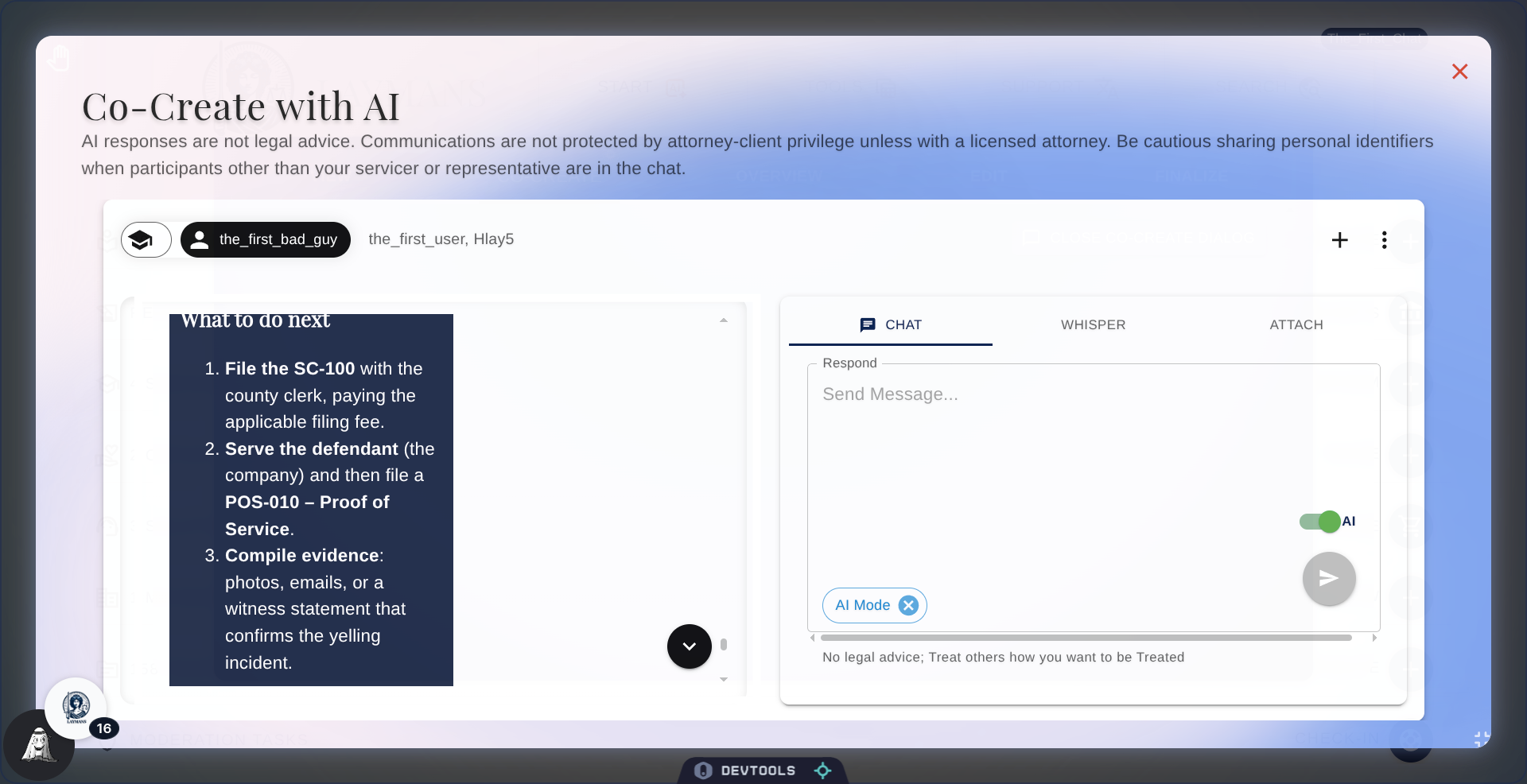
17. AI Responses: Continuance
Case building is a journey, so there will always be something else to do or add. I'm here with you for whatever is next and will remember what you've done.
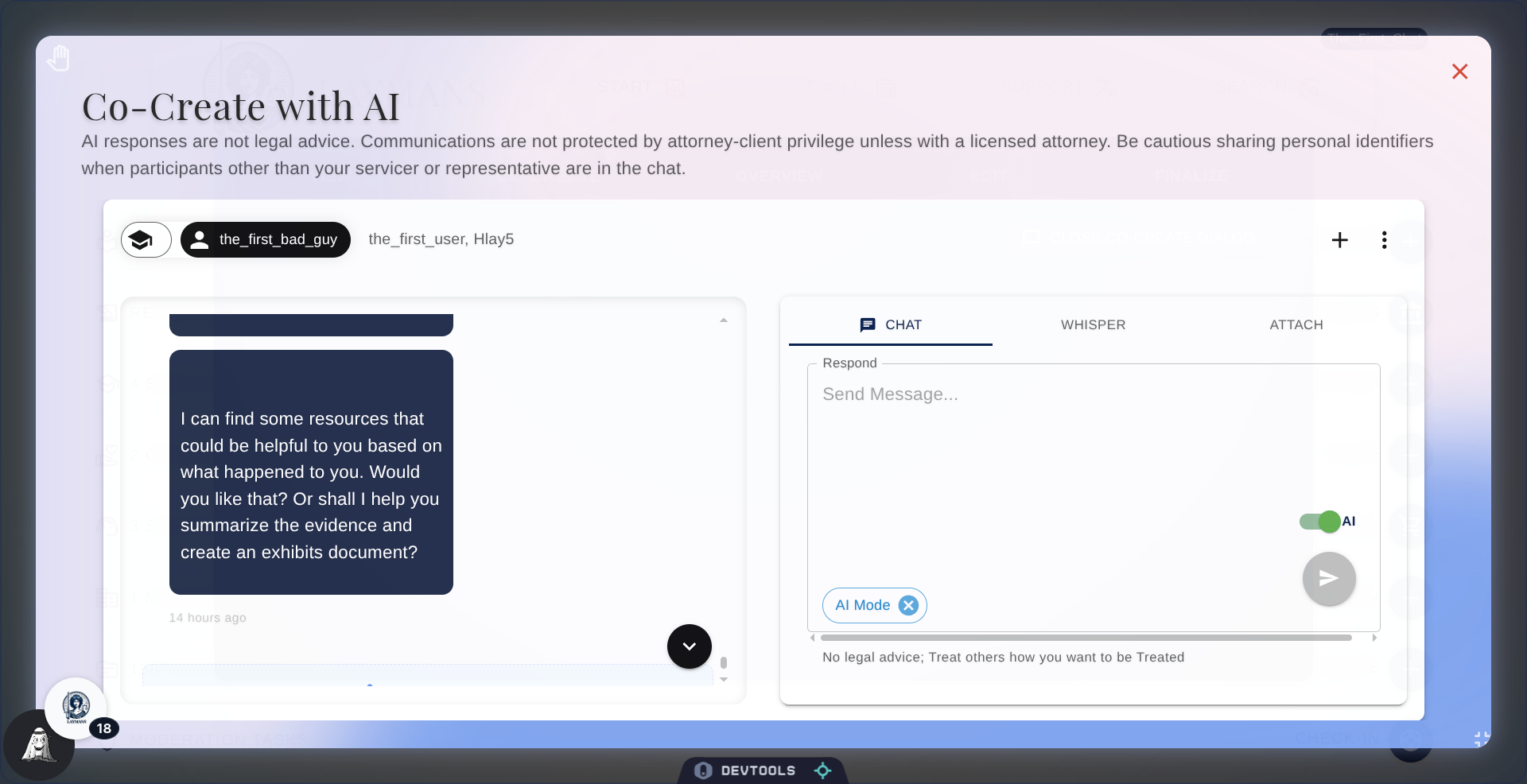
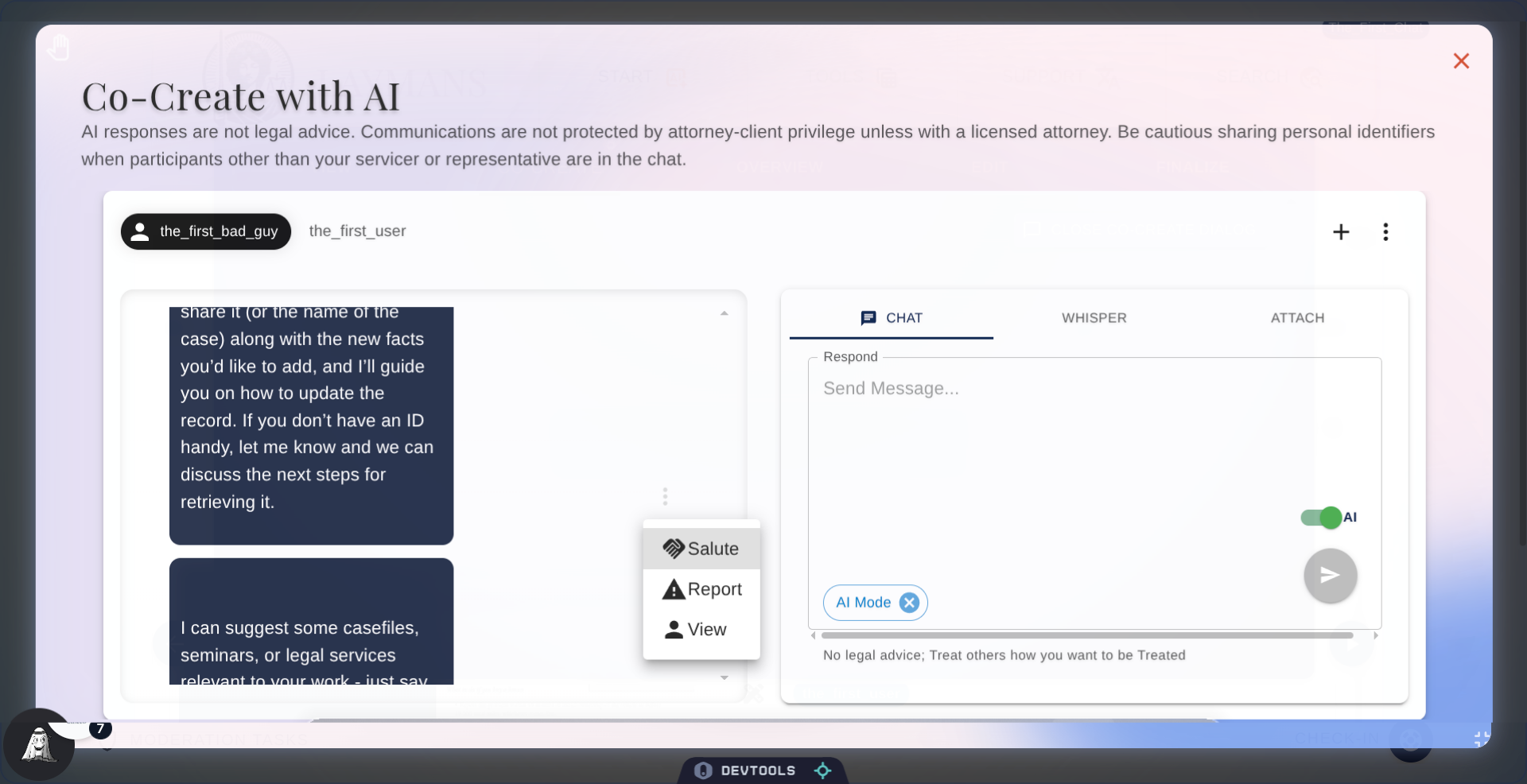
18. Message Options
Additionally, for any message, you can Salute—like the message, Report—have the message removed, Change Visibility—make private AI convos public, and View—adjust your read receipts, all by clicking the options icon next to it. You can also have me speak out any message by clicking the speak icon in the bottom-right of a message, and you can say your response by clicking the microphone next to the send button.
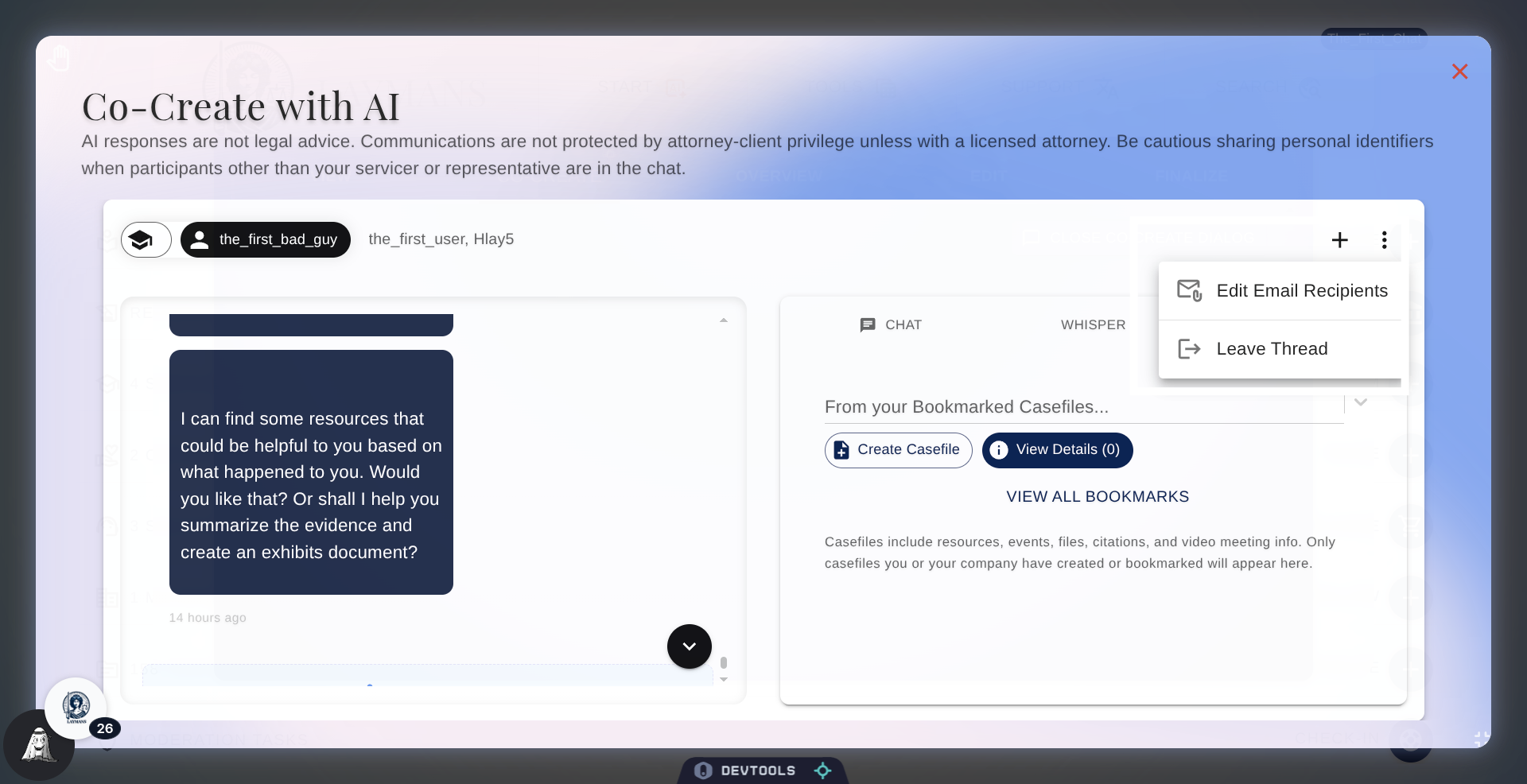
19. Click Chat Options Button in Top Right
You can also manage the email recipients of notifications for this chat or leave the chat entirely using the top right options button -- note this is irreversible and not advised.
20. Create New Project
Finally, you can always start a new chat by creating a new Laymans product, whether it be a case, seminar, or mass action—or just a general question. I'm here to make complex document creation easy and fast. When you're ready, you can read our How to Finalize Your Legal Document guide to export your completed document or review the other methods of case creation. Thanks for using Laymans.