How to access Public Records through Laymans
Go to www.laymans.app
1. Introduction
Laymans has a host of resources for creating legal cases, contracts, and letters on its platform. In addition to case law, casefiles, and our AI-powered tools, you can find your state's public records on Laymans. When writing a case, it's important to check public records, as these resources help you sue and answer the right person. You can check if an entity is real and associated with your issue before filing—saving yourself from costly mistakes.
2. Click Records Tab
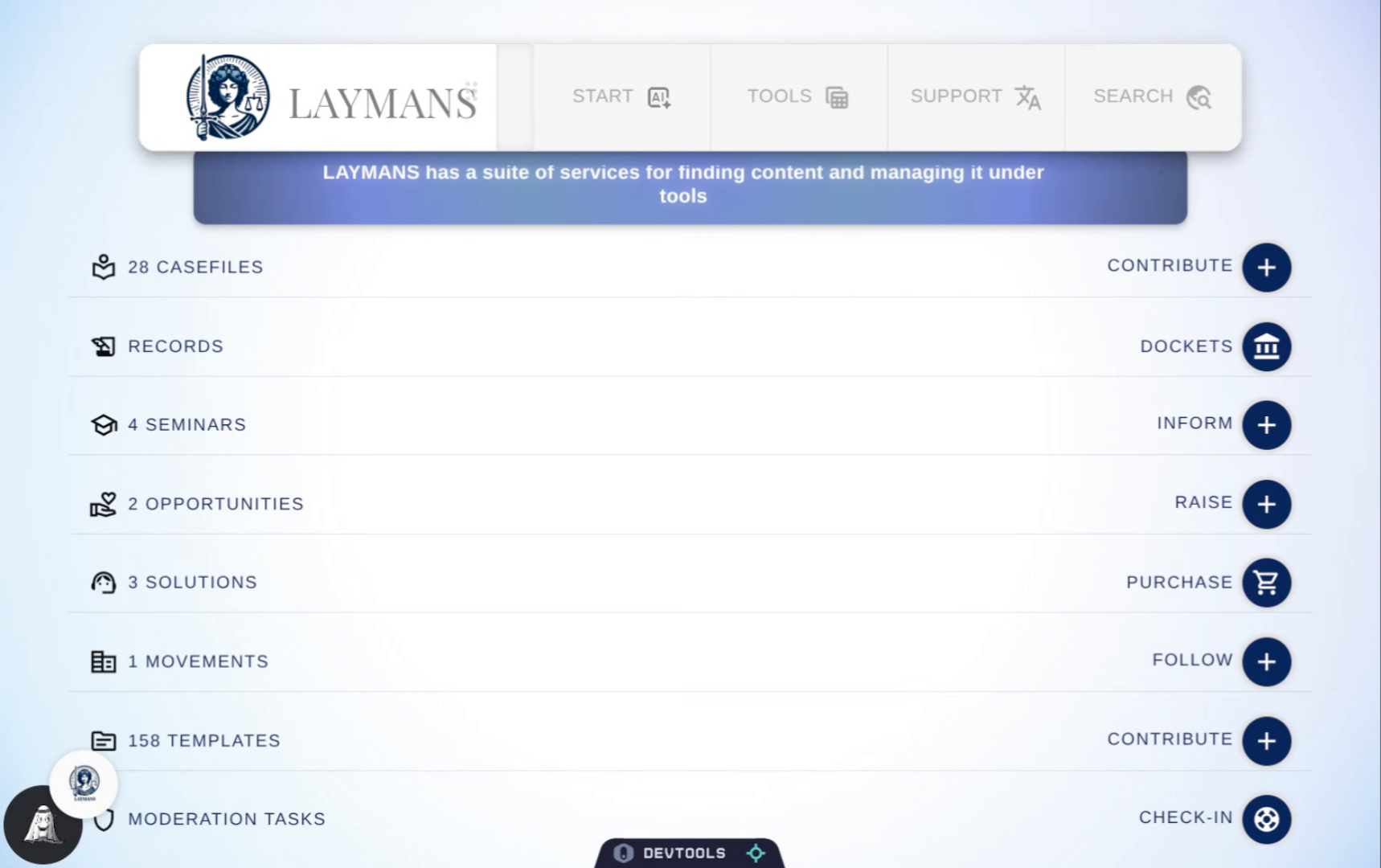
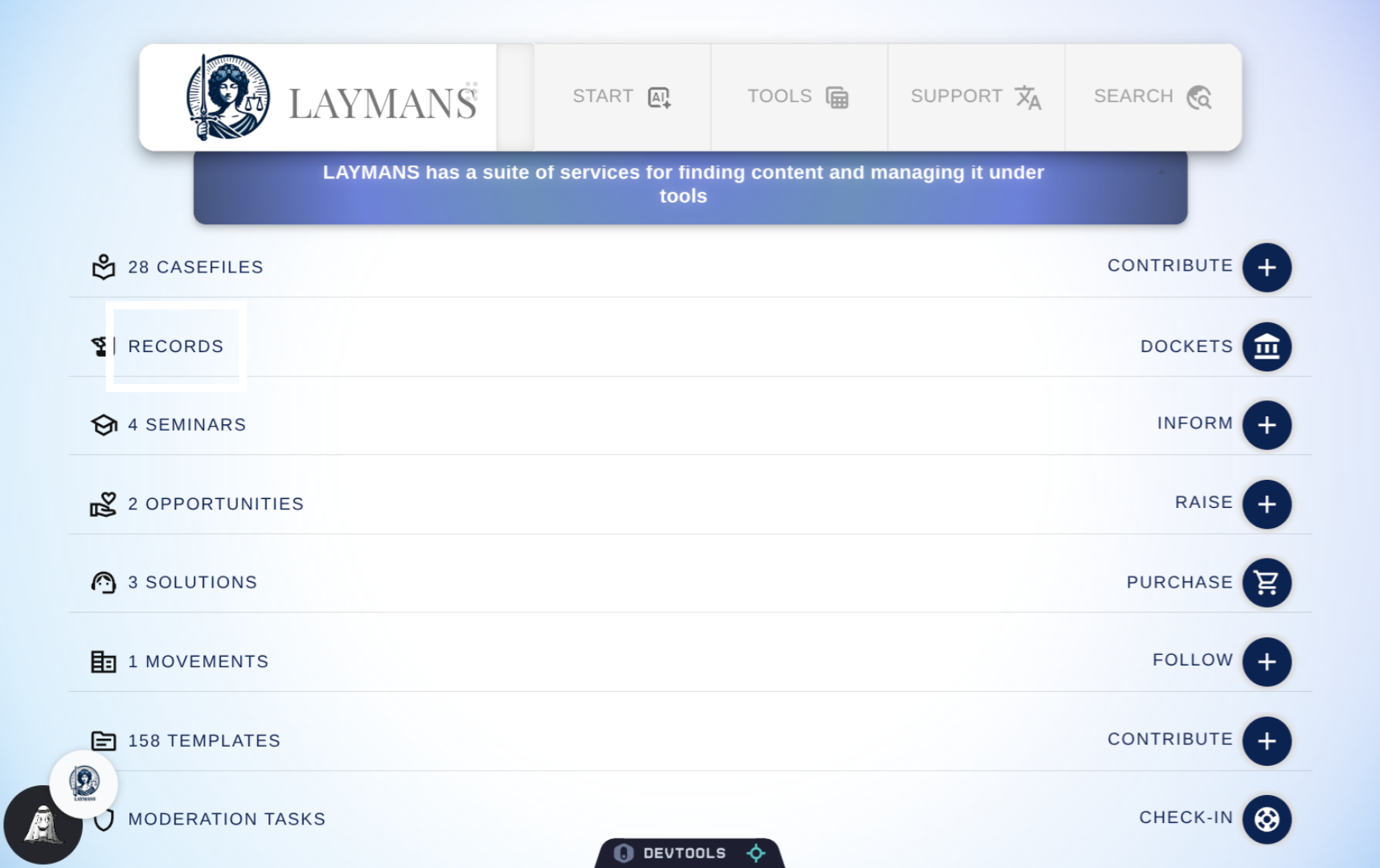
First click the "Records" tab, where public records and many of Laymans' free integrations are available.
3. The Public Records Section
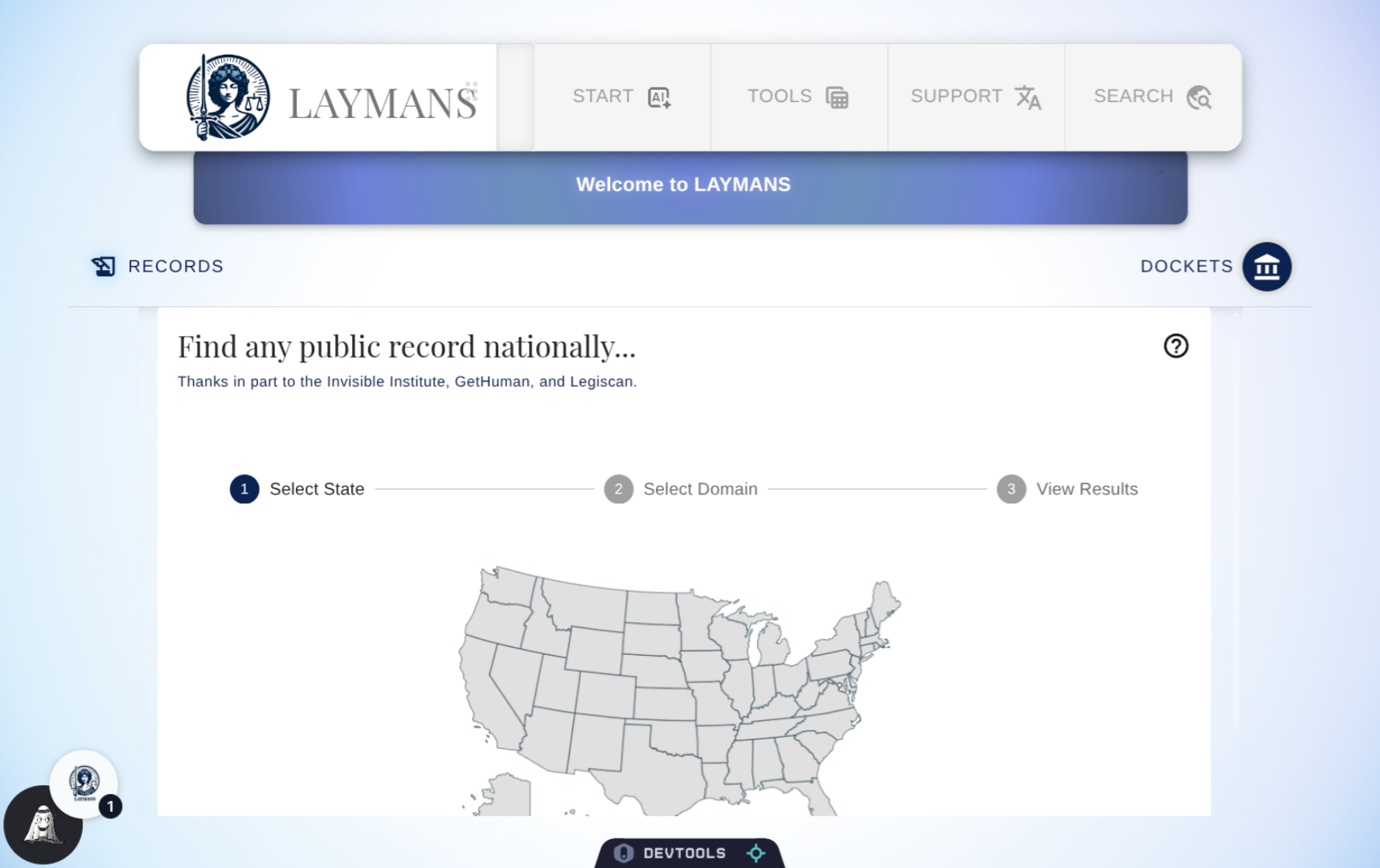
Public Records on Laymans are broken down by state, not county; we'll autoselect your state for you if you chose your county in the Power Bar under Search. However, for now, Laymans doesn't do public record tracking at the county or city level. For municipal or county-level resources and regulations, I recommend asking me, the Layman's AI model, directly under Start > Co-Create. Or, conduct a Google search.
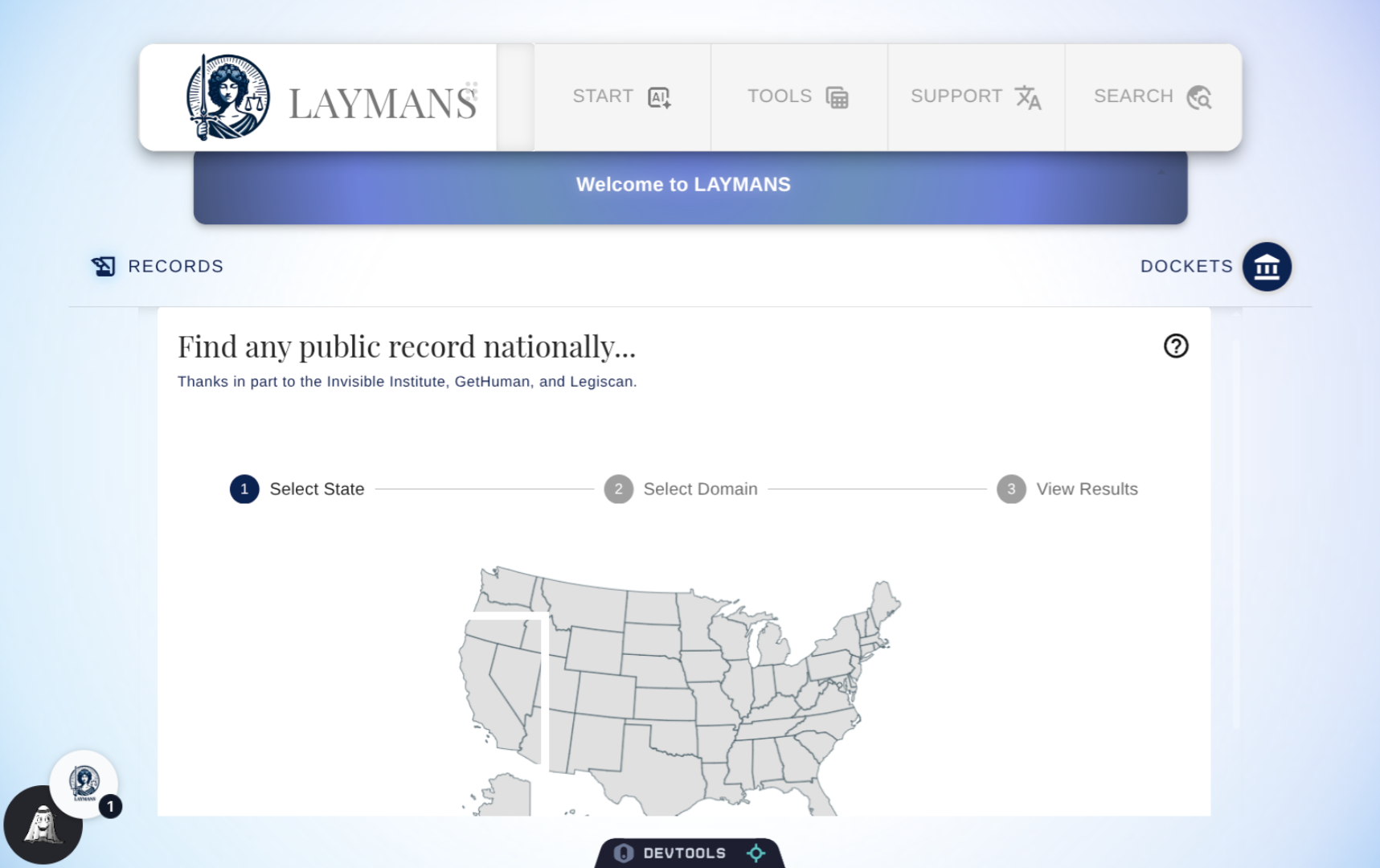
4. Click your "State"
Now, let's click a state, or choose one from the dropdown below the map, to get started—I'm going to choose California.
5. Public Record Domains
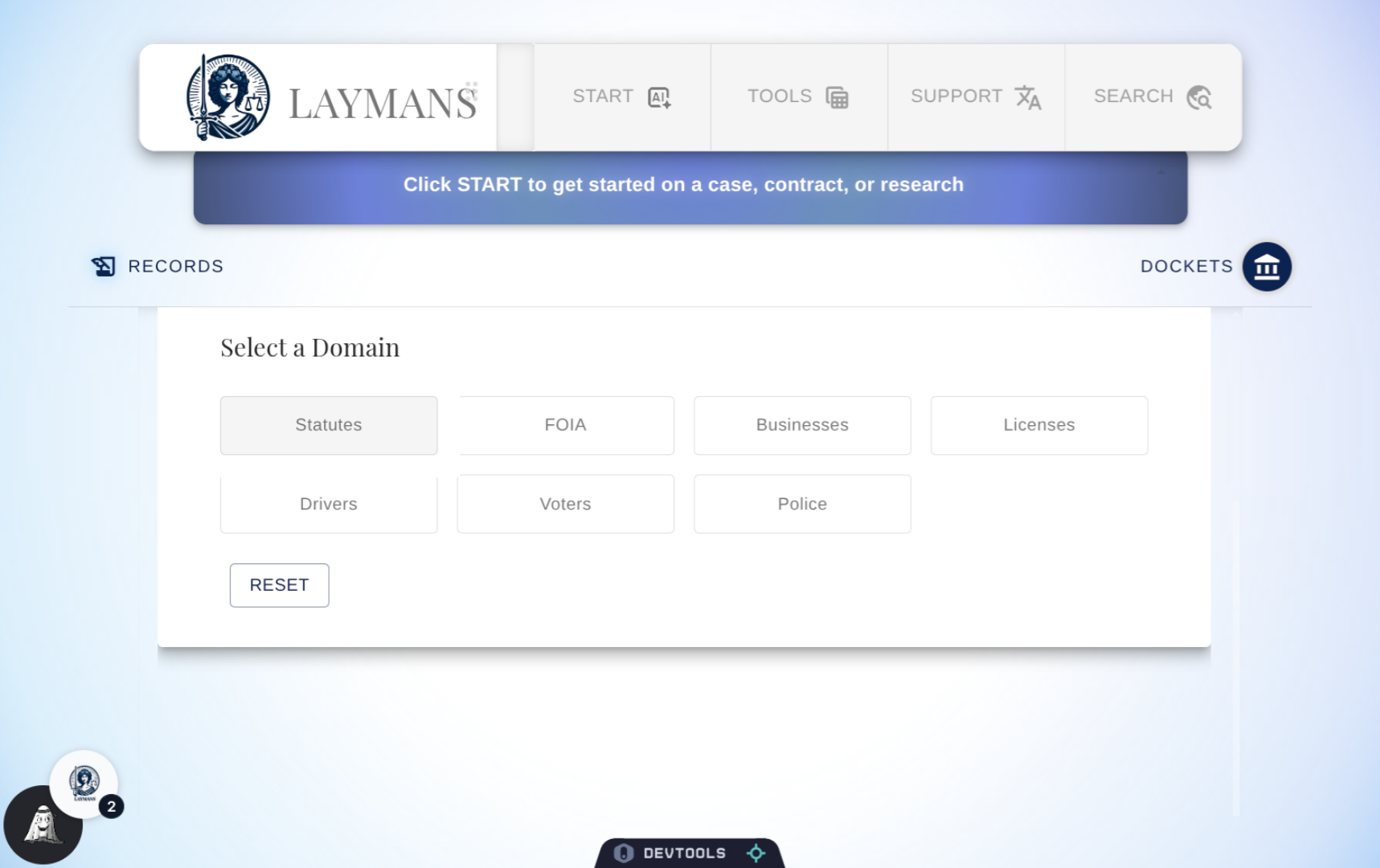
When you click a state, you will see a series of Domains available to you; these are the domains we have resources for. In each, you will find either a portal, a link, or instructions on how to access the resources you are looking for. For some we've gone the extra mile to help you get what you need. Generally, you will always find these resources: Statutes via Legiscan as current legislation; FOIA, or Freedom of Information Act, info—whether it's instructions or a repository; Businesses and UCC—usually searchable websites on currently active businesses; Licenses—License numbers of professionals, also usually a searchable website; Driver's License—website to look up by Driver's License ID or Plate Number; Voters—websites to look up people based on voting record; Buildings—websites or instructions for looking up owners of buildings; Police—CDP NPI links for looking up badge numbers through the Invisible Institute; Inmates—state-level websites for finding inmates; and Vital Records—purchase vital records through VitalChek.
6. Select Statutes Section
Whew. A lot right? I'm going to click Statutes to show you what you can find.
7. The Public Record: Sitemap
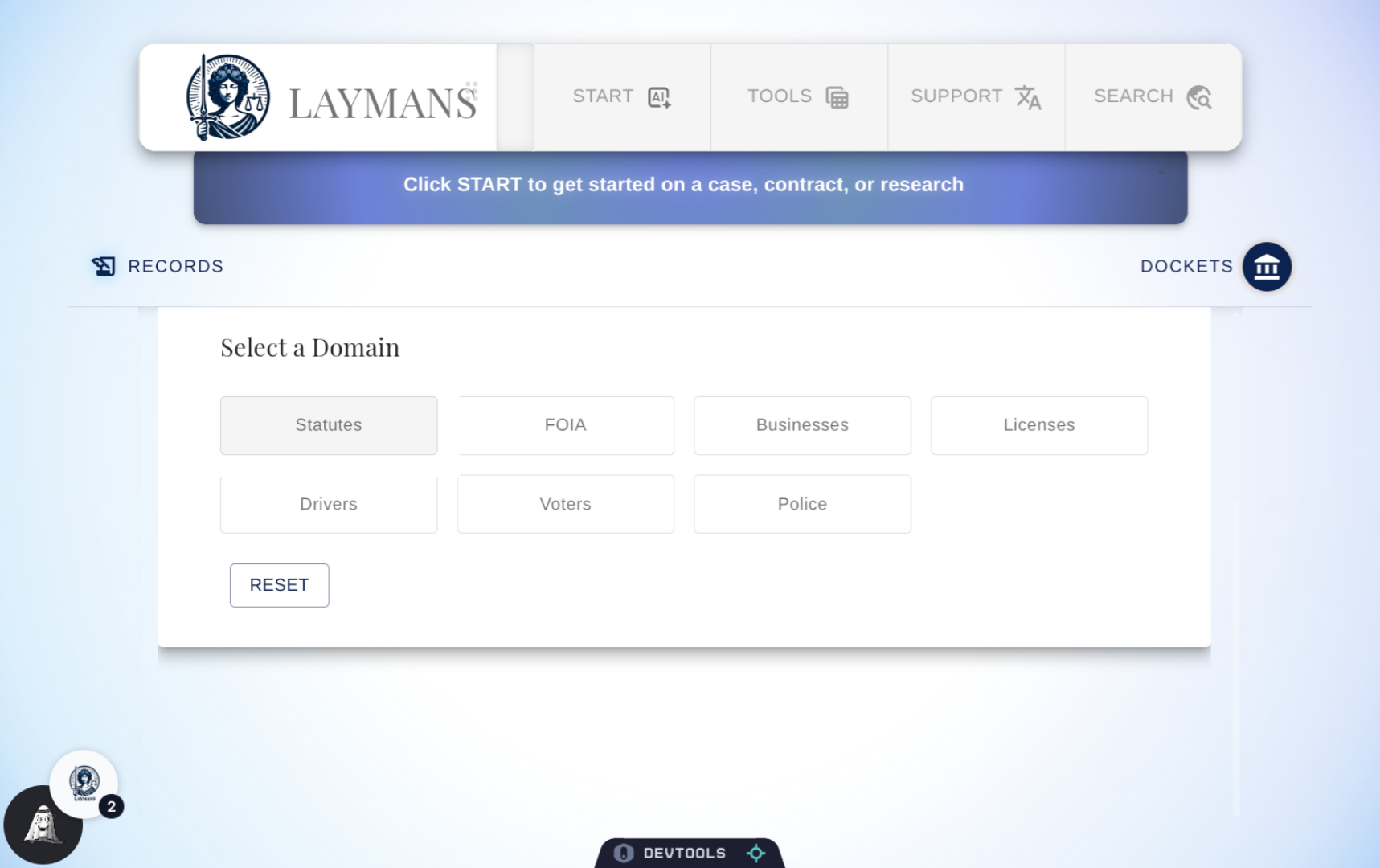
Dependent on the Domain you selected a number of things will be returned. Firstly, we'll attempt to access and search the website on your behalf and show you results if we get anything.
8. The Public Record: Iframe
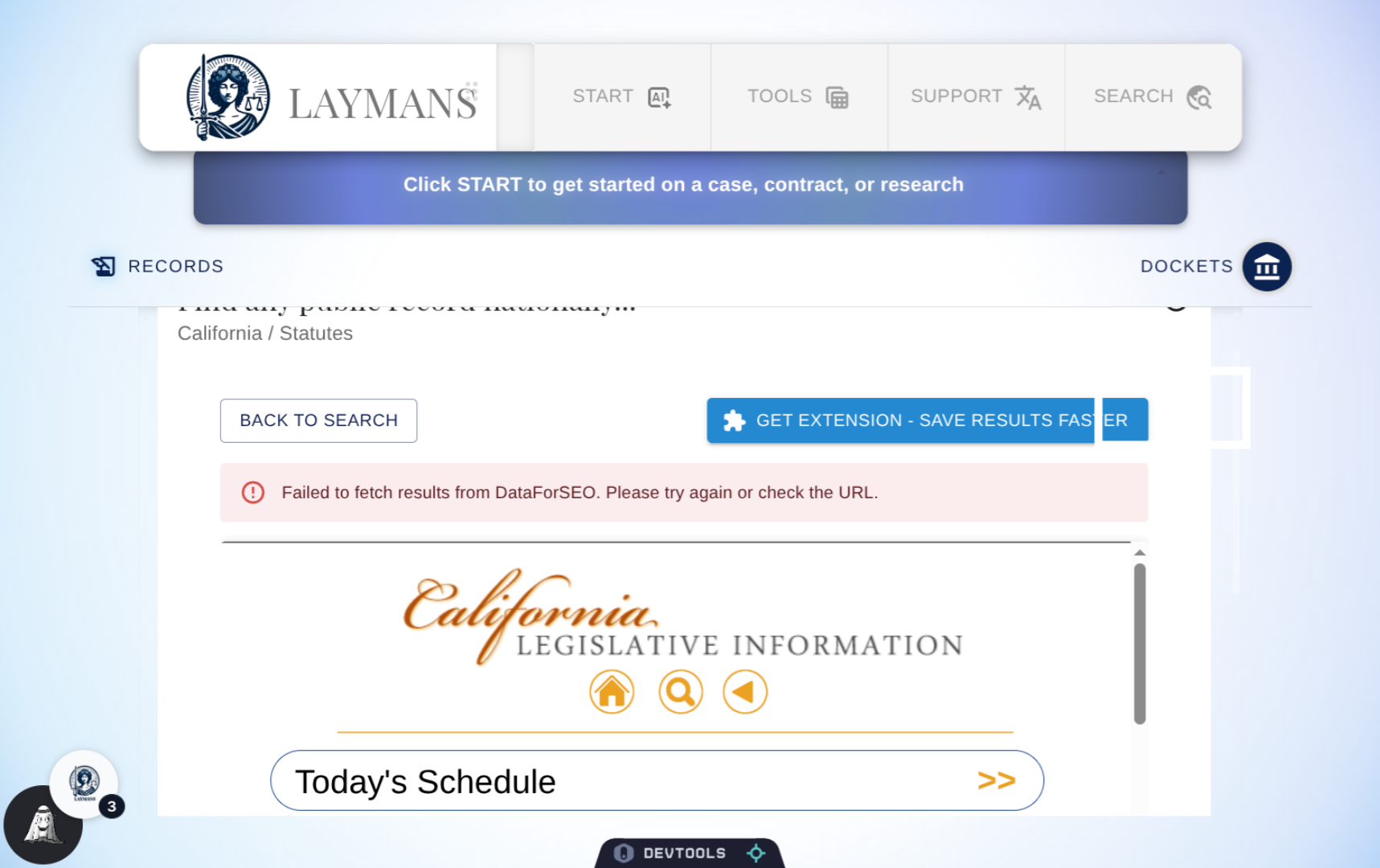
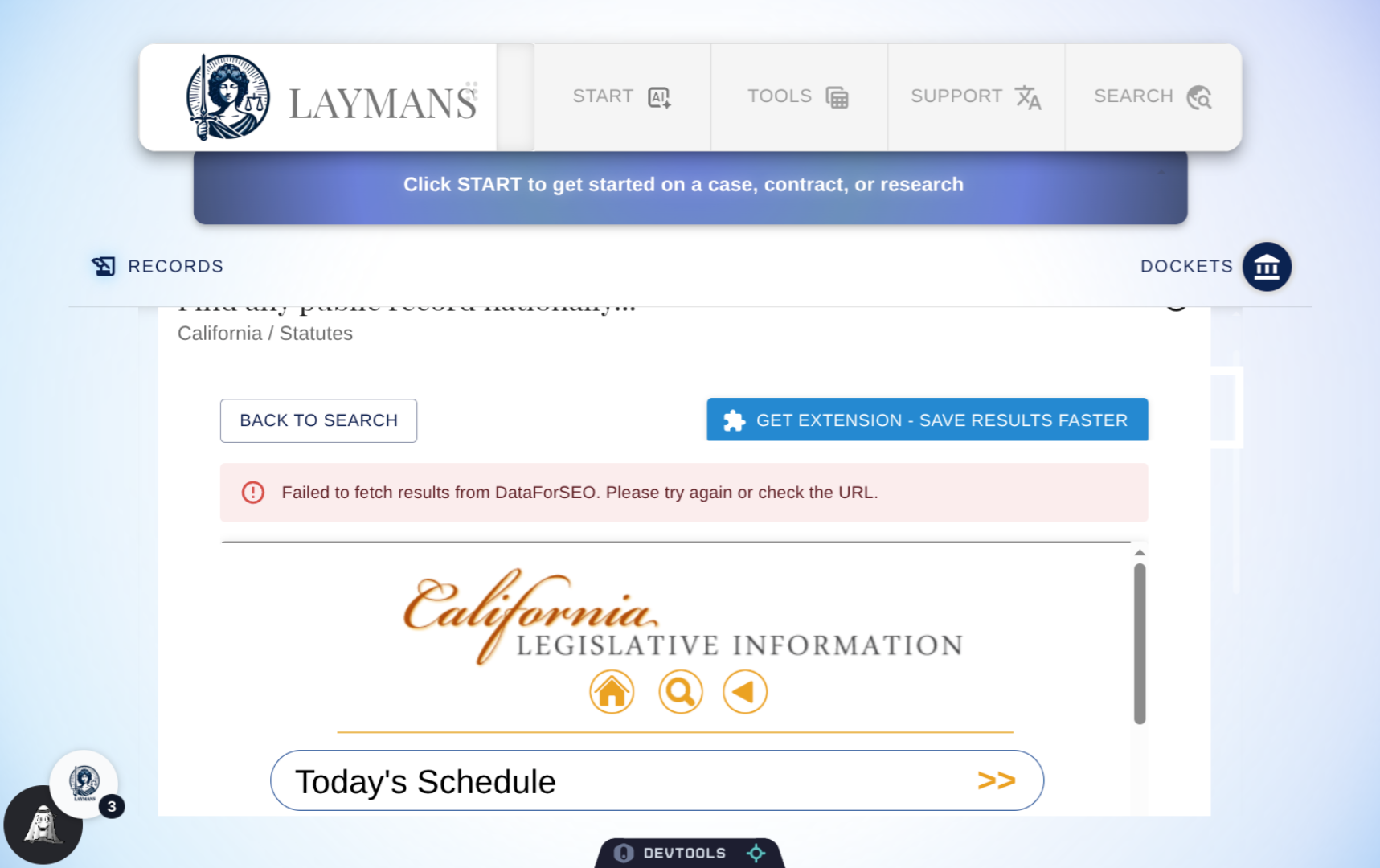
We'll then attempt to show you a portal to the result containing website, feel free to interact to get the information you need without leaving the app.
9. The Public Record: Instructions or Links
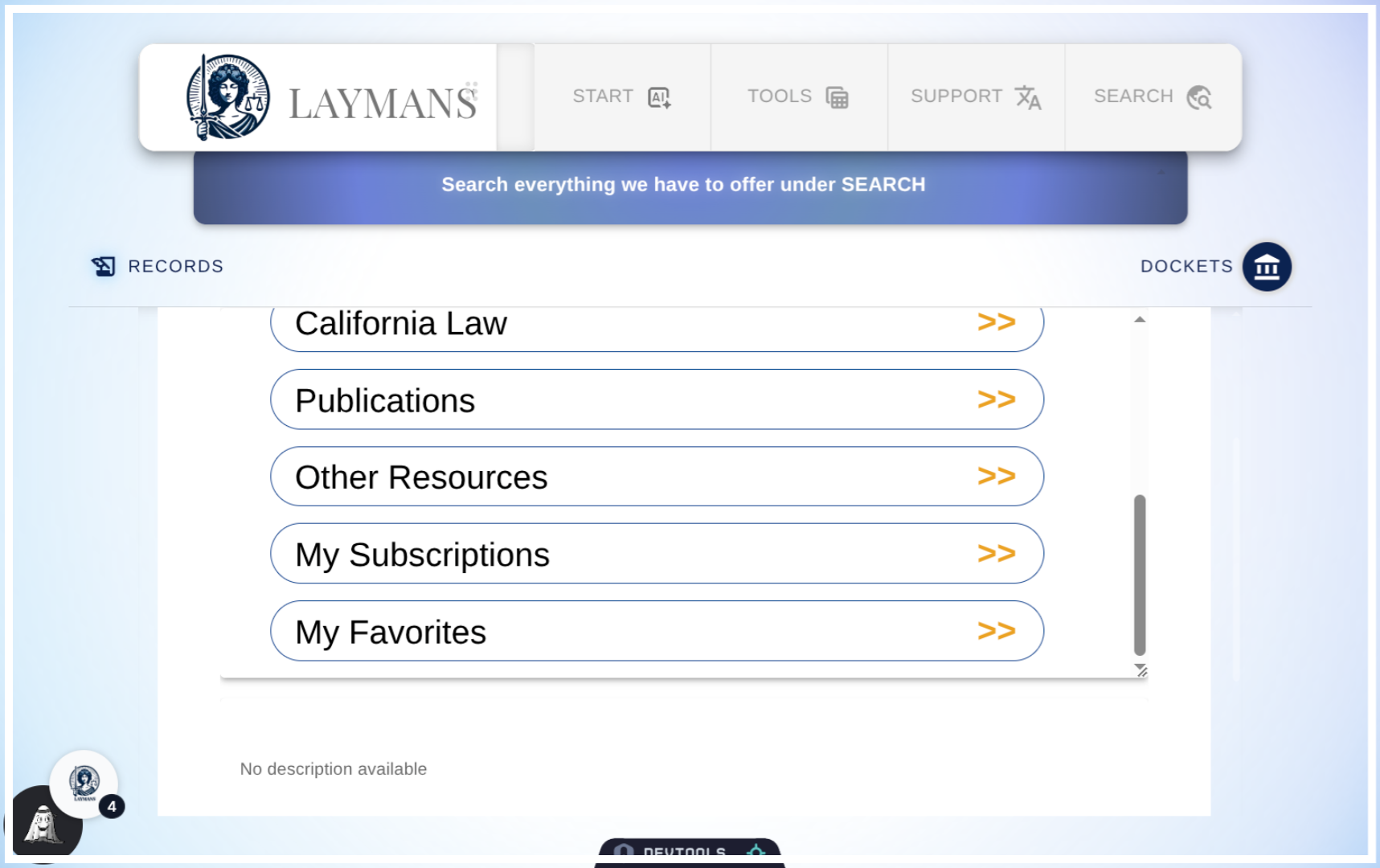
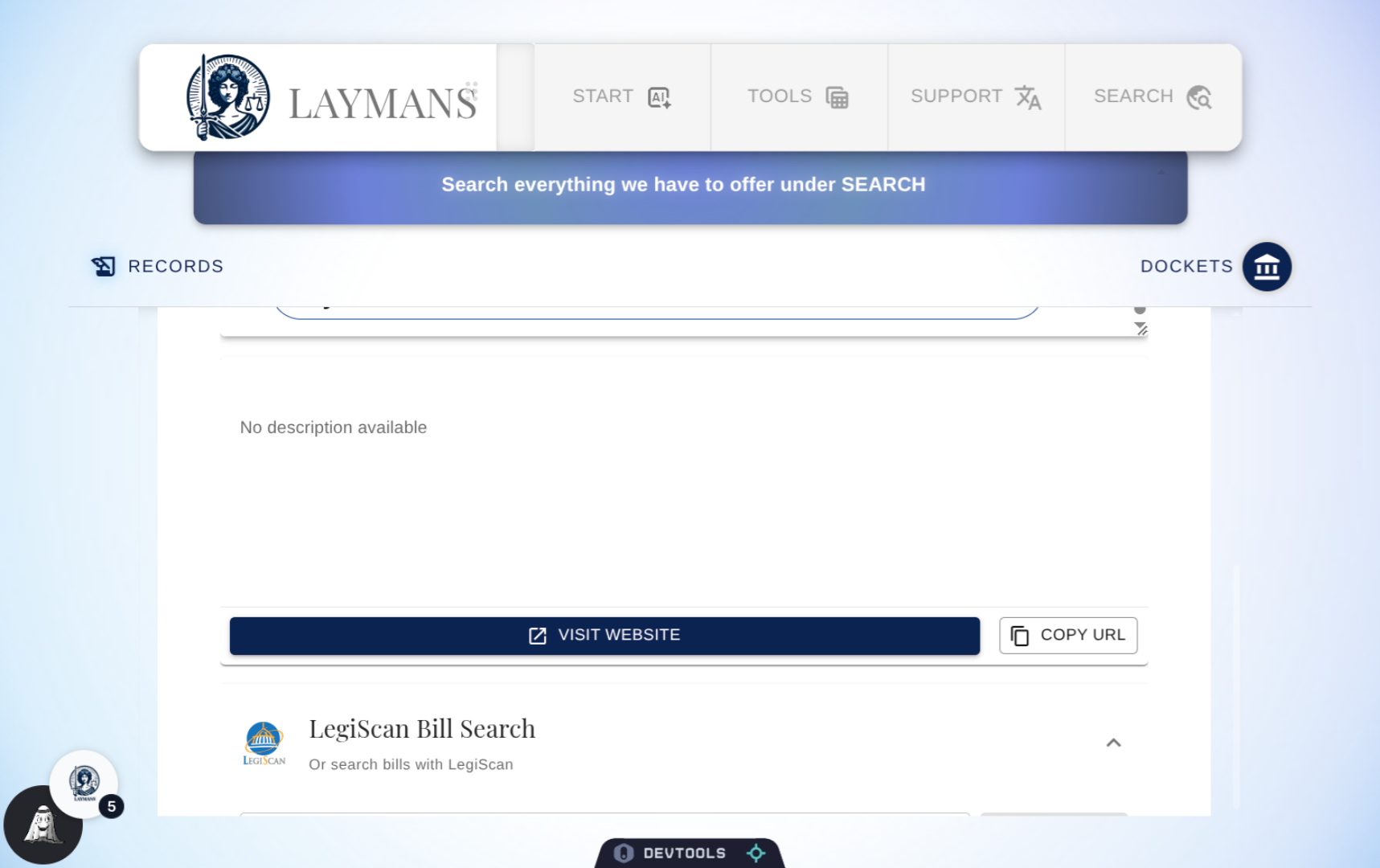
As a fallback, we'll display either instructions about how to get the information you need physically -- either mail or in person -- or a link to the website in question.
10. The Public Record: Integrations
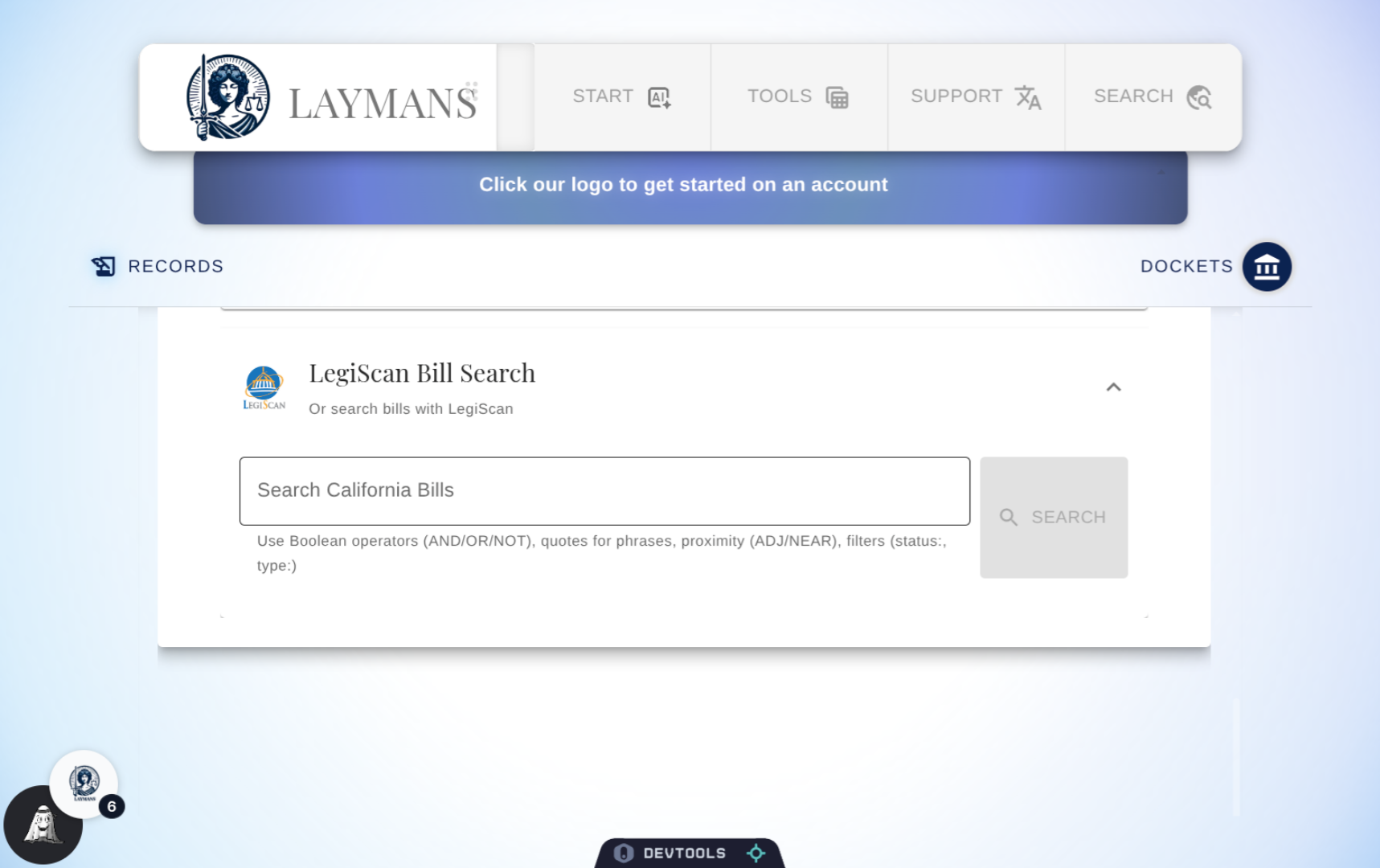
So for some Domains, like Businesses, Buildings, Statutes, Police, and Vitals we'll input extensions to better help you get the resources you need so stayed tuned. For instance, Legiscan returns the legislation and bills behind statutes when you can't find the particular rule directly.
11. About the Laymans Extension
Note, there's a "Get Extension" button here: Yes, Laymans has an extension! For Chrome, Firefox, and Edge browsers, you can install our extension to quickly and easily add websites you find online as casefiles to your account. You can check out the extensions guide for more info. Let's get back to your public record.
12. Another Example: California & Police
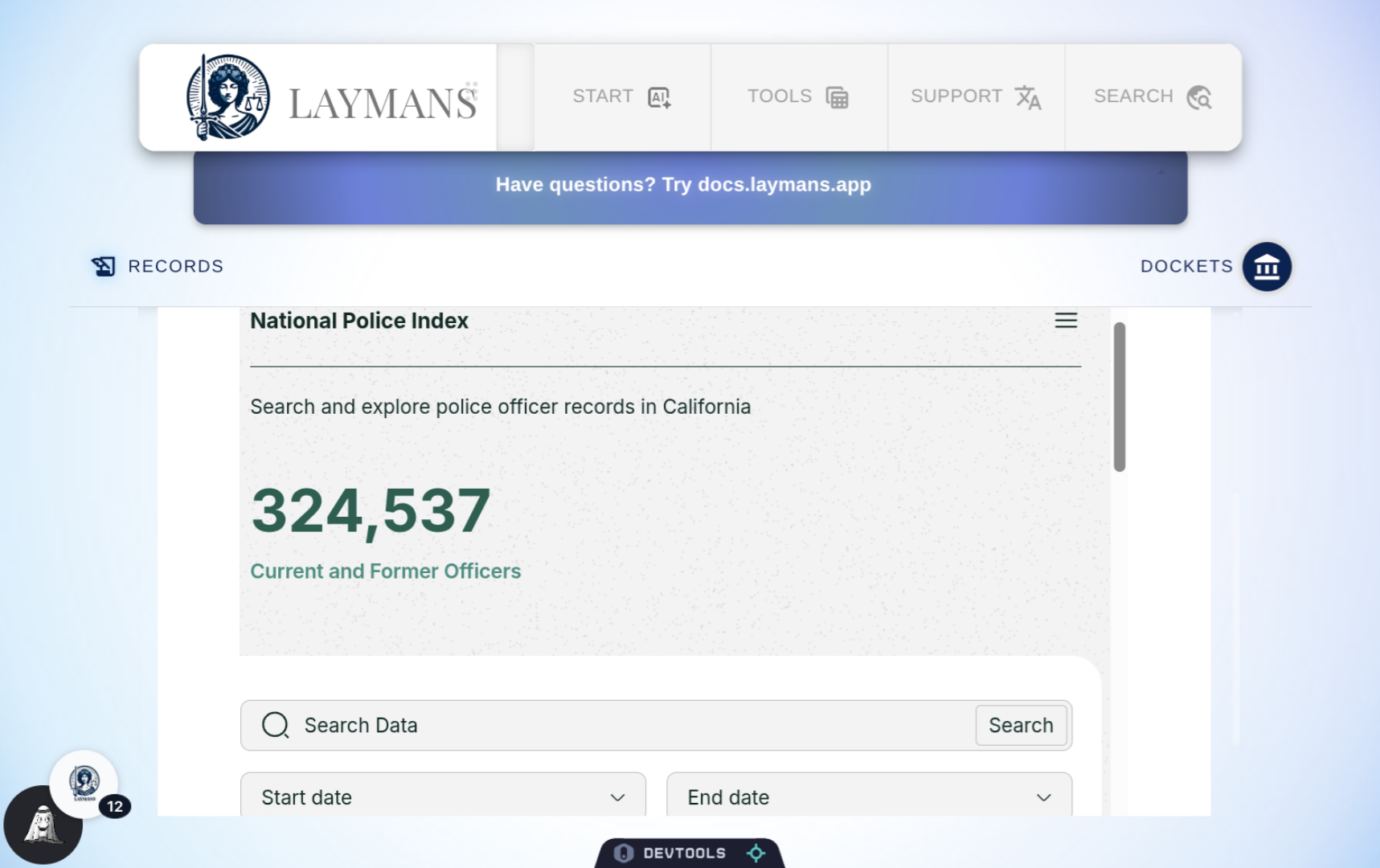
Let's use California > Police, to see the integrations and values returned for this domain and state. For instance, we get Invisible Institute's Police Badge check on the first go.
13. Another Example: Police Integrations
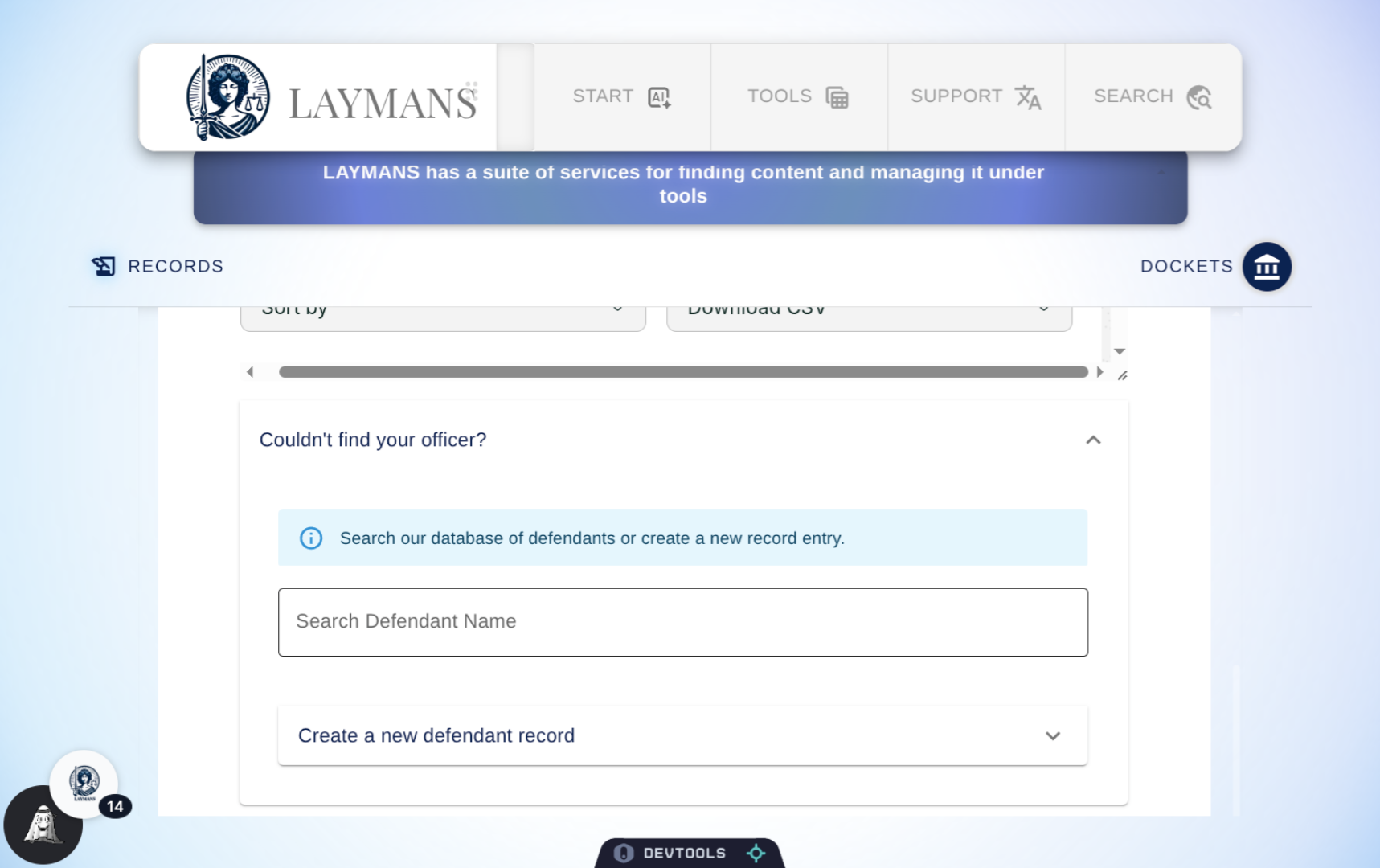
Then for this domain we have a direct integration back into Laymans. You can search directly for litigated defendants on Laymans if they are relevant to your search.
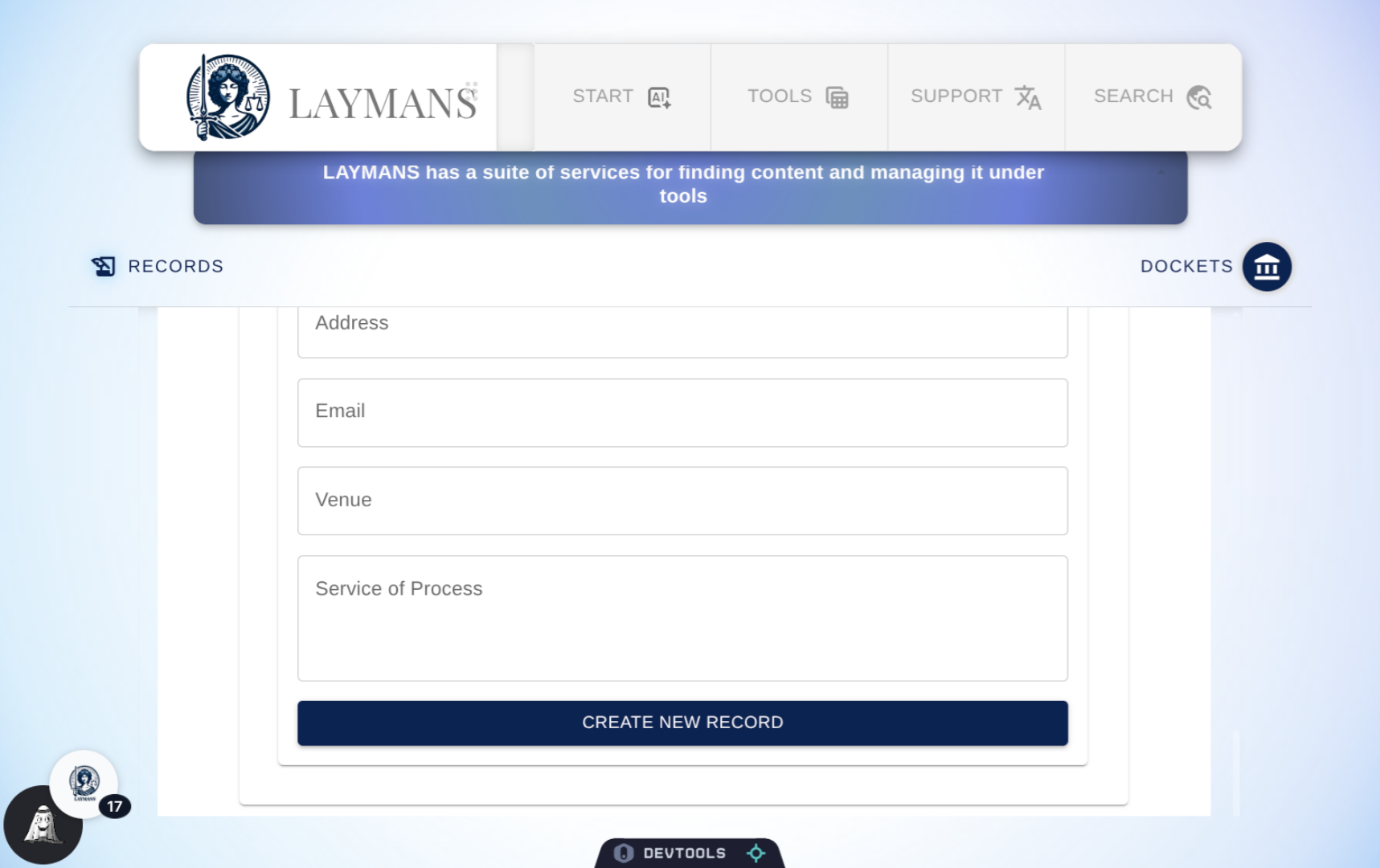
14. Another Example: Police Integrations (II)
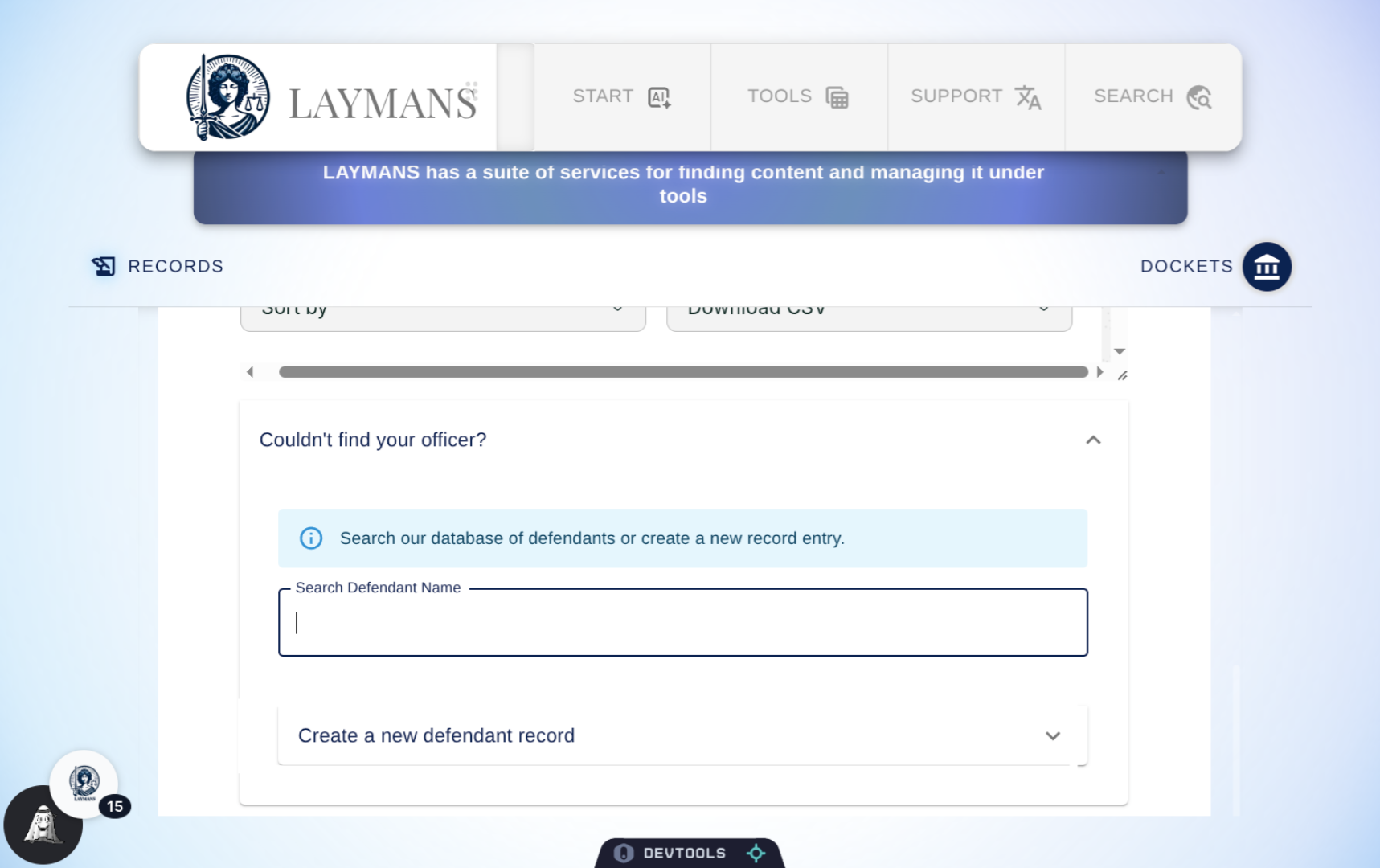
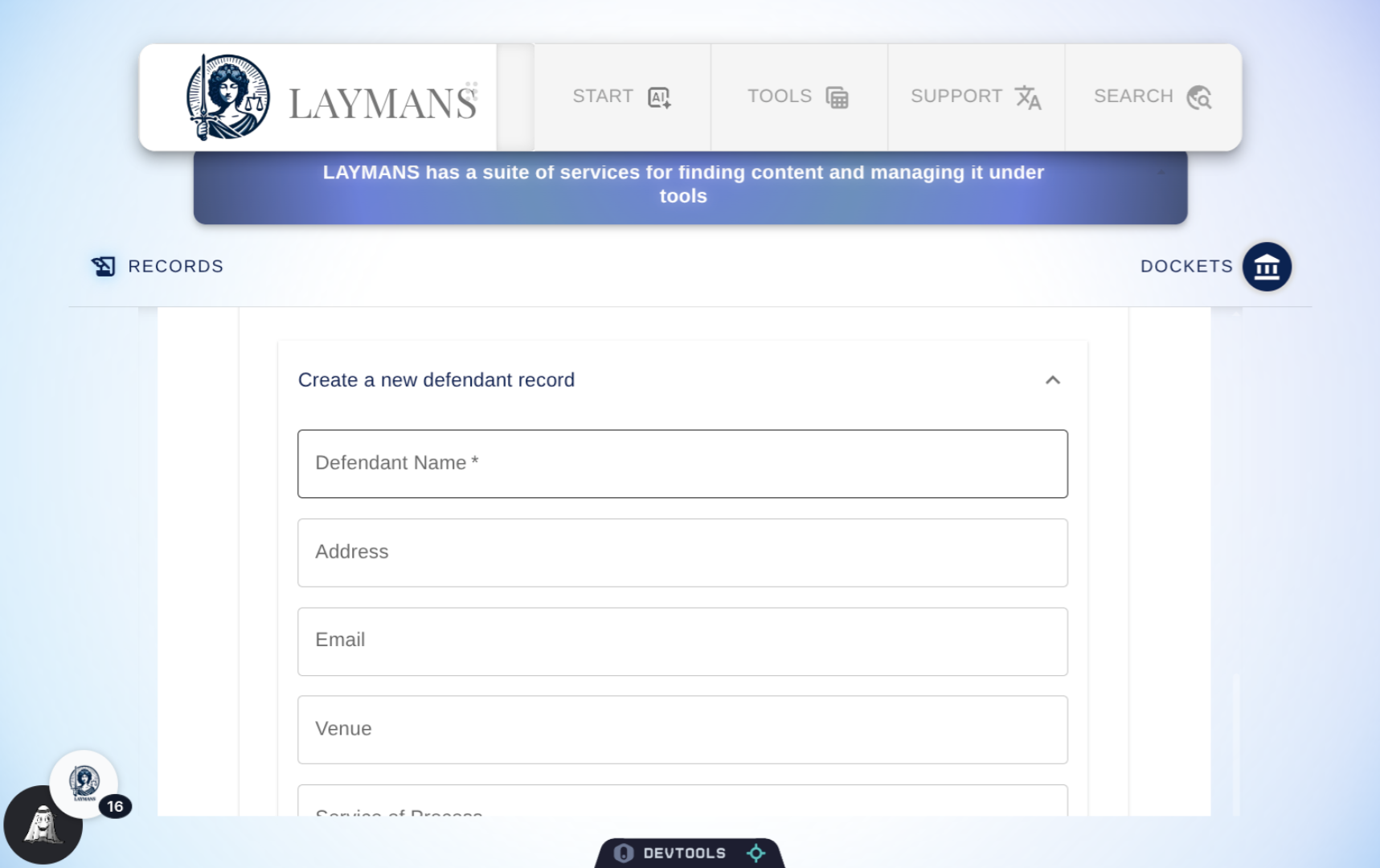
And, if you can't find the record, you can directly create a Defendant record to use.
15. Another Example: Police Integrations (III)
Defendants are generally created in the process of case creation and are not publicized unless a case record has been moved to completion with Laymans. Defendants get the opportunity to update the record or remove defendant records if inappropriate. Be as honest as you can with this extension.
16. Conclusion
It can be quite tough to conduct legal research all by yourself with fact-checked records and legitimate sources. So Laymans is proud to offer this resource for free to all laypeople and will do its best to keep it up-to-date and accurate. Towards that end, do not hesitate to let us know if a source is no longer the best or accurate at hello+gov@laymans.app. You can also access these public records via asking me directly, Layman's AI Model, using the PowerBar > "Start" > "Co-Create." Lastly, public records will uniquely take you on and off our platform; to help with that, we recommend the Laymans' Free Extension to help you quickly collect your findings as you go. Hopefully this makes your life a little easier.