How to write updates on your Litigation Fundraising Campaign on Laymans
Go to www.laymans.app
1. Introduction
If you're raising money or are already receiving financing it's best practice to continually provide updates about your use of the funding, small wins, or additional needs. Let's learn how to make an update.
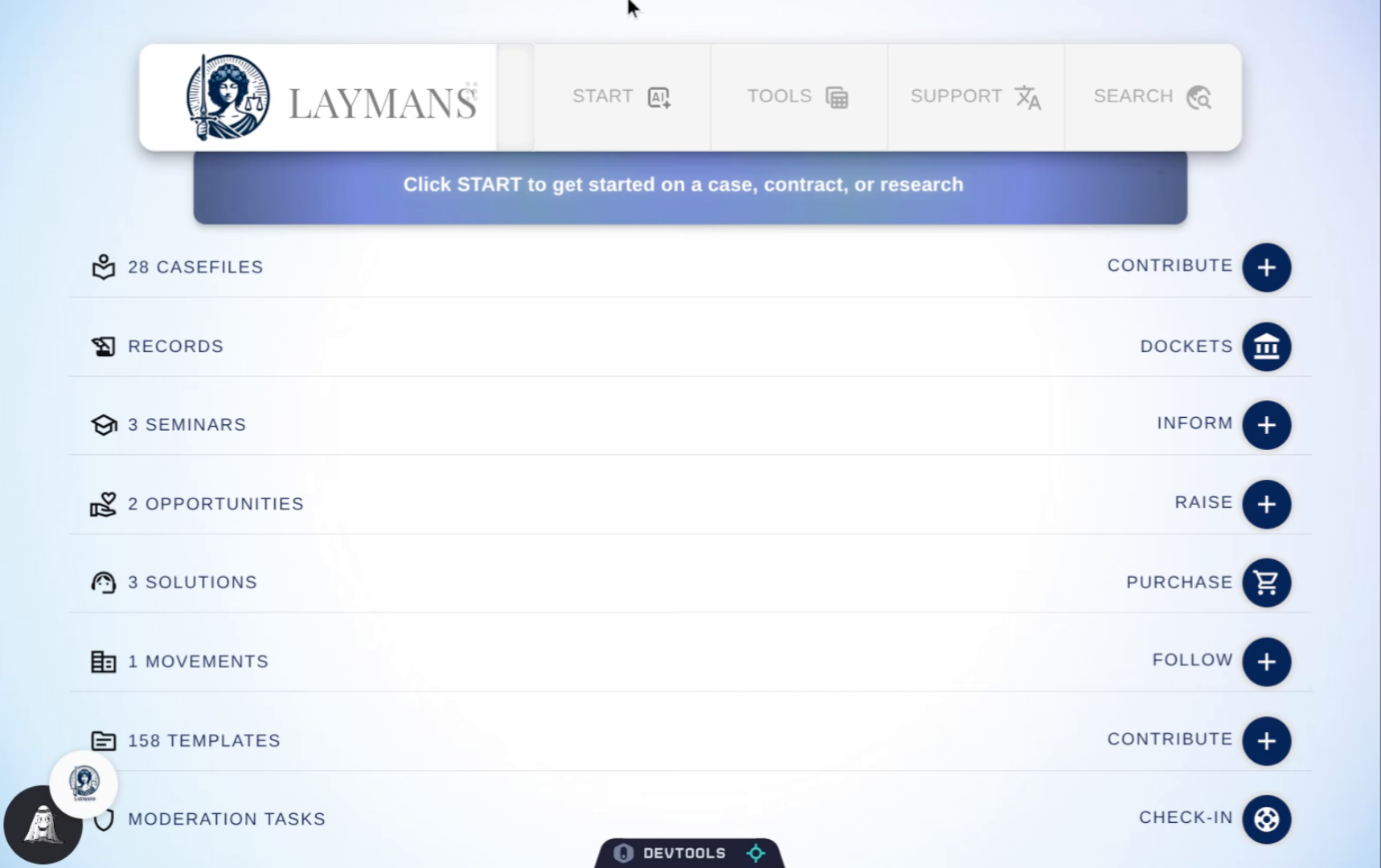
2. Click "raise"
One of the fastest ways to put out an update is by clicking "Raise" on the homepage, but you can also make updates on the Campaign's web page or - if you are a professional - through the Updates Dashboard at /work
3. The Campaign Updates wizard
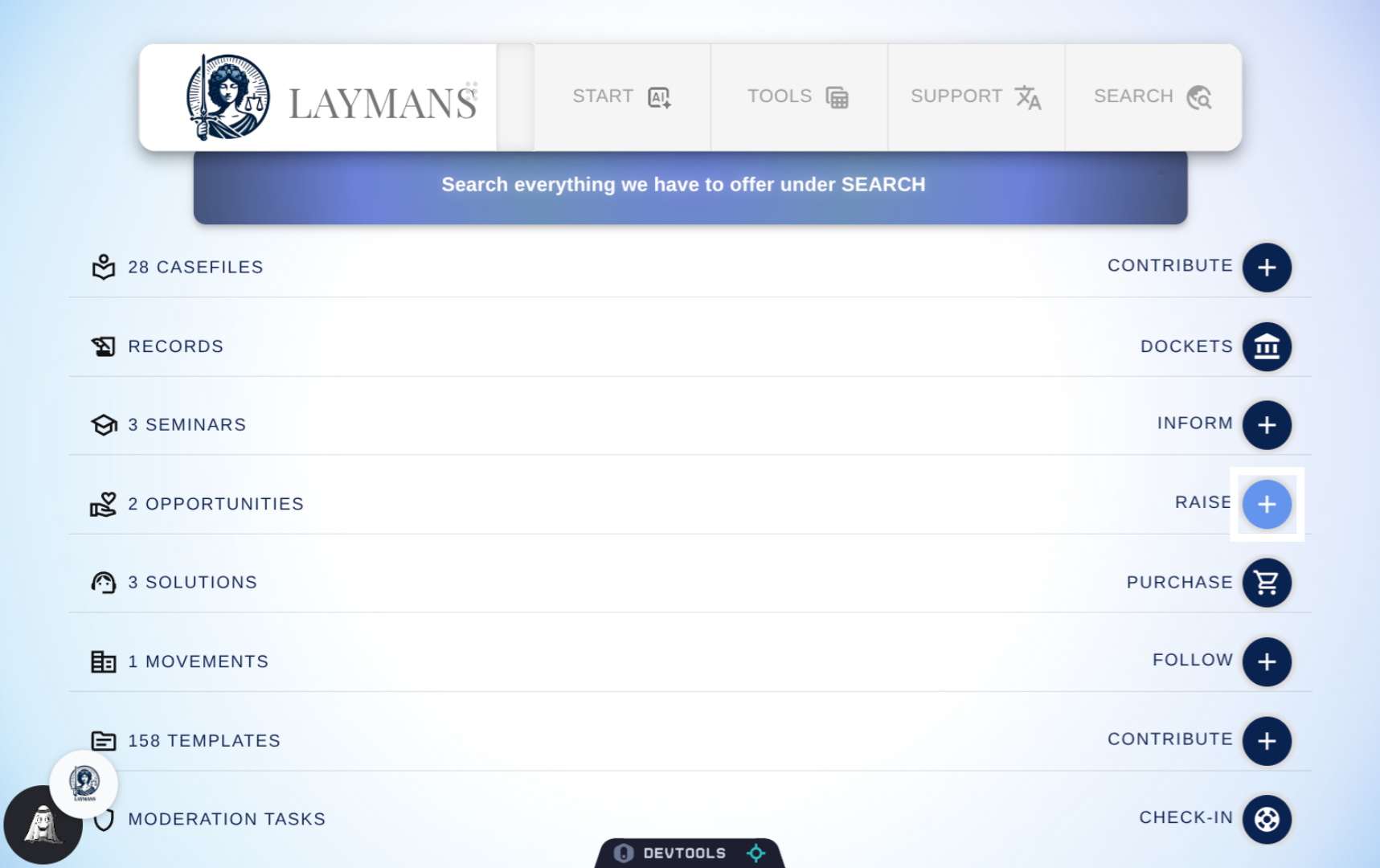
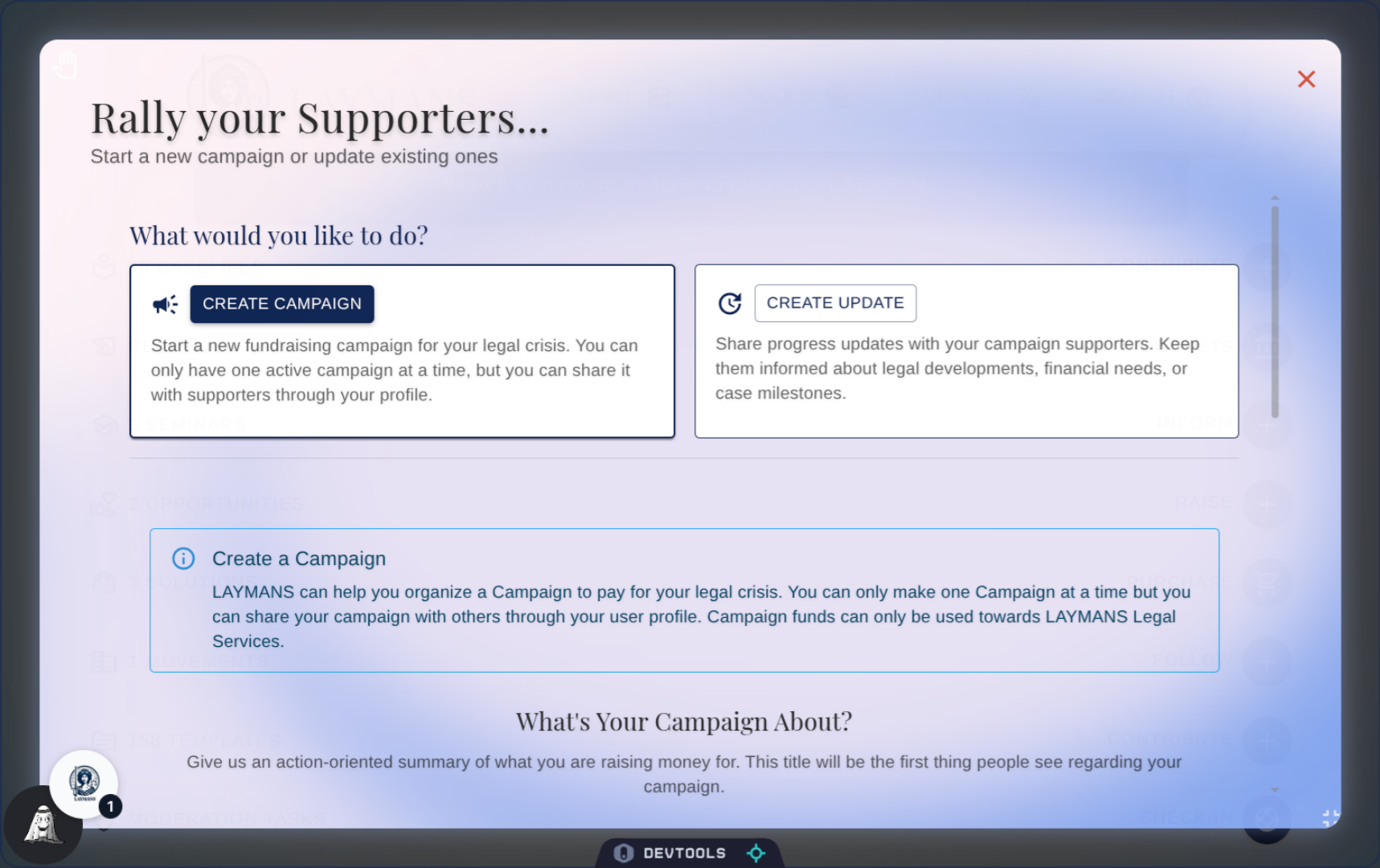
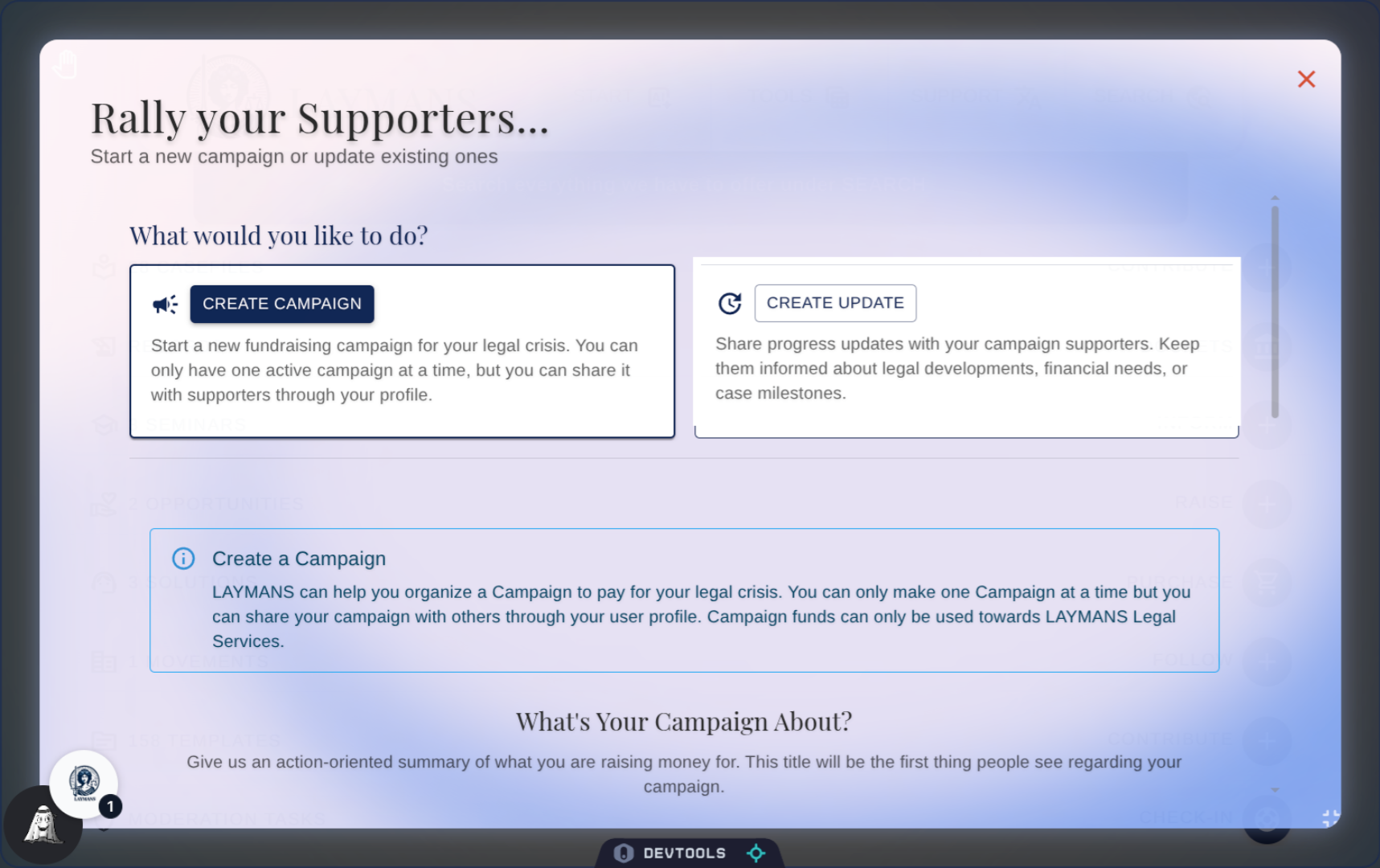
Great, we're now at the Campaigns and Updates wizard! If you're making an update we can assume you've already have a campaign, as you need a campaign to add updates to. If you need to make a campaign - the vehicle for which you raise money on Laymans - you can select the "Create Campaign" option and review the "How to raise Case funding on Laymans" guide.
4. Click "Create Update"
But for now, we'll continue on with making an update to your donors and supporters.
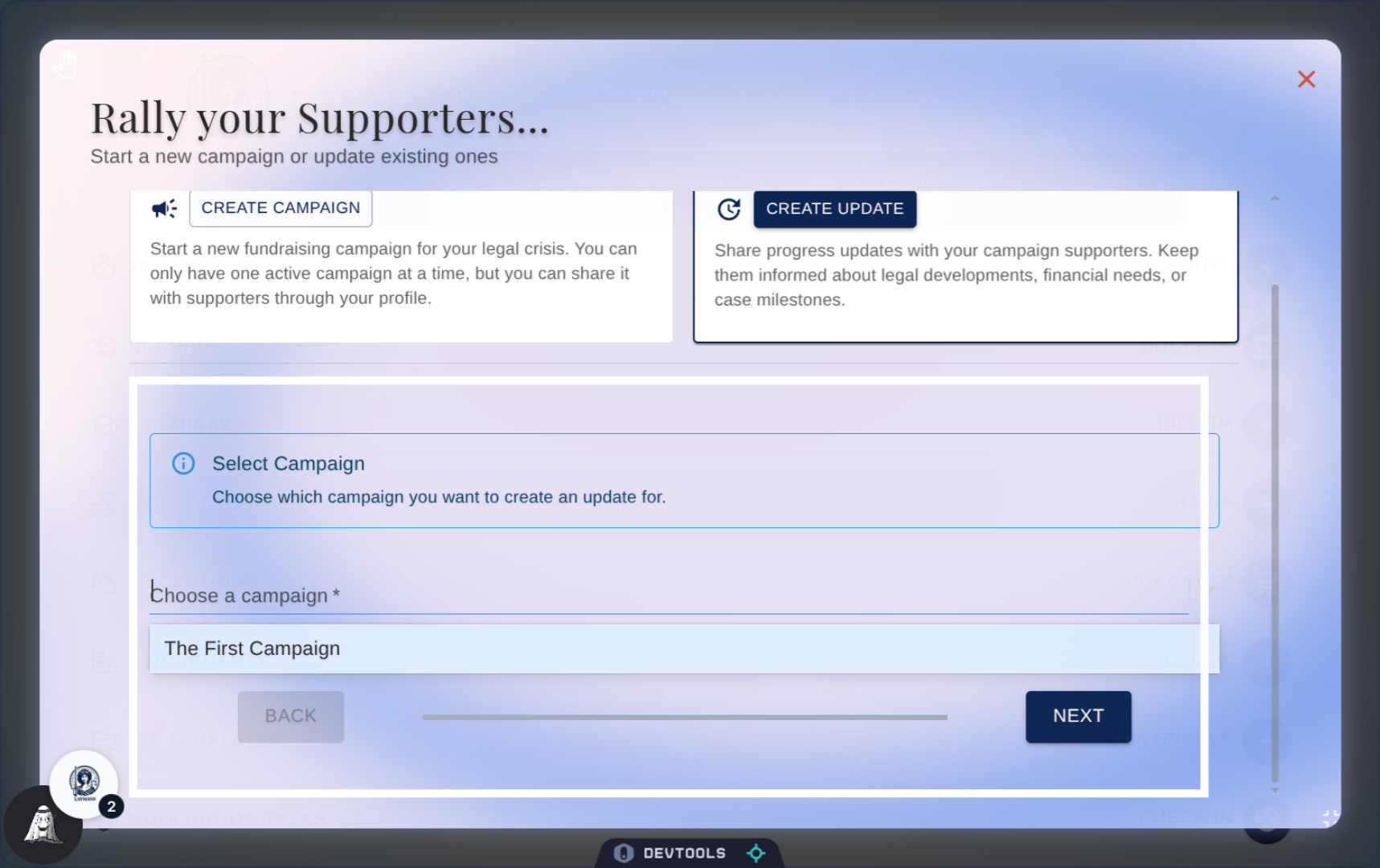
5. Choose a Campaign
Choose the campaign you want to make an update for. While regular laypeople can only have one active campaign at a time, professionals can have multiple so it's good to check that the campaign's title matches what you expect.
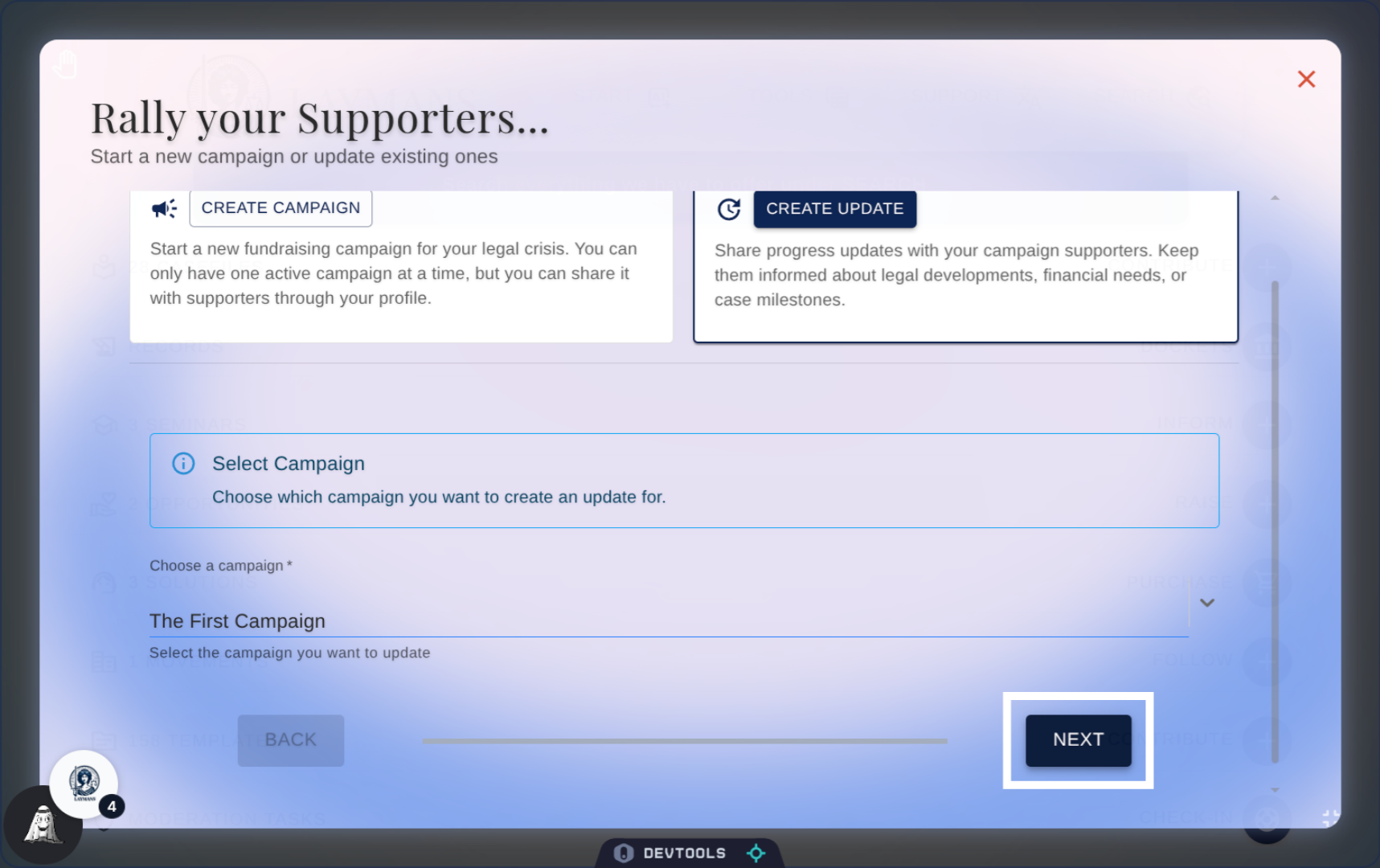
6. Proceed to Next Step
Let's move on.
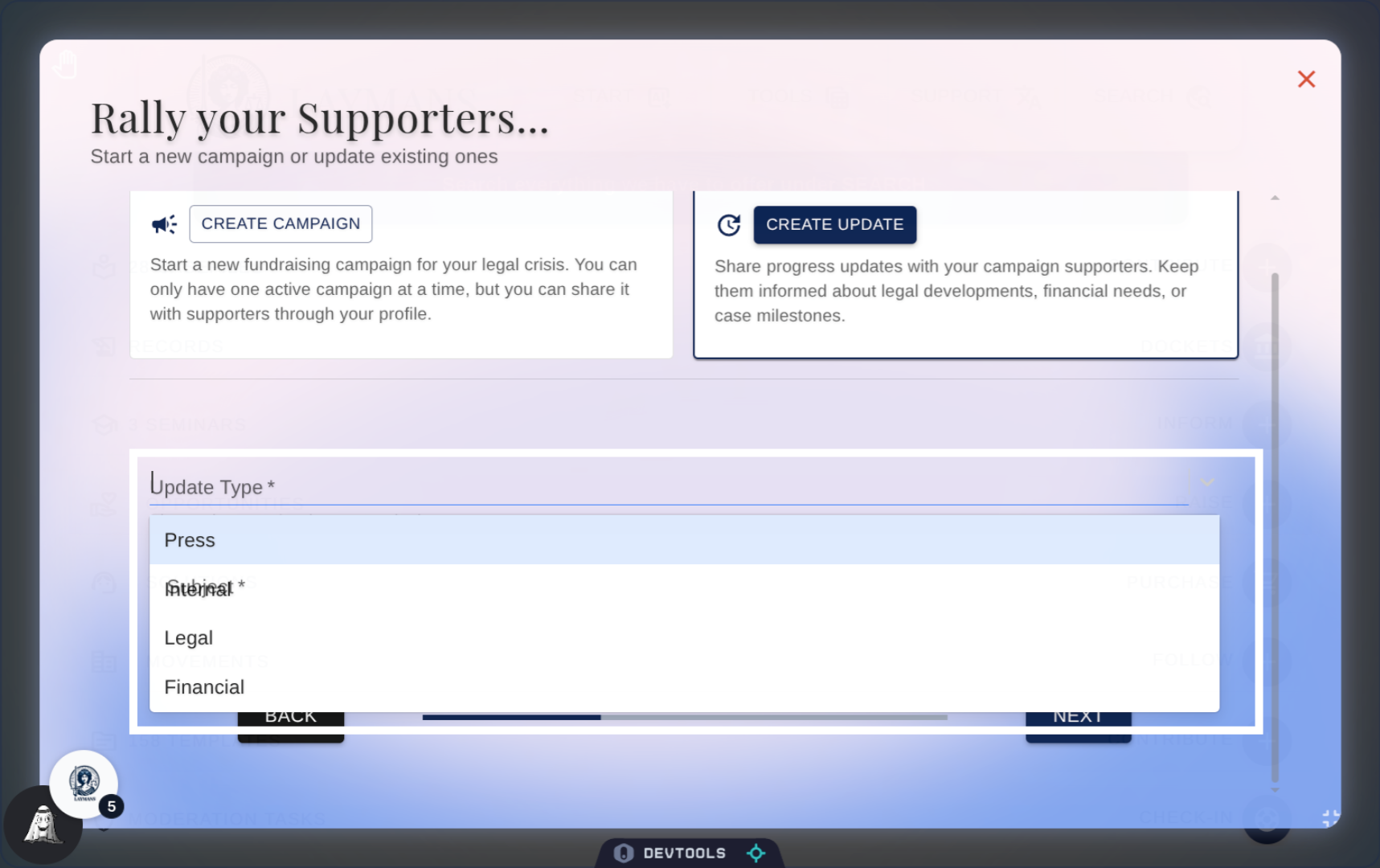
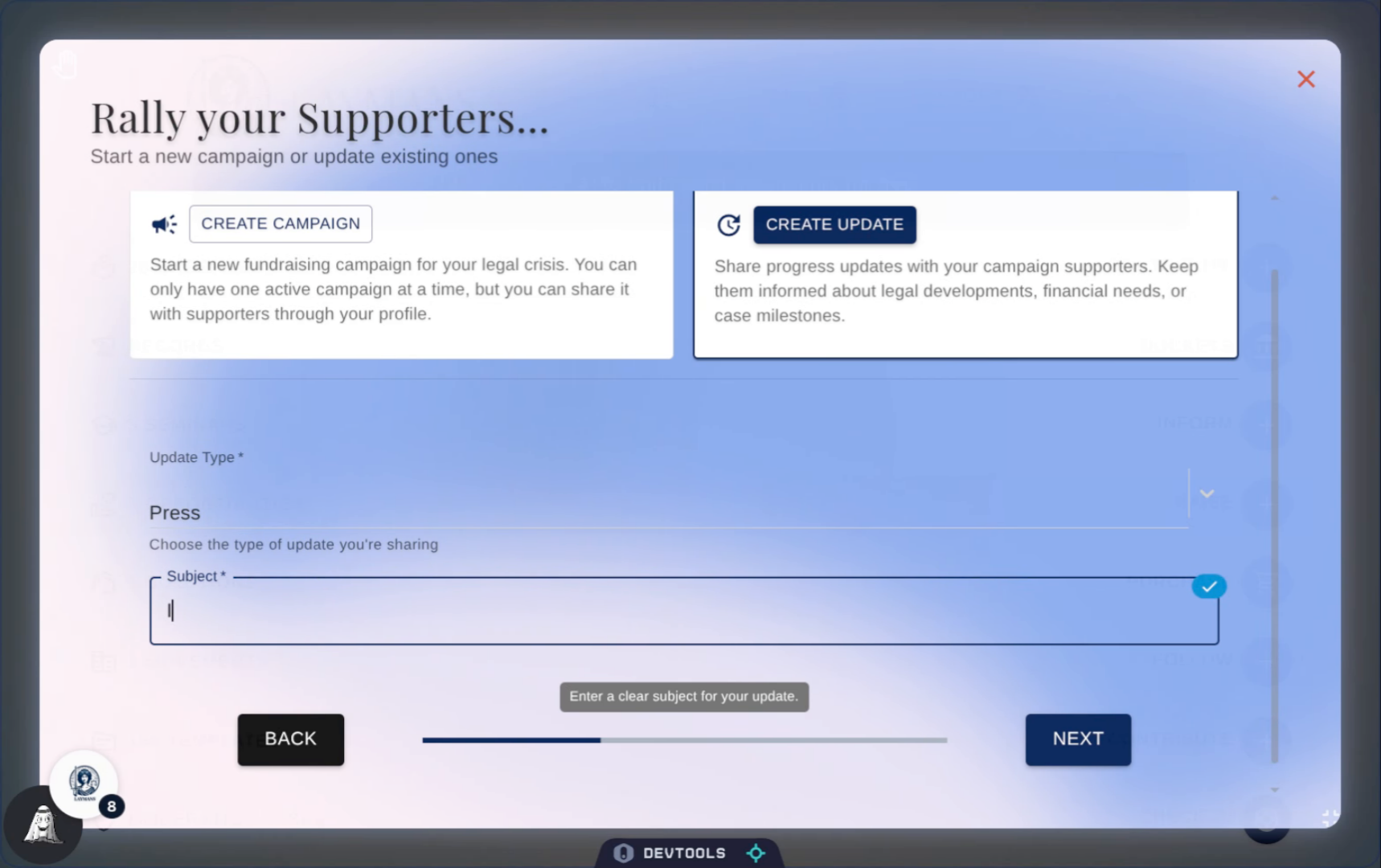
7. Set the Update's Type
Now we set the update type, this is purely clerical and helpful if your funders or team require organization. I.e. Press is for the public, Internal is for your organization or team if you're part of one, Legal is for litigation financing update that are about changes in legal affect, and Financial are about new financial needs or use of funds. Your funder may require a certain type on a regular basis, and typing your updates accordingly make them easier to find.
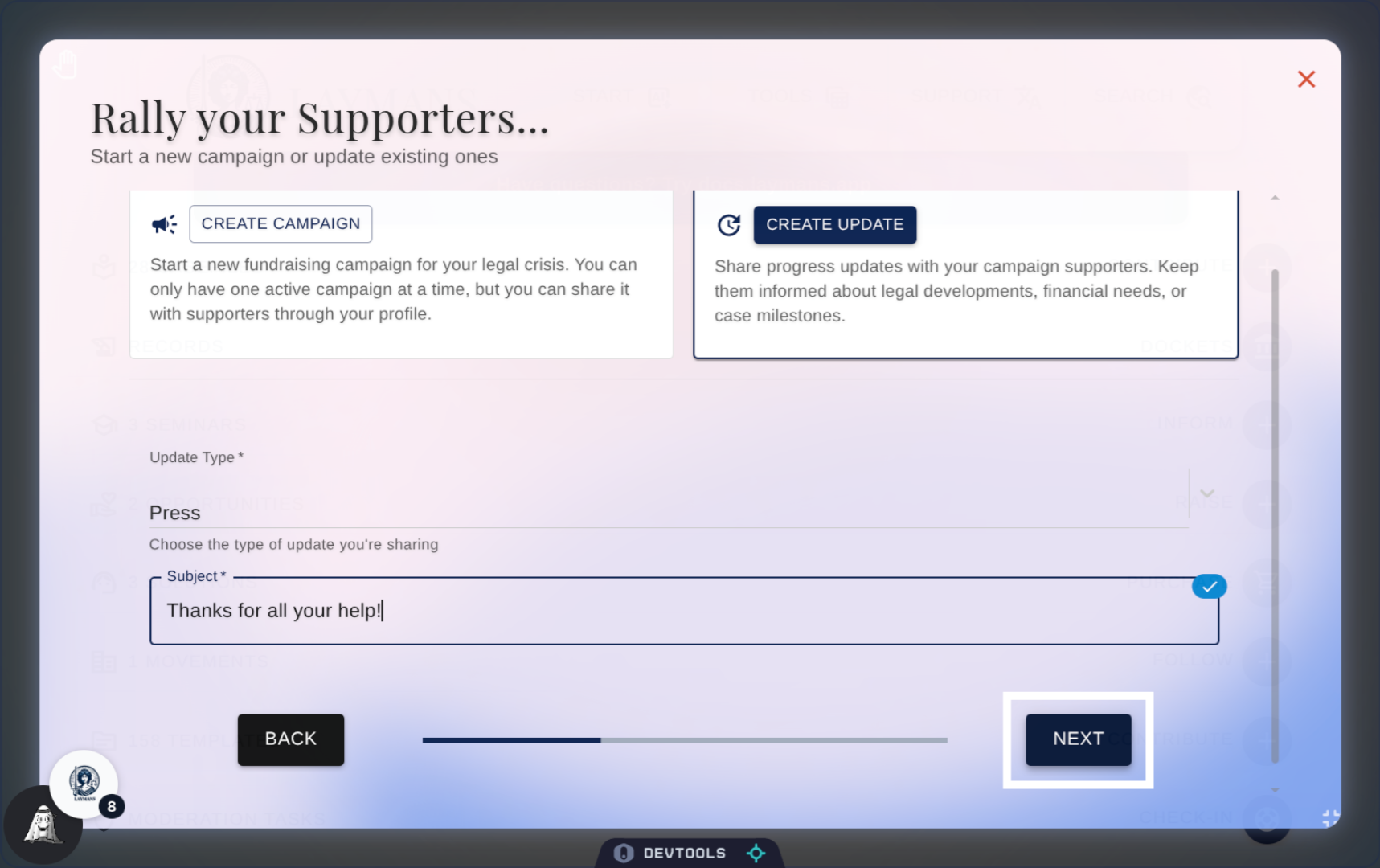
8. Add a Subject
Please write a subject for your update. his will be treated as the title line of your update and what will be used for finding this record in the future.
9. Click Next
Let's move on to actually add the content of our update.
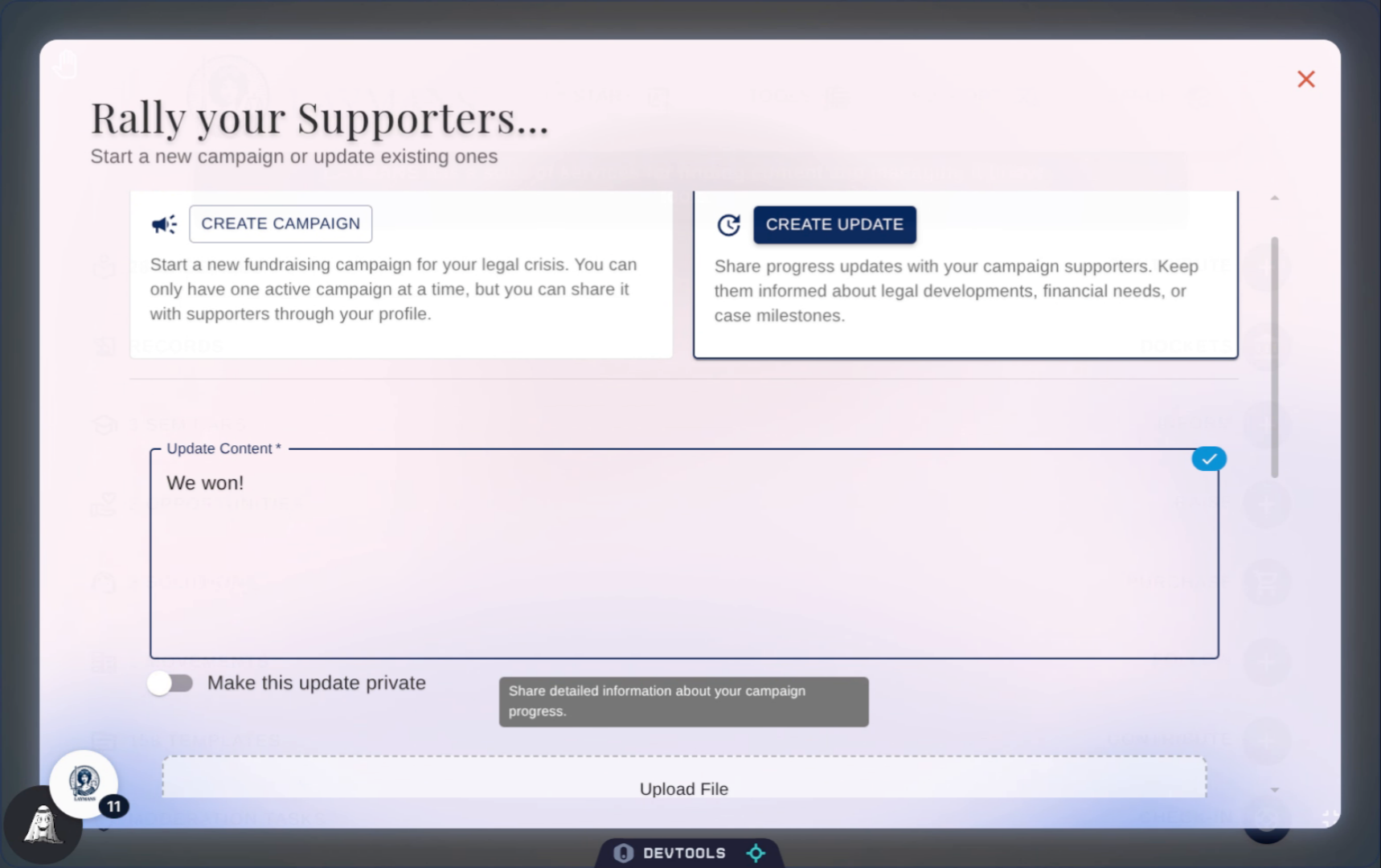
10. Enter Update Content
You should write a descriptive and rich message about what's going in your case and campaign. You can share updates on performance indicators, changes in legal affect, and new wins and obstacles.
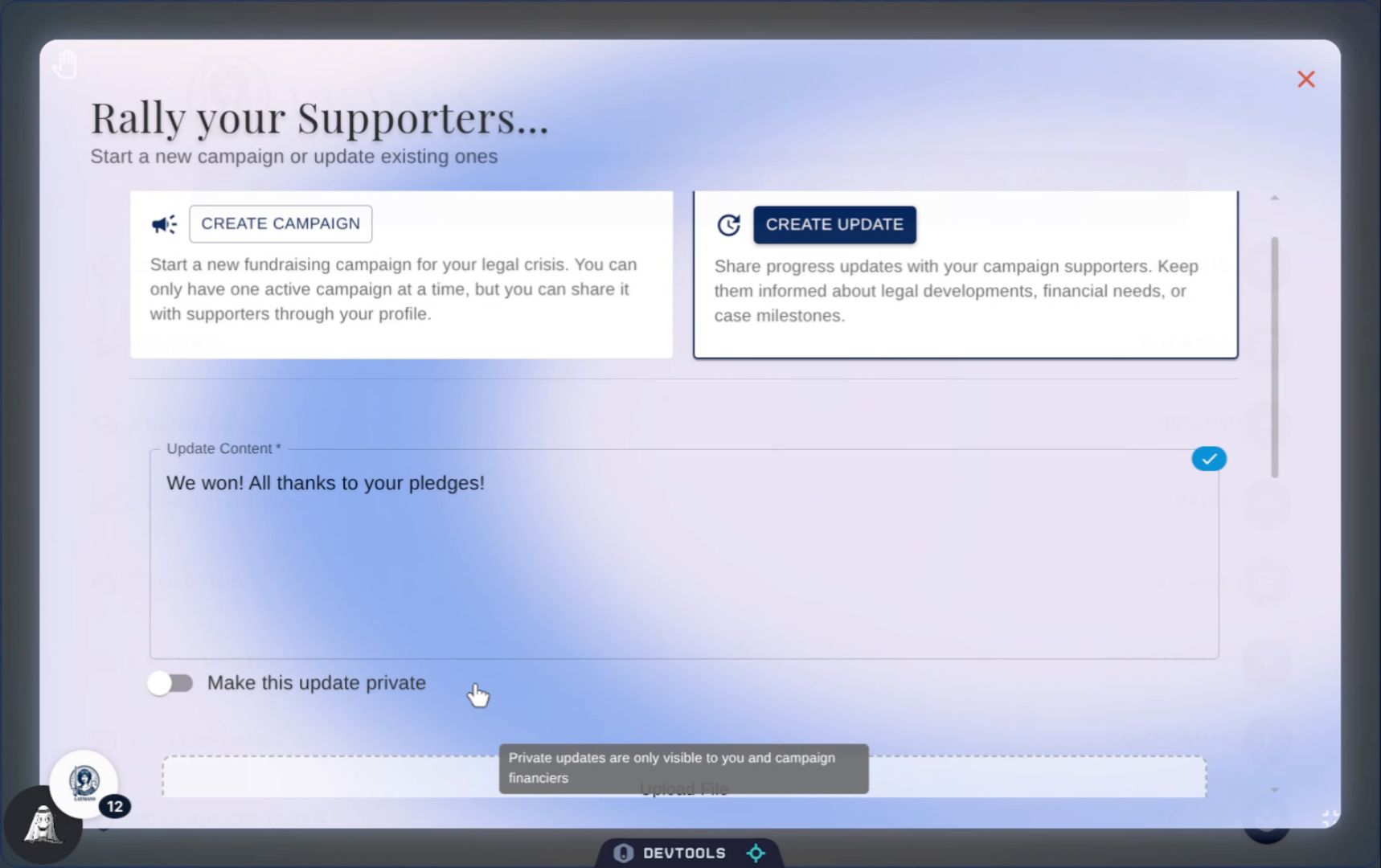
11. Set Privacy
This is very important, as private makes it so that this update doesn't show publicly on LAYMANS unless you are the owner of the campaign, a professional working with the campaign's case, or a funder of the campaign. Your funding requiremetns may require confidentiality, or the nature of your case means public legal and financial information may be used against you. So make sure you only share what you want to share.
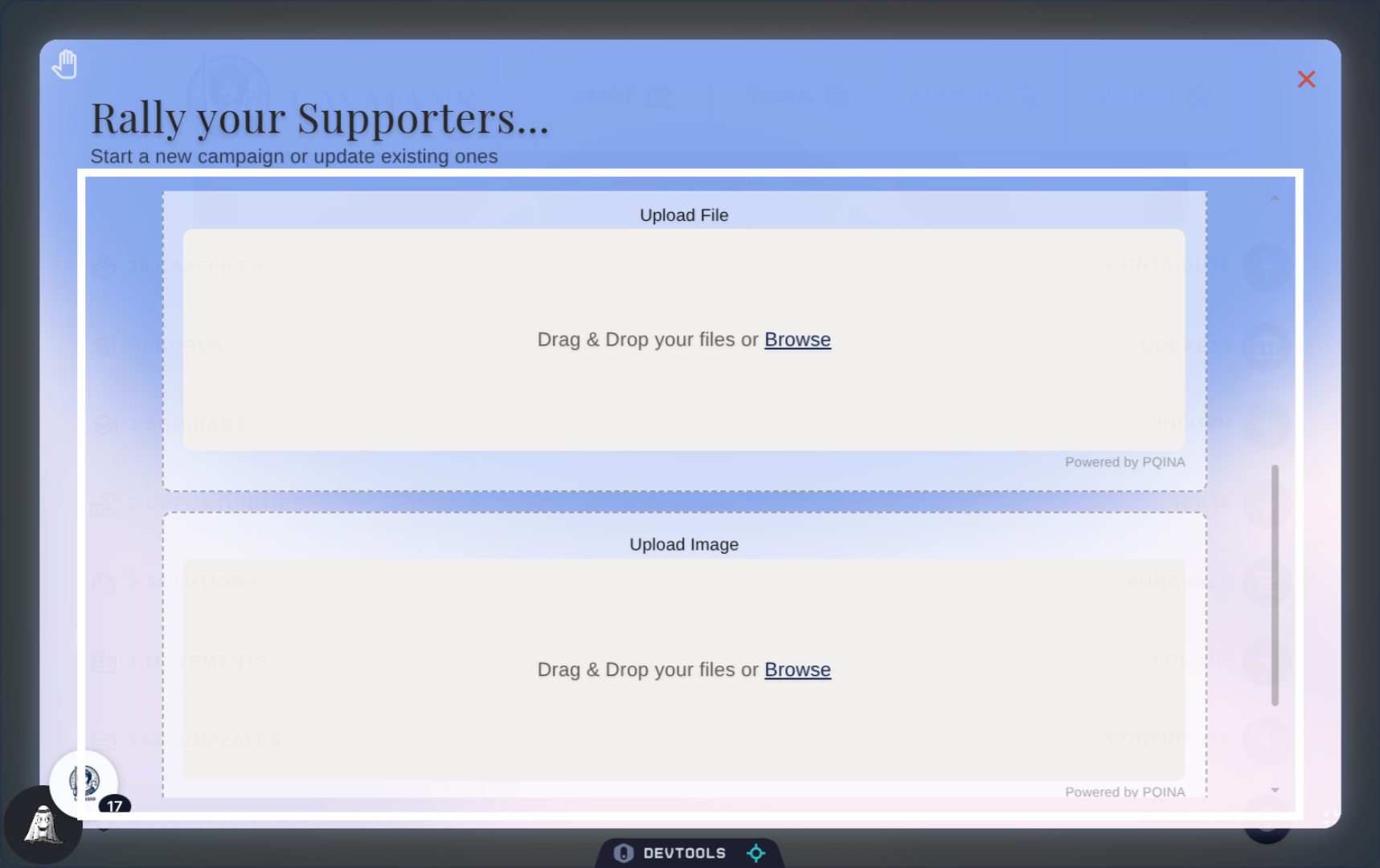
12. Uploading Images and PDFs
You can also upload images and PDFs as needed for your update. You should upload inspiring images of success, video updates on current trends, or pdfs and documents of current filings or required funder forms.
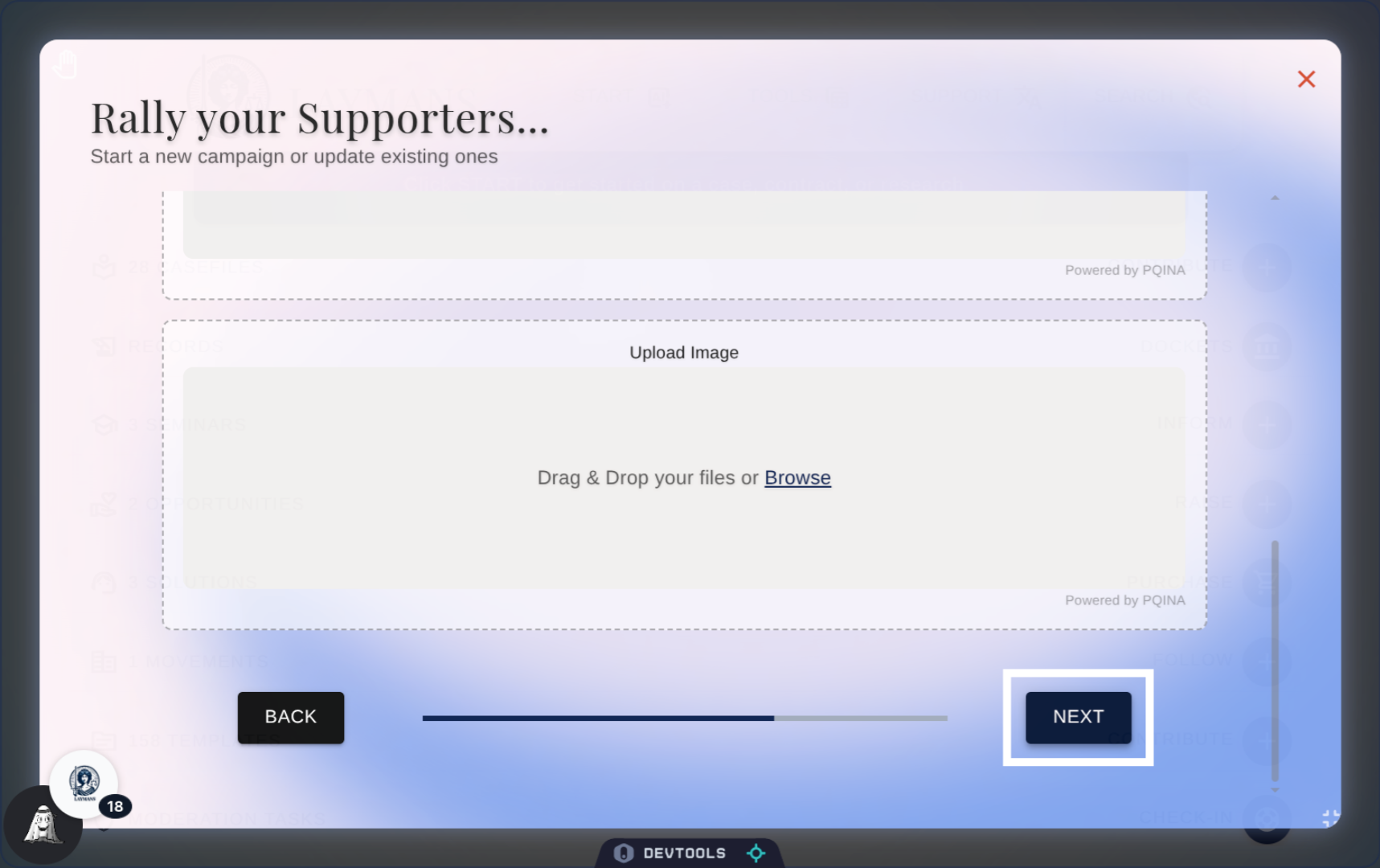
13. Proceed to Final Step
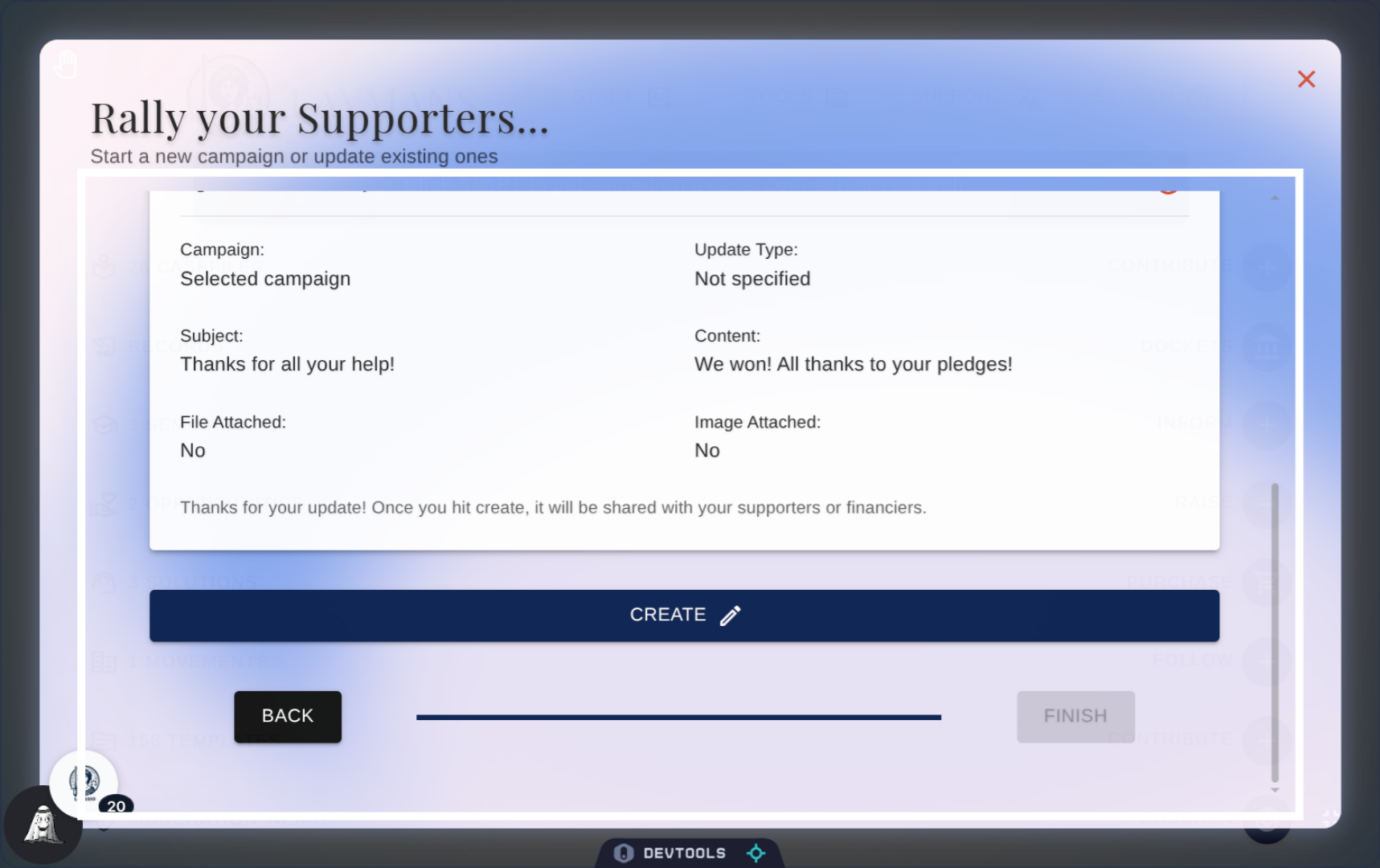
Lets move on to the confirmation.
14. All done!
Click create to submit your update and then navigate to the new record. Updates can be found under the relevant campaign, you can also navigate to them from the Power Bar once you've selected a case with a campaign, or, finally, through the Opportunities Tab on Home. Stay consistent and stay well.