How to create a Casefile
Go to www.laymans.app
1. Introduction
Let's create a casefile! Casefiles are the beating heart of LAYMANS, and the way you add any article, form, video, meeting, court case, address, or calendar invite, to your case, seminar, or class action -- privately or publicly.
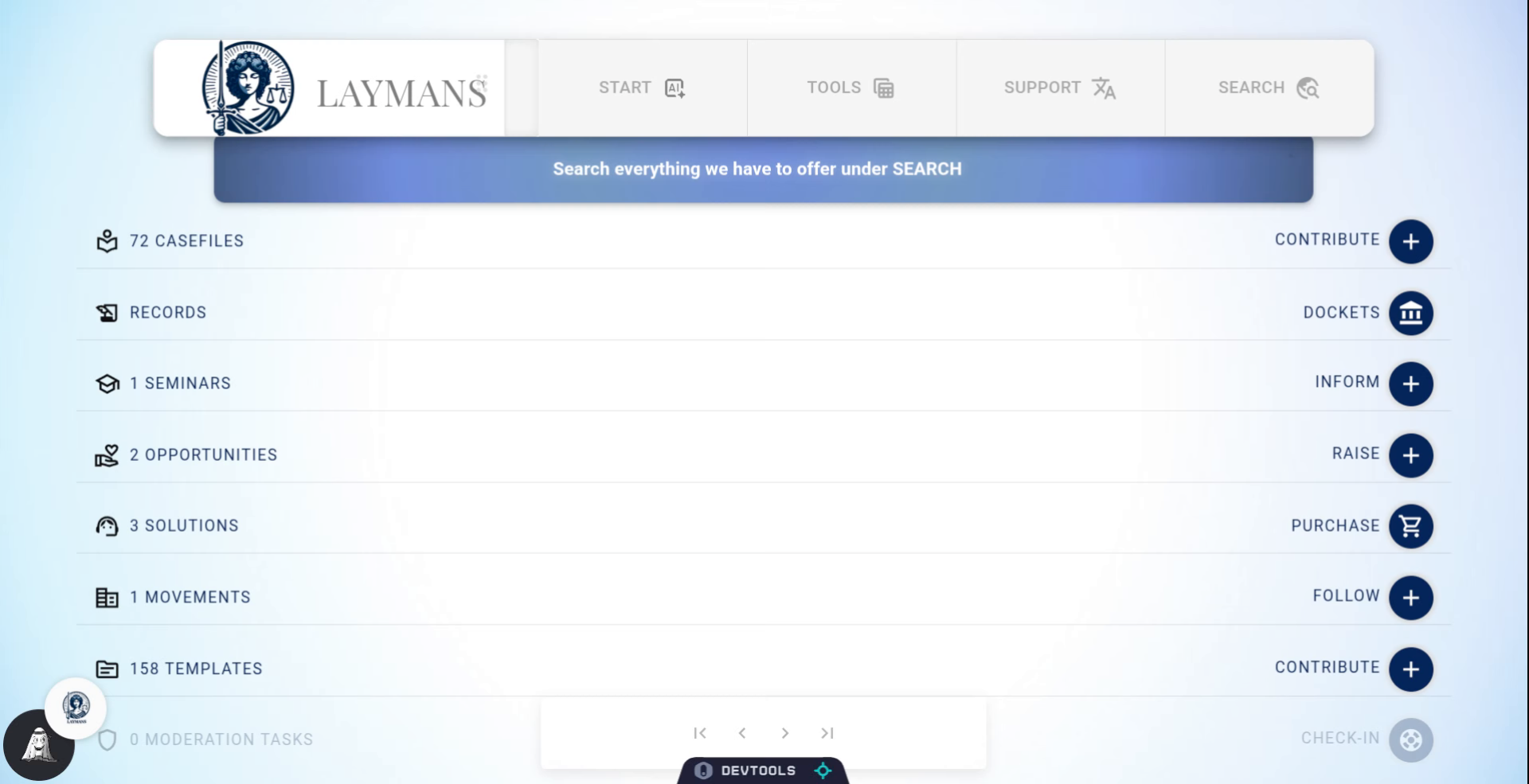
2. Click "Contribute"
To start creating click "Contribute" on the Home page. Note, you can also create a casefile on the PowerBar by clicking "Start" and navigating to "Co-Create" and clicking the asefile option.
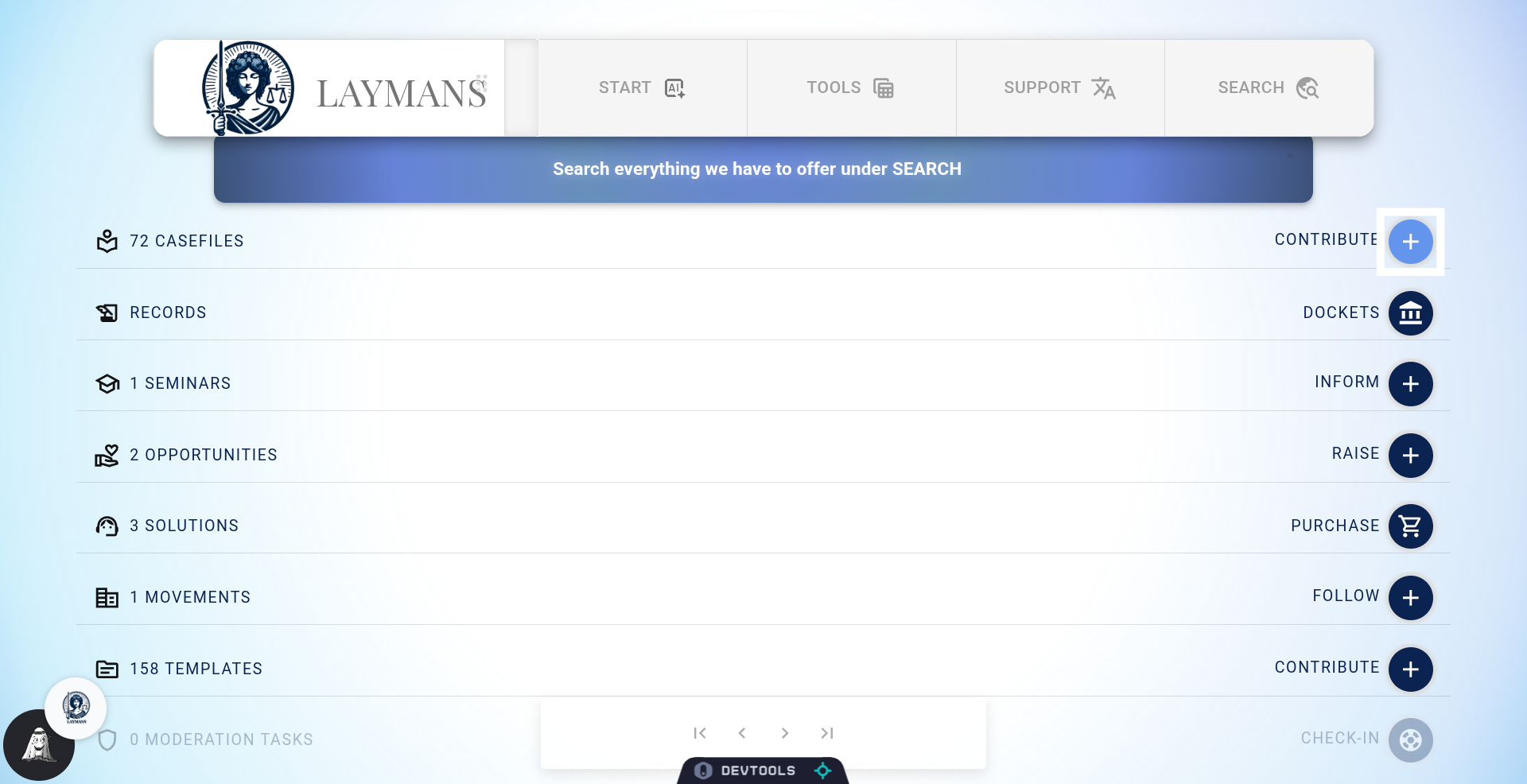
3. The Mass Upload Option
Want to upload a bunch casefiles at once? Like a bunch of evidentiary documents, library items, or a stack of old forms? Click "Mass Upload." You can consult the guide on "Mass Upload" for more, but for now we'll move on.
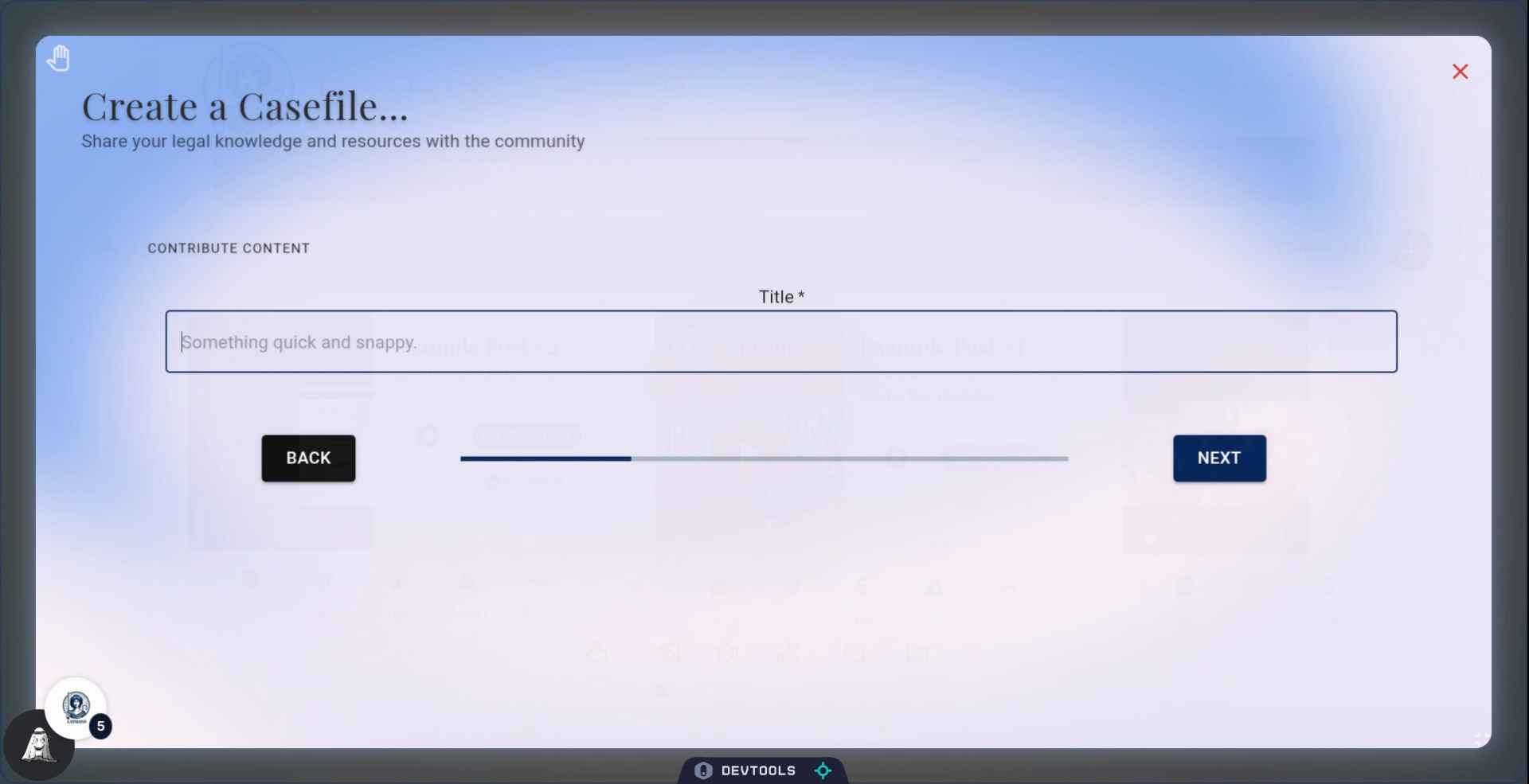
4. Input a Title
Add a title, this is required, but ignore me -- It's best to choose something no more than five words that you'll remember and get's right to the point.
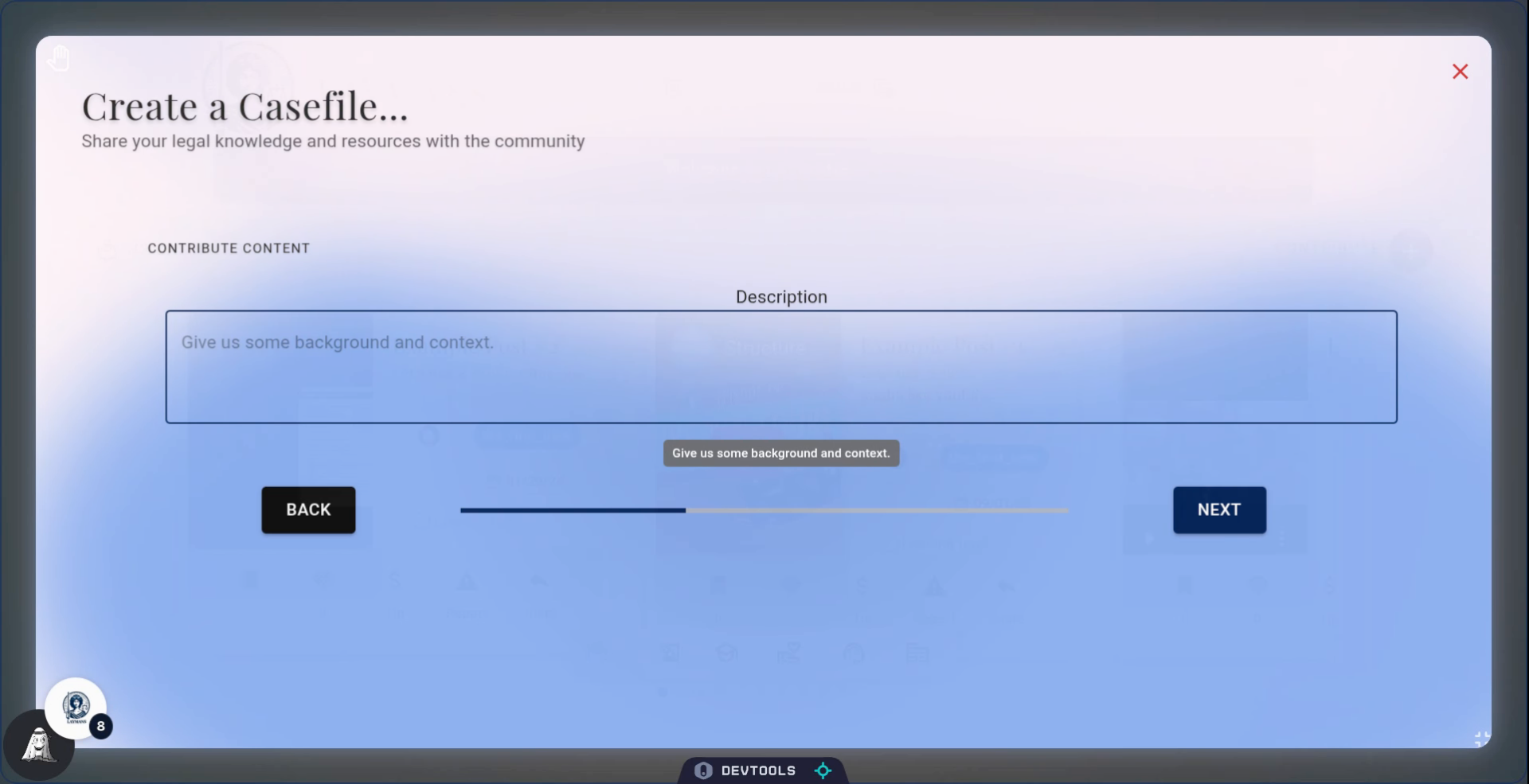
5. Now add a description
For our AI categorization to work, you MUST add a description. Even if its a few words. However, if you just want to make a text post -- like, ask a question, or share a story -- it would also go here!
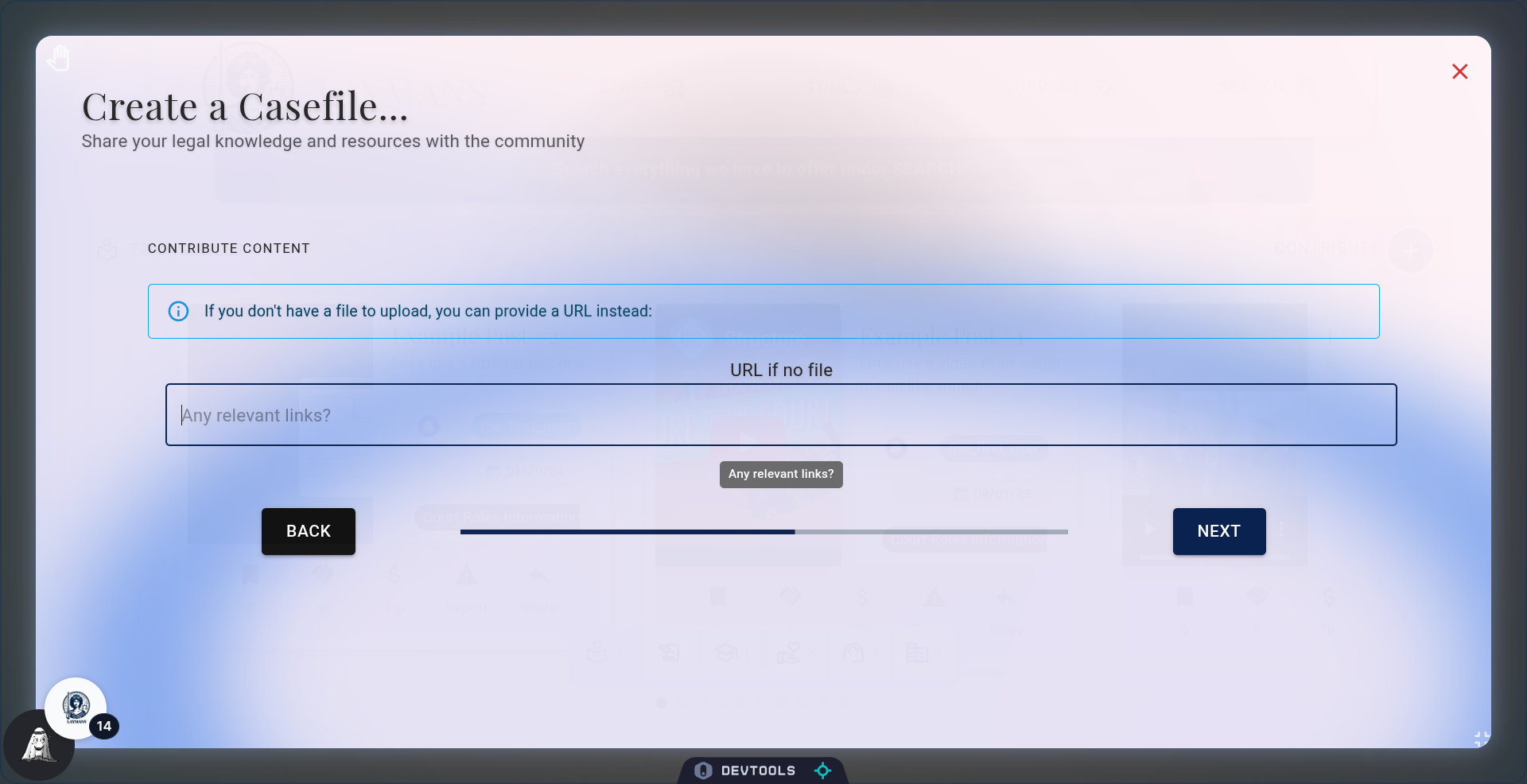
6. Add a link
Most casefiles will be links to other content -- and, that's fine! Link that article or blog post you want to share and we'll categorize it, and keep a version for you to use with AI. Some tips: direct links to files like PDFs, images, and videos are handled specially and shown directly. Social media posts are also shown specially. However, it's usually better to upload the file outright if you can...
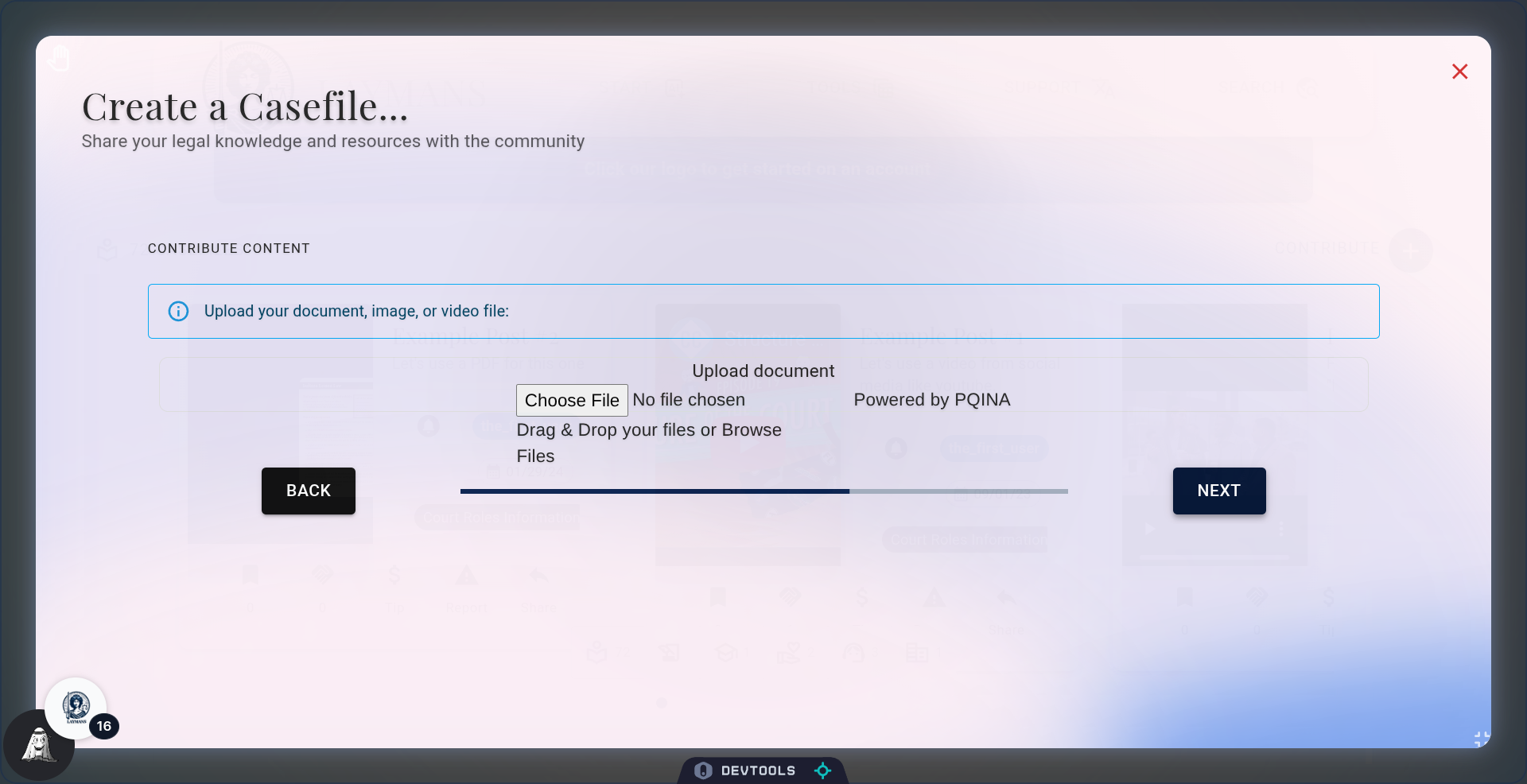
7. Upload that file
Like here! Uploading the media file, be it a video, document, or image, is usually best -- as it makes it easier for others to download the file too. We still do the same secure processing to make the file easier to use within your legal materials.
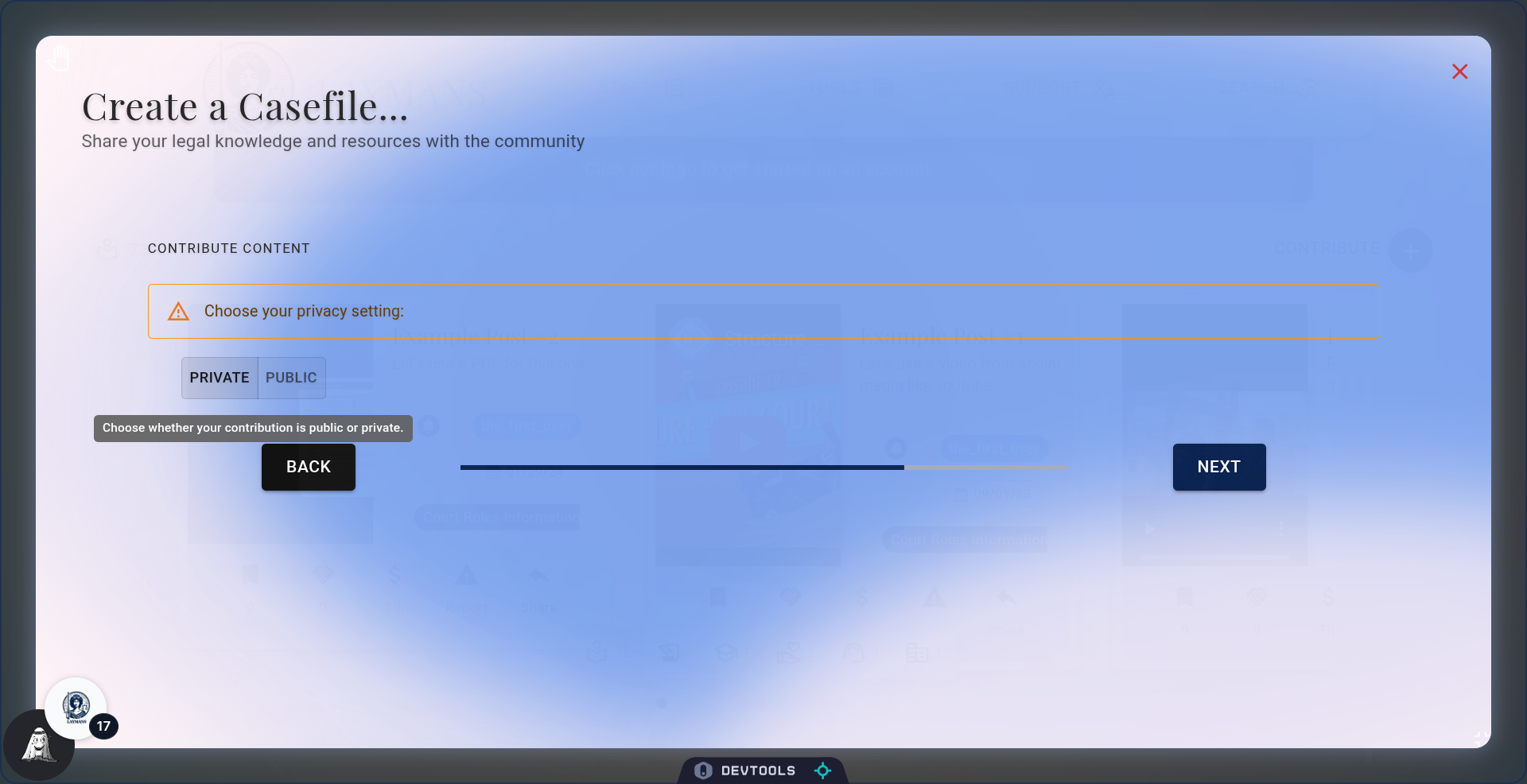
8. Casefiles can be Private OR Public
This is the most important step! Private or Public? Public casefiles are shared with the larger Laymans community publicly and are associated with your account; casefiles that are public events, questions, or memes, should be public. However, casefiles that are part of a case, an internal meeting, or evidence should be private! You can always change it, but be careful!
9. Extra Features!
So we've been talking over and over about all the things a casefile could be; now its finally time to show you.
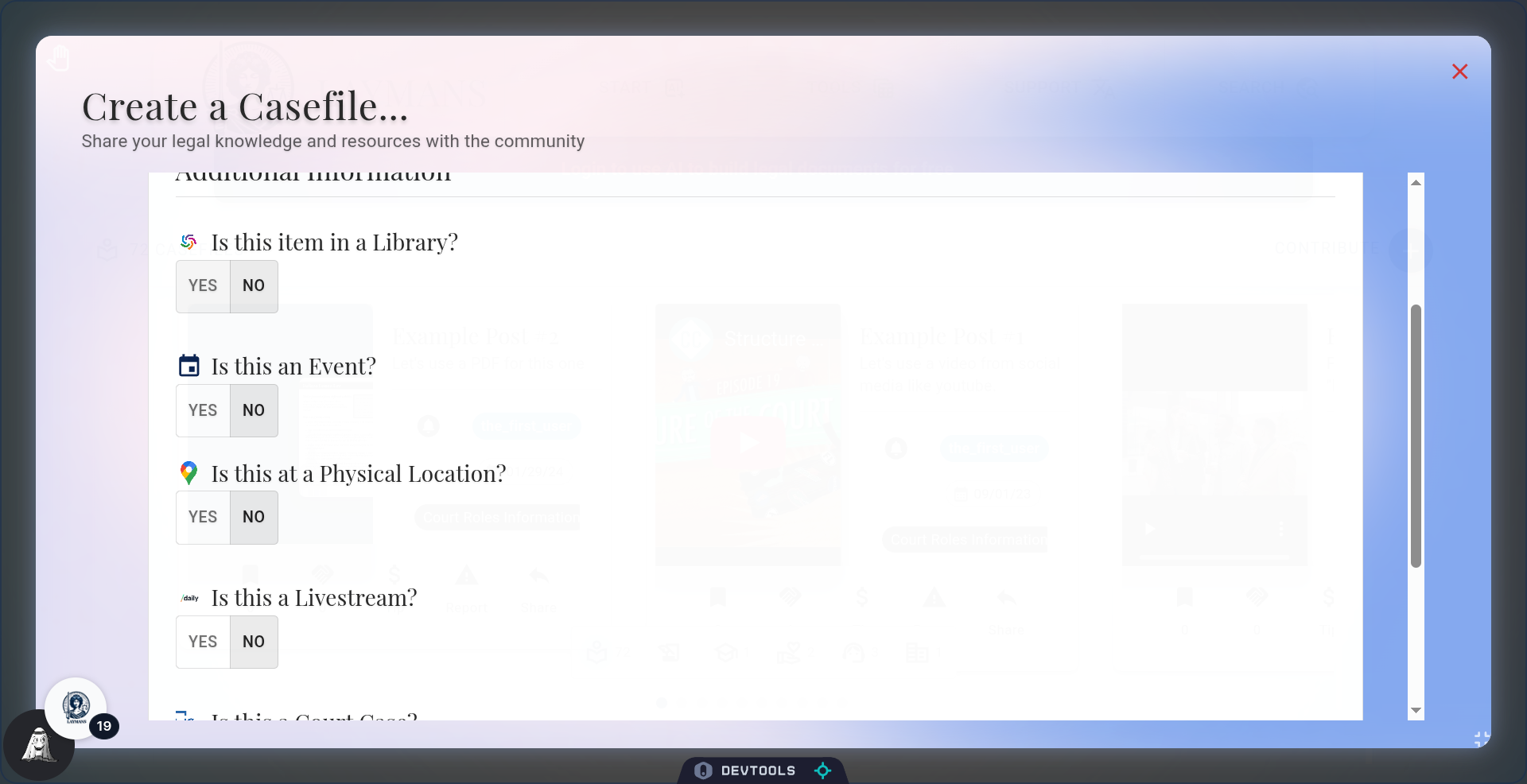
10. The Library Section
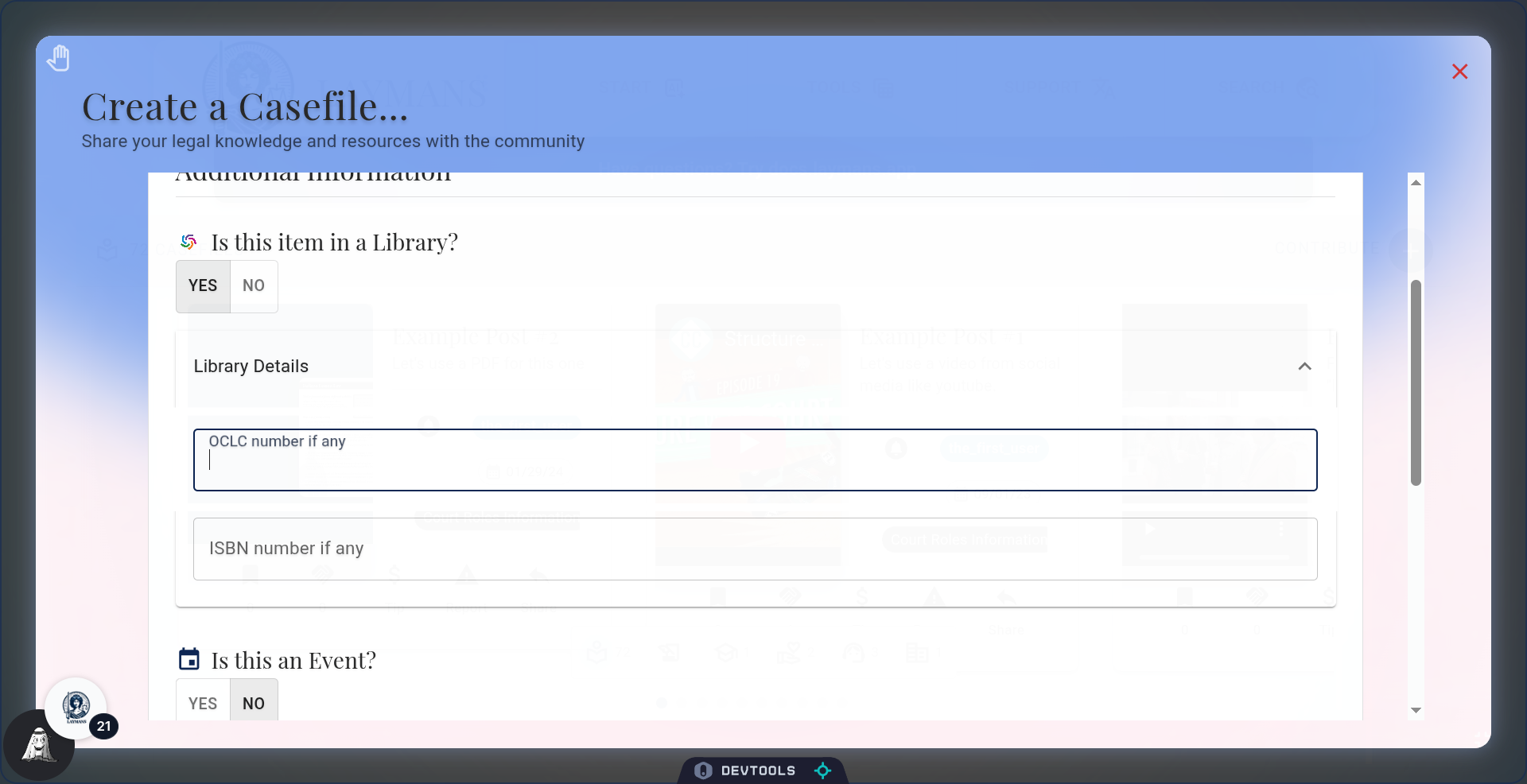
If your resource is in a physical library somewhere -- even if it's a small one on your cul-de-sac -- register it and add the details. This way we are able to create a rich network of physical legal materials for those who need it.
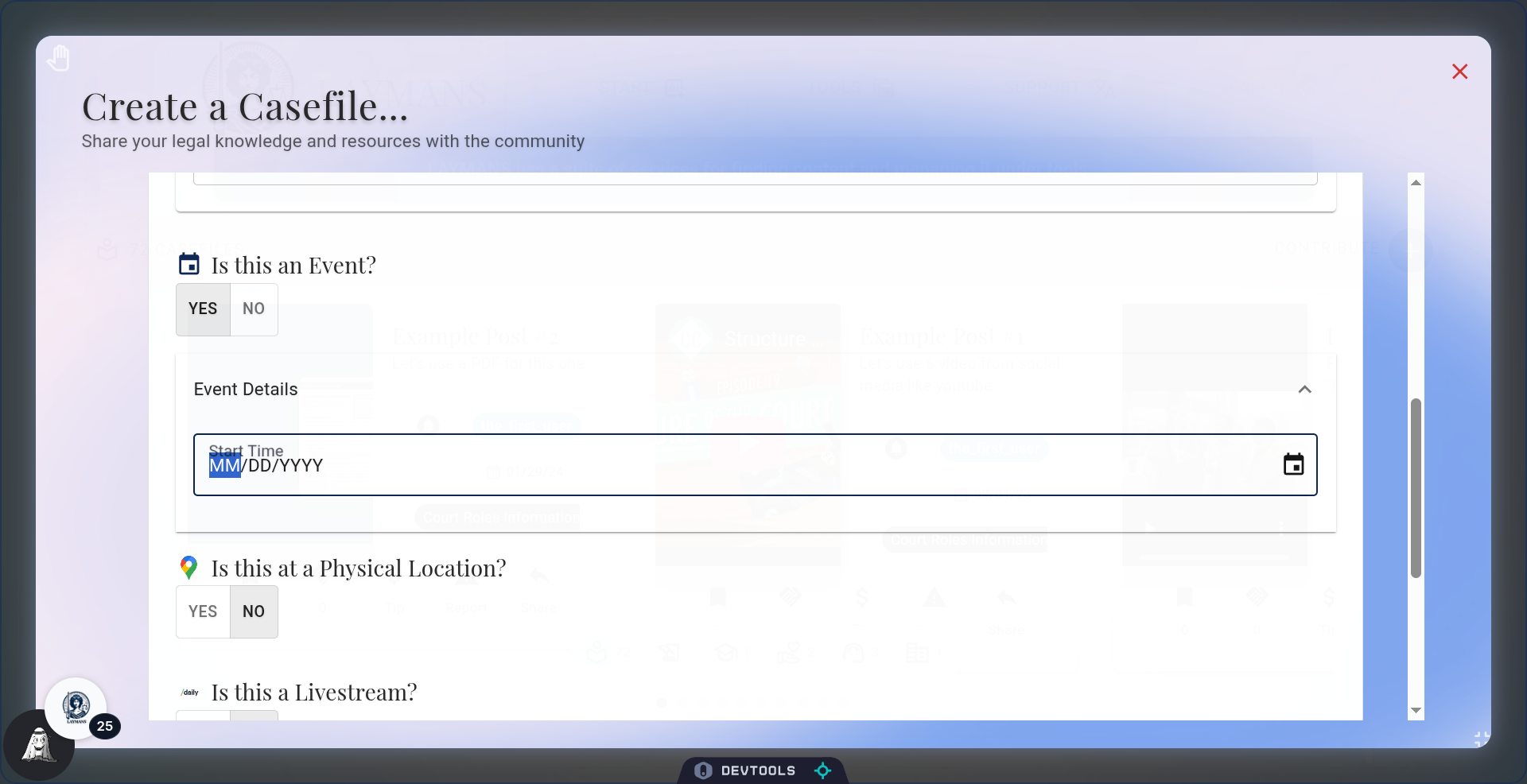
11. Need a Calendar Invite? Set a time.
In the Event Details section all you need to do is set a start time to create a calendar invite casefile. This is great for tracking meetings and sharing them when working together on a case as these events will show up on the case timeline and as a notification for everyone on that case.
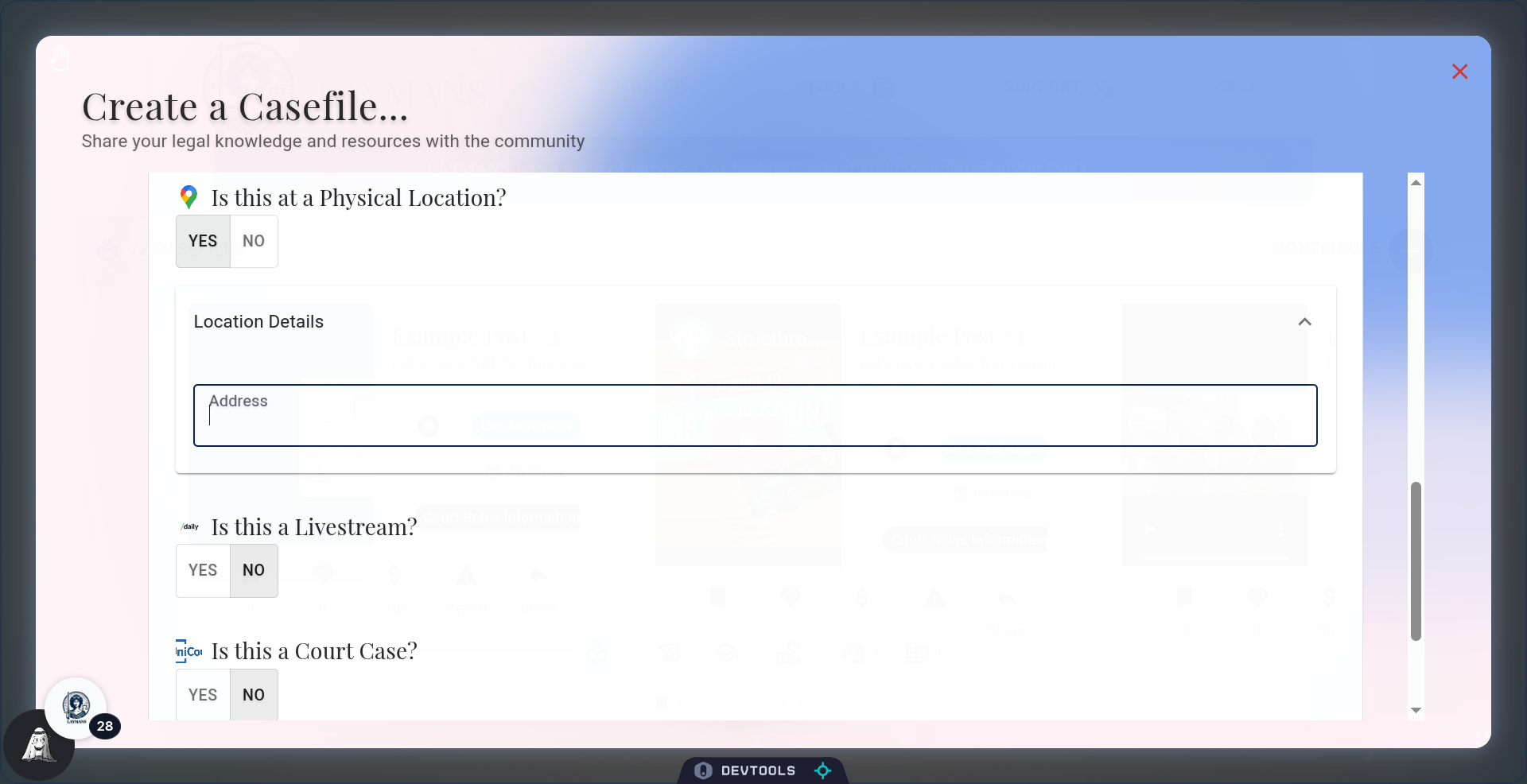
12. Need to meet somewhere? Add an address.
You can also store physical locations, such as courthouses, law offices, or non-profits, as casefiles. By adding an address, the casefile shows up on your Layperson's map and, now, people can simply click and know where to go.
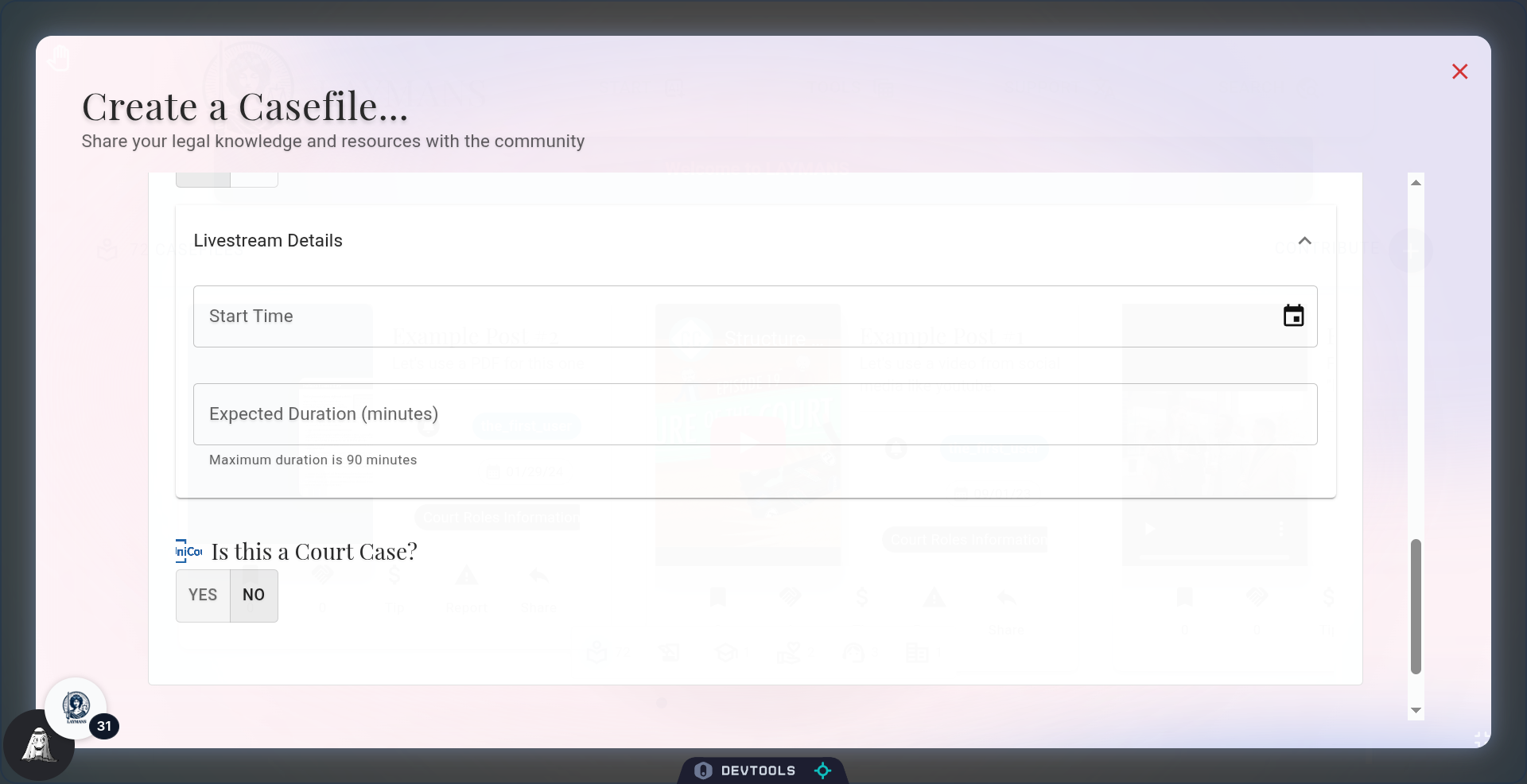
13. The Virtual Meetings Section
Yes, we do virtual meetings too! Choose a start-time for the notification and your expected duration. You'll be notified when your laymans' virtual meeting room is ready. If your casefile is public, anyone with a link to the casefile can join the meeting, however, the meeting will be set to "livestream." Meaning, they can't really engage. If it's private, then you'll get a full video conference. Set up and share virtual meetings in advance with laypeople to connect and with lawyers to strategize. Review the Broadcasts guide for more.
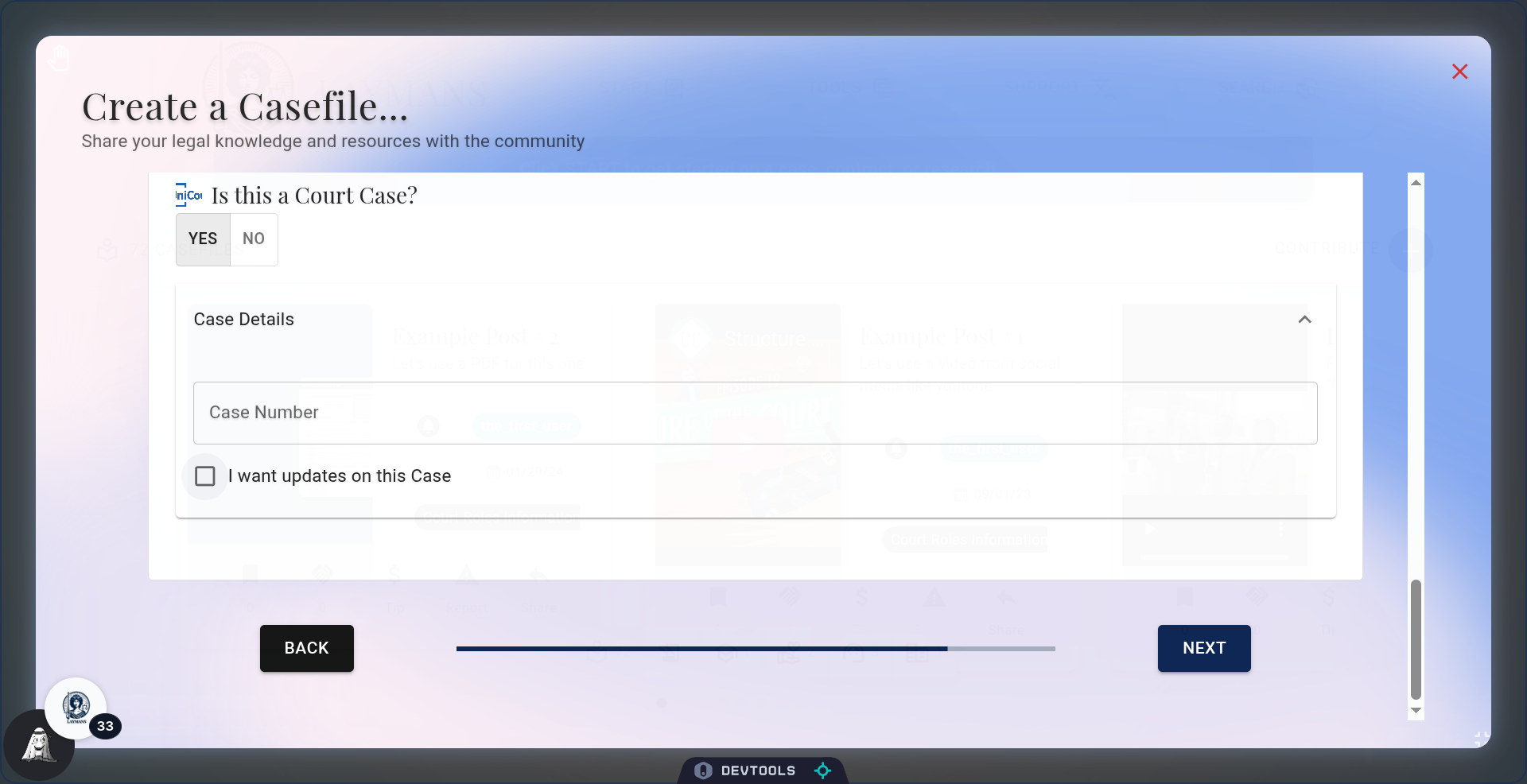
14. The Citation Section
Finally, you can put in the case number of any case and have it tracked -- courtesy of Unicourt. We'll notify you of any changes with your court case in real time and add the court case's metadata to other legal materials you attach this casefile to. By the way, all casefiles are turned into Indigo Book citations -- including Unicourt cases. Neat huh?
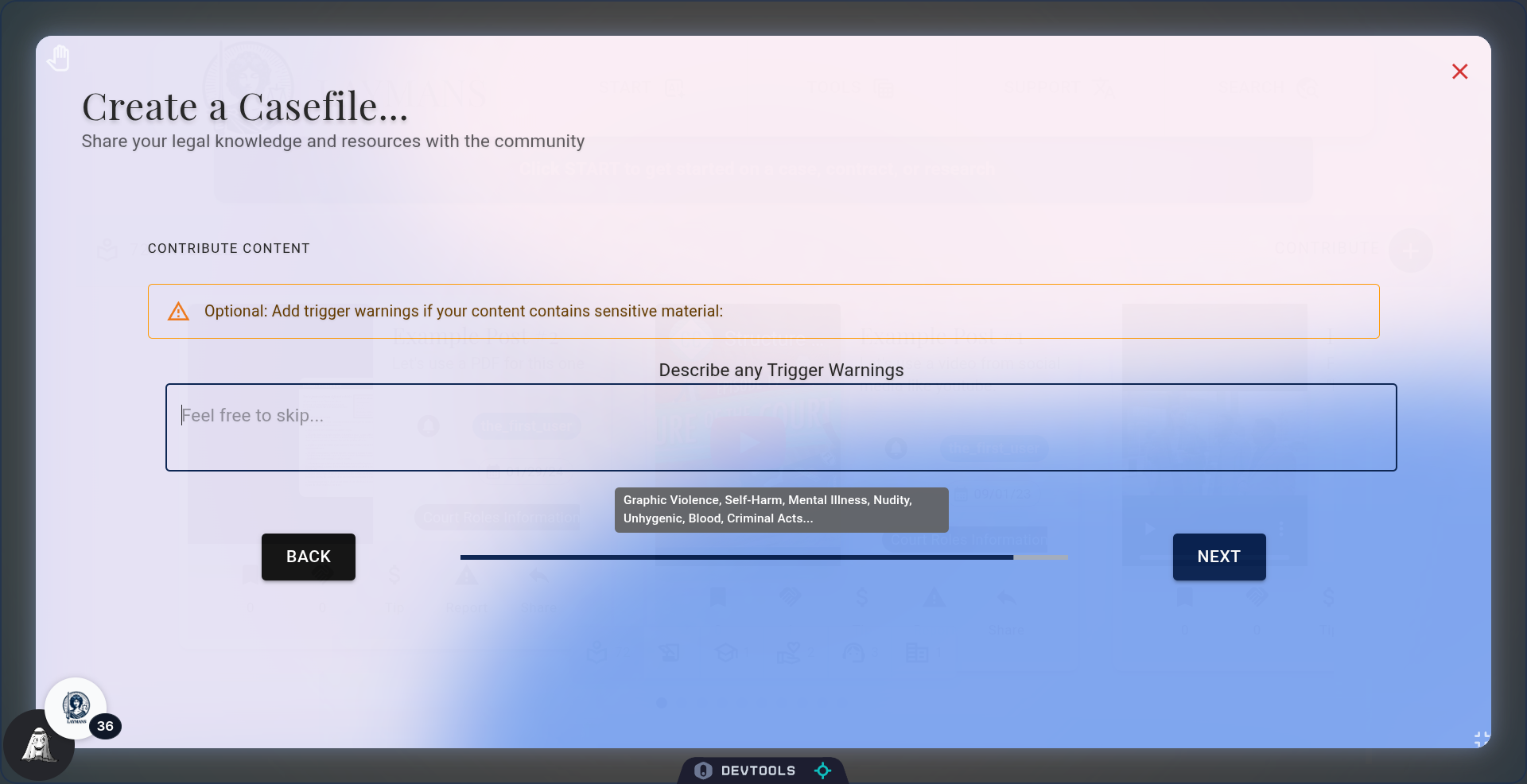
15. Make sure to note NSFW Materials
Not all legal materials are easy to watch. For the materials that are not so safe for public consumption, like nudity, gore, or violence, please describe the trigger warnings in advance. Both judges and lawyers will thank you for it.
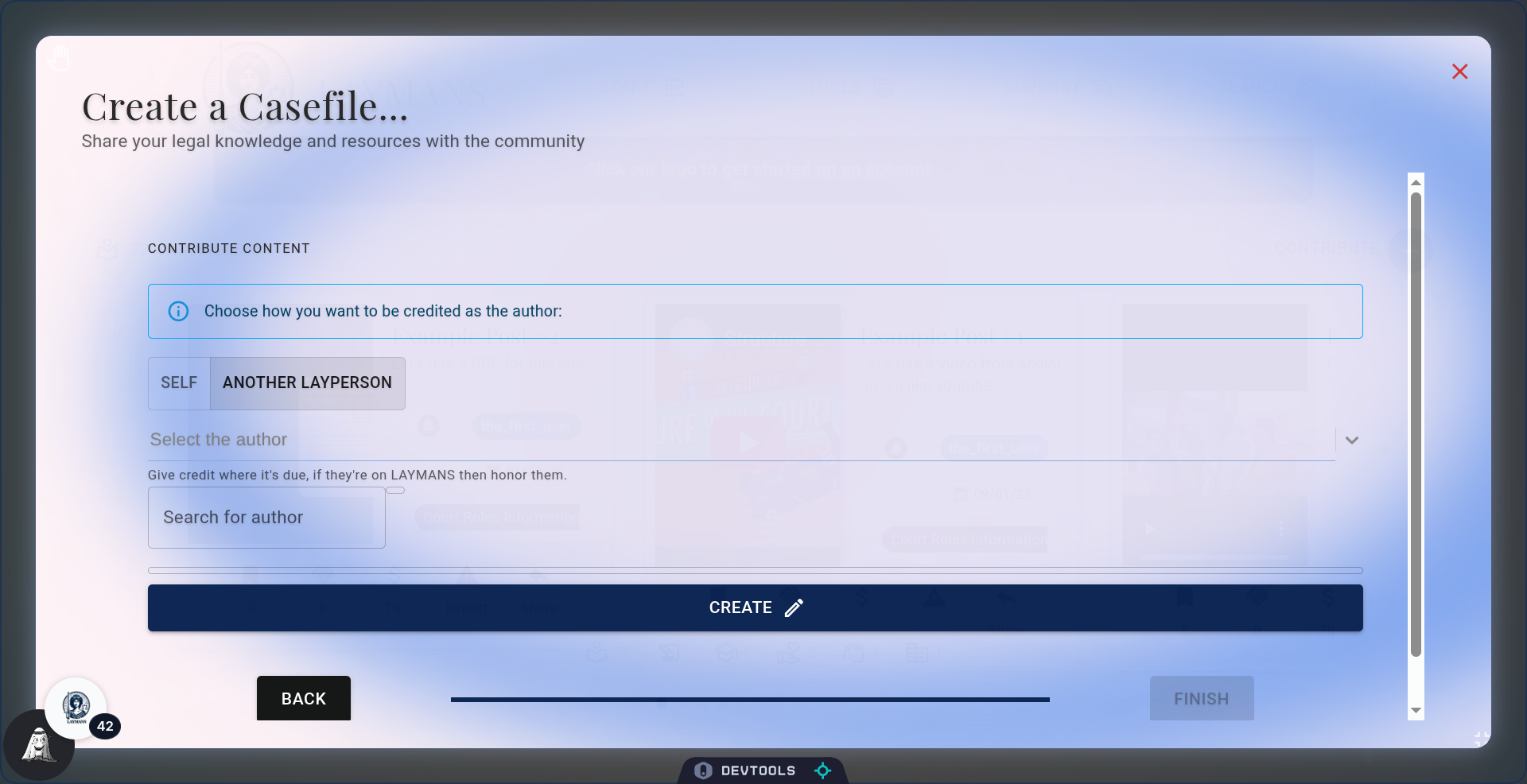
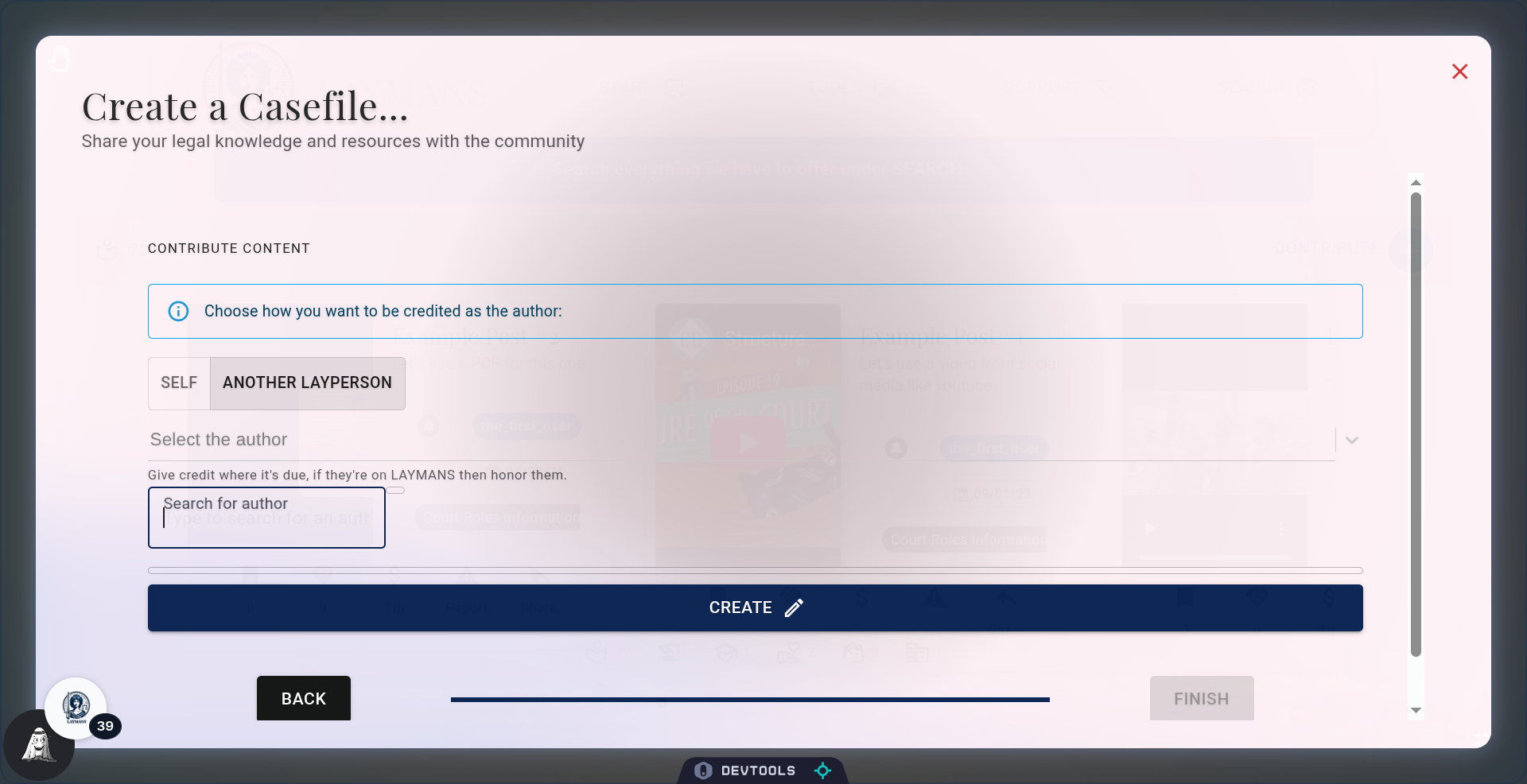
16. Giving Credit where it's due.
We don't expect you to write the entire UCC alone. If you're not the author then find them on LAYMANS, if they're not on laymans write them up and we'll find them for you. This way they get credit for helping the movement, and you get credit for finding them.
17. That's all!
You've done it. You've now made the first part of a case, course, community, or someone's day. You'll be navigated to your new casefile shortly; and you can find your previous casefiles at www.laymans.app/bookmarks. Review the cases, courses, and mass action guides to learn how to turn resources into action using AI.