CRITICAL - Complete This First
Encryption protects your legal documents, messages, and case files. Without encryption:
- Your messages cannot be end-to-end secured
- You cannot use secure attorney-client communications
- Your documents lack cryptographic verification
Complete this setup immediately after registration. If you lose your master key file, you may lose access to encrypted messages permanently.
How to get Encrypted on Laymans
Go to www.laymans.app
1. Introduction
Laymans uses end-to-end encryption to protect messages between users, verify signatures, and secure legal data. Encryption allows Laymans to be a truly independent legal research platform and we offer it to all our users for free.
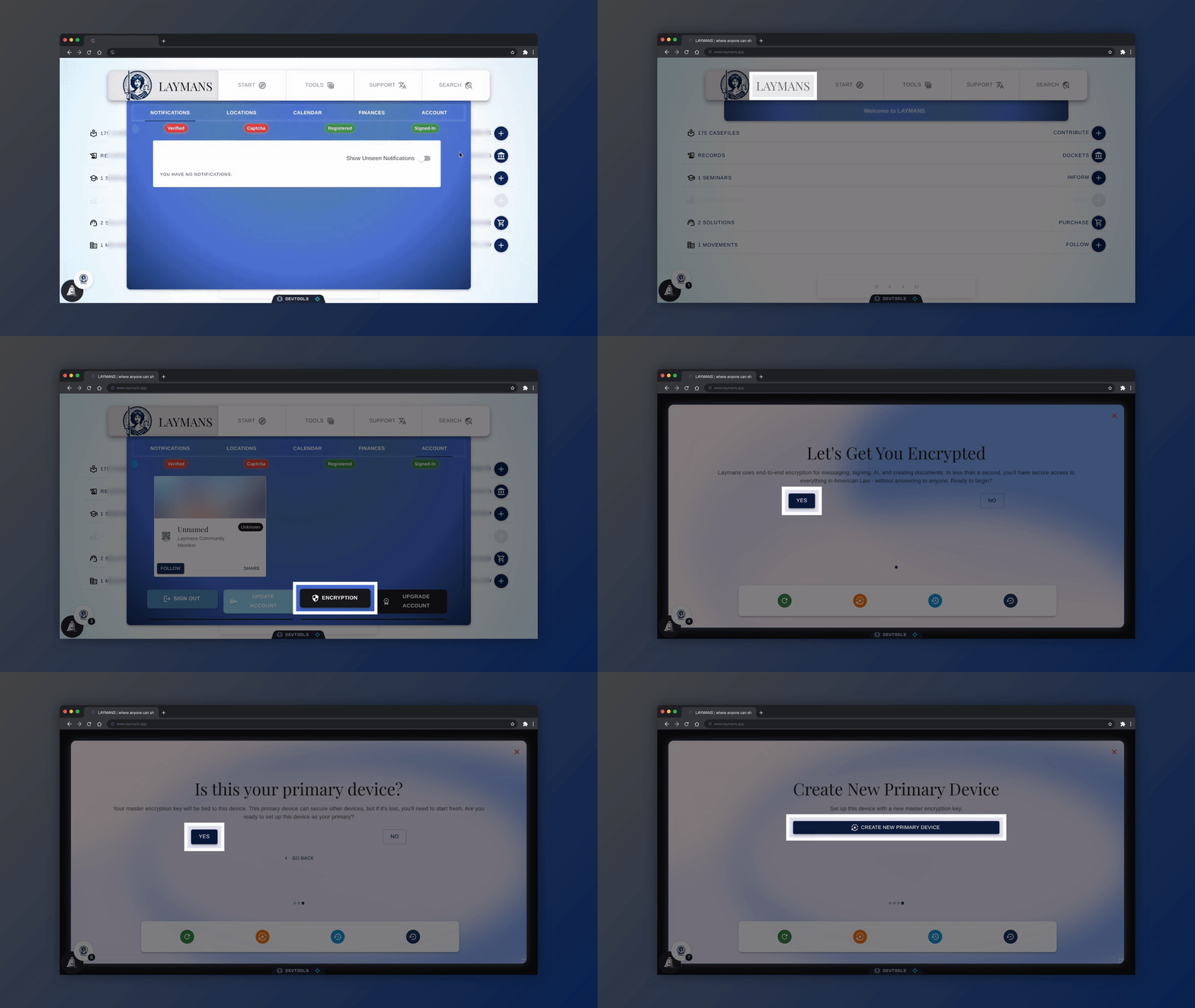
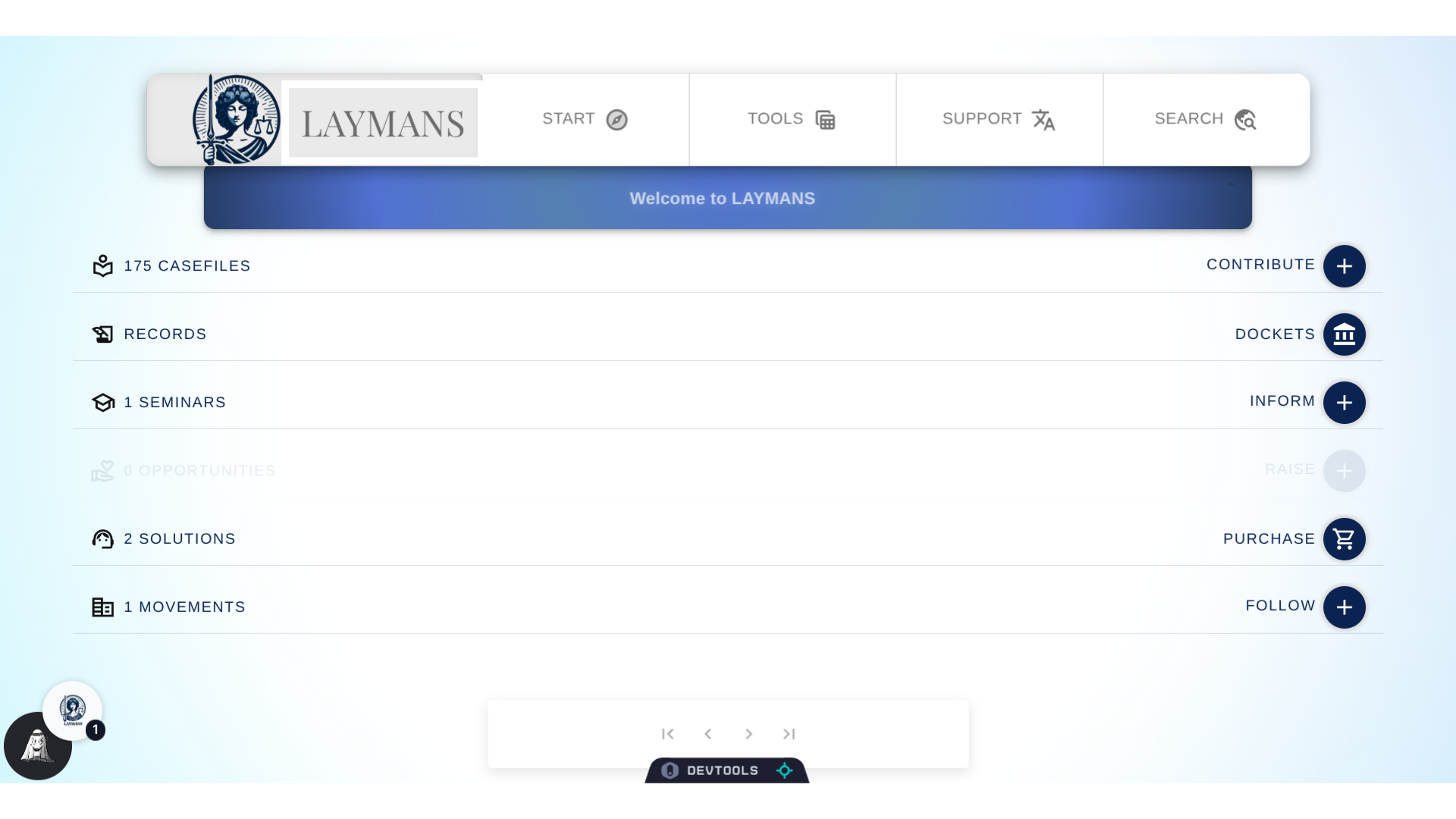
2. Click "LAYMANS"
If you're not encrypted you will notice -- as the encryption wizard will pop up each time you log in. But for demonstration, you can find the wizard by first clicking on "LAYMANS" on the Power Bar.
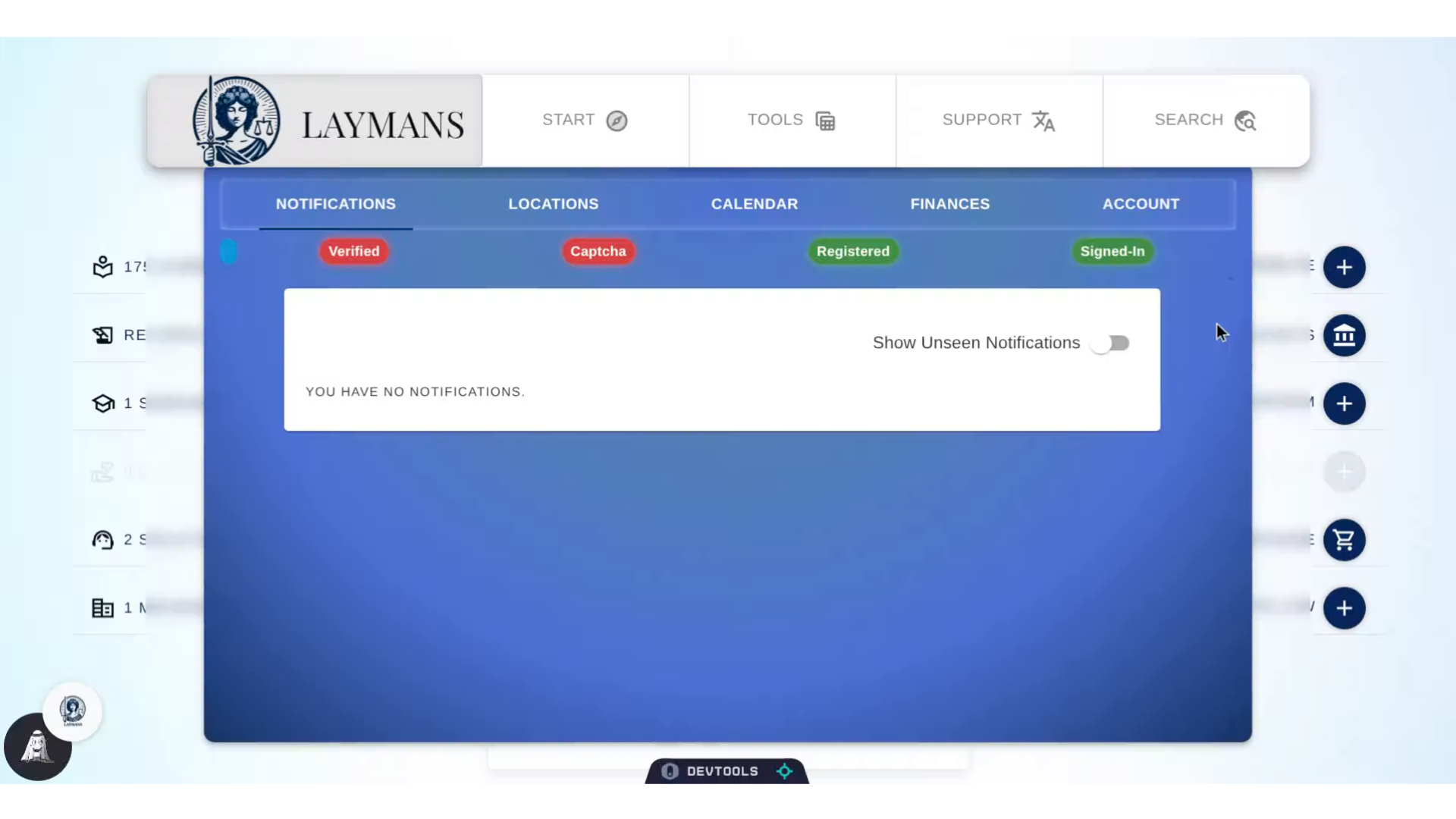
3. Click "ACCOUNT"
Another place you can see if you're currently enjoying encryption is in the Notifications tab. Here you will see a small button that will show red (for unencrypted) or green (for encrypted). Let's continue on to the Wizard by clicking "Account"
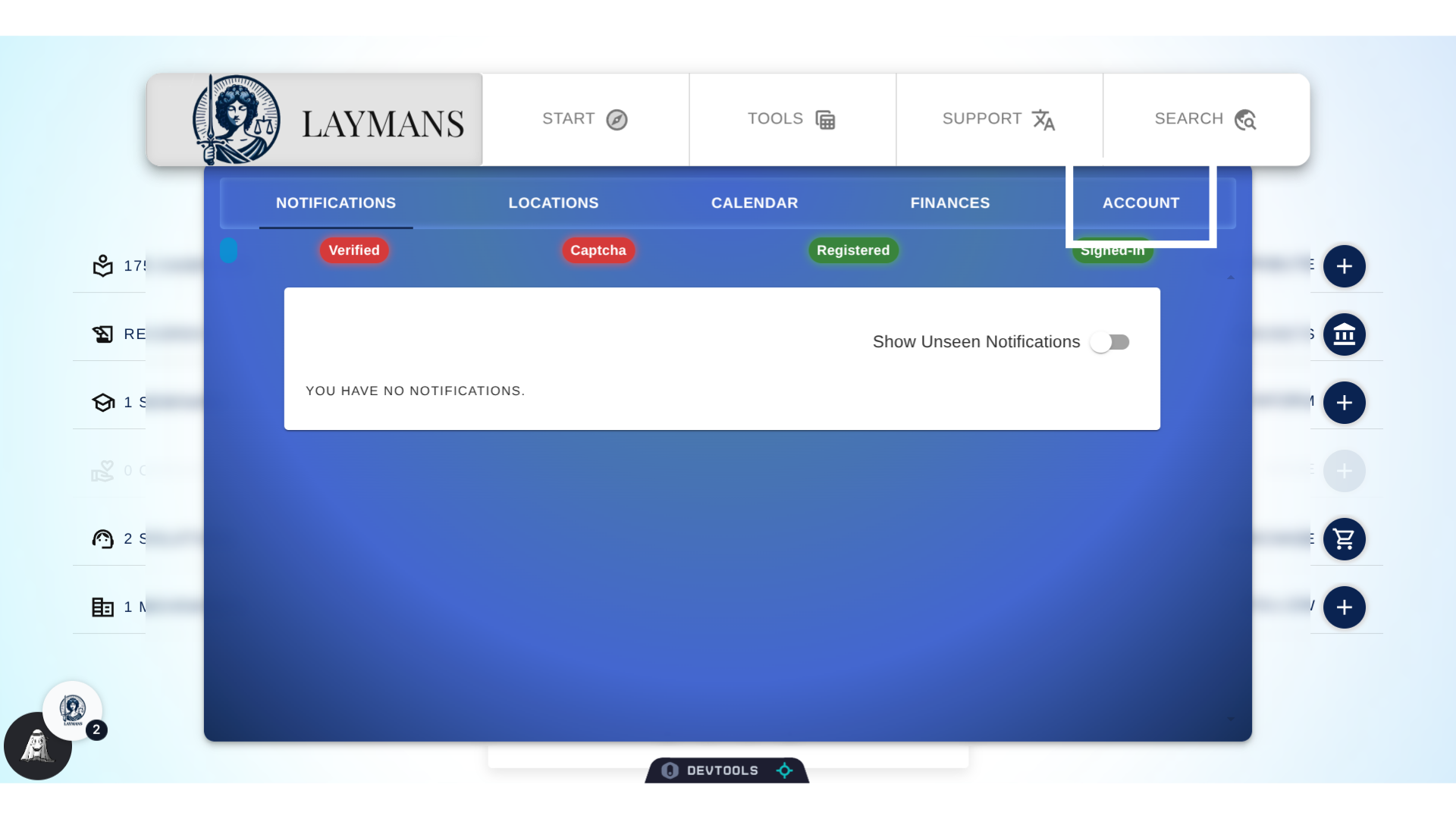
4. Click "Encryption"
Account is a hub for all account wide features: For instance, you can upgrade to a professional account or update your display name, or even access whistleblower services. For now we are concerned with the button "Encryption"...which will pop open our wizard...
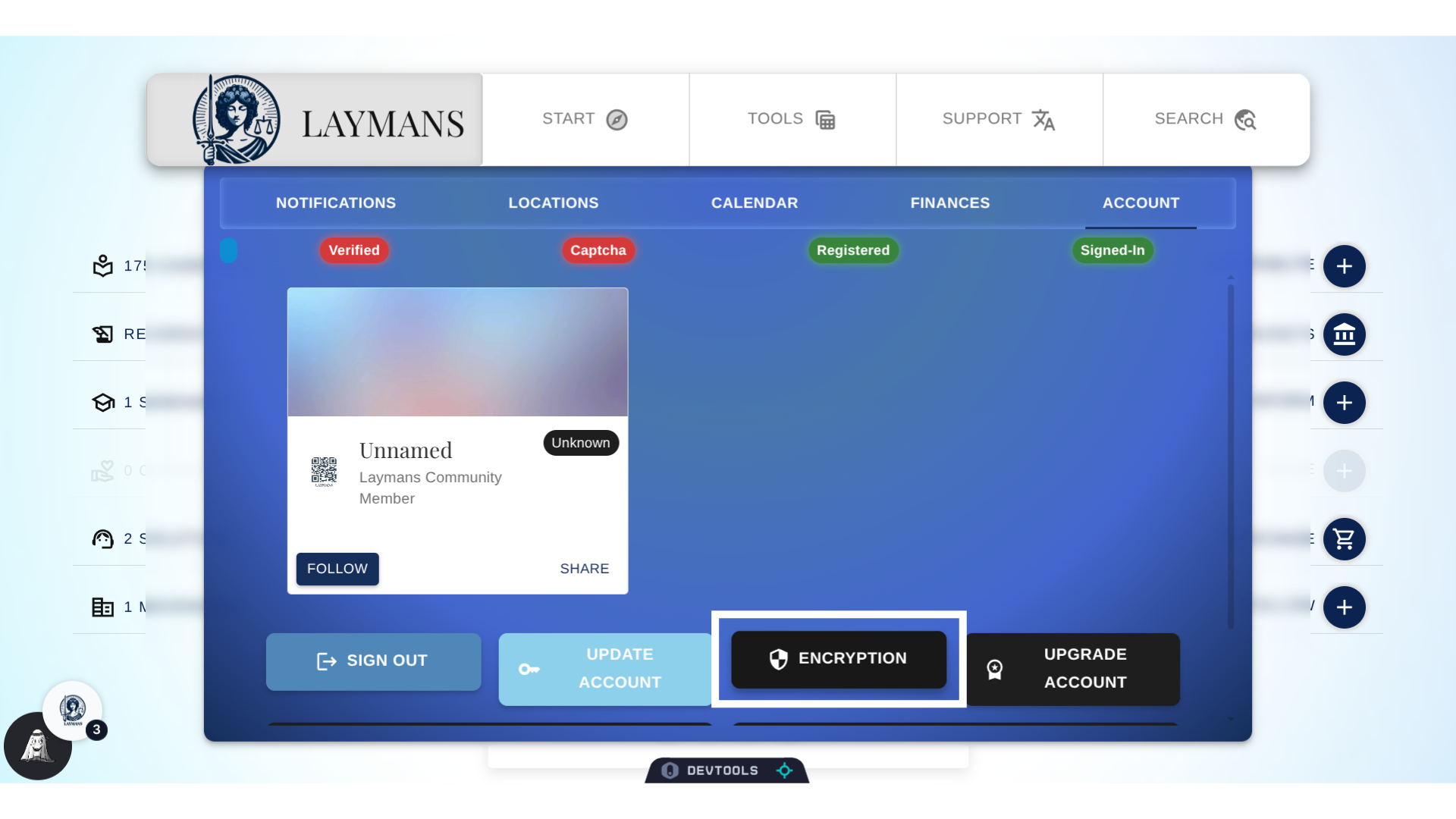
5. Click "Yes"
The Encryption Wizard is your home for all things encryption: You can do a lot, such as set up the current device for end to end encryption, or use this device to encrypt another, or re-encrypt from a backup, and so on. For now, we are just going to to do the basic encryption flow by clicking Yes to get started
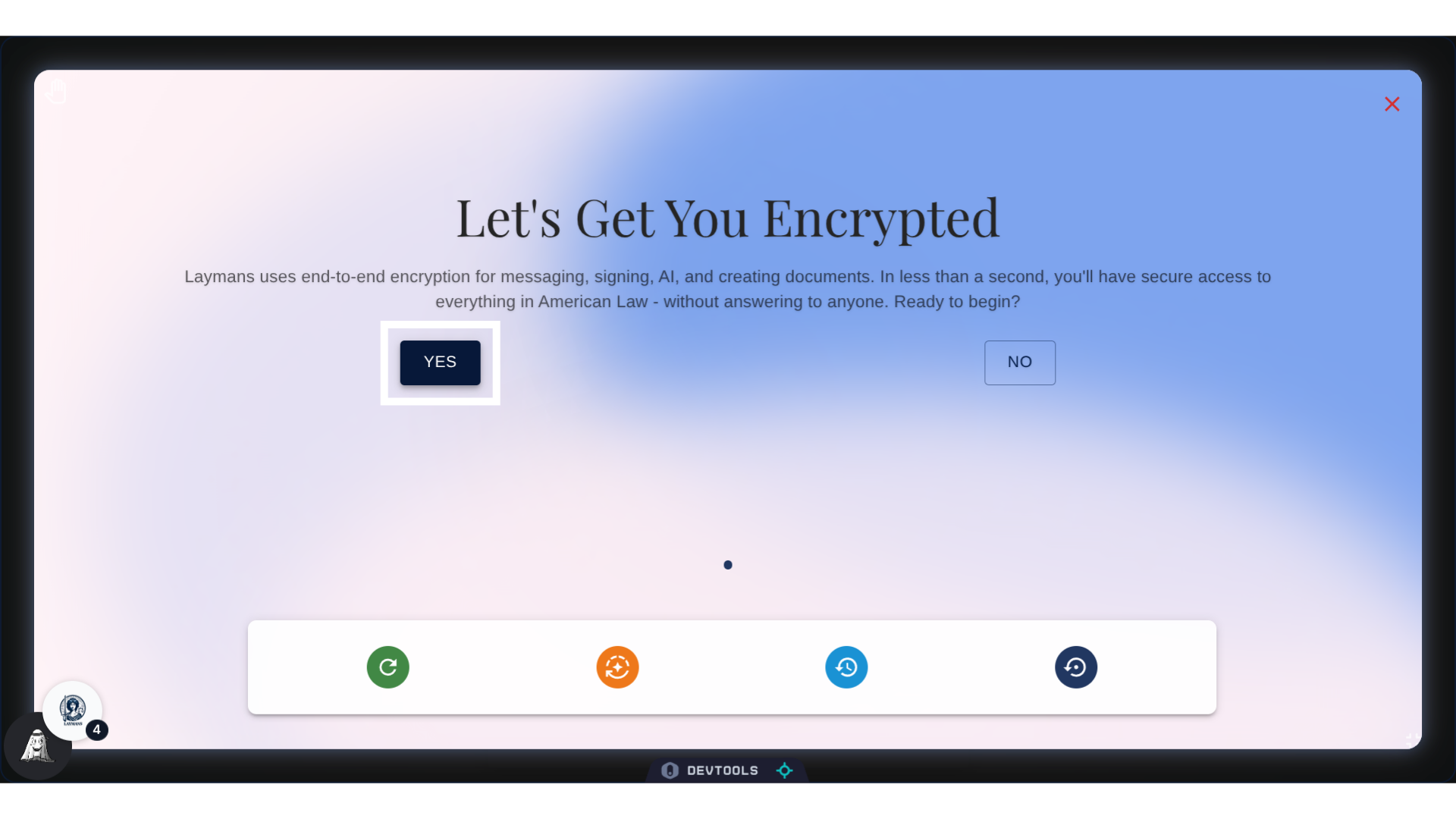
6. Click "Yes"
The Wizard will help you figure out the right encryption pathway to protect your previous messages. Laymans uses the Signal protocol - yes, like Signal(TM) - that means we do not store unencrypted messages. So you want to make sure you answer the questions
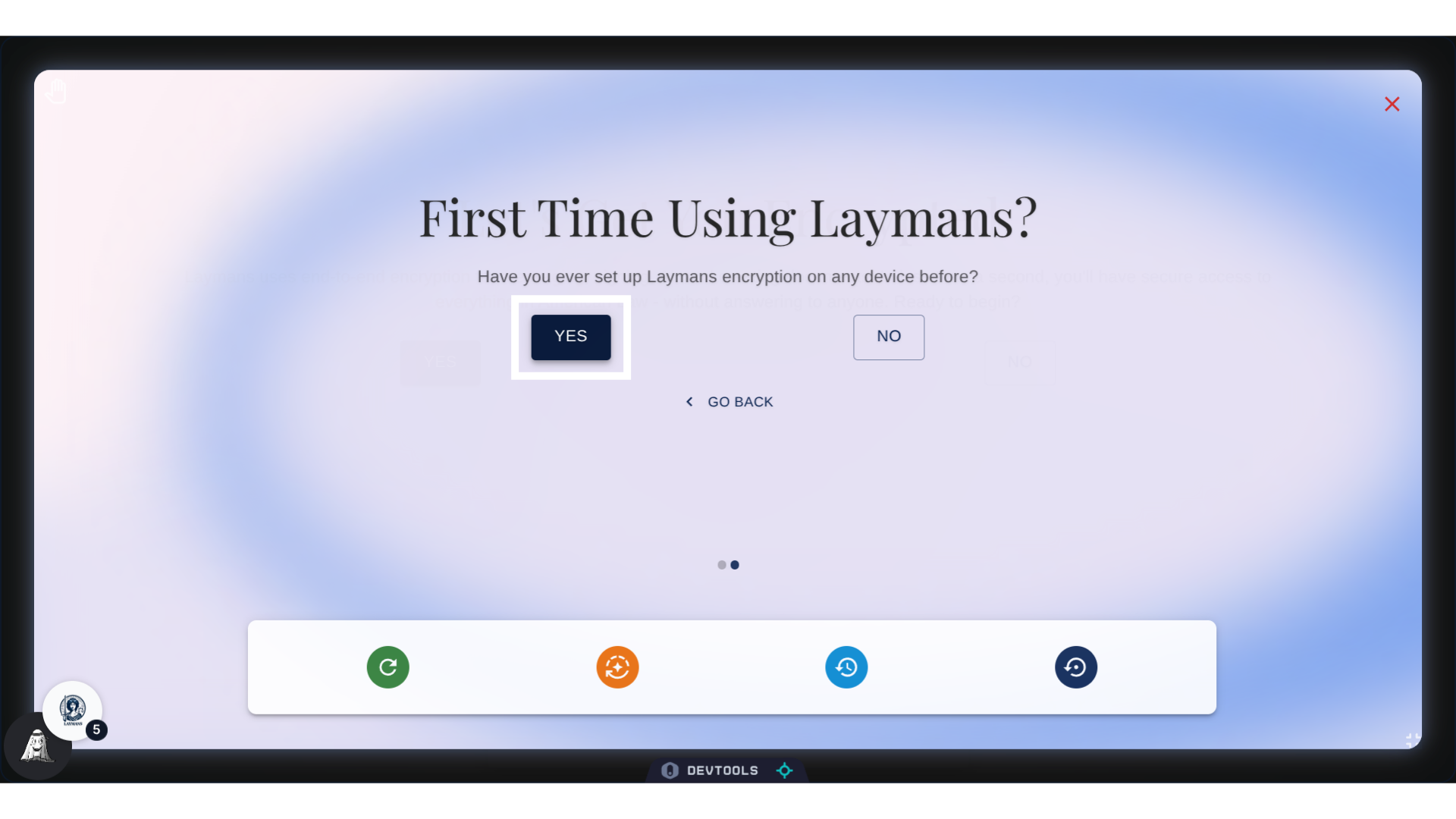
7. Click "Yes"
That also means that if you lose an encryption key you may lose the data related to that key. Specifically messages and history. Documents and cases will remain safe in IPFS storage.
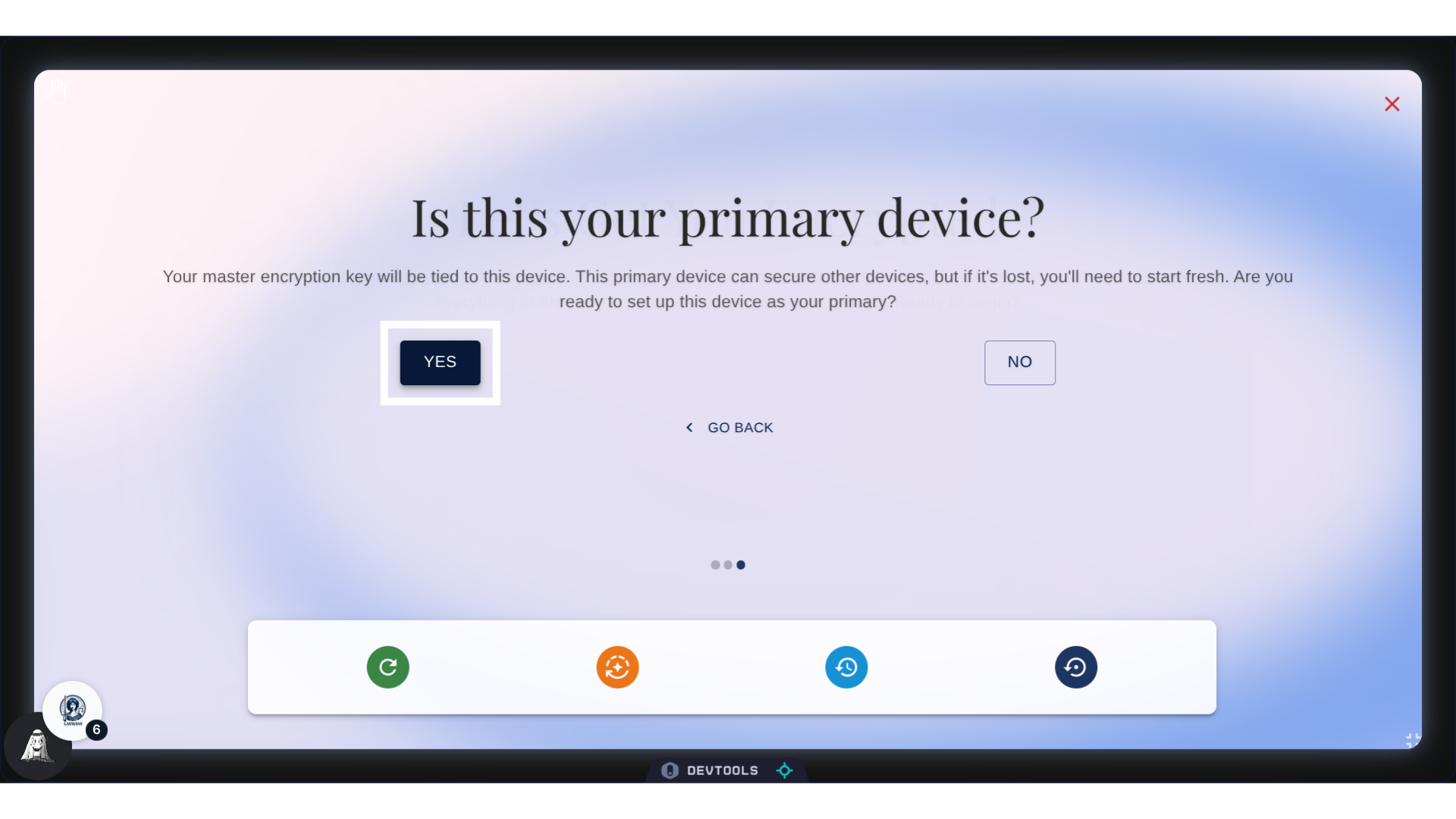
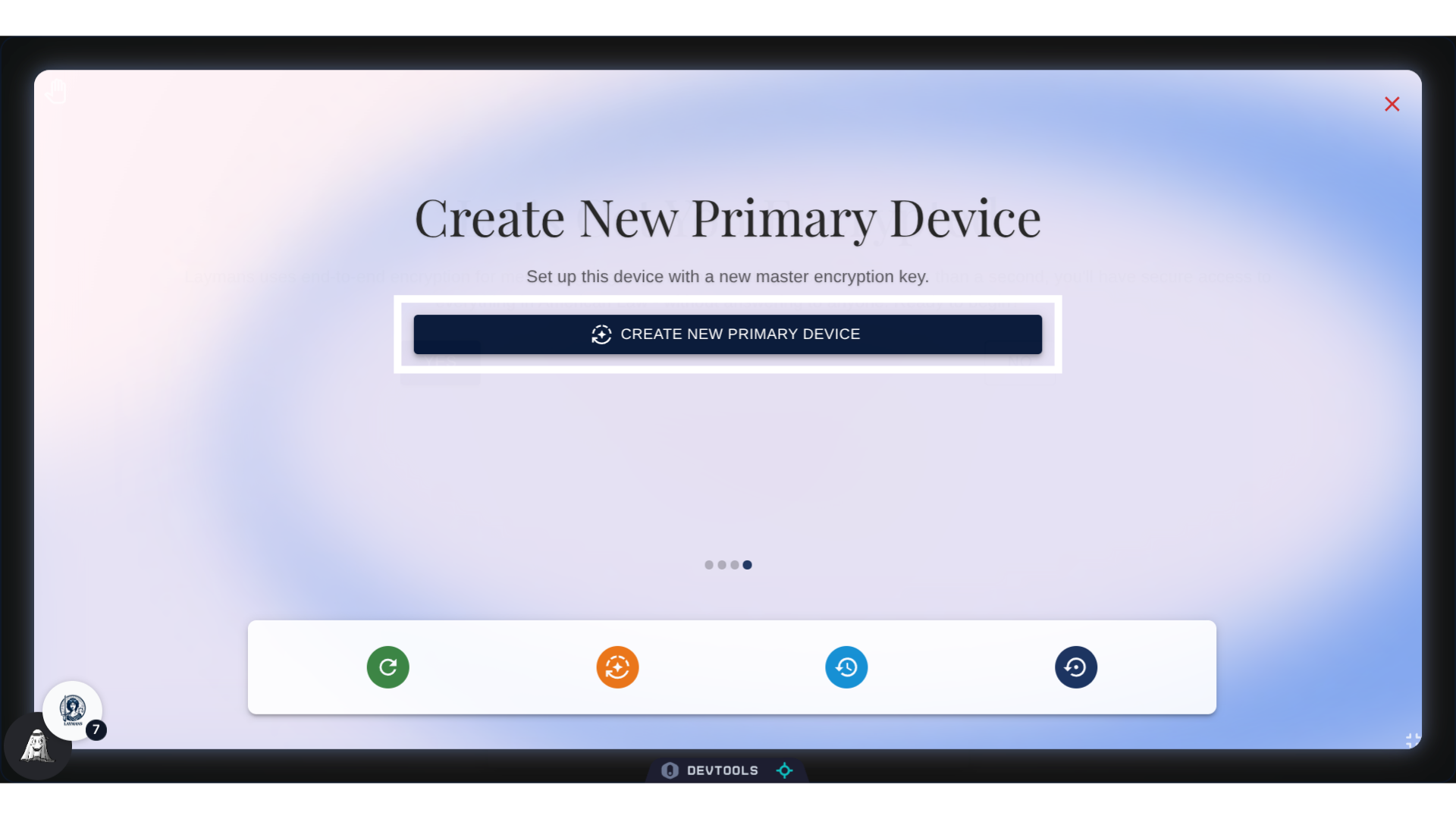
8. Click "Create New Primary Device"
Once you've answered the wizard appropriately it will present you with an option to go forward. Once you click this button you will find that the encryption process is quite automatic! A number of notifications will appear -- hopefully, confirming your encrypted status -- and you will be prompted to download and email yourself a copy of your key. This is the master key for your encryption services and is necessary to restore your messages and access on any new device. So, we highly recommend you keep it safe...Now, have fun using the law!