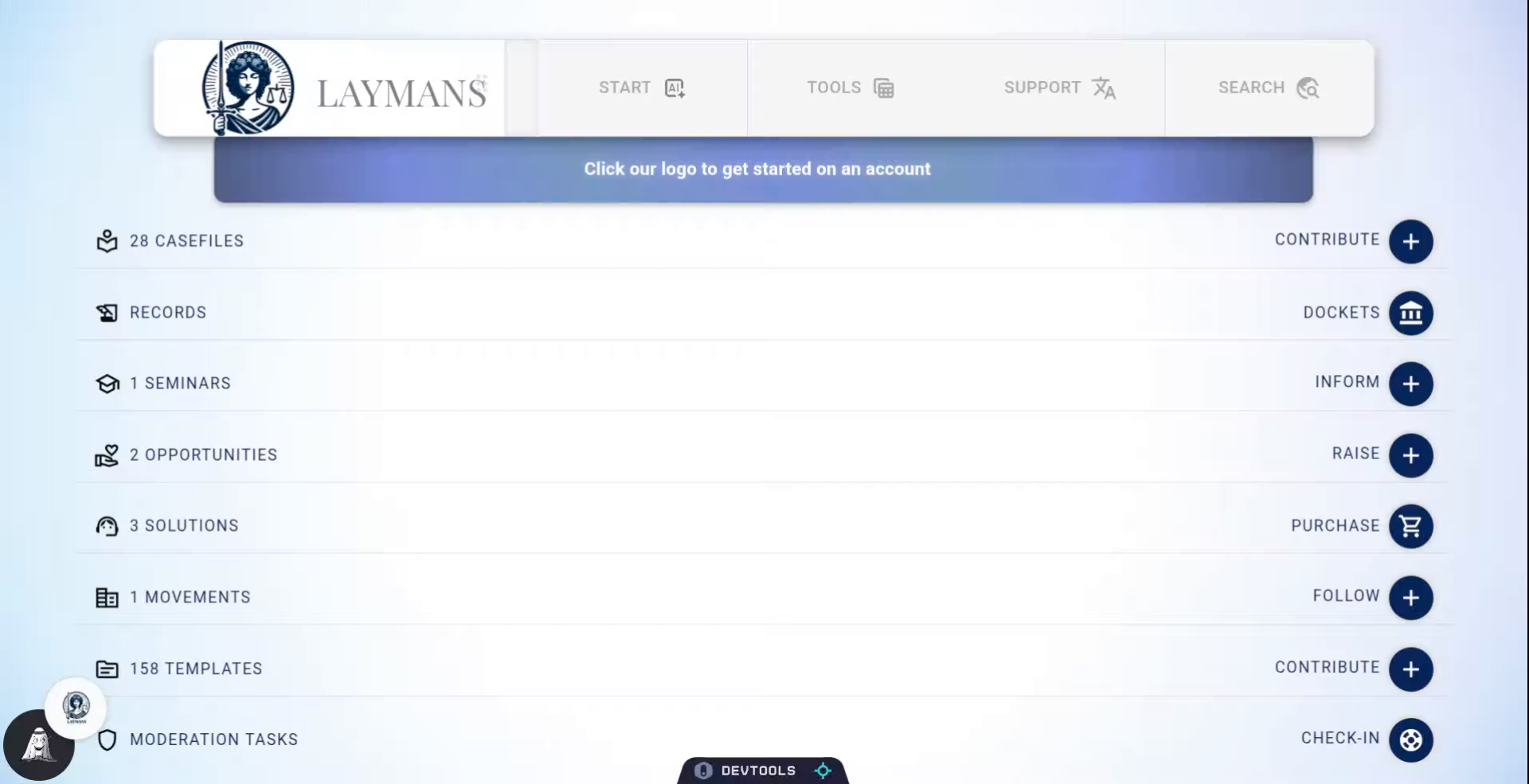
How to view your Legal Expenses and Fees on Laymans.
Go to www.laymans.app
1. Introduction
While Laymans is free, legal services usually are not. Laymans does its best to enable free self-help and access to pro bono services; but, as you continue on in your self-advocacy journey, you may accrue an expense or two. Let's see where we can access them:
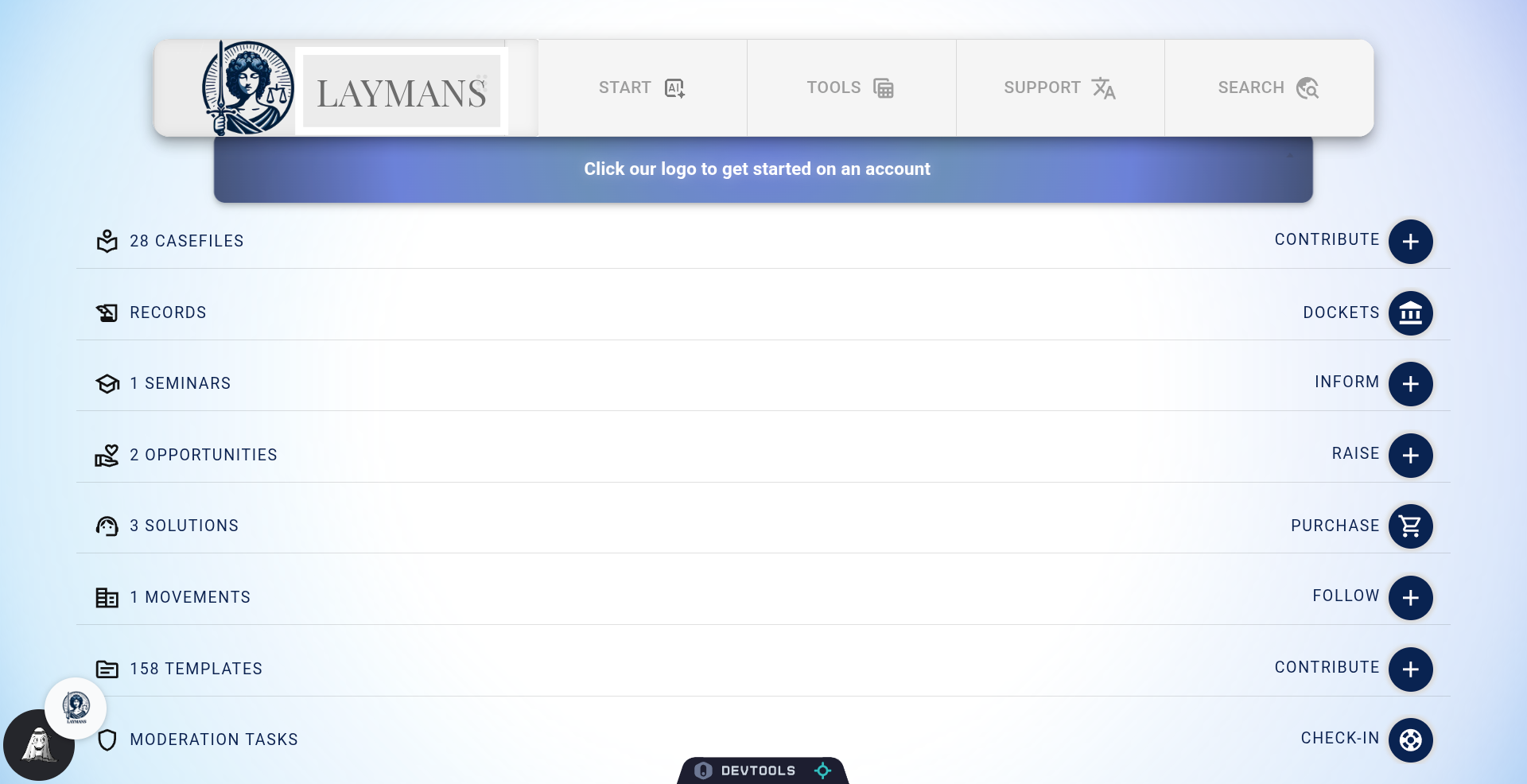
2. Click "Laymans"
To check your account health and account-wide services -- click Laymans.
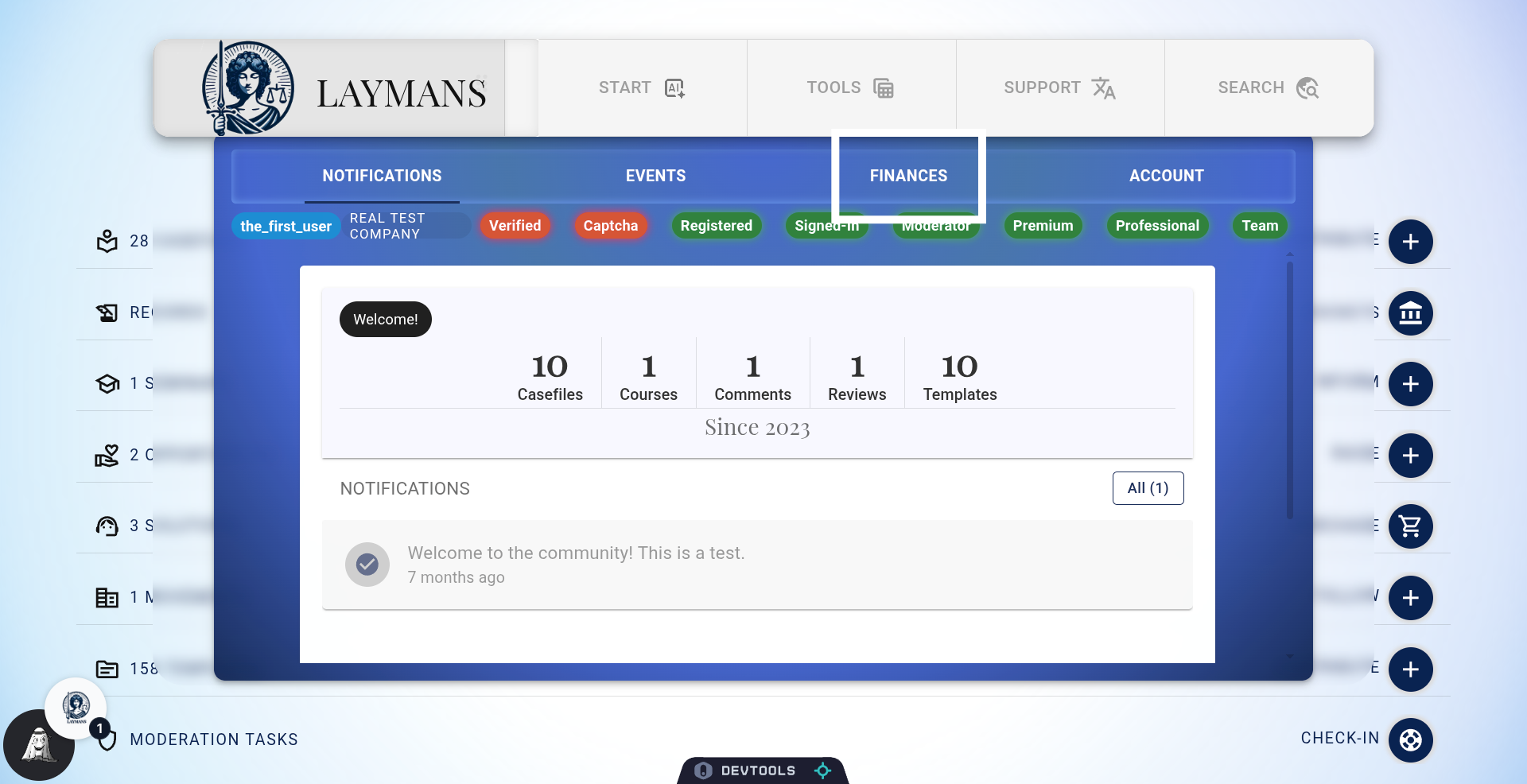
3. Click "Finances"
Click "FINANCES" to view financial details related to your legal cases.
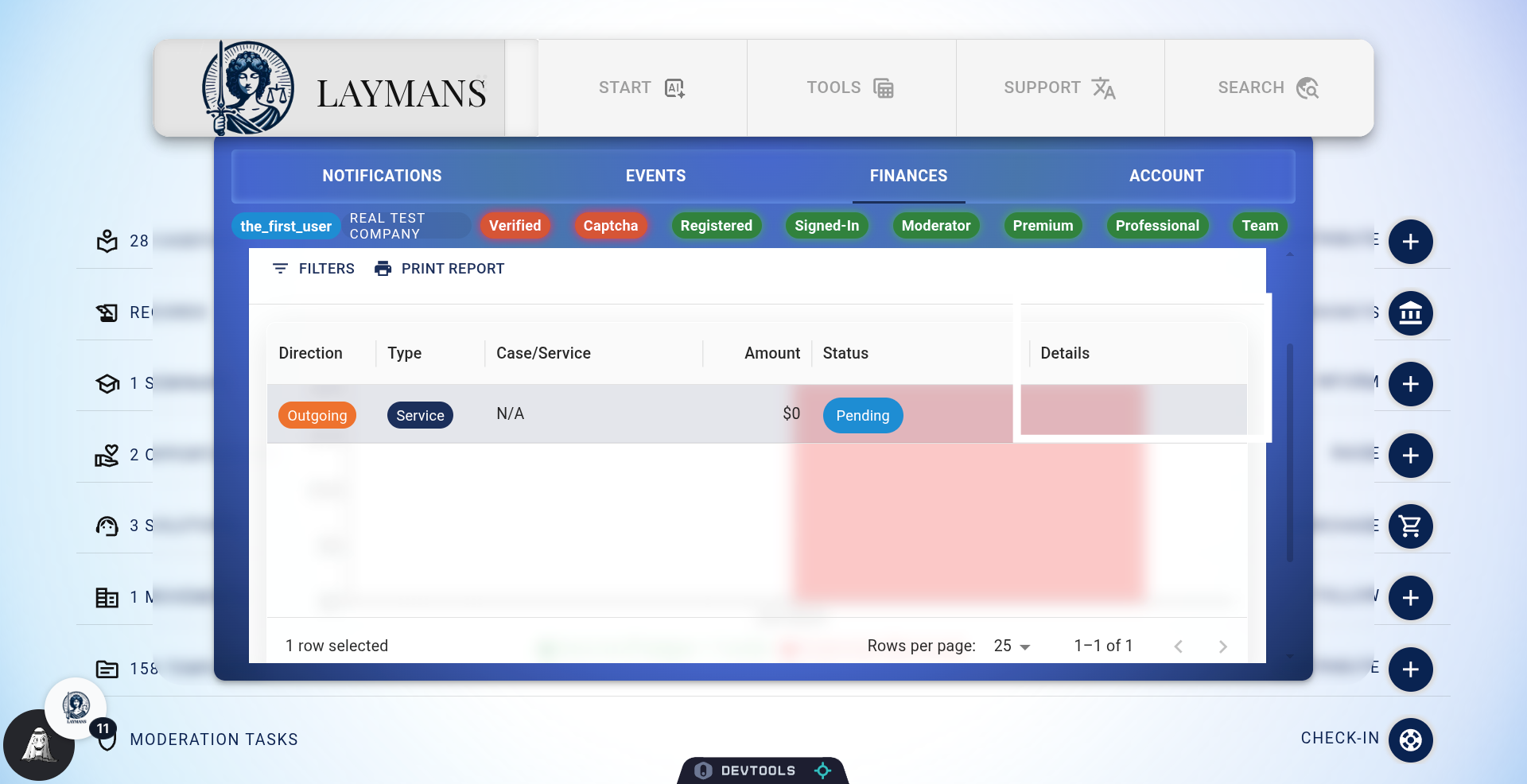
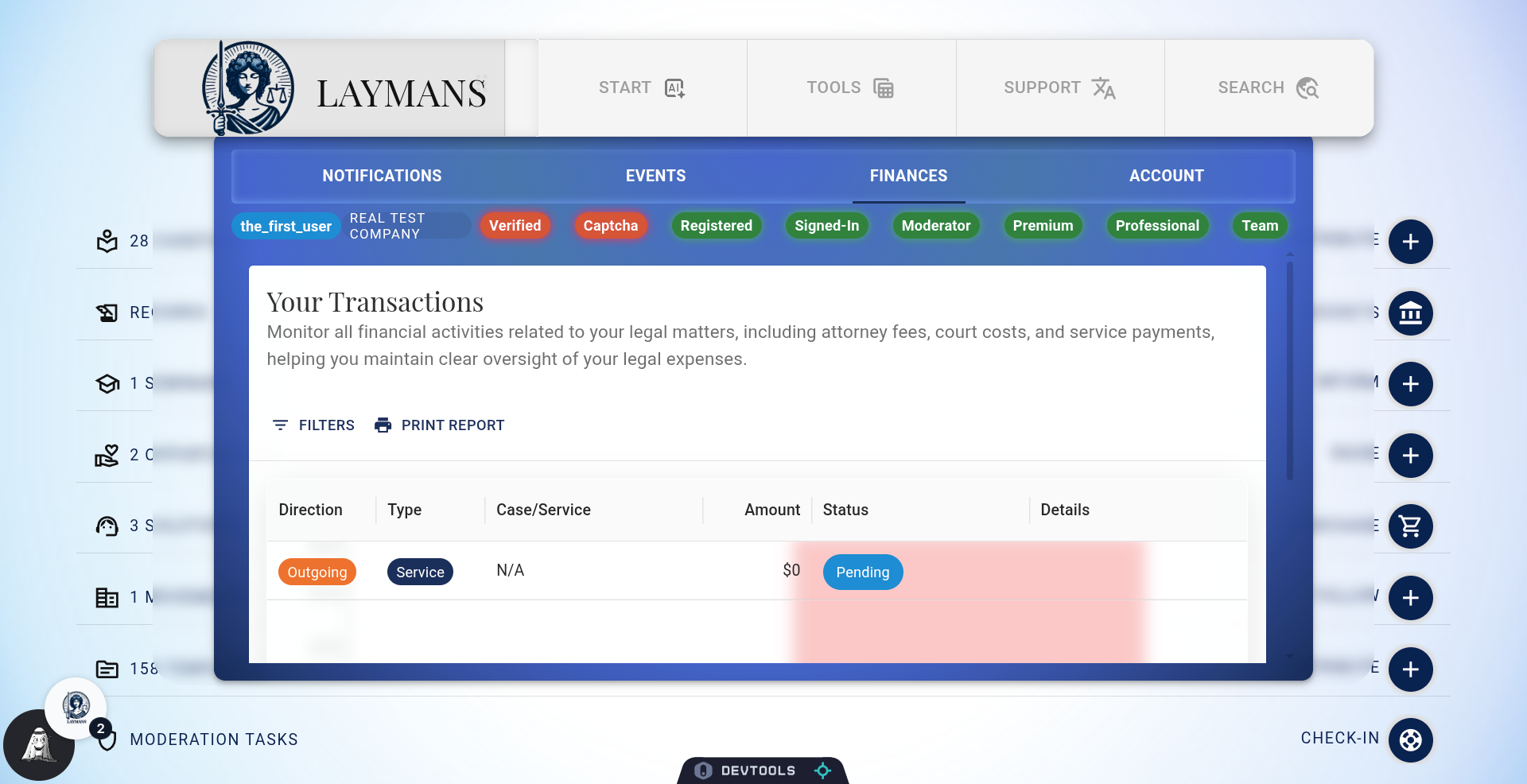
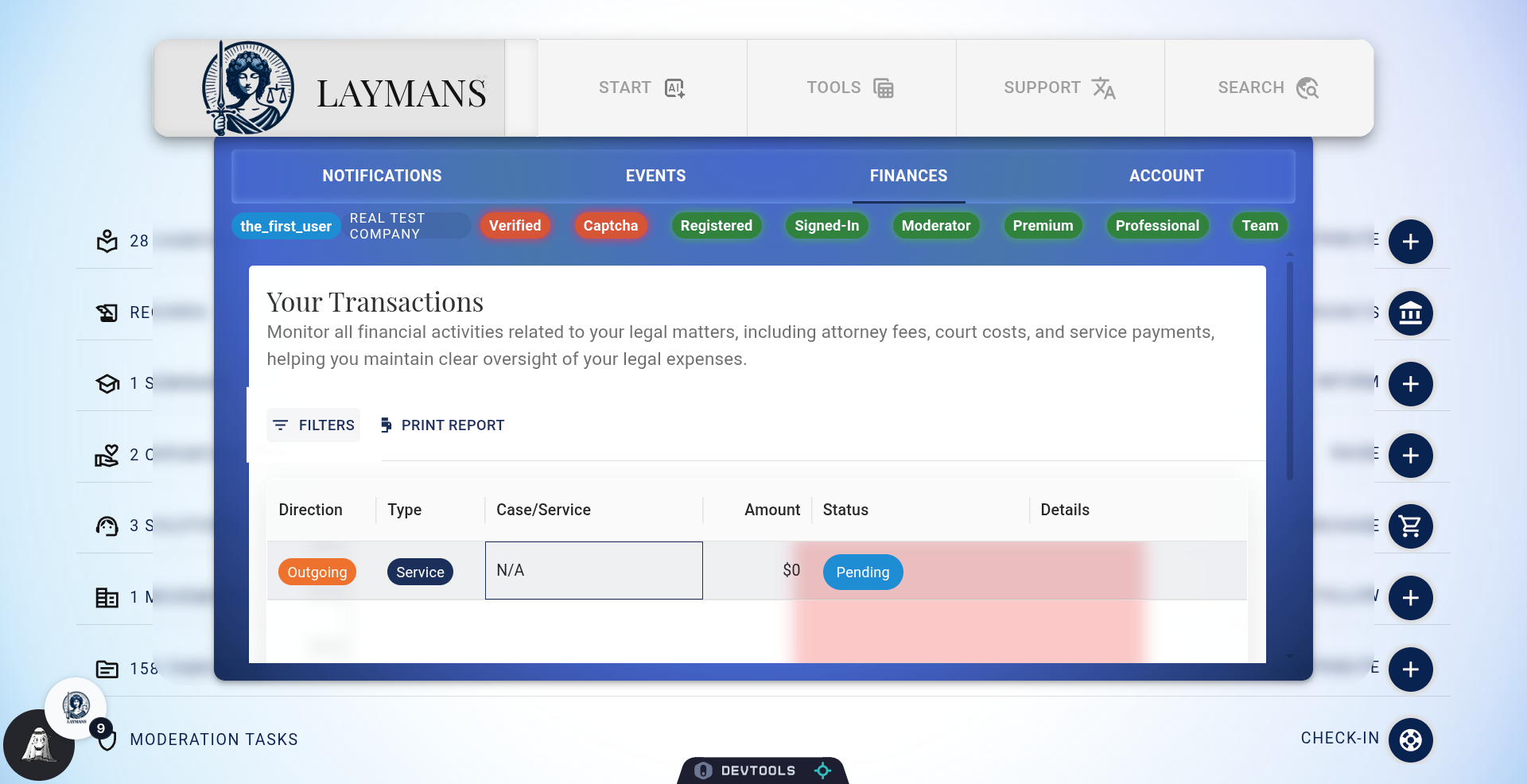
4. About the Transaction Portal
Here you can find your transactions grouped by case and service performed. This tab tracks all transactions, so not only legal expenses, but also donations you've promised or received from others -- along with their current status...
5. Click "Print Report"
You can print out your current financial statement along with a graph using the print report button.
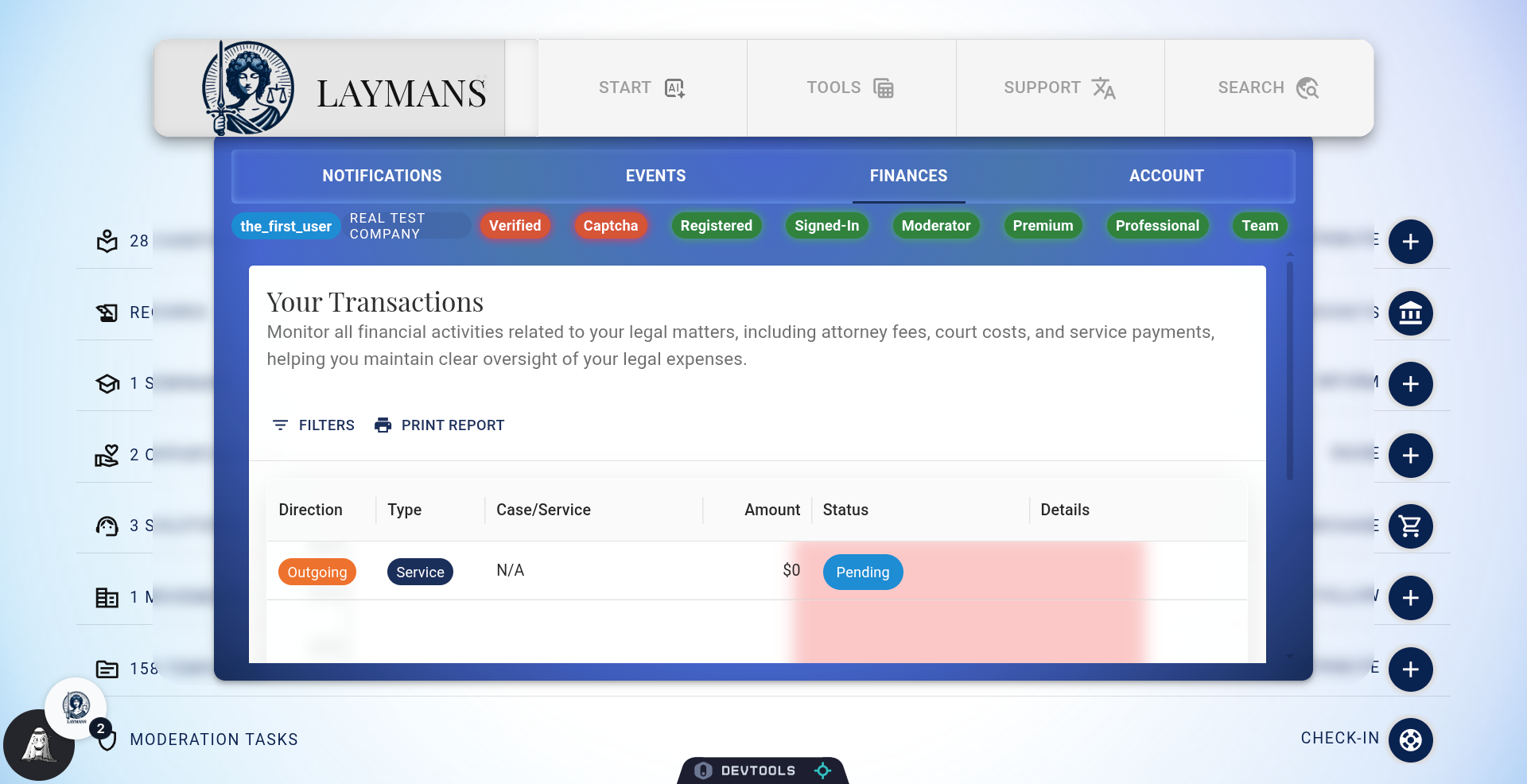
6. Click "Filter" in the sub-menu under "..."
By clicking the three dots next to a column, you'll find column filter options to help you better view your expenses...
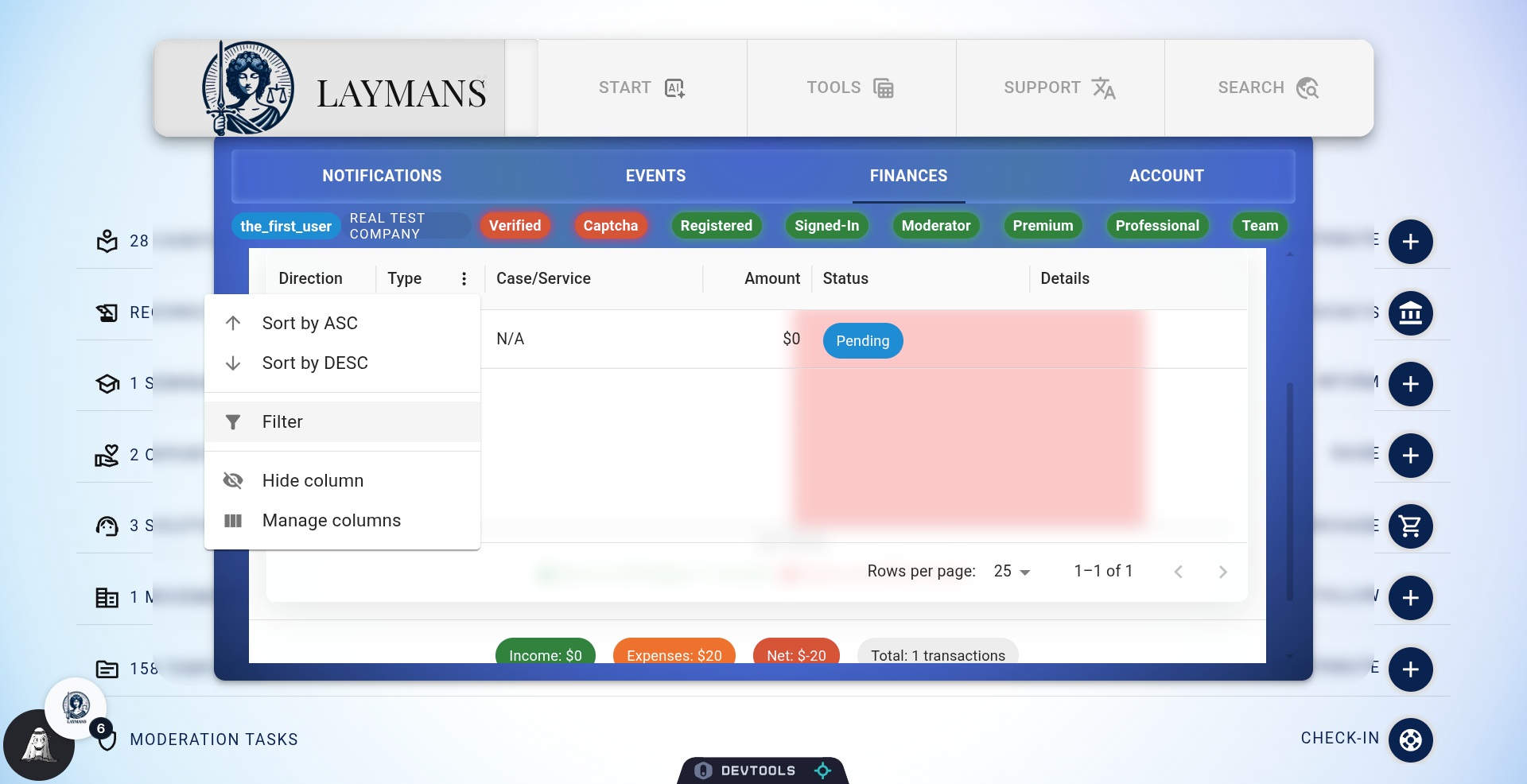
7. Applying Column Filters
Like, for "Type," I can choose between donations, services, and others.
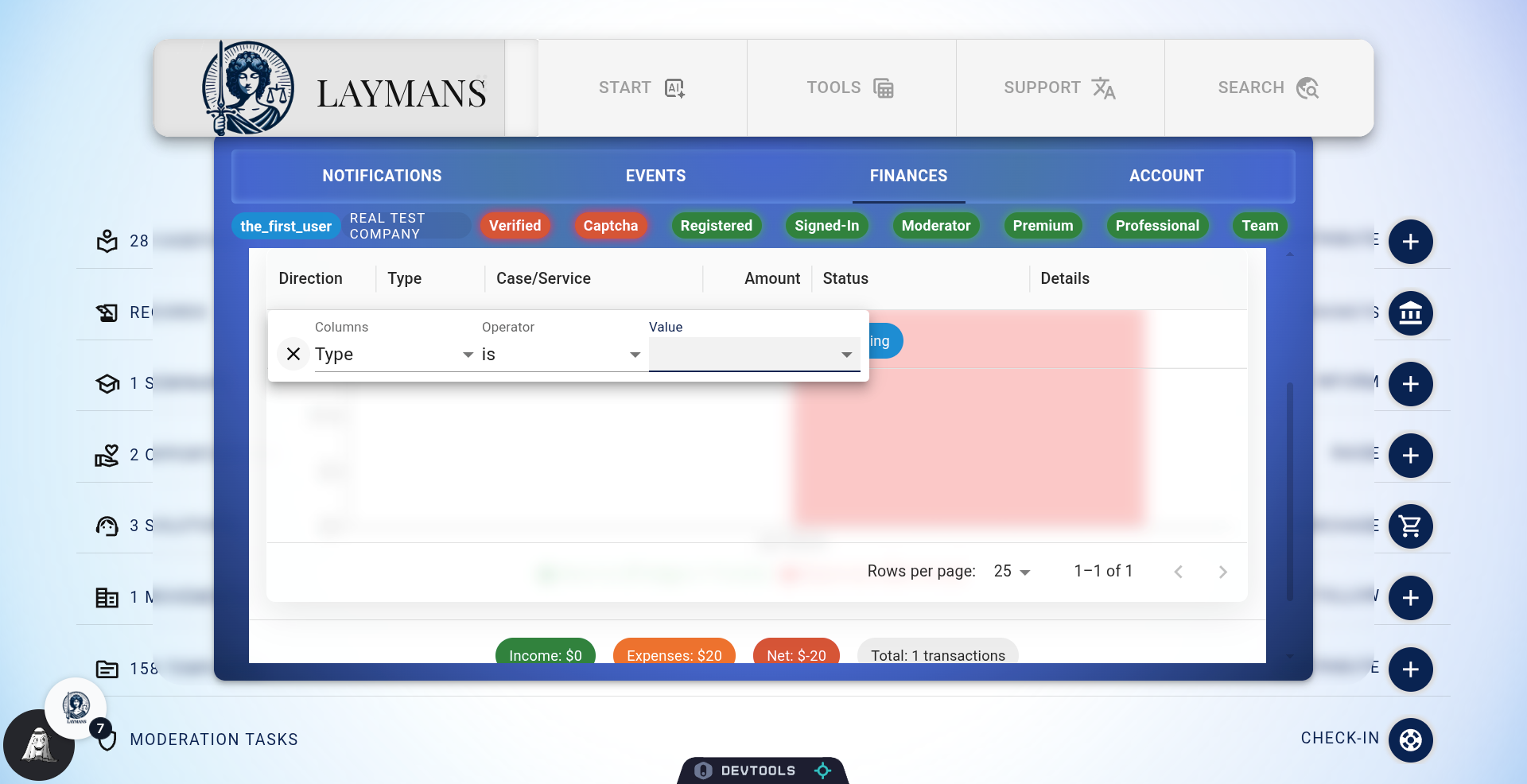
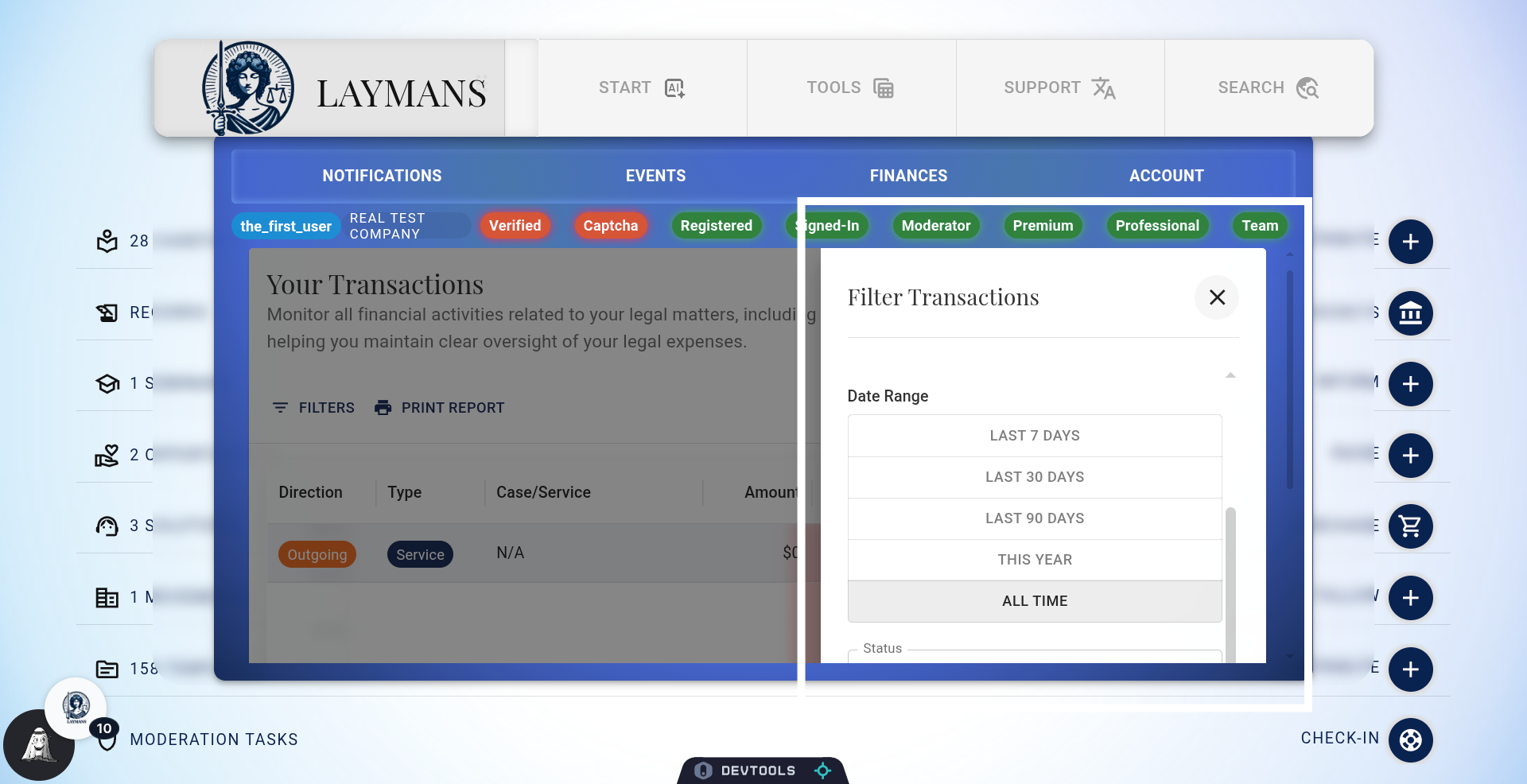
8. Click "Filters" Button
But that's only a taste of the filtering options provided on your transactions view...
9. Accessing Deep Filters
You can refine by Date Range, Amount, Sender, Receiver, Type, Case, Service, Outgoing and Incoming, all to be reflected in your financial report.
10. Making Payments through Laymans
When you first order a service, or pledge money, you will be asked to pay a standardized amount for it. But as the service is executed and completed the price may change. This view keeps track of the updating statuses of legal costs, you will find in Details a link to a Stripe Customer Service Portal for your case where you can make, approve, and contest payments on your case's services. If you have any issues don't hesitate to use www.laymans.app/verify to get in contact with support!