How to start a Case on Laymans
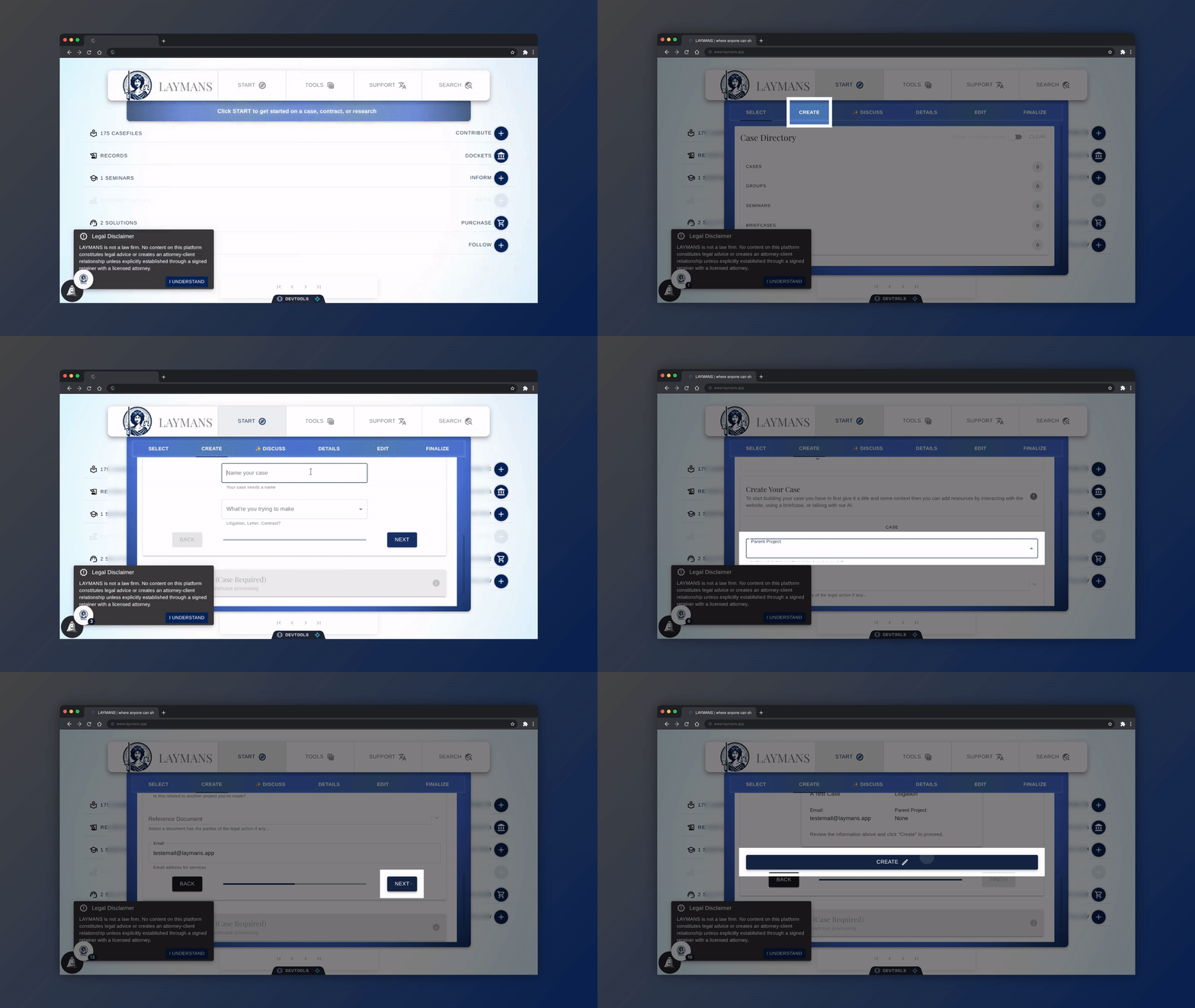
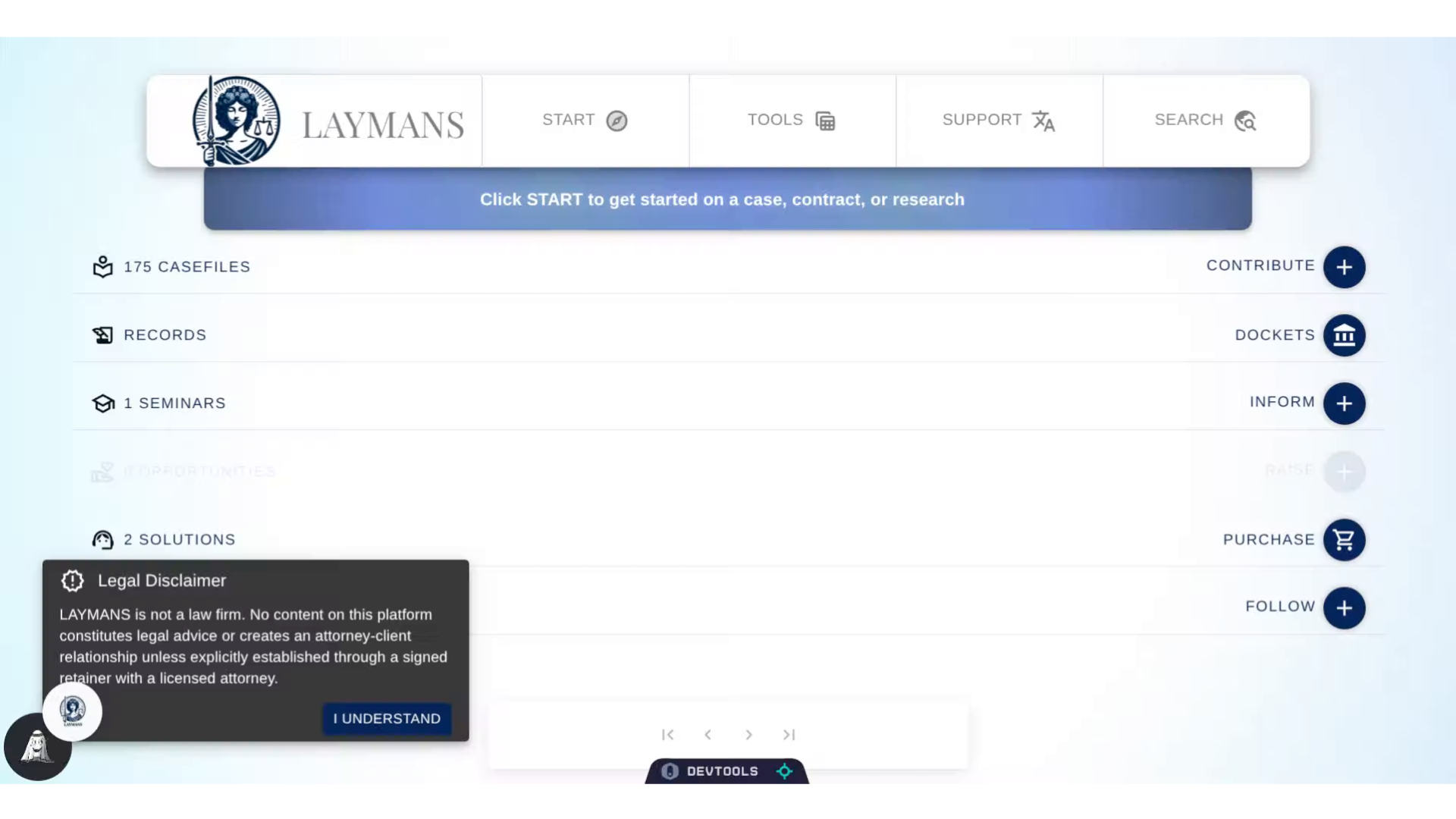
Go to www.laymans.app
1. Introduction
Laymans is all about creating cases. That is, the management tools, dashboard analytics, and documents that fix problems and defend rights. There is no easier place to create and manage an intelligent letter, complaint, filled form, or brief. Lets get started:
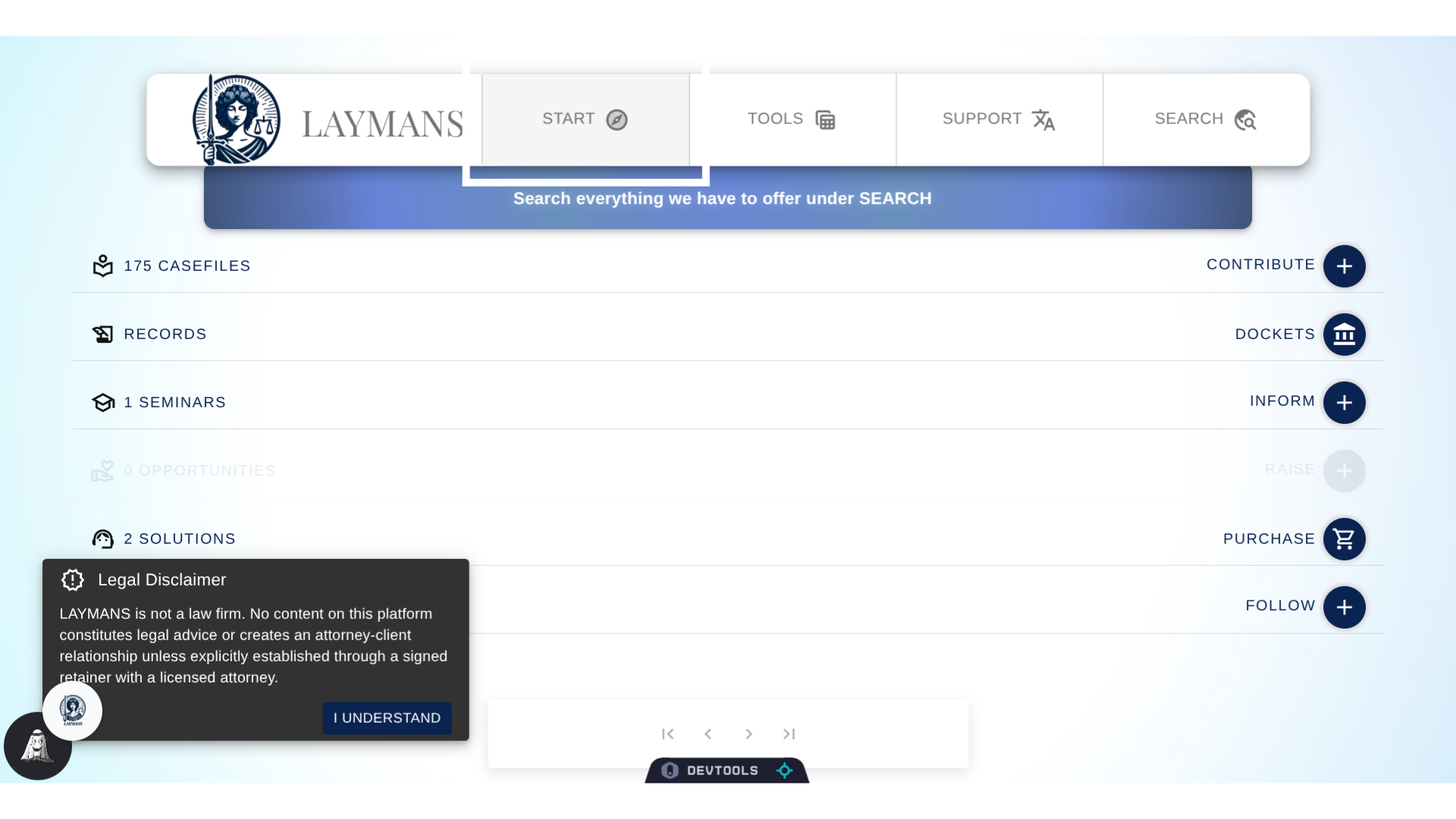
2. Click "START"
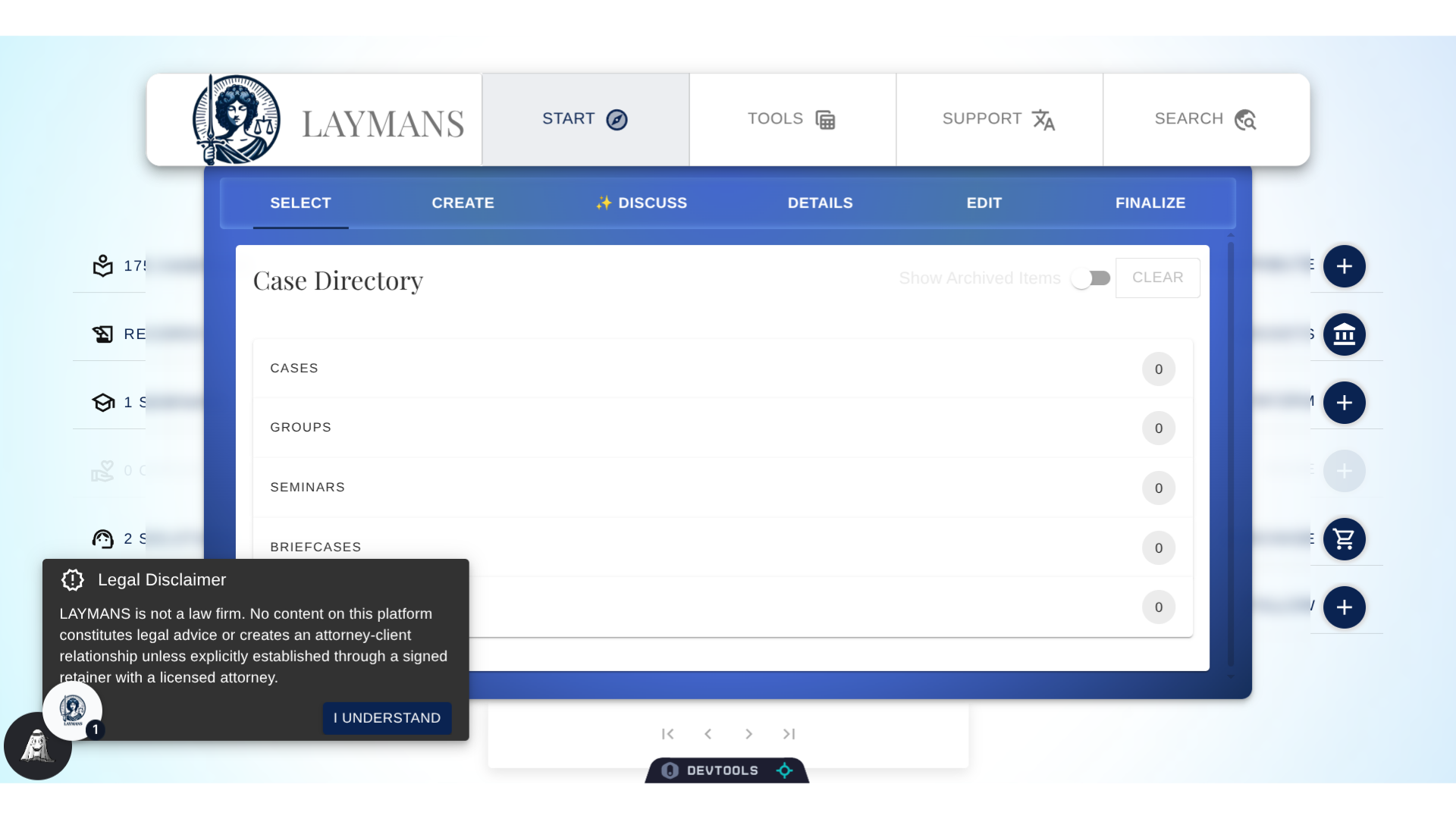
First, we'll click "Start" on the "PowerBar."
3. About "Case Directory"
Consider the "START" tab like the start page on a Windows PC. Here, you can get started on any legal product on Laymans and quickly access legal products you've made or shared.
4. Click "CREATE"
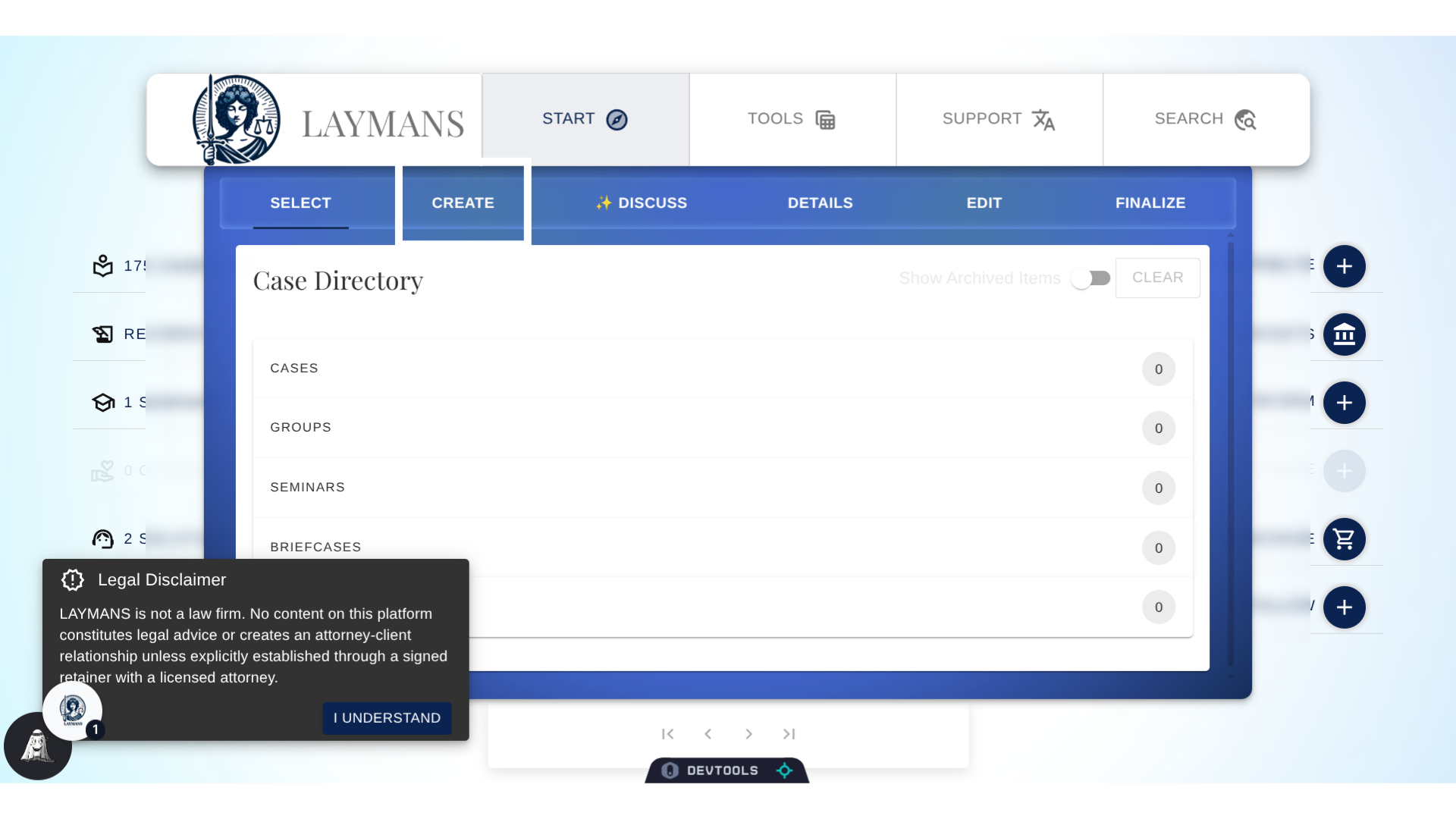
To get started on a new legal product, we'll goto the "Create" tab. However, there are many other things we can do on the "Start" tab: such as "Discuss" with me Layla, Layman's AI; manage whats already connected to your case via "Details"; "Edit" your documents directly via our collaborative text editor and then securely export your materials via "Finalize."
5. About Start > Create
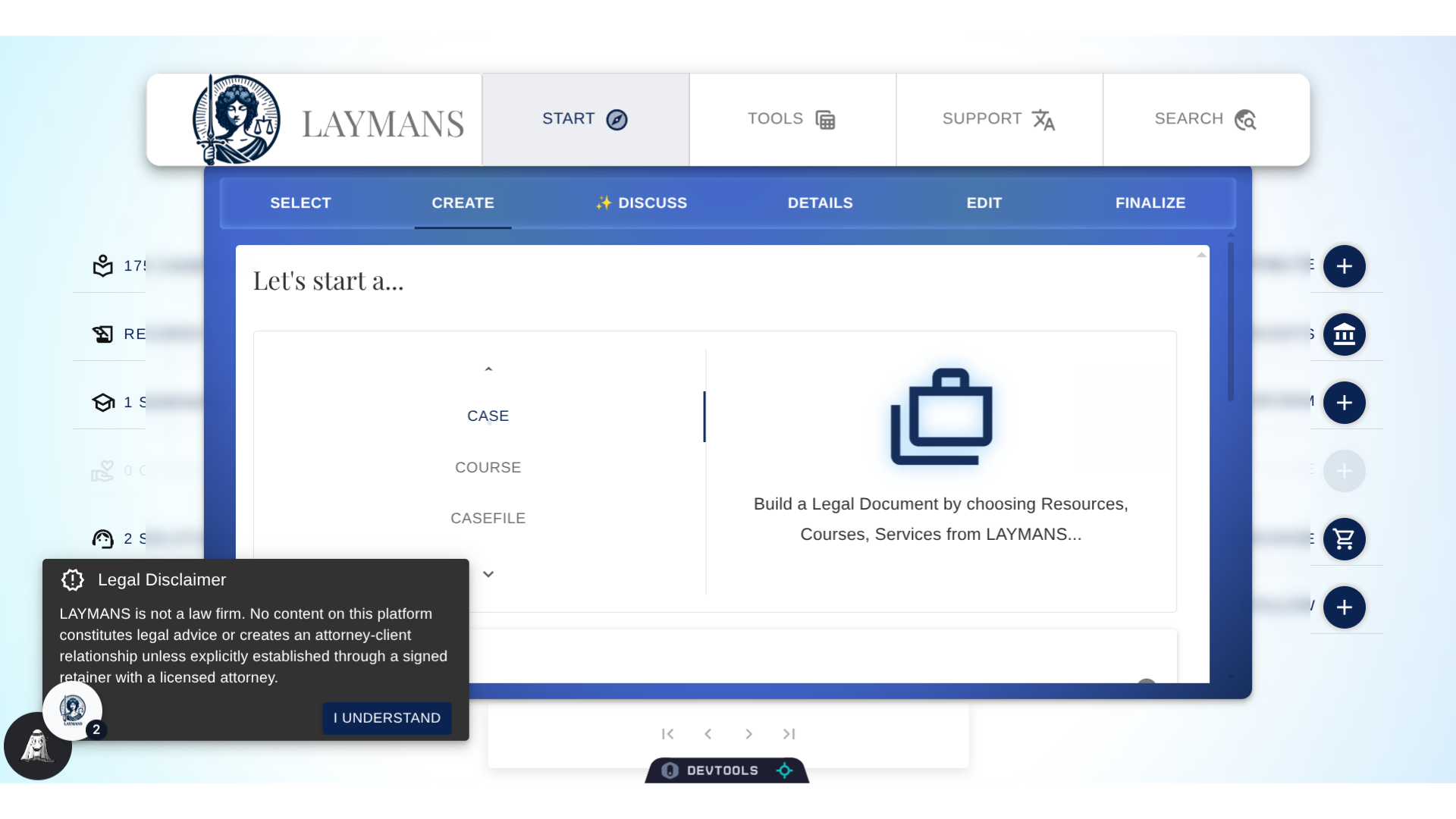
On "Create," we can start many of the legal products and building blocks relevant to Laymans. Including Cases, Seminars, Casefiles, and Briefcases. You can learn more about each through our docs.
6. Click "Case"
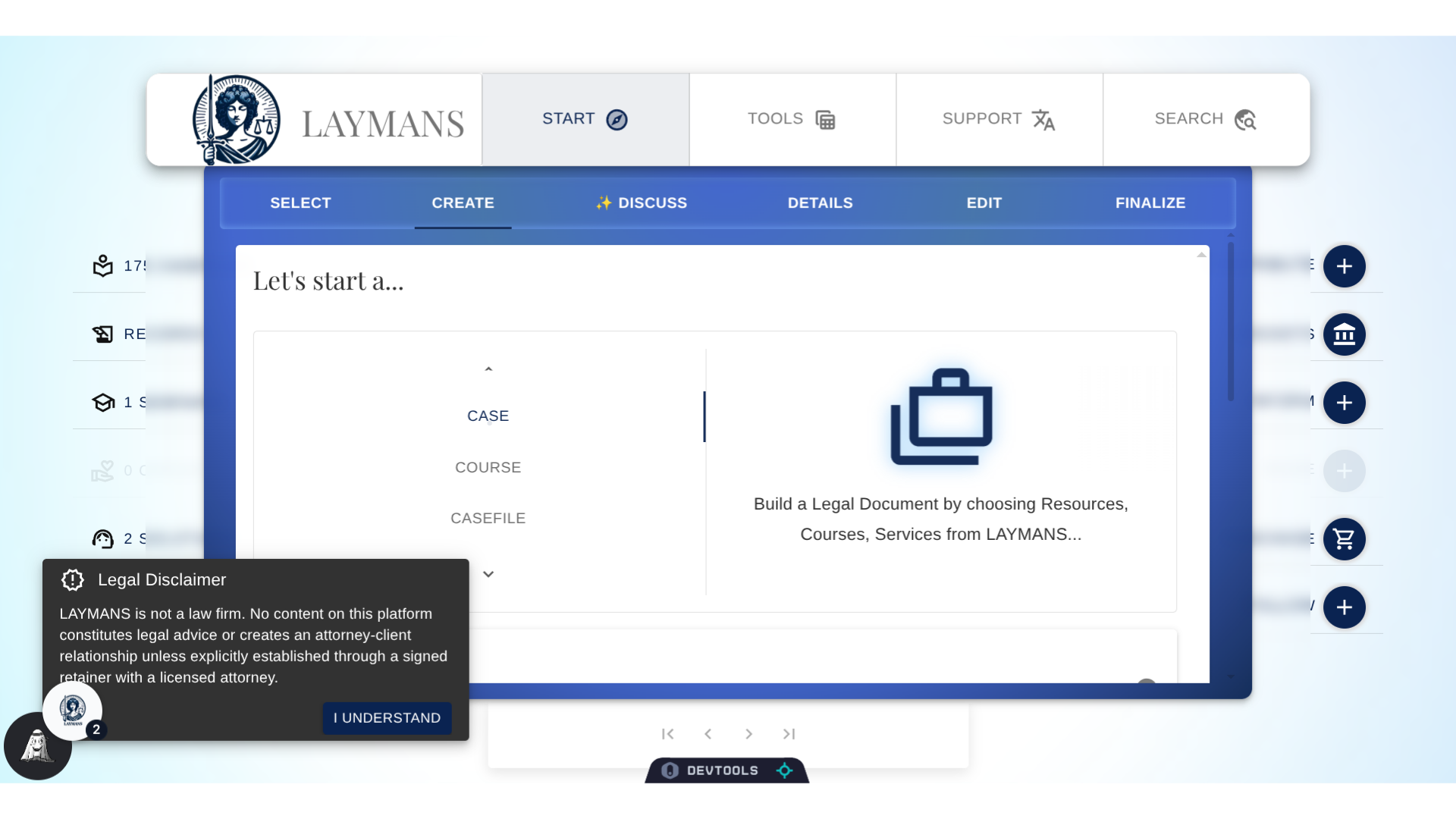
For now, we are focusing on the "Case." A case is not just an AI-powered, complex, legal document: it is the AI packaging of the resources you've created and bookmarked - casefiles; the information you've learned - seminars; and the templates you relied upon - briefcases. Along with being the space with which you talk to me, Leyla, and your legal support.
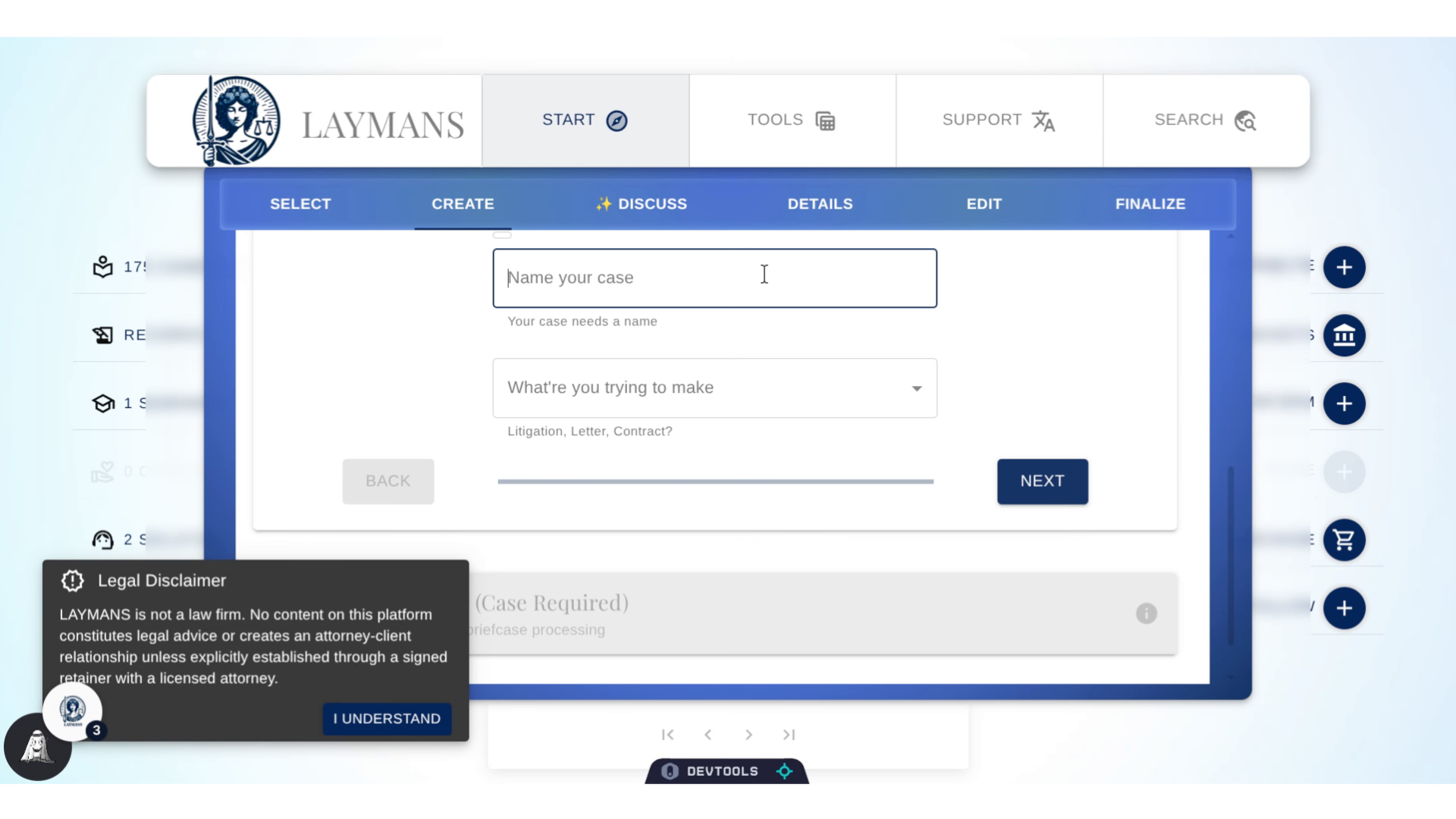
7. Name your case
Let's get started filling out the form. First, give your case a memorable name, this name is purely internal but is helpful for distinguishing the many legal projects you're working on.
8. Choose your document type
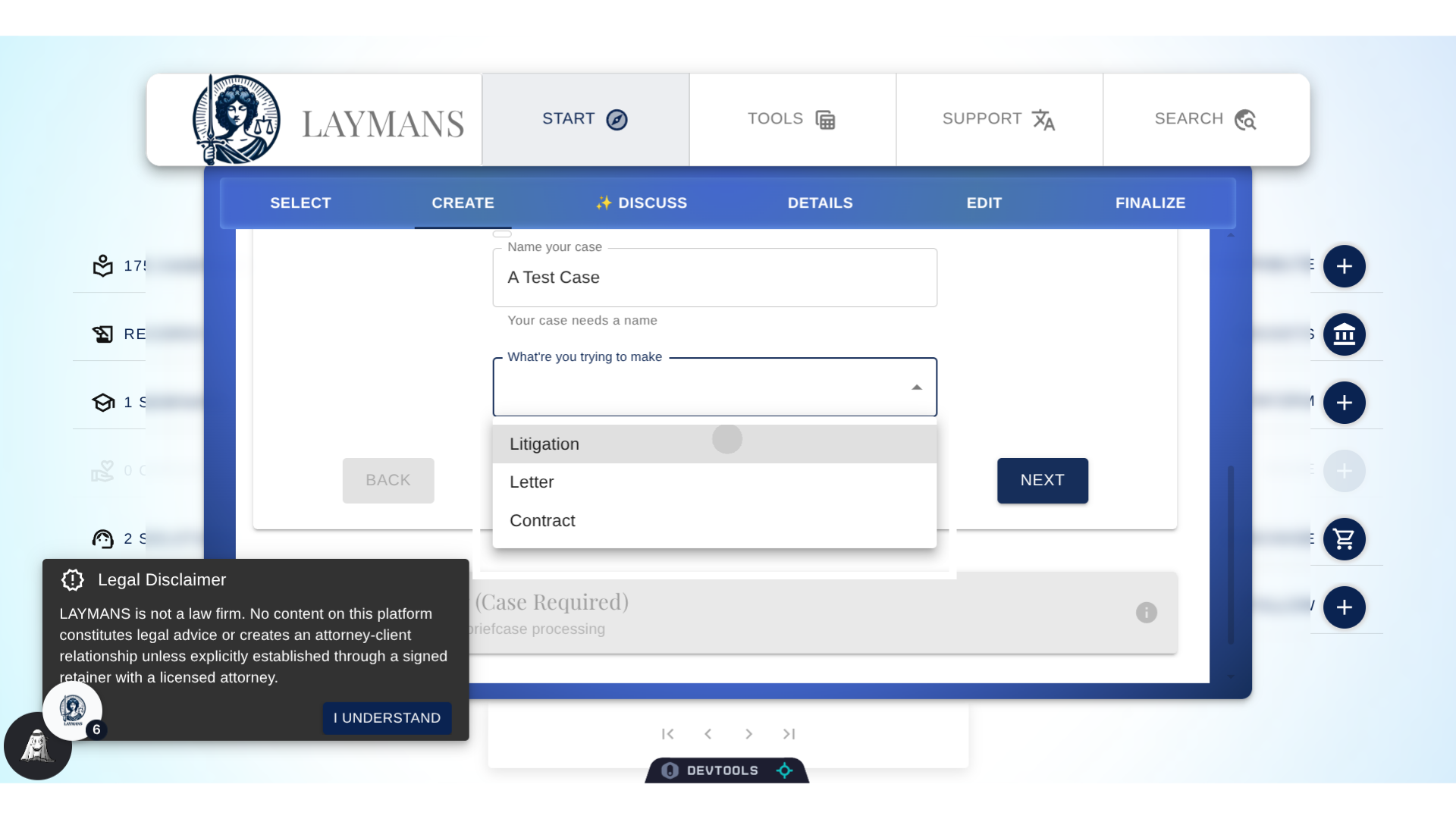
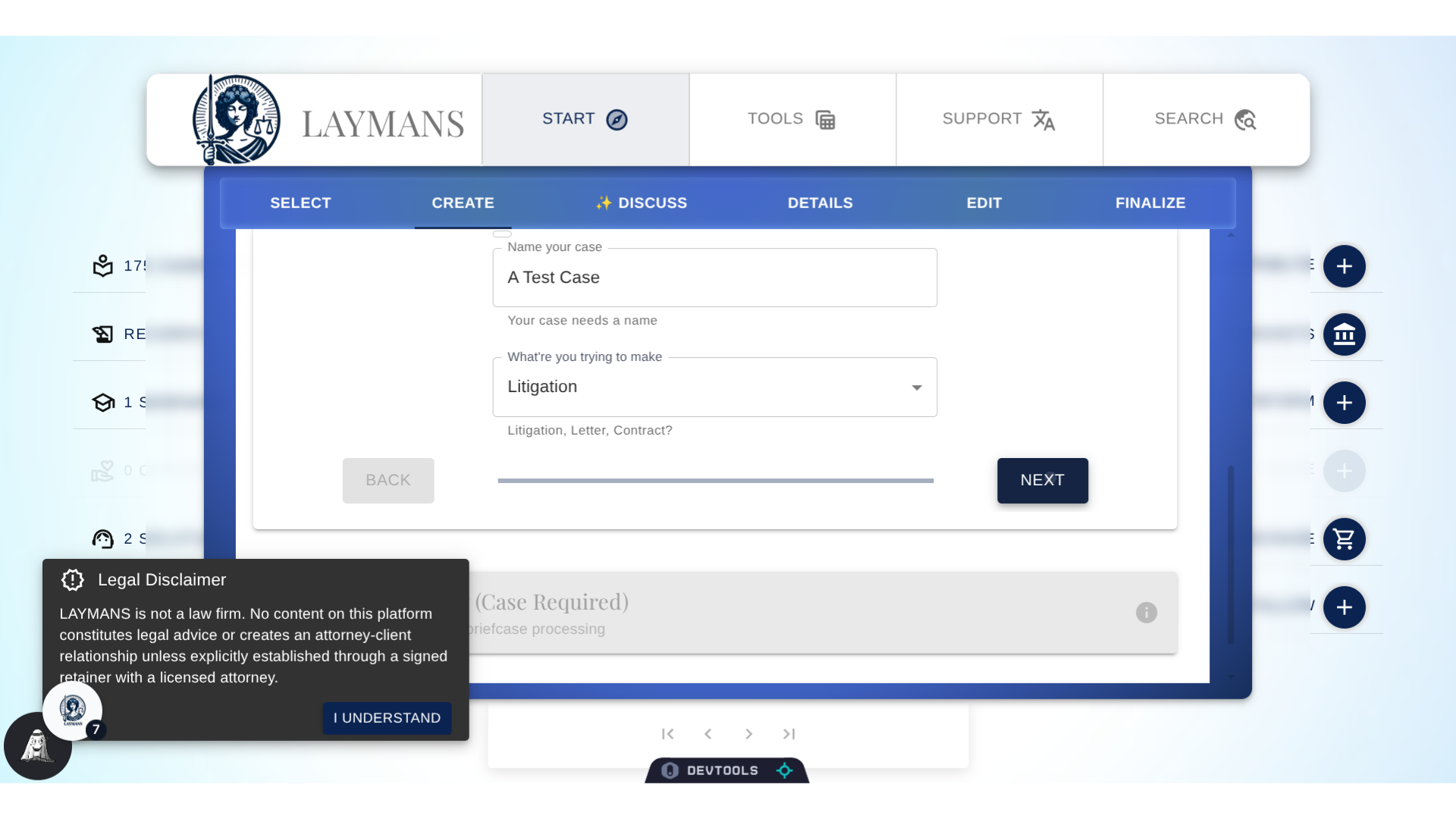
Then you're going to click the base type of your legal product. To quickly understand the types: "Contracts" are agreements between any two people. Laymans aggregates your attached resources into a large omnibus contract you can add clauses to and manage in-app. Laymans makes it easy to share contracts and get them certified and notarized. A "Letter" is a legal document made to another entity when you haven't been given a judge. A letter on Laymans makes the other party aware of the resources you've attached to share. On Laymans, you can quickly distribute your letters, make sure they are going to right person, and even have them court-recognized. Finally, Litigation includes documents made within a litigative process like complaints, amendments, answers, and even motions. Leyla helps determine which of these you need and structures your resources and thoughts accordingly. You just need to pick what you need, and for now I'm picking litigation.
9. Click "Next"
Easy! Next up...
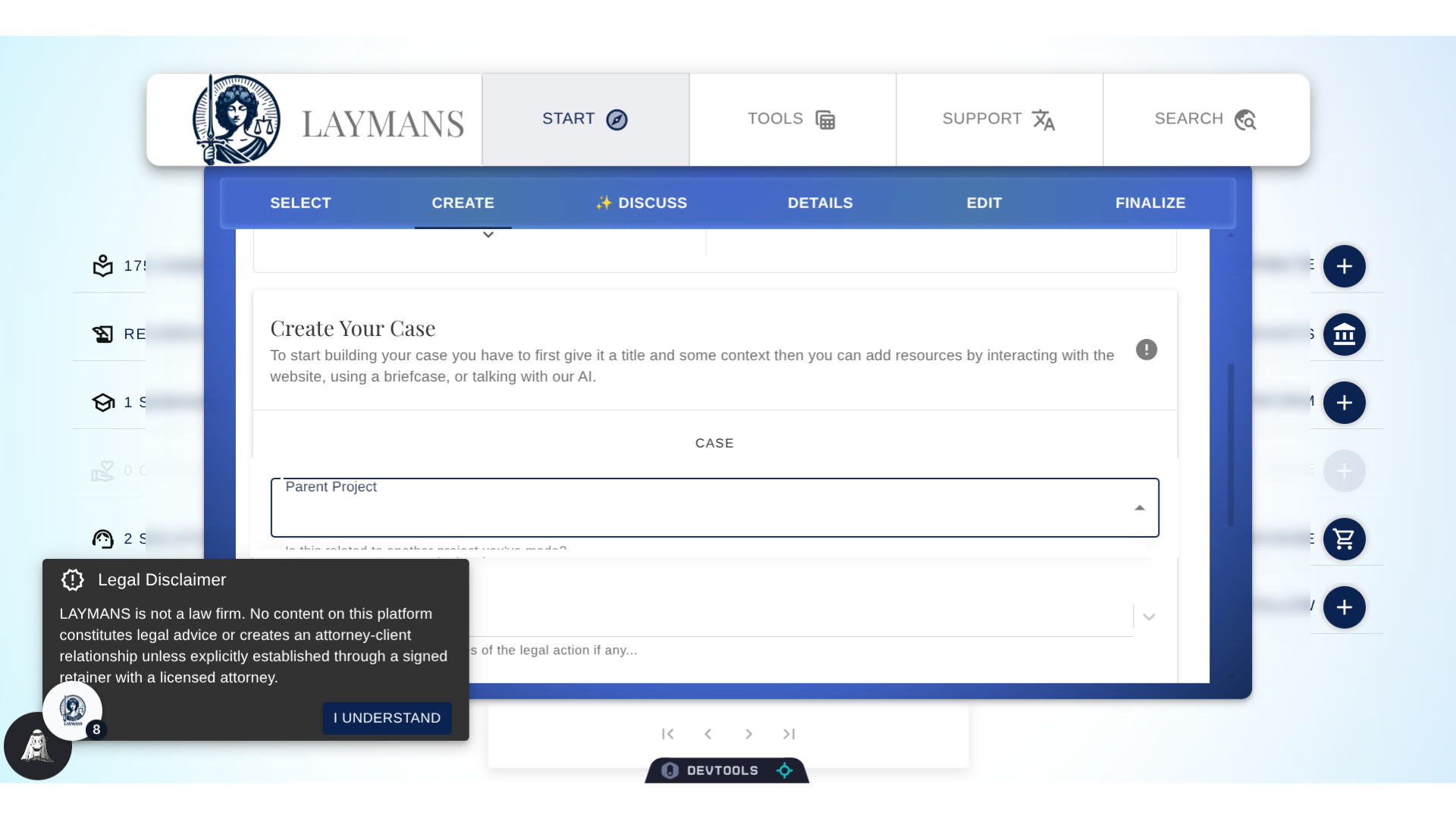
10. Picking A Parent Project
Laymans is designed around handling complex interrelated legal issues and products. Ergo, you can speed up the creation of a complaint by referring to a letter you made prior, or write an "answer" based on a previous amendment you've made.
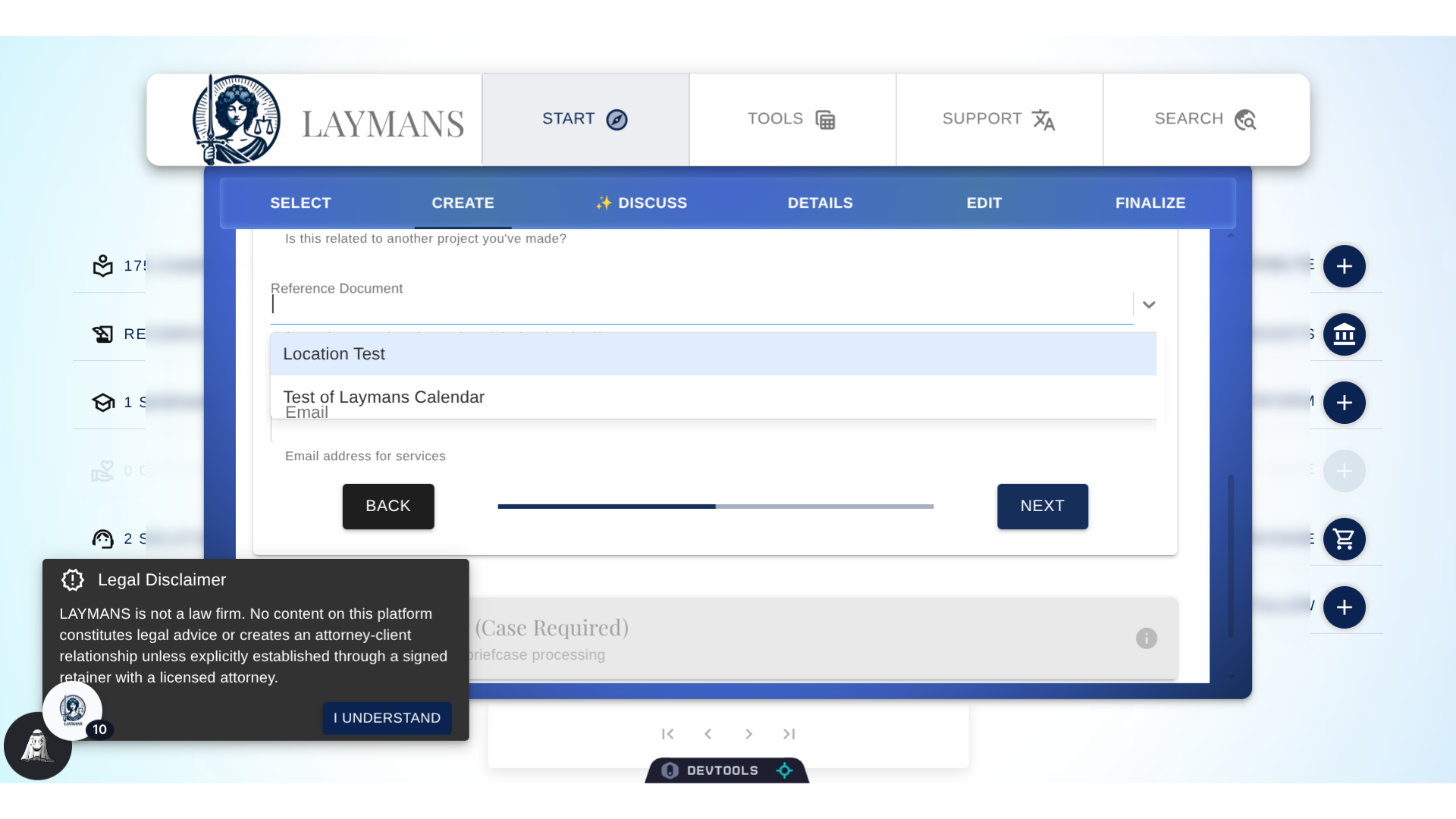
11. Choosing a Reference Document
Inversely, if you have a document you want Leyla to base your legal product on, you can pick a casefile you've made. This could be a ticket, a notice to appear, a bill, or a letter. Leyla will do her best to pull the facts of that document to your current project.
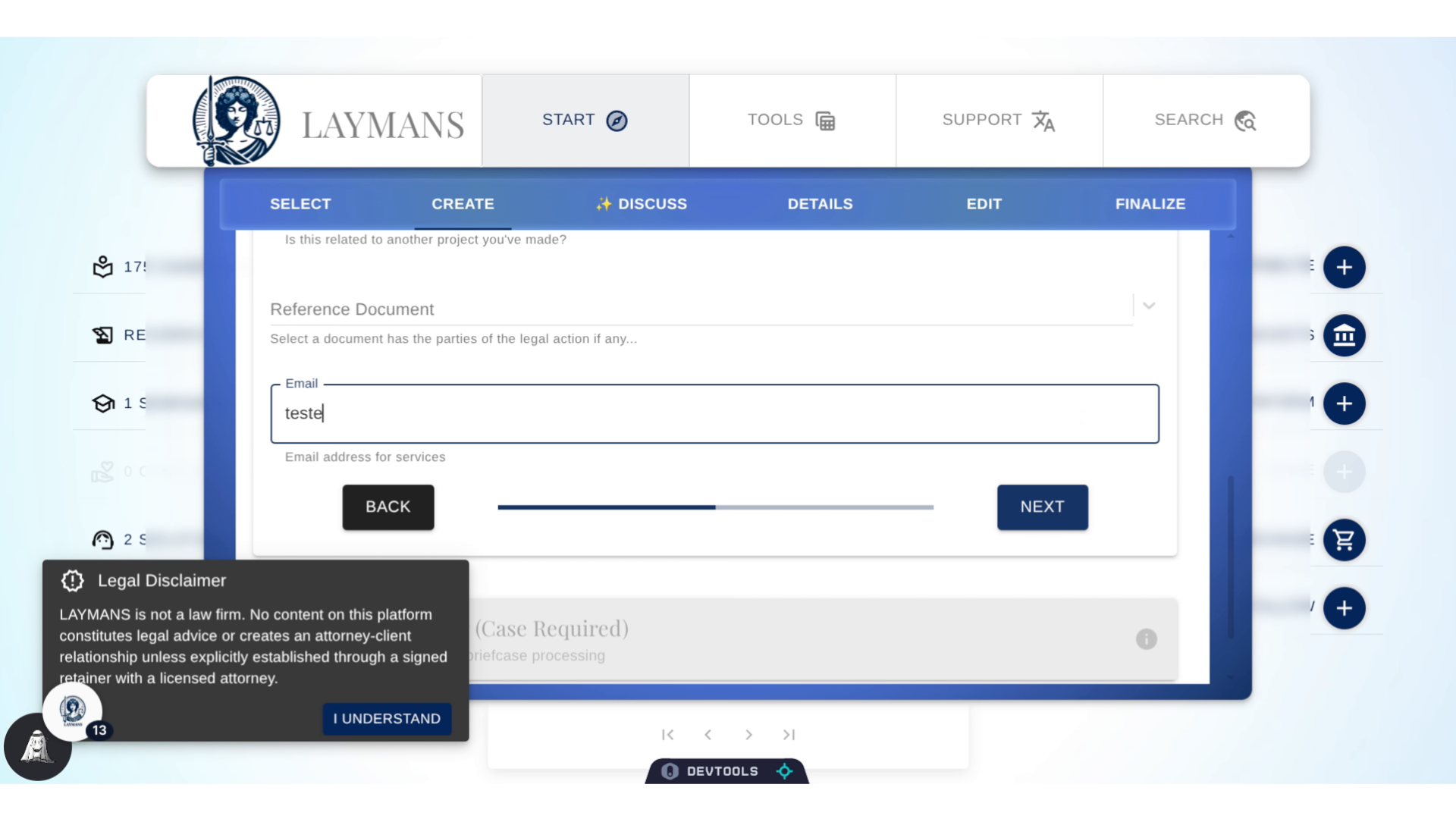
12. Fill in your email
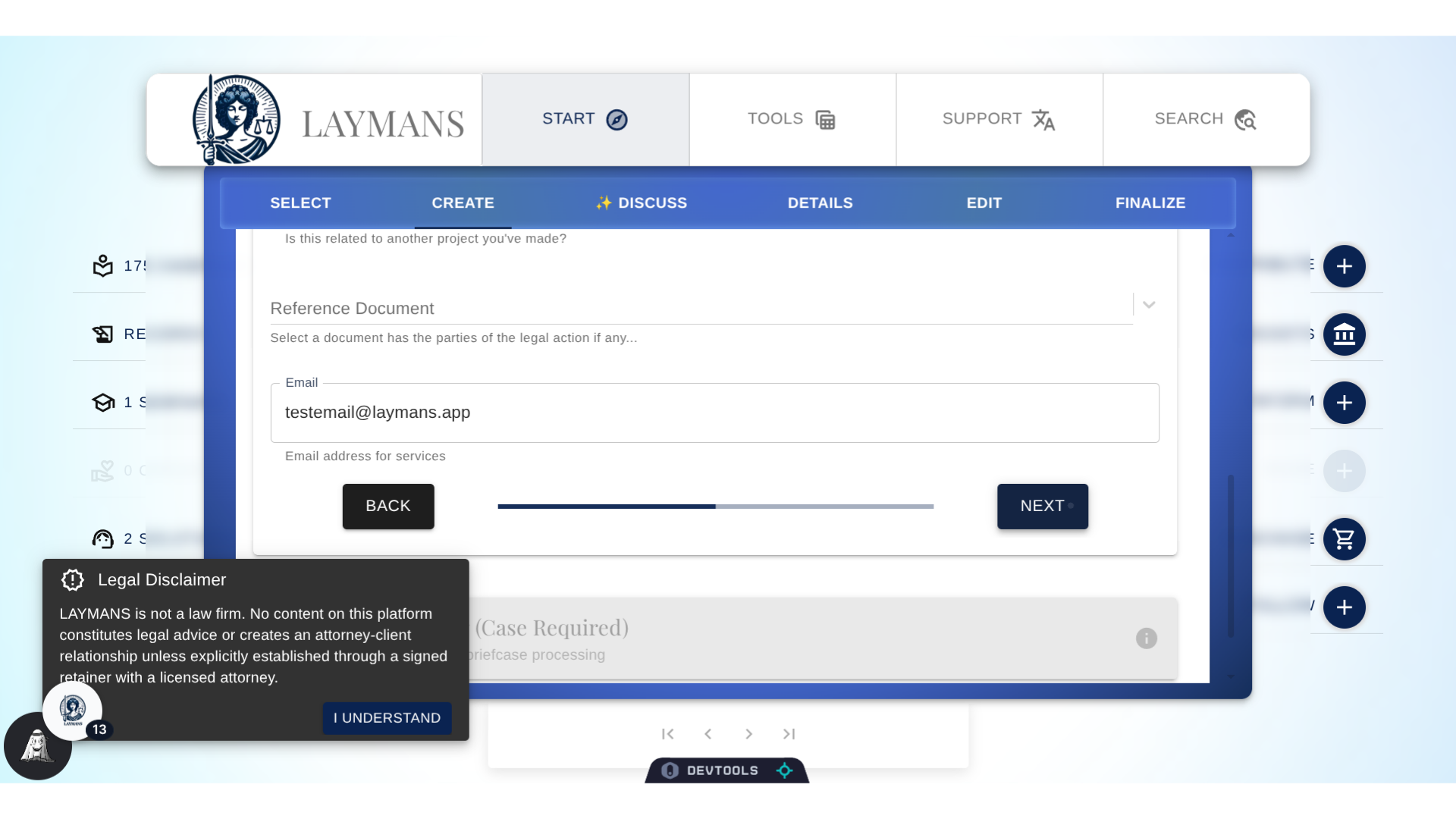
Please specify an email address for communication and billing. While your Laymans email, if provided, is used for identification. The email address here is actually attached to the case for legal correspondence, notice, and management of fees. It must be a valid email.
13. Click "Next"
All done? Let's go to the next and final page.
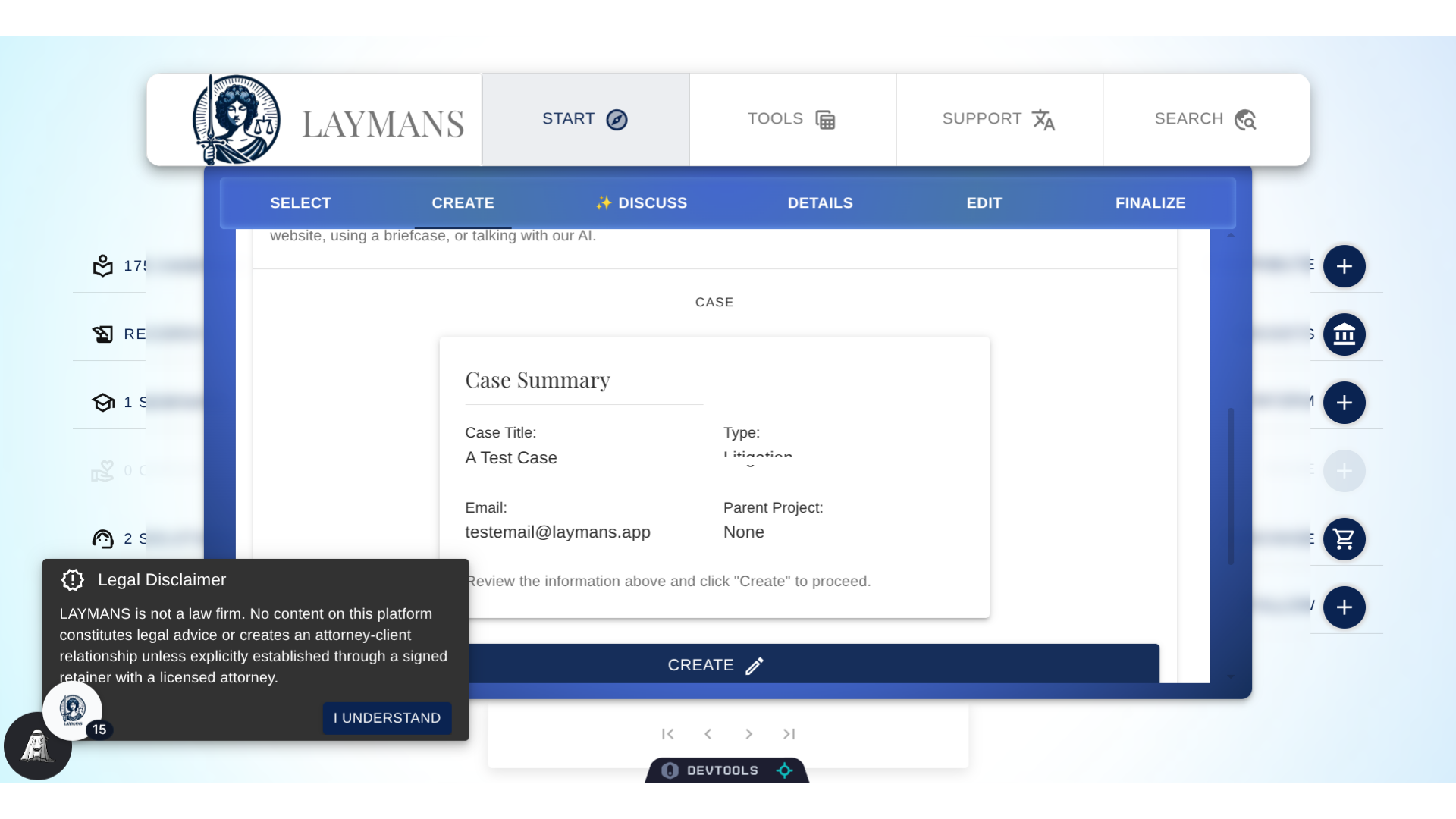
14. The Case Summary
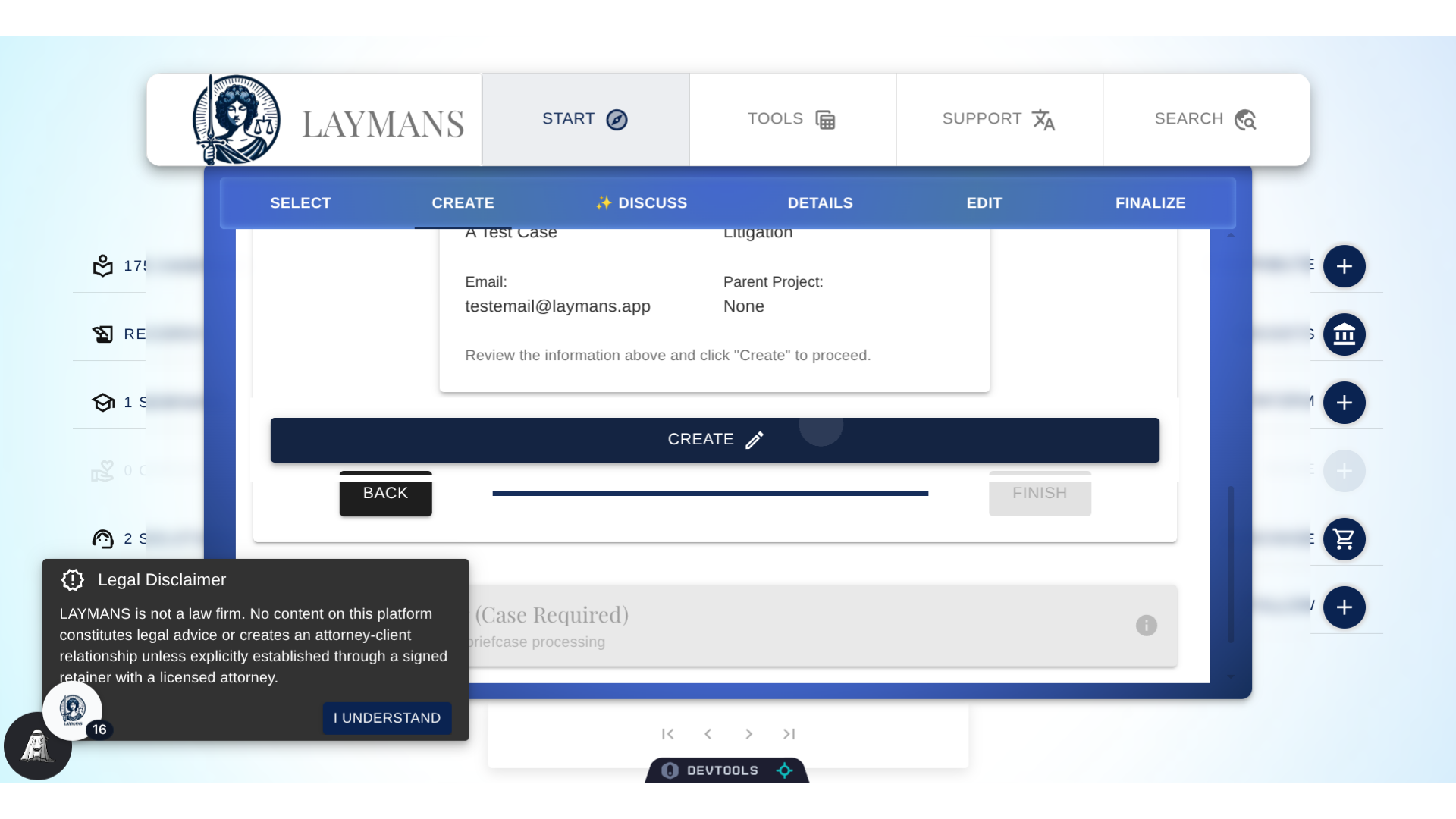
Great, this is a summary of what we got started. While our case is not done - as we still have to add materials via search, discuss, or the briefcases recommend below - we were able to get started on our legal product in no less than a few minutes.
15. Click "Create" to Finish
Like what you see? Click create! You've now started a draft legal document with Laymans. Next, we'll add resources for Leyla to build our legal document using a Briefcase and talking to Leyla. See you there!